How to Open a Linux Shell in a Folder on Windows 10

Open a Linux shell in any Windows 10 folder with File Explorer, PowerShell, and WSL. Check the Linux path and fix common setup issues.
If your Windows 10 touchpad still moves the pointer but a tap or physical press will not click, start with the touchpad settings before changing drivers. The quickest fixes are to re-enable tap-to-click, verify the correct click area, restart or roll back the touchpad driver, and install any available driver update. If the pointer also stops moving, treat the problem as a broader touchpad or hardware issue.
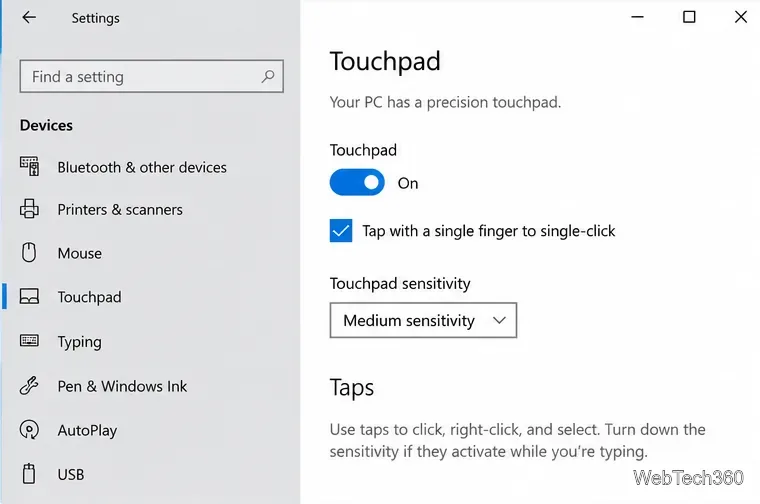
Open Start > Settings > Devices > Touchpad. Make sure the touchpad is turned on. On a precision touchpad, Windows 10 can also show settings such as Touchpad sensitivity, Tap with a single finger to single-click, and Tap with two fingers to right-click. Microsoft lists a one-finger tap as the standard touchpad gesture for selecting an item.
If the page says Your PC has a precision touchpad, Windows manages these options directly. If that message is missing, use Additional settings or your laptop maker's touchpad utility because older Synaptics, ELAN, and other vendor drivers may expose their own controls. See Microsoft's Windows touchpad gesture guide for the supported gesture behavior.
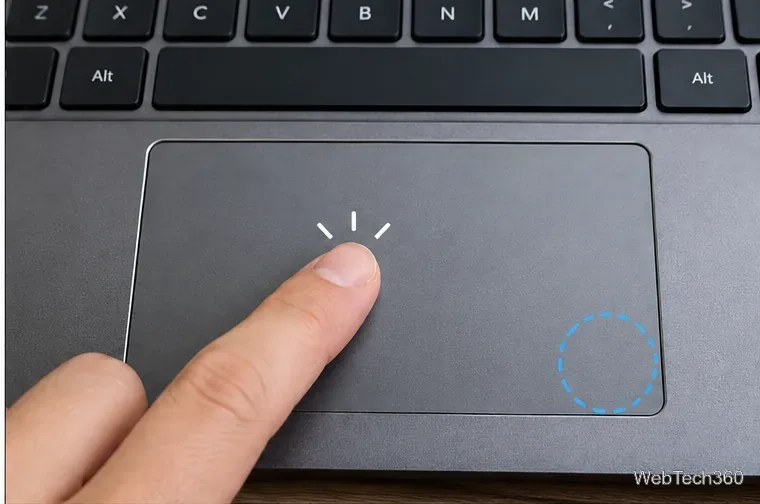
A modern clickpad may support both light taps and a mechanical press. Test them separately. Move the pointer, tap once in the middle of the pad, then press the lower-left area for a normal click. For a right-click, Windows supports a two-finger tap and, on compatible touchpads, pressing the lower-right corner.
Also connect a USB or Bluetooth mouse. If the mouse clicks normally, Windows itself is probably accepting click input and the fault is limited to the touchpad, its settings, driver, or hardware. If tapping works but the pad never produces a physical click anywhere, especially after a drop or liquid exposure, a worn or damaged click mechanism is more likely than a Windows setting.
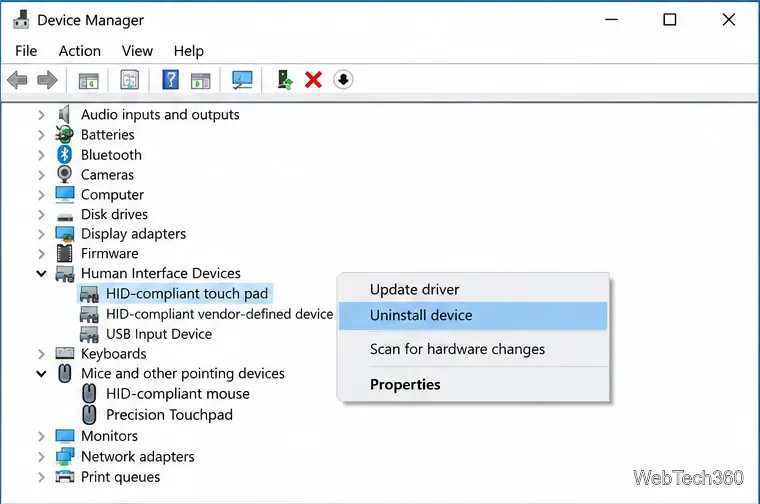
Microsoft says a missing or outdated touchpad driver can cause touchpad problems, and recommends Windows Update or Device Manager. Keep a mouse connected if possible before removing the driver.
Microsoft documents both update and reinstall paths in Device Manager driver guidance. Avoid registry edits copied from old Synaptics-specific fixes unless your laptop manufacturer explicitly documents them for your exact model.
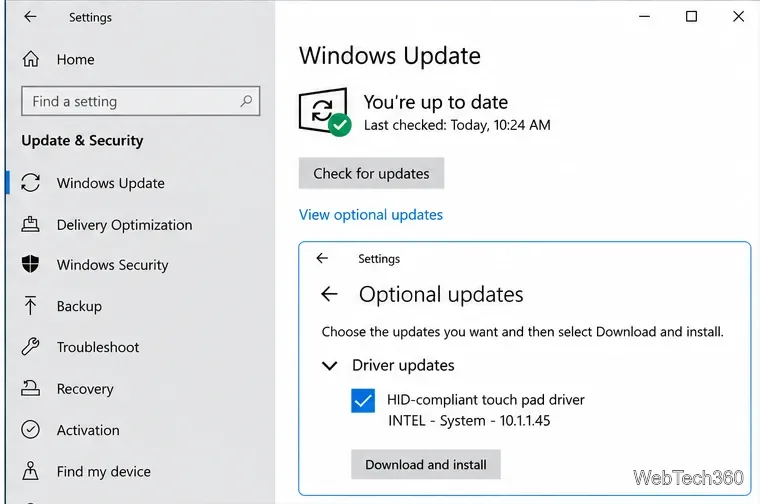
Go to Settings > Update & Security > Windows Update and select Check for updates. If View optional updates appears, open it and check Driver updates for a touchpad, pointing-device, HID, chipset, or system driver relevant to your laptop. Install the update and restart the PC.
If Windows Update offers nothing, download the touchpad or chipset driver only from the official support page for your exact laptop model. Microsoft also recommends checking the hardware manufacturer's website when Windows Update cannot find a suitable driver. Do not use third-party driver-download sites or automated driver-updater utilities.
If the issue started after installing software, a driver, or changing system settings, use System Restore before considering a full Windows reset. Press Win+R, enter rstrui.exe, and choose a restore point from before the problem began. Microsoft notes that System Restore reverts system files, registry settings, drivers, and installed programs without affecting personal files; see the official System Restore instructions.
If there is no useful restore point, or if the touchpad's physical press is the only function that remains broken while pointer movement and taps work, contact the laptop manufacturer for hardware diagnostics or repair. A full PC reset is usually excessive until you have ruled out the driver and the click mechanism.
Microsoft ended standard Windows 10 support on October 14, 2025. Windows 10 PCs still run, but users should review Microsoft's current Windows 10 end-of-support and Extended Security Updates guidance and move to Windows 11 when the device is eligible. The touchpad troubleshooting above still applies to Windows 10 systems that remain in use.
Open a Linux shell in any Windows 10 folder with File Explorer, PowerShell, and WSL. Check the Linux path and fix common setup issues.
Use a screenshot test, cable and port checks, monitor diagnostics, display settings, and driver rollback to pinpoint lines on a Windows 10 monitor.
Show two other time zones beside your Windows 10 clock. Set up each additional clock, give it a clear label, and find it in the taskbar calendar.
Find the File Explorer extension that delays right-click menus in Windows 10, test it safely with ShellExView, and restore any menu features you still need.
Stop Windows 10 from powering down a specific network adapter or USB device with plan-level settings and Device Manager controls, plus tips to avoid excess battery drain.
Check whether Windows 10 uses a digital license or product key, find a firmware-stored OEM key, and save license details securely for a reinstall.
Identify a Windows 10 Task Manager process by checking its executable path, file properties, publisher, linked services, and a Microsoft Defender scan.
Create a searchable Windows 10 folder inventory with PowerShell. Save every file and subfolder path as plain text or export details to a sortable CSV.
Add a custom reminder, quote, or label to your Windows 10 desktop with a Rainmeter text skin. Create the INI file, load it, then adjust its font and position.
Use Bluetooth Swift Pair on Windows 10 to pair a compatible accessory from a notification, with setup steps and fixes when the prompt does not appear.








