How to Open a Linux Shell in a Folder on Windows 10

Open a Linux shell in any Windows 10 folder with File Explorer, PowerShell, and WSL. Check the Linux path and fix common setup issues.
If Windows 10 displays “We couldn’t complete the updates. Undoing changes made to your computer”, an update failed and Windows is rolling the system back to its previous working state. Let the rollback finish if it is still progressing. If the message returns on every restart, sign in when possible and work through the fixes below in order. If Windows never reaches the desktop, jump to the Windows Recovery Environment step.
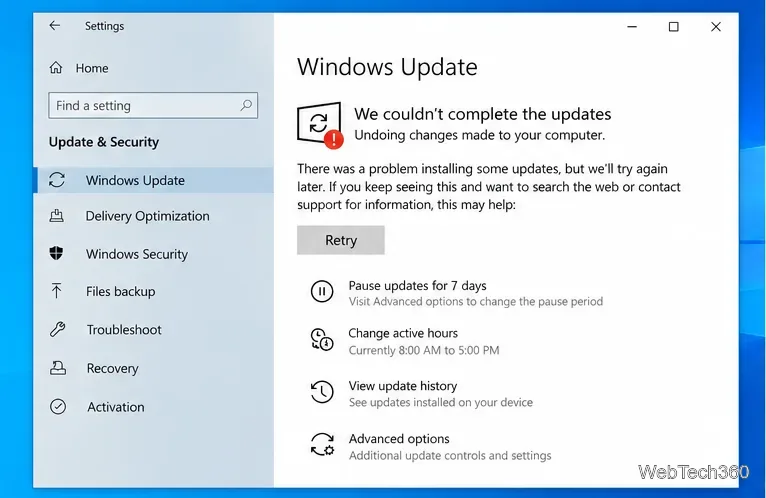
Windows 10 support note: Microsoft ended standard Windows 10 support on October 14, 2025. A Windows 10 PC still works, but normal free security and feature updates are no longer provided. Microsoft currently offers Extended Security Updates for eligible devices, while LTSC and commercial deployments can have different servicing timelines. If your PC is not entitled to updates, troubleshooting cannot restore the normal Windows 10 support lifecycle. See Microsoft’s Windows 10 end-of-support guidance.
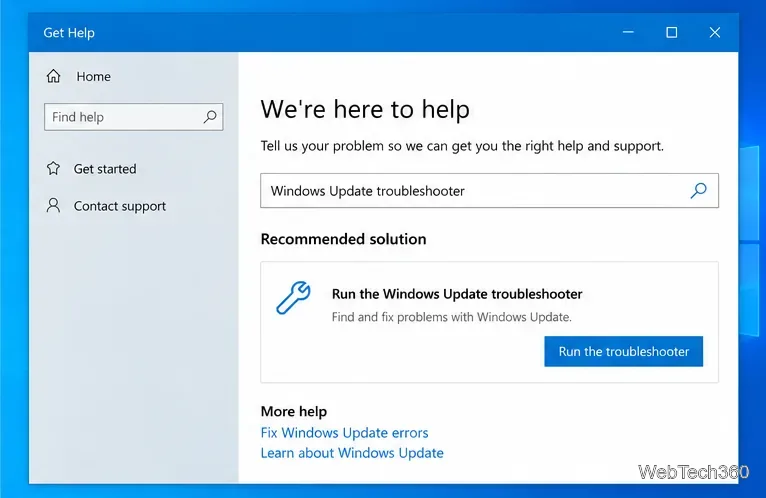
Microsoft recommends starting with the automated Windows Update troubleshooter. Open Get Help, search for Windows Update troubleshooter, and follow the prompts. On Windows 10 builds that still expose the older Settings path, you can also use Settings > Update & Security > Troubleshoot > Additional troubleshooters > Windows Update. Restart the PC afterward and try Windows Update again.
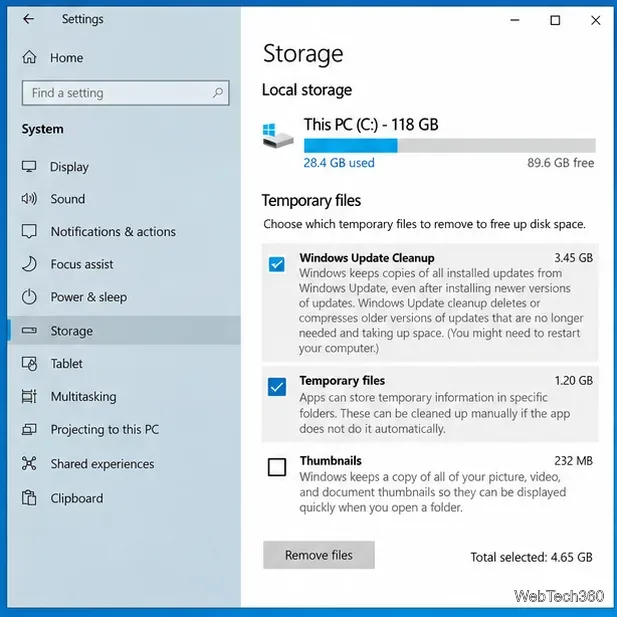
Before changing update components, rule out common causes. Keep a laptop connected to power, use a stable internet connection, and disconnect nonessential external drives, docks, USB adapters, and other peripherals. Then open Settings > System > Storage and free space on the Windows drive if it is low. Microsoft specifically lists external hardware, connectivity, administrator access, and available disk space among its current Windows Update troubleshooting steps. For cleanup options, see Free up drive space in Windows.
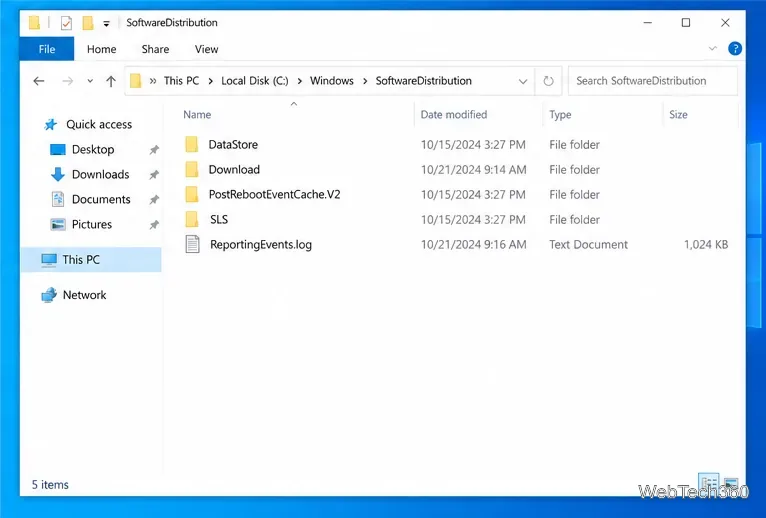
Corrupted files in the update cache can cause repeated installation failures. Microsoft’s current guidance is to stop the Windows Update service, clear the contents of the SoftwareDistribution folder, then start the service again.
services.msc, and press Enter.C:\Windows\SoftwareDistribution in File Explorer and delete the files and folders inside it.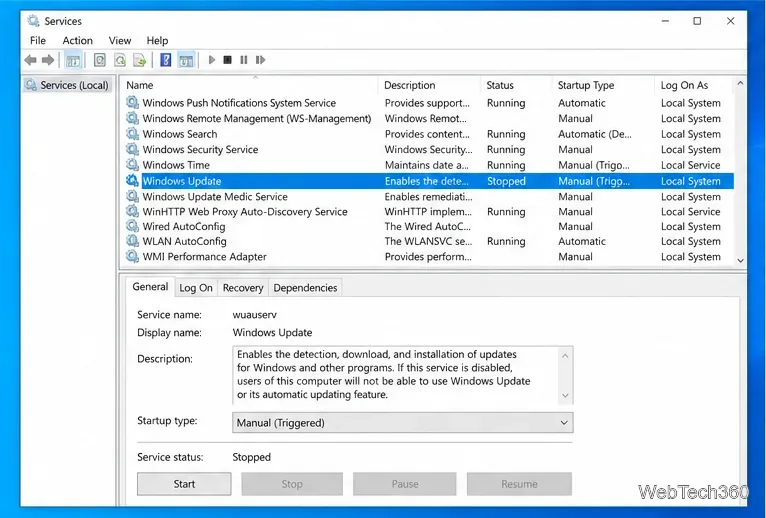
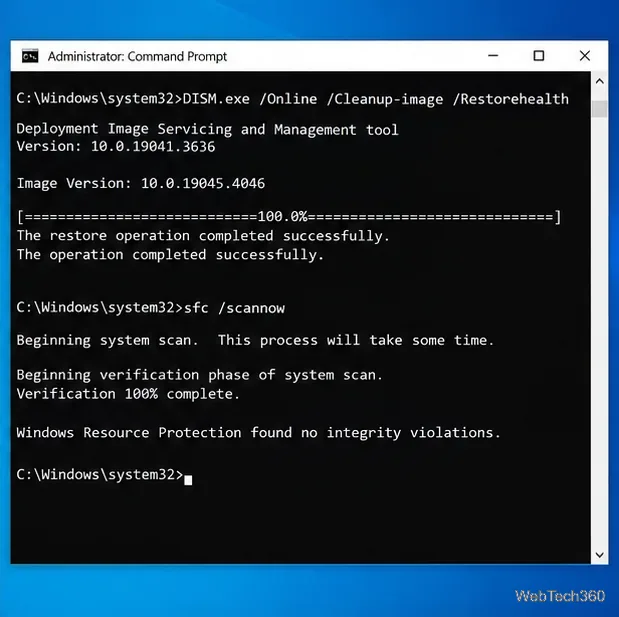
If update components depend on damaged system files, repair the Windows image first and then scan protected system files. Open Command Prompt as administrator and run these commands in this order:
DISM.exe /Online /Cleanup-Image /RestoreHealth
sfc /scannow
Do not close the window until each command finishes. Microsoft specifically instructs users to run DISM before SFC. Restart afterward and retry the update. Full syntax and result messages are documented in Microsoft’s DISM and System File Checker guide.
If Windows will not reach the desktop, use the Windows Recovery Environment (Windows RE). If you can still sign in, open Settings > Update & Security > Recovery and select Restart now under Advanced startup. Windows can also enter Automatic Repair after repeated failed starts.
In Windows RE, choose Troubleshoot > Advanced options > Uninstall Updates, then remove the latest quality update. Microsoft documents this path in its Windows update removal guide and Windows Recovery Environment documentation.
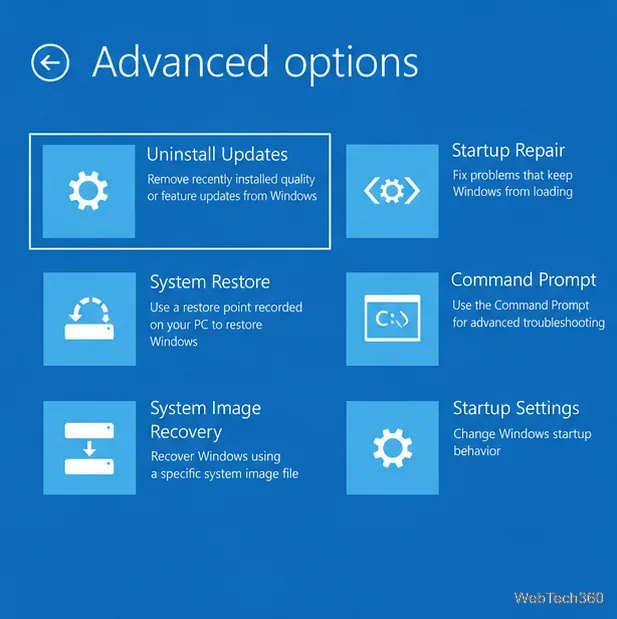
If a restore point exists from before the update failures started, select System Restore in Windows RE. System Restore rolls back system files, drivers, registry settings, and installed programs to the selected point without deleting your personal files. It is a better next step than registry cleaners or manual registry edits.
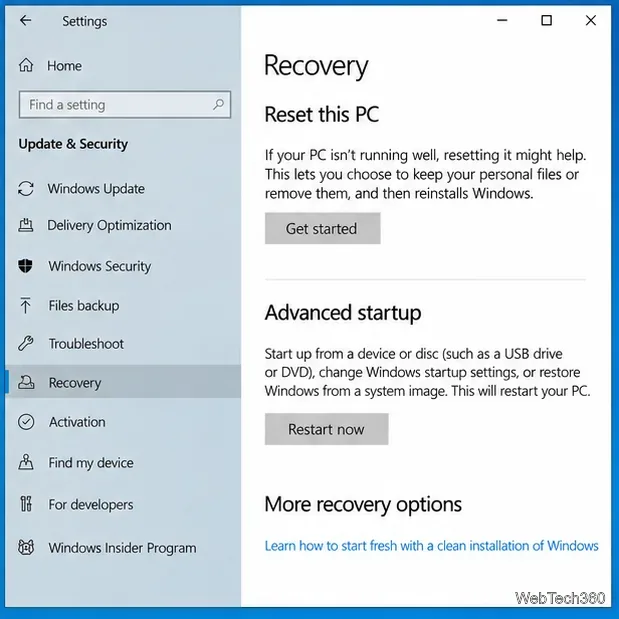
Back up important files first. In Windows 10, go to Settings > Update & Security > Recovery > Reset this PC > Get started. Keep my files reinstalls Windows while retaining personal files, but it removes installed apps and resets many settings.
If Windows still starts normally, an in-place reinstall from official installation media can also repair the operating system while offering options to preserve personal files, apps, and settings. Microsoft explains the choices in Reinstall Windows with installation media.
Avoid generic registry cleaners, random driver-updater utilities, and disabling unrelated Windows services such as Network List Service as a blanket fix. Those older workarounds are not part of Microsoft’s current Windows Update troubleshooting flow and can create additional problems.
If the same update still fails after clearing the cache, repairing system files, and uninstalling the latest update, note the update’s KB number or error code from Update History. On a work or school PC, contact your IT administrator. On a Windows 10 device that is no longer eligible for servicing, the durable fix is to move to a supported Windows version rather than repeatedly forcing the same failed update.
Open a Linux shell in any Windows 10 folder with File Explorer, PowerShell, and WSL. Check the Linux path and fix common setup issues.
Use a screenshot test, cable and port checks, monitor diagnostics, display settings, and driver rollback to pinpoint lines on a Windows 10 monitor.
Show two other time zones beside your Windows 10 clock. Set up each additional clock, give it a clear label, and find it in the taskbar calendar.
Find the File Explorer extension that delays right-click menus in Windows 10, test it safely with ShellExView, and restore any menu features you still need.
Stop Windows 10 from powering down a specific network adapter or USB device with plan-level settings and Device Manager controls, plus tips to avoid excess battery drain.
Check whether Windows 10 uses a digital license or product key, find a firmware-stored OEM key, and save license details securely for a reinstall.
Identify a Windows 10 Task Manager process by checking its executable path, file properties, publisher, linked services, and a Microsoft Defender scan.
Create a searchable Windows 10 folder inventory with PowerShell. Save every file and subfolder path as plain text or export details to a sortable CSV.
Add a custom reminder, quote, or label to your Windows 10 desktop with a Rainmeter text skin. Create the INI file, load it, then adjust its font and position.
Use Bluetooth Swift Pair on Windows 10 to pair a compatible accessory from a notification, with setup steps and fixes when the prompt does not appear.








