How to Fix Lines on a Monitor Screen in Windows 10

Use a screenshot test, cable and port checks, monitor diagnostics, display settings, and driver rollback to pinpoint lines on a Windows 10 monitor.
If Windows 10 Settings won’t open, first check whether the app fails from every launch method. If it still refuses to start or closes immediately, repair Windows system files, re-register the Settings package, test a fresh user profile, and use an in-place repair installation only if the earlier fixes fail.
Important: Microsoft ended standard Windows 10 support on October 14, 2025. Windows 10 can still run, but PCs outside an eligible Extended Security Updates program no longer receive the normal free security fixes. Microsoft recommends moving to Windows 11 when possible. See Microsoft’s Windows 10 end-of-support guidance.
Try these quick launch methods before making system changes:
ms-settings:, and press Enter.Microsoft documents ms-settings: as the URI scheme used to launch Windows Settings. If that command works but the Start shortcut does not, the problem may be with Start or Search rather than the Settings app itself. See the Microsoft Settings URI documentation.
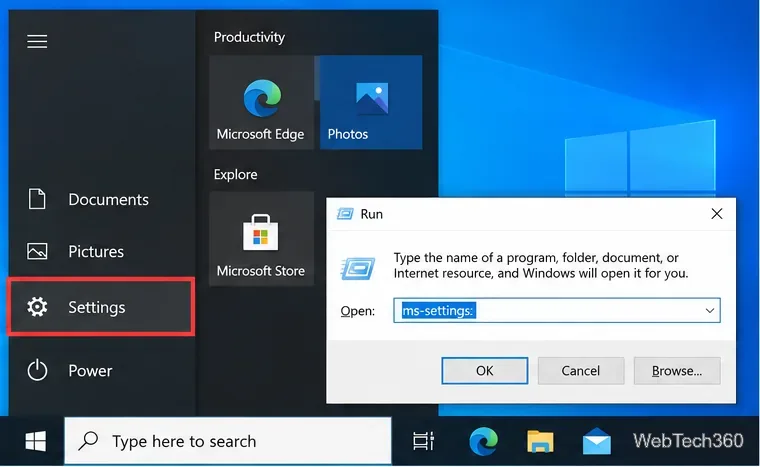
ms-settings: to test whether Settings can launch directly.Corrupted Windows components can prevent built-in features from opening. Microsoft recommends running DISM first, then System File Checker.
DISM.exe /Online /Cleanup-image /RestorehealthThen run:
sfc /scannowDo not close the window before SFC reaches 100 percent. Restart the PC after both commands finish, then test Settings again. Microsoft explains the repair order and expected SFC results in its DISM and System File Checker guide.
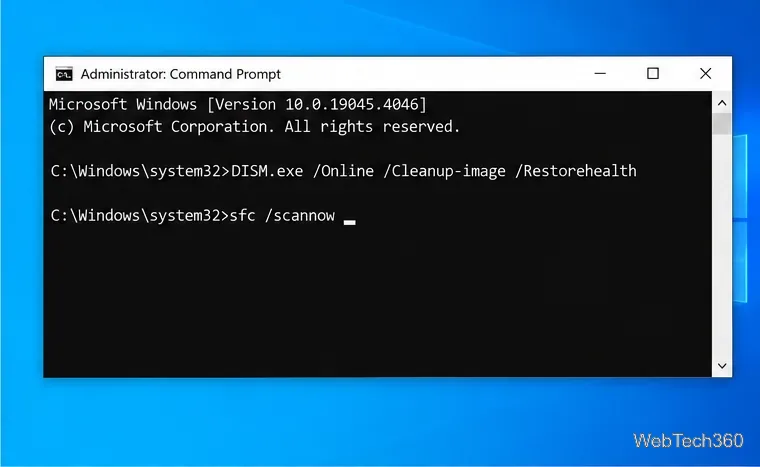
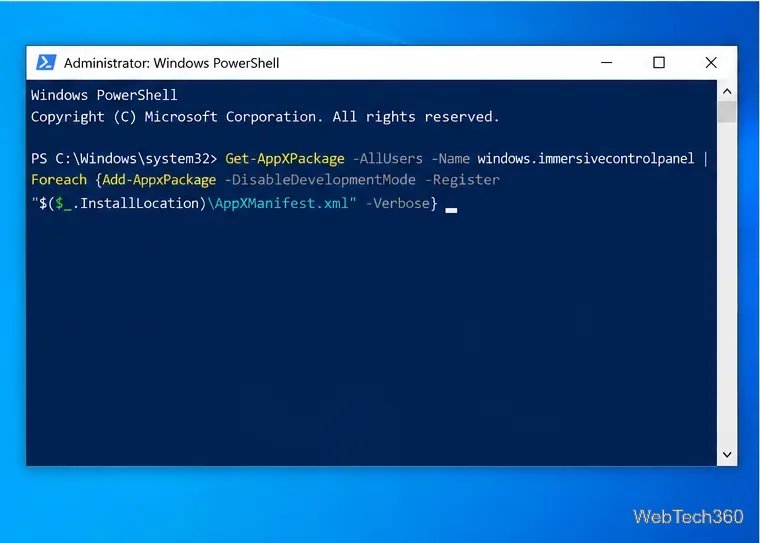
If system files are healthy but Settings still crashes, re-register the Settings package for Windows.
Get-AppXPackage -AllUsers -Name windows.immersivecontrolpanel | ForEach-Object {Add-AppxPackage -DisableDevelopmentMode -Register "$($_.InstallLocation)\AppXManifest.xml" -Verbose}Let the command finish, then restart Windows. The Add-AppxPackage -Register option registers an existing app package from its manifest; Microsoft documents that behavior in the Add-AppxPackage reference. This step does not remove your personal files.
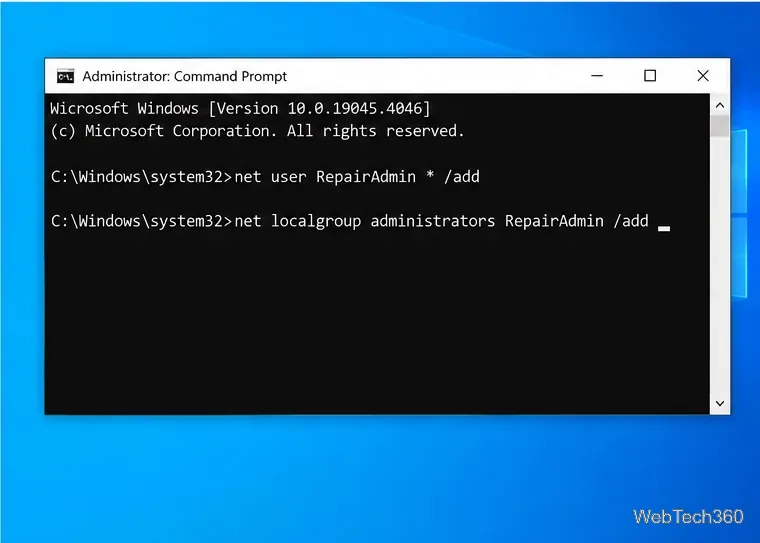
A damaged user profile can make Settings fail even when Windows itself is intact. To test another profile without opening Settings, use an elevated Command Prompt.
net user RepairAdmin * /add
net localgroup Administrators RepairAdmin /add
The asterisk prompts you to type a password without displaying it in the command. Microsoft documents net user as a supported Windows 10 command for adding and managing local accounts in its net user reference.
Sign out, log in to RepairAdmin, and try Windows + I. If Settings works in the new account, the original profile is probably the problem. Copy your files only after confirming the new profile works, and do not delete the old account until everything important is backed up.
If Settings still will not open in a new account, an in-place Windows repair is usually safer than immediately resetting or clean-installing the PC. Back up important files first.
Download official Windows 10 installation media from Microsoft’s Windows 10 download page. While signed in to Windows, open the mounted ISO or installation USB in File Explorer and run setup.exe. Choose Change what to keep, then Keep personal files and apps when that option is available. Microsoft’s installation-media repair guide confirms that an in-place reinstall can preserve apps, files, and settings.
Launch setup.exe from inside the existing Windows session for an in-place repair. Do not choose a clean install unless you have a complete backup and intentionally want to remove apps and settings.
SystemSettings.exe or random registry files from third-party sites.For most PCs, the best order is simple: test ms-settings:, run DISM and SFC, re-register Settings, test another profile, and only then perform an in-place repair installation.
Use a screenshot test, cable and port checks, monitor diagnostics, display settings, and driver rollback to pinpoint lines on a Windows 10 monitor.
Show two other time zones beside your Windows 10 clock. Set up each additional clock, give it a clear label, and find it in the taskbar calendar.
Find the File Explorer extension that delays right-click menus in Windows 10, test it safely with ShellExView, and restore any menu features you still need.
Stop Windows 10 from powering down a specific network adapter or USB device with plan-level settings and Device Manager controls, plus tips to avoid excess battery drain.
Check whether Windows 10 uses a digital license or product key, find a firmware-stored OEM key, and save license details securely for a reinstall.
Identify a Windows 10 Task Manager process by checking its executable path, file properties, publisher, linked services, and a Microsoft Defender scan.
Create a searchable Windows 10 folder inventory with PowerShell. Save every file and subfolder path as plain text or export details to a sortable CSV.
Add a custom reminder, quote, or label to your Windows 10 desktop with a Rainmeter text skin. Create the INI file, load it, then adjust its font and position.
Use Bluetooth Swift Pair on Windows 10 to pair a compatible accessory from a notification, with setup steps and fixes when the prompt does not appear.
Learn what common laptop function key symbols mean, how Fn and Fn Lock affect them, and how to confirm the right shortcut for your Windows 10 laptop model.








