How to Open a Linux Shell in a Folder on Windows 10

Open a Linux shell in any Windows 10 folder with File Explorer, PowerShell, and WSL. Check the Linux path and fix common setup issues.
If the Windows Defender service won’t start on Windows 10, first check whether another antivirus product is active. Microsoft Defender Antivirus is designed to disable itself when a compatible non-Microsoft antivirus becomes the primary provider. If no other antivirus is active, use the supported checks below instead of changing Defender service startup types or editing security-related registry values manually.
Important: Standard Windows 10 support ended on October 14, 2025. Microsoft recommends moving to Windows 11, or using the Windows 10 Extended Security Updates program if you must remain on Windows 10. See Microsoft’s Windows 10 end-of-support guidance.
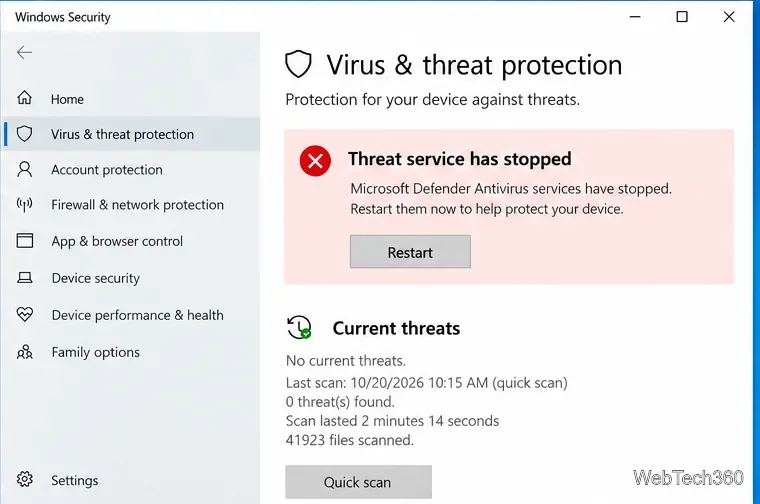
Open Start > Windows Security > Virus & threat protection. If you see a message such as “Threat service has stopped,” don’t assume the Defender service itself is damaged.
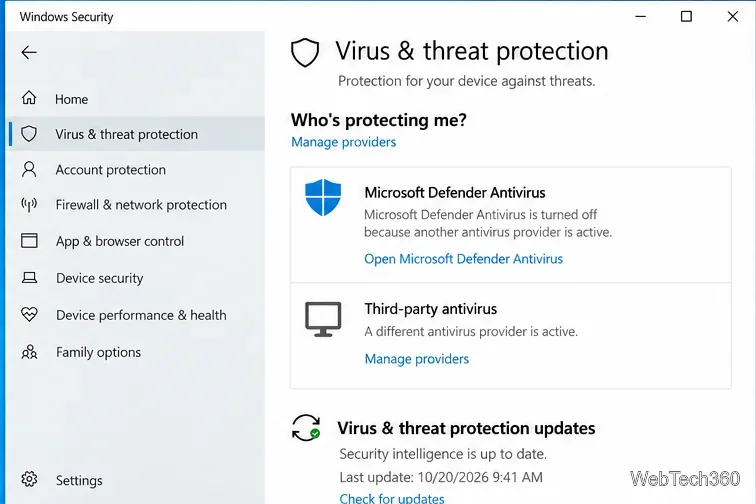
Under Who’s protecting me?, choose Manage providers. If a third-party antivirus is listed as active, Defender being off is expected behavior on a normal Windows 10 client. Microsoft documents this behavior in its antivirus and antimalware FAQ.
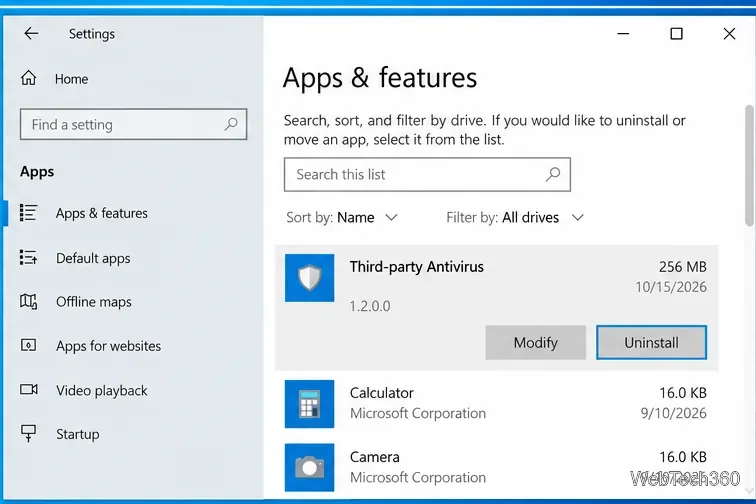
If you want Microsoft Defender to be your primary antivirus, uninstall the other antivirus from Settings > Apps > Apps & features, then restart Windows. Simply disabling the third-party app may not be enough because it can remain registered with Windows Security Center.
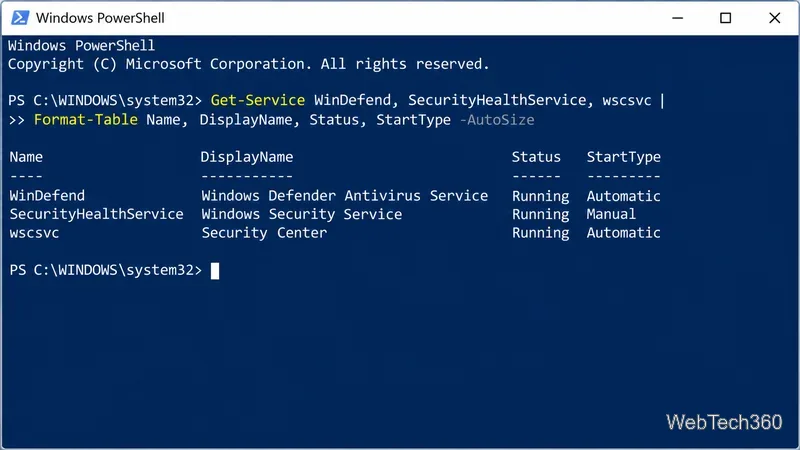
Open Windows PowerShell as administrator and run:
Get-Service WinDefend, WdBoot, WdFilter, WdNisSvc, WdNisDrv, SecurityHealthService, wscsvc | Format-Table -Auto DisplayName, Name, StartType, StatusMicrosoft’s current troubleshooting example shows WinDefend running with an Automatic start type, SecurityHealthService running with a Manual start type, and wscsvc running with an Automatic start type. It is also normal for the WdBoot boot driver to appear stopped after startup.
If WinDefend is unexpectedly stopped and no other antivirus is installed, continue with the next fixes. Microsoft specifically states that manually modifying Defender service and driver startup types is unsupported. The supported service checks are documented in Microsoft Defender Antivirus service startup troubleshooting.
Malware can disable security components. Download a fresh copy of Microsoft Safety Scanner, run it, and complete at least a Quick scan. Microsoft notes that Safety Scanner expires 10 days after download, so download it again if your copy is older.
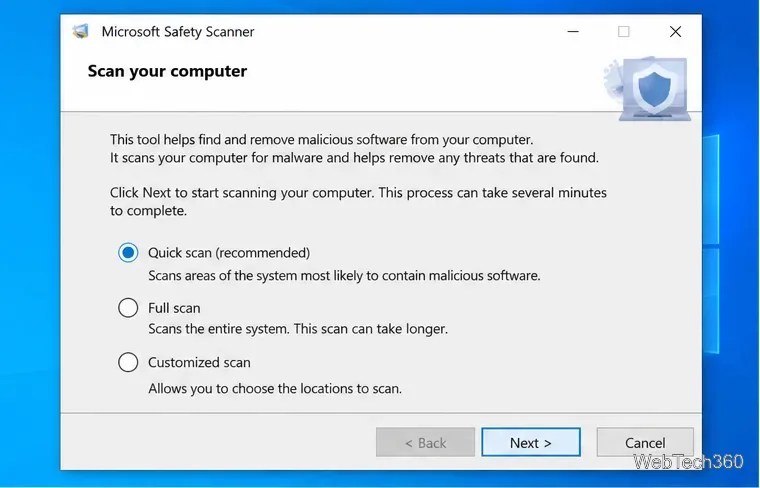
If the service still fails, Microsoft’s supported repair sequence resets Defender’s platform data. Open Command Prompt as administrator. First change to the newest Defender platform folder using Microsoft’s documented command:
(set "_done=" & if exist "%ProgramData%\Microsoft\Windows Defender\Platform" (for /f "delims=" %d in ('dir "%ProgramData%\Microsoft\Windows Defender\Platform" /ad /b /o:-n 2^>nul') do if not defined _done (cd /d "%ProgramData%\Microsoft\Windows Defender\Platform\%d" & set _done=1)) else (cd /d "%ProgramFiles%\Windows Defender")) >nul 2>&1Then run these commands one at a time:
MpCmdRun.exe -RemoveDefinitions -All
MpCmdRun.exe -ResetPlatform
MpCmdRun.exe -SignatureUpdate -MMPC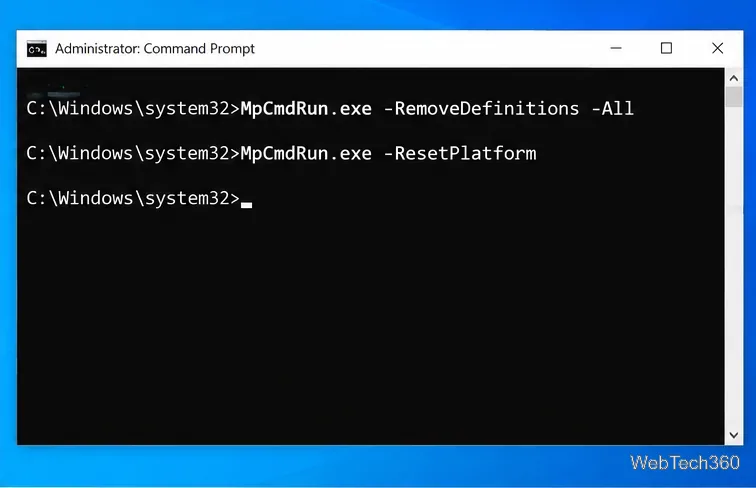
Restart Windows after the commands finish, then reopen Windows Security and check Virus & threat protection.
Corrupted Windows components can prevent Defender from starting. Microsoft recommends running DISM before System File Checker. Open Command Prompt as administrator and run:
DISM.exe /Online /Cleanup-Image /RestoreHealth
sfc /scannow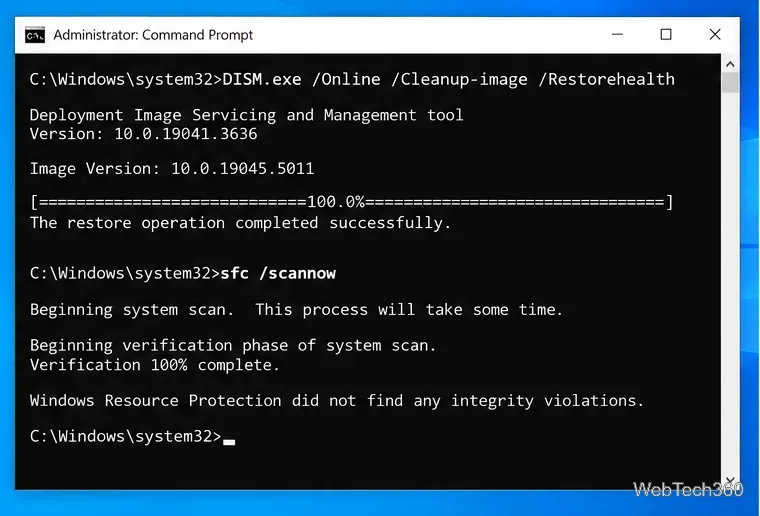
Let both commands finish completely. Microsoft’s DISM and SFC repair guide explains the possible SFC results and next steps.
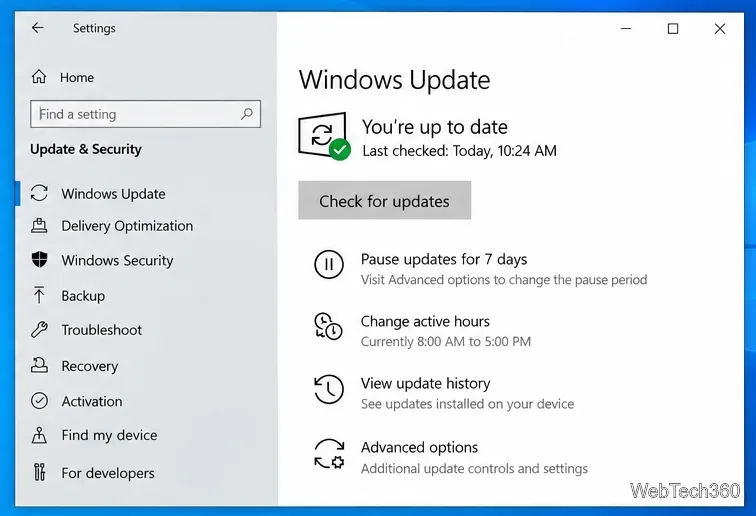
Go to Settings > Update & Security > Windows Update, choose Check for updates, install everything available for your Windows 10 servicing channel or ESU enrollment, and restart.
If Defender still will not start, back up important files before using recovery. On Windows 10, Settings > Update & Security > Recovery > Reset this PC can reinstall Windows while the Keep my files option preserves personal files but removes installed apps and settings. Microsoft recommends backing up first and making sure you have your BitLocker recovery key if device encryption is enabled. See the official Reset your PC instructions.
sc config.C:\ProgramData.For most home PCs, the fix is identifying an active third-party antivirus, repairing the Defender platform, or repairing Windows system files. If the device is still on Windows 10 without ESU, restoring antivirus service alone does not replace the missing operating-system security updates.
Open a Linux shell in any Windows 10 folder with File Explorer, PowerShell, and WSL. Check the Linux path and fix common setup issues.
Use a screenshot test, cable and port checks, monitor diagnostics, display settings, and driver rollback to pinpoint lines on a Windows 10 monitor.
Show two other time zones beside your Windows 10 clock. Set up each additional clock, give it a clear label, and find it in the taskbar calendar.
Find the File Explorer extension that delays right-click menus in Windows 10, test it safely with ShellExView, and restore any menu features you still need.
Stop Windows 10 from powering down a specific network adapter or USB device with plan-level settings and Device Manager controls, plus tips to avoid excess battery drain.
Check whether Windows 10 uses a digital license or product key, find a firmware-stored OEM key, and save license details securely for a reinstall.
Identify a Windows 10 Task Manager process by checking its executable path, file properties, publisher, linked services, and a Microsoft Defender scan.
Create a searchable Windows 10 folder inventory with PowerShell. Save every file and subfolder path as plain text or export details to a sortable CSV.
Add a custom reminder, quote, or label to your Windows 10 desktop with a Rainmeter text skin. Create the INI file, load it, then adjust its font and position.
Use Bluetooth Swift Pair on Windows 10 to pair a compatible accessory from a notification, with setup steps and fixes when the prompt does not appear.








