How to Open a Linux Shell in a Folder on Windows 10

Open a Linux shell in any Windows 10 folder with File Explorer, PowerShell, and WSL. Check the Linux path and fix common setup issues.
Windows Update error 0x8024401c is a network timeout, not a generic installation failure. Microsoft maps the code to WU_E_PT_HTTP_STATUS_REQUEST_TIMEOUT, the Windows Update equivalent of HTTP 408. In practical terms, Windows sent an update request but did not get a usable response in time.
Start with the network and proxy checks below, then reset Windows Update components only if the simpler fixes do not work. The instructions apply mainly to Windows 11 and still help on supported or managed Windows 10 installations.
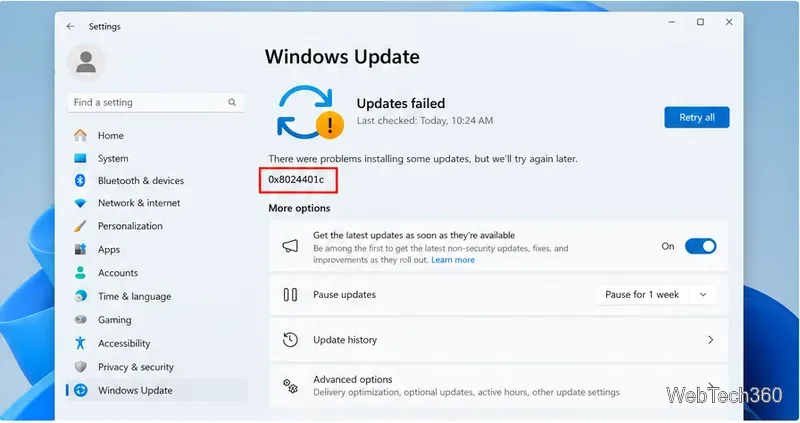
Because 0x8024401c is a request-timeout code, the most relevant causes are an unstable connection, a VPN or proxy that is not working correctly, a filtered work or school network, or an overloaded or unreachable update source. On managed PCs, the update source may be an organization's WSUS server rather than Microsoft's public service.
Microsoft also documents that Windows Update uses WinHTTP for network communication, so an incorrect system-level proxy can break update checks even when a web browser still works. See Microsoft's Windows Update networking error reference and Windows Update network troubleshooting guidance.
Restart the PC and your router first, then try Windows Update again. If possible, temporarily disconnect a VPN and test a different network, such as a trusted mobile hotspot. A successful update on another connection strongly points to the original network, proxy, or firewall path.
On Windows 11, open Settings > System > Troubleshoot > Other troubleshooters, then select Run next to Windows Update. Microsoft also directs current Windows users to the automated troubleshooter in the Get Help app. Follow any recommended fixes, restart, and check for updates again. The official steps are on Microsoft's Windows Update Troubleshooter page.
Open Command Prompt as administrator and run:
netsh winhttp show proxyIf this is a personal PC and the result shows an unexpected static proxy, you can return WinHTTP to direct access with:
netsh winhttp reset proxy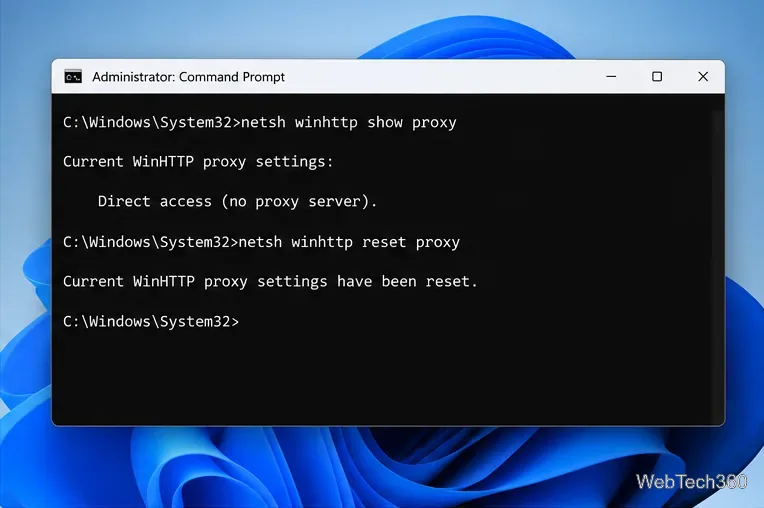
Do not reset the proxy on a work or school PC unless your administrator tells you to. Corporate devices may require a proxy or automatic configuration to reach Windows Update or WSUS. Microsoft documents the command behavior in the netsh winhttp reference.
If the network path looks normal but the error keeps returning, reset the core Windows Update components. Open Command Prompt as administrator and run these commands one line at a time:
net stop wuauserv
net stop bits
net stop cryptSvc
ren %windir%\SoftwareDistribution SoftwareDistribution.old
ren %windir%\System32\catroot2 catroot2.old
net start cryptSvc
net start bits
net start wuauserv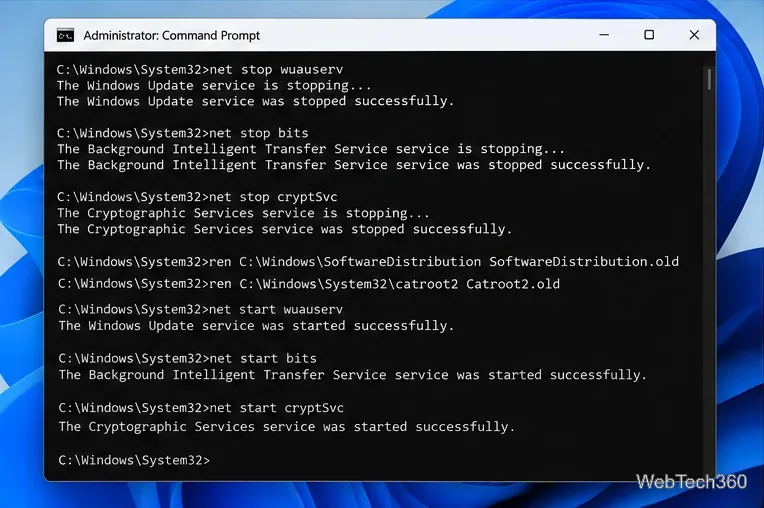
Restart the PC after the commands finish, then open Windows Update and select Check for updates. Microsoft includes the same core reset approach in its Windows Update troubleshooting resources.
Corruption in the Windows component store can keep update components from working correctly. In an elevated Command Prompt, run DISM first:
DISM.exe /Online /Cleanup-Image /RestoreHealthWhen DISM finishes, run:
sfc /scannow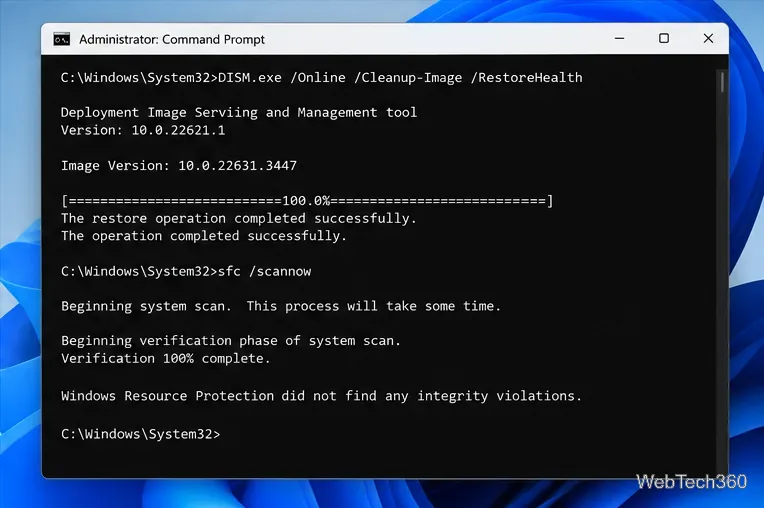
Restart Windows and try the update again. If DISM cannot obtain repair files on a managed device, your administrator may need to provide a matching repair source. Microsoft explains this process in its Windows Update corruption repair guidance.
Try the update later and compare results on another trusted network. If several devices on the same organization network fail with the same timeout, stop changing local registry or Group Policy settings and ask the administrator to check the WSUS or proxy path. Random registry edits, disabling core network services, or leaving the firewall turned off are not appropriate fixes for an HTTP 408 update timeout.
If you are on Windows 10, remember that Microsoft ended free Windows 10 support on October 14, 2025. Standard Windows 10 PCs no longer receive free security fixes, although some editions and eligible managed or extended-support scenarios have different servicing rules. Microsoft's current guidance is available on its Windows 10 end-of-support page.
For most home PCs, the best order is: troubleshooter and network test, WinHTTP proxy check, Windows Update component reset, then DISM and SFC. That sequence targets the timeout itself without relying on obsolete registry hacks or risky service changes.
Open a Linux shell in any Windows 10 folder with File Explorer, PowerShell, and WSL. Check the Linux path and fix common setup issues.
Use a screenshot test, cable and port checks, monitor diagnostics, display settings, and driver rollback to pinpoint lines on a Windows 10 monitor.
Show two other time zones beside your Windows 10 clock. Set up each additional clock, give it a clear label, and find it in the taskbar calendar.
Find the File Explorer extension that delays right-click menus in Windows 10, test it safely with ShellExView, and restore any menu features you still need.
Stop Windows 10 from powering down a specific network adapter or USB device with plan-level settings and Device Manager controls, plus tips to avoid excess battery drain.
Check whether Windows 10 uses a digital license or product key, find a firmware-stored OEM key, and save license details securely for a reinstall.
Identify a Windows 10 Task Manager process by checking its executable path, file properties, publisher, linked services, and a Microsoft Defender scan.
Create a searchable Windows 10 folder inventory with PowerShell. Save every file and subfolder path as plain text or export details to a sortable CSV.
Add a custom reminder, quote, or label to your Windows 10 desktop with a Rainmeter text skin. Create the INI file, load it, then adjust its font and position.
Use Bluetooth Swift Pair on Windows 10 to pair a compatible accessory from a notification, with setup steps and fixes when the prompt does not appear.








