How to Fix Lines on a Monitor Screen in Windows 10

Use a screenshot test, cable and port checks, monitor diagnostics, display settings, and driver rollback to pinpoint lines on a Windows 10 monitor.
Microsoft Word can generate placeholder text without a website, add-in, or copy-and-paste. The quickest option is to place the cursor in a blank paragraph, type =rand(), and press Enter. Word replaces the command with built-in sample text. You can also use =lorem() for pseudo-Latin Lorem Ipsum.
Microsoft's current support documentation describes both commands and lets you control the amount of text with two optional numbers. This is useful when you are building a template, testing styles, checking page breaks, or seeing how a layout behaves before the final copy is ready. See Microsoft's official guide to inserting sample text in Word.
The =rand() command inserts localized sample text. In an English installation, the wording is based on Word-related sample content, so it is better to think of it as built-in filler text rather than unpredictable random prose.
=rand().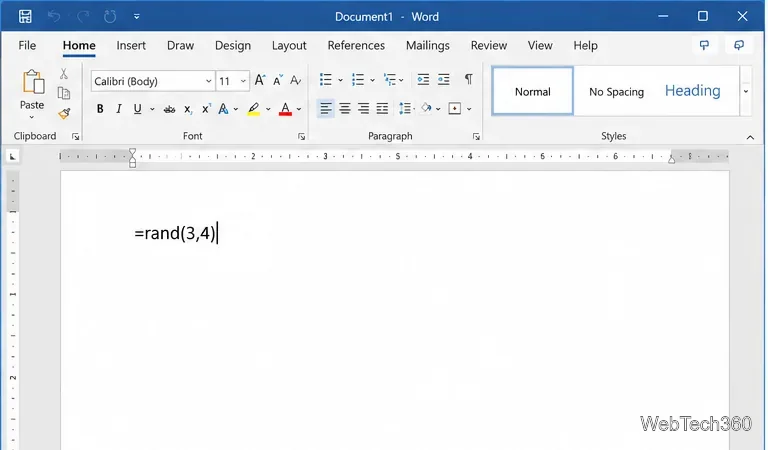
=rand() or add parameters such as =rand(3,4) before pressing Enter.To control the amount of text, use =rand(p,l). Microsoft defines p as the number of paragraphs and l as the number of lines in each paragraph. For example, =rand(3,4) requests three paragraphs with four lines per paragraph. If you omit both numbers, Microsoft's documented default is three paragraphs with three lines each.
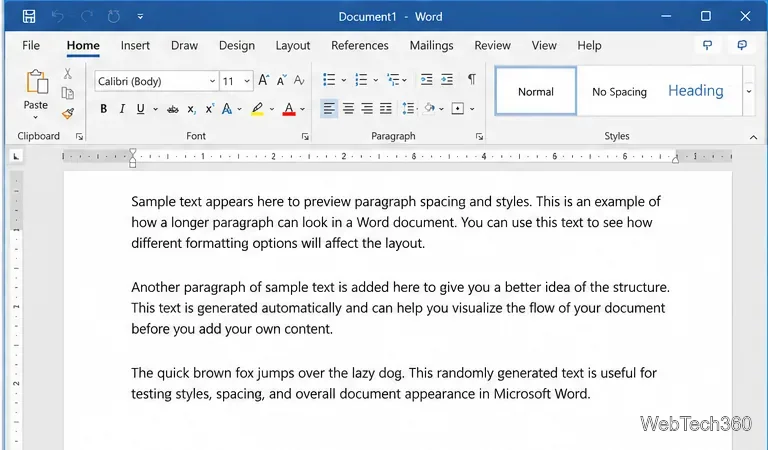
You can also supply just the first number. For example, =rand(1) creates one paragraph and uses the default number of lines for that paragraph.
If you want neutral-looking filler instead of Word's localized sample text, use =lorem(). The process is the same: type the command in a blank paragraph and press Enter. Word inserts pseudo-Latin text that works well for testing fonts, columns, spacing, and page density without distracting readers with meaningful copy.
You can control the result with the same pattern: =lorem(p,l). For example, =lorem(2,4) requests two paragraphs with four lines in each paragraph. Use a comma between the values. A period, such as =lorem(2.4), is not the documented syntax.
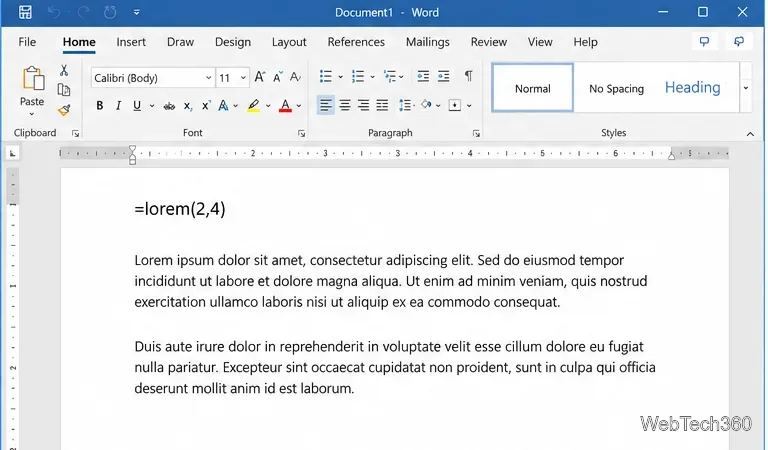
=lorem(2,4) is useful when you want pseudo-Latin filler rather than localized Word sample text.| Command | What it does |
|---|---|
=rand() | Inserts localized sample text using Word's default amount. |
=rand(1) | Inserts one paragraph using the default number of lines. |
=rand(3,4) | Requests three paragraphs with four lines per paragraph. |
=lorem() | Inserts pseudo-Latin Lorem Ipsum using the default amount. |
=lorem(2,4) | Requests two Lorem Ipsum paragraphs with four lines per paragraph. |
These shortcuts depend on Word's AutoCorrect behavior. Microsoft says sample-text insertion is disabled when Replace text as you type is turned off. In Word for Windows, you can check the setting here:
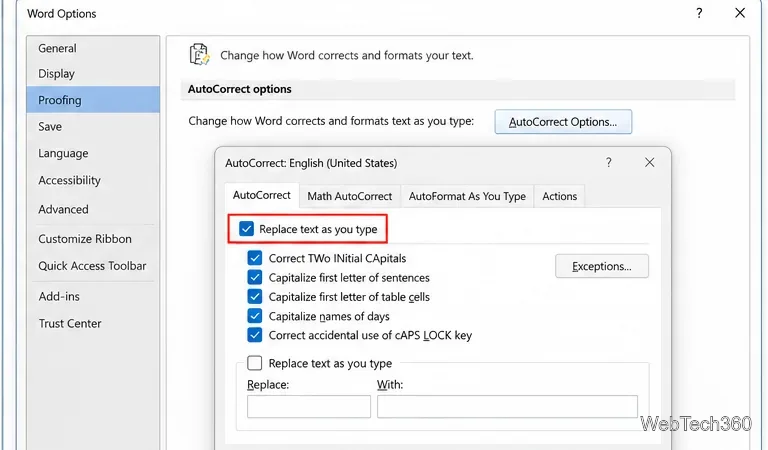
Also check the spelling of the command, keep the insertion point directly after the closing parenthesis, and press Enter rather than adding other text to the same paragraph first.
You may see older tips that use =rand.old() to insert the classic “The quick brown fox jumps over the lazy dog” pangram. That shortcut has a long history in Word, but Microsoft's current sample-text support page documents =rand() and =lorem(), not =rand.old(). If =rand.old() still works in your Word build, it can be handy for quickly previewing letters in a font. For templates or instructions that need to be dependable across current Word installations, use the two documented commands above.
For most layout work, =rand() is the fastest choice when you want realistic paragraph blocks, while =lorem() is better when you want visually neutral filler. Both let you create exactly the amount of sample text you need without leaving Microsoft Word.
Use a screenshot test, cable and port checks, monitor diagnostics, display settings, and driver rollback to pinpoint lines on a Windows 10 monitor.
Show two other time zones beside your Windows 10 clock. Set up each additional clock, give it a clear label, and find it in the taskbar calendar.
Find the File Explorer extension that delays right-click menus in Windows 10, test it safely with ShellExView, and restore any menu features you still need.
Stop Windows 10 from powering down a specific network adapter or USB device with plan-level settings and Device Manager controls, plus tips to avoid excess battery drain.
Check whether Windows 10 uses a digital license or product key, find a firmware-stored OEM key, and save license details securely for a reinstall.
Identify a Windows 10 Task Manager process by checking its executable path, file properties, publisher, linked services, and a Microsoft Defender scan.
Create a searchable Windows 10 folder inventory with PowerShell. Save every file and subfolder path as plain text or export details to a sortable CSV.
Add a custom reminder, quote, or label to your Windows 10 desktop with a Rainmeter text skin. Create the INI file, load it, then adjust its font and position.
Use Bluetooth Swift Pair on Windows 10 to pair a compatible accessory from a notification, with setup steps and fixes when the prompt does not appear.
Learn what common laptop function key symbols mean, how Fn and Fn Lock affect them, and how to confirm the right shortcut for your Windows 10 laptop model.








