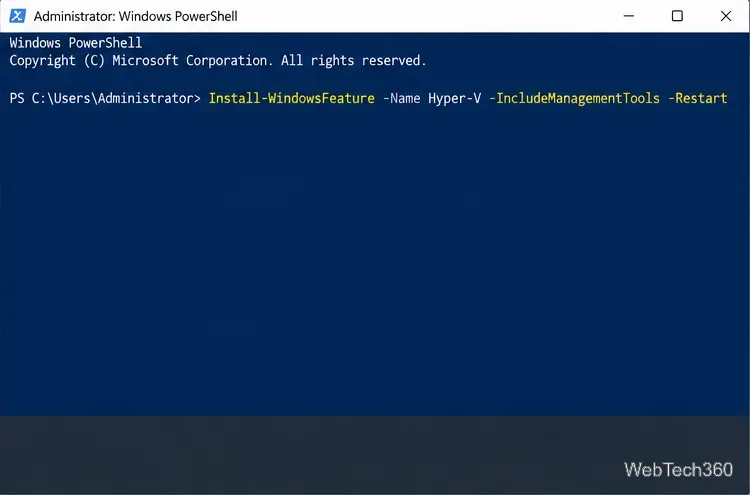
How to Check Hard Drive Health in Windows Server
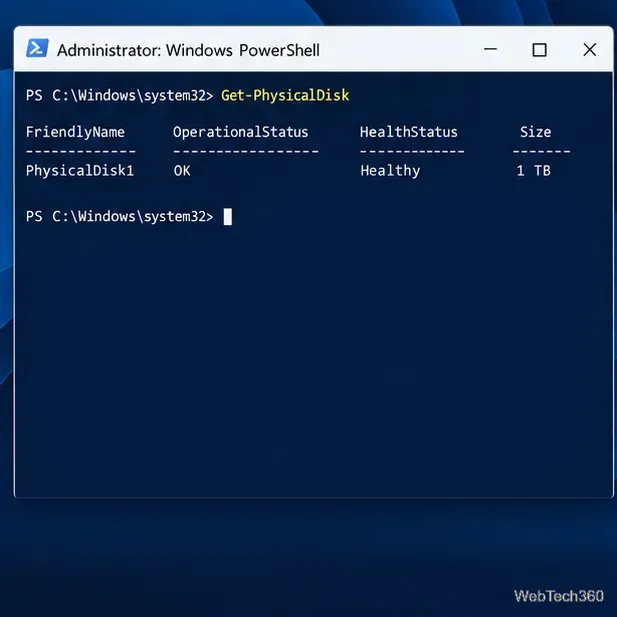
Check Windows Server disk status and reliability counters, verify SMART data when available, and separate hardware warnings from NTFS errors.
To get Python and pip working on Windows, install the official Python Install Manager, open PowerShell, and launch Python from the terminal. Pip is normally included with Python. Use python -m pip to make sure package commands run through the interpreter you intend to use, and create a virtual environment for each project to keep its dependencies separate.
Older instructions that recommend choosing among fixed Microsoft Store versions or downloading get-pip.py are no longer the simplest setup. The current Python documentation recommends the Python Install Manager, available from Python.org or the Microsoft Store. The manager handles Python runtimes, while ensurepip can restore pip if a particular installation is missing it.
python --version. If no Python runtime is installed yet, the manager can install the current stable release when you first launch Python. You can also run py list to see runtimes the manager knows about.py install 3.15. Check the project’s own requirements before choosing a version; the newest release is not automatically compatible with every older application.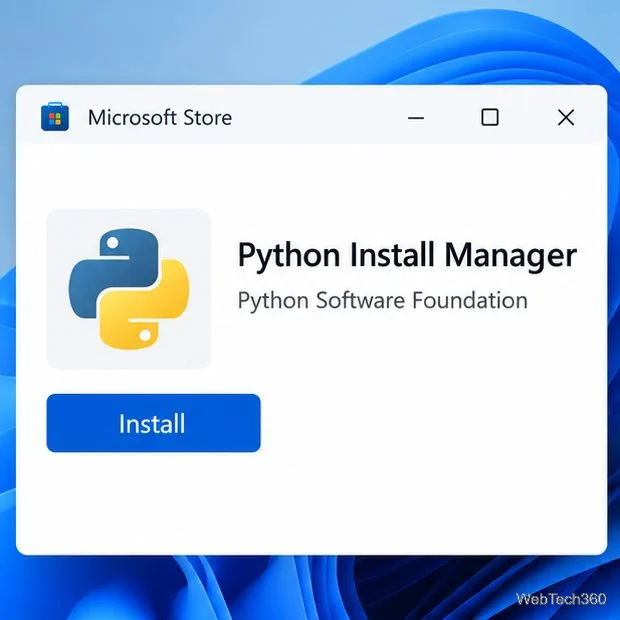
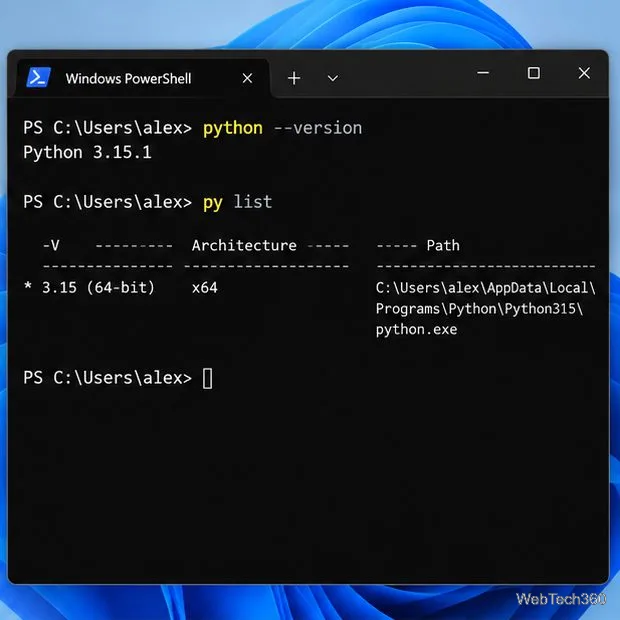
For a fresh setup, the default python command is usually enough. Verify the result with:
python --version
py list
The first command prints the interpreter version; the second lists installed runtimes. The exact version number changes as Python receives releases. To run a script from its folder, use python .\script.py. For more details about the manager, aliases, and Windows setup, see the official Python on Windows guide.
Check that pip is attached to the Python interpreter you just installed:
python -m pip --versionThe output identifies pip and the Python version it belongs to. If the command works, you can update pip with:
python -m pip install --upgrade pipIf Python reports No module named pip, use Python’s bundled bootstrap module instead of downloading a separate script:
python -m ensurepip --upgradeThen run the pip version check again. ensurepip uses components included with Python; it does not fetch an installer from a third-party site. Read the ensurepip documentation if you need the available options.
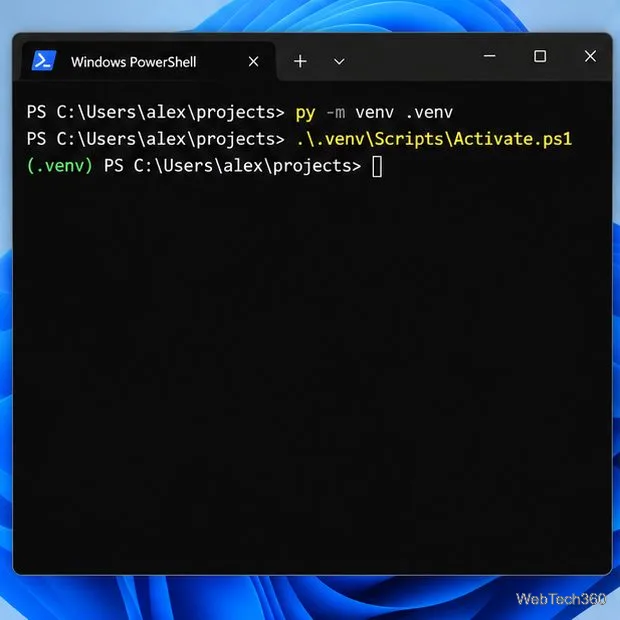
Installing every package globally can make projects interfere with one another. A virtual environment keeps packages in a folder for one project. In PowerShell, change to your project directory and create the environment:
py -m venv .venv
.\.venv\Scripts\Activate.ps1
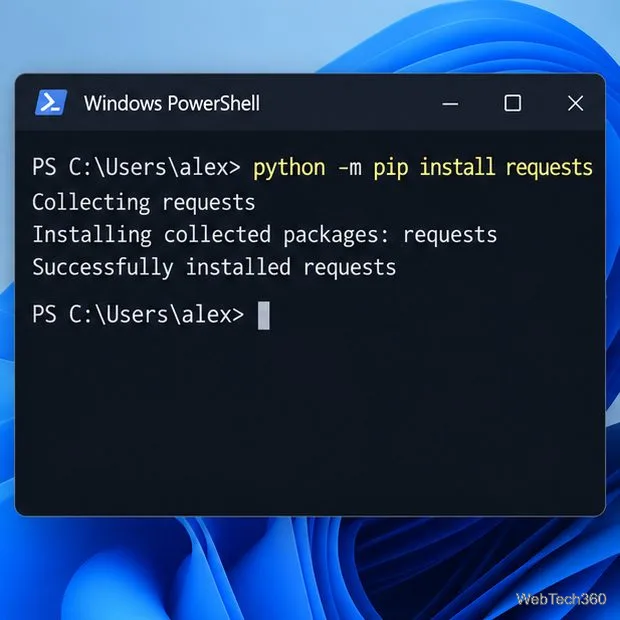
After activation, PowerShell usually adds (.venv) to the prompt. Install a package with the same interpreter-bound command used above:
python -m pip install requestsReplace requests with the package name your project needs. To see what pip installed, run python -m pip show requests. When you finish working in the environment, enter deactivate. The environment remains on disk and can be activated again later.
When PowerShell blocks Activate.ps1 because of its script execution policy, you do not need to change a machine-wide setting just to install a package. Call the environment’s interpreter directly instead:
.\.venv\Scripts\python.exe -m pip install requestsThis runs pip inside that environment without activating it. The Python venv guide explains how environments are created and used on Windows.
Python (default) is enabled; if it already is, toggle it off and back on to refresh the command. Then try py list. See the official Windows troubleshooting steps for other alias or runtime conflicts.python -m pip rather than the standalone pip command. This avoids relying on a separate Scripts folder being added to PATH.python --version with python -m pip --version. If you maintain multiple versions, select the intended one with the Windows launcher, for example py -3.15 -m pip --version.Once the version check and pip check both work, Windows is ready to run Python scripts and install project dependencies. The Python Packaging User Guide has additional pip and environment examples.
Check Windows Server disk status and reliability counters, verify SMART data when available, and separate hardware warnings from NTFS errors.
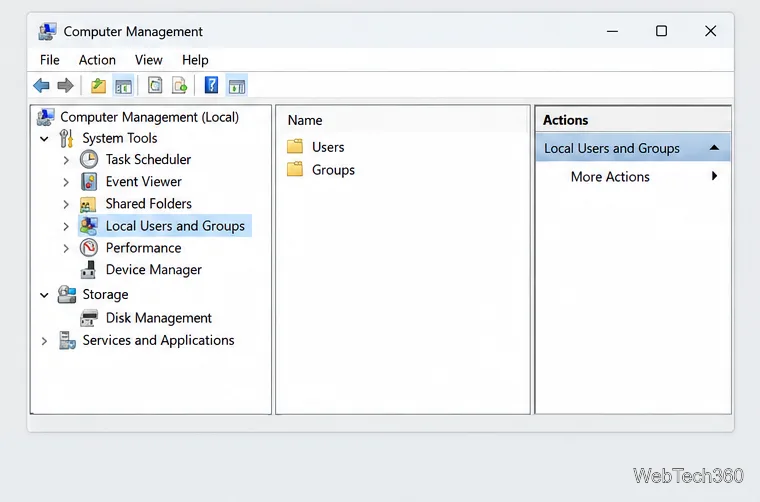
Create, grant admin rights to, disable, or remove local Windows Server users with Computer Management or PowerShell. Learn when to use Active Directory instead.
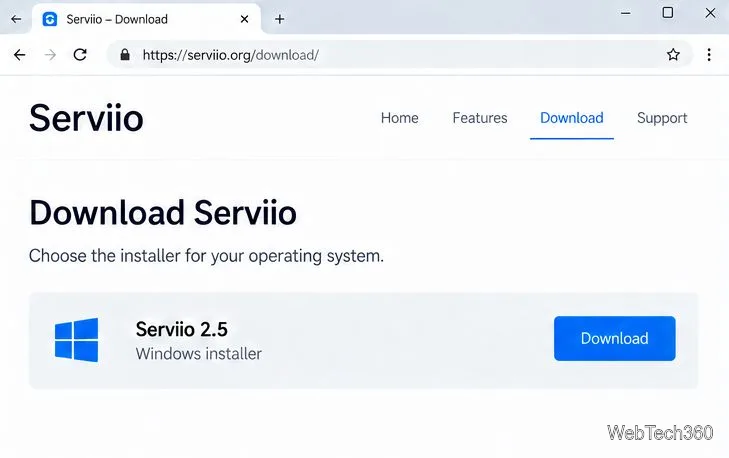
Install Serviio on Windows Server, share local or NAS media folders, and test DLNA playback. Learn how to check the Windows service, firewall, and Pro-only browser features.
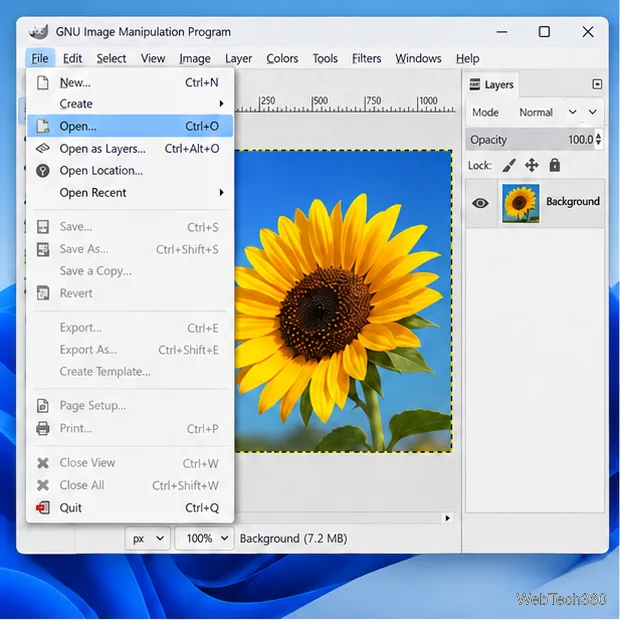
Convert PNG, JPG, or BMP files to Windows ICO with GIMP. Prepare a square image, keep transparency when needed, add standard sizes, and check the export.
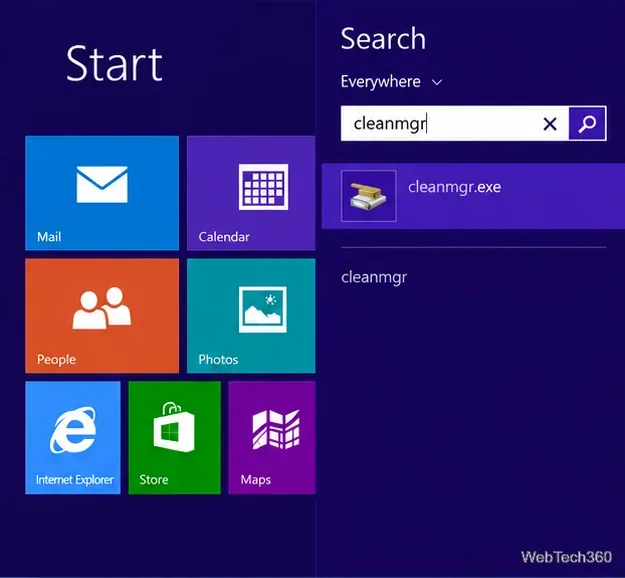
Clear thumbnail, DNS, Internet Explorer, Microsoft Store, Search, and Live Tile data with Windows 8’s built-in tools, and learn what each cleanup removes.
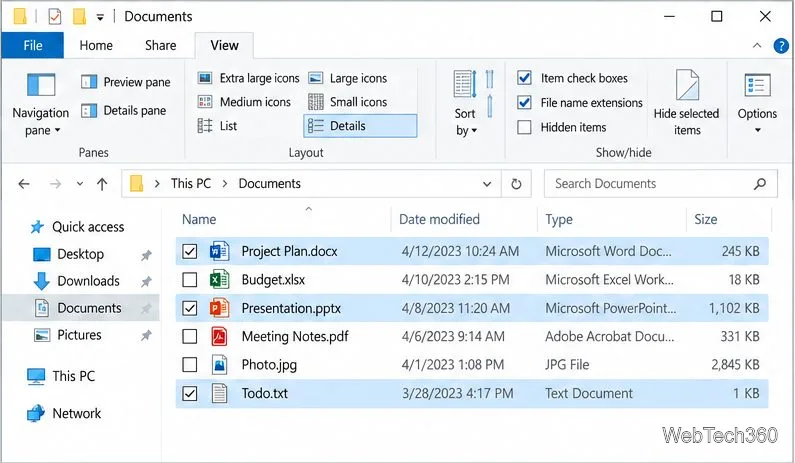
Turn off Windows 10 item check boxes in File Explorer with the View ribbon, or use Folder Options if the toggle is missing. See what changes and how to select multiple files without boxes.
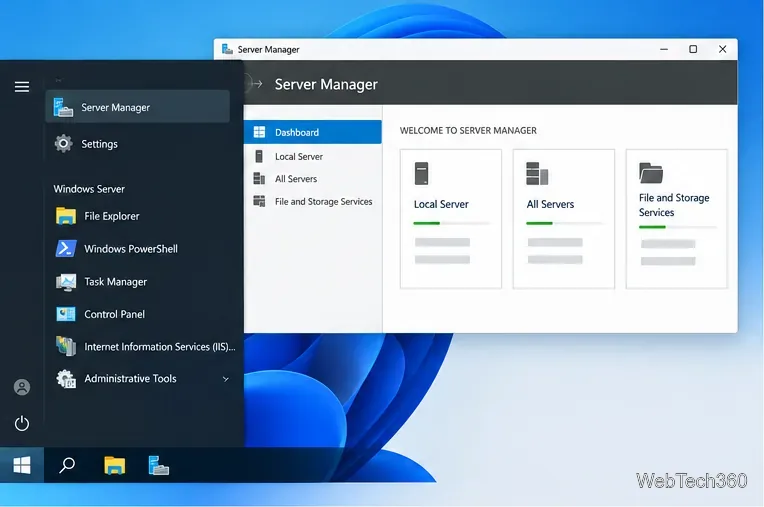
Install VMware Workstation Pro on a compatible Windows Server host, from checking support and downloading the right build to creating your first VM.
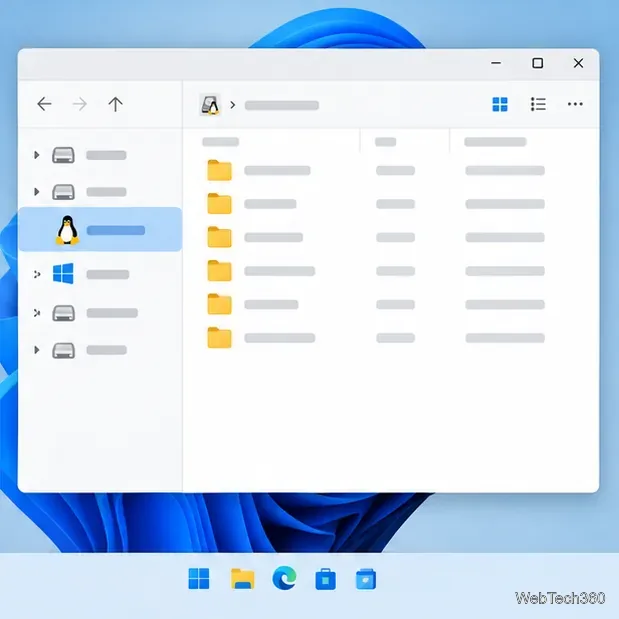
Browse and copy Ext2, Ext3, or Ext4 files on Windows with a read-only workflow. See what Linux Reader’s free edition supports and when WSL fits.
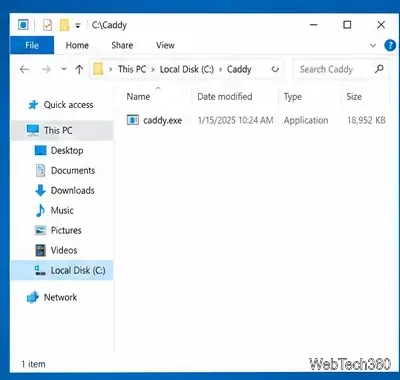
Install Caddy’s native Windows binary, serve a test site, enable automatic HTTPS for a domain, and run Caddy as a Windows Server service.
Run Linux Docker containers alongside Windows Server by creating an Ubuntu Hyper-V VM, installing Docker Engine, and publishing a test service safely.