Home
» WINDOWS
»
How to Hide an App When Sharing Your Screen on Windows 10
How to Hide an App When Sharing Your Screen on Windows 10
To keep a private app out of a Windows 10 screen share, share the specific app window in your meeting software instead of the entire desktop. If you must present the whole desktop, move private windows to a separate virtual desktop and silence notifications first. Windows 10 has no built-in switch that masks one app from a full-desktop broadcast, so check exactly what your audience will see before you begin.
Share one app window in Zoom or Teams
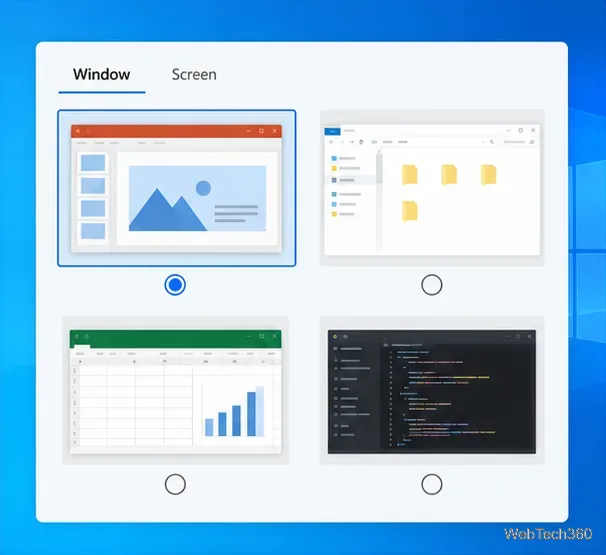
Window sharing is the most dependable option because the meeting app captures the selected program instead of your whole desktop. In Zoom, open the meeting toolbar, select Share, and choose the app under the Screens or basic sharing options. In Microsoft Teams, open Share and select Window, then choose the program. The labels can vary slightly by app version or meeting settings.
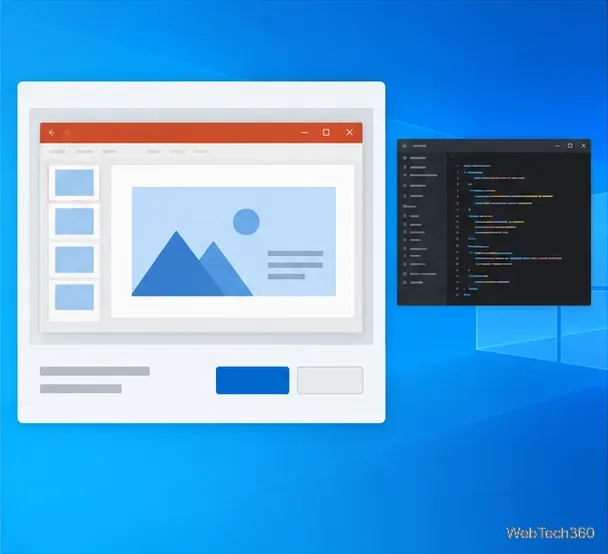
Choose the single application window your audience needs to see.
Open the document, browser tab, or program you intend to present.
In the meeting controls, choose the option for a window or application. Do not choose the full desktop or screen.
Select the intended app and start sharing. If your meeting app offers a share preview, inspect it. Otherwise, confirm the view with a trusted participant.
Stop sharing before opening a private app or switching to another window.
Zoom notes that on Windows 10, its picker may show only a limited number of open apps. Close programs you do not need and open the target app before bringing up the picker. In Zoom, application sharing can also omit live document changes in some cases; if that happens, stop and restart the share or switch to desktop sharing only after clearing sensitive material.
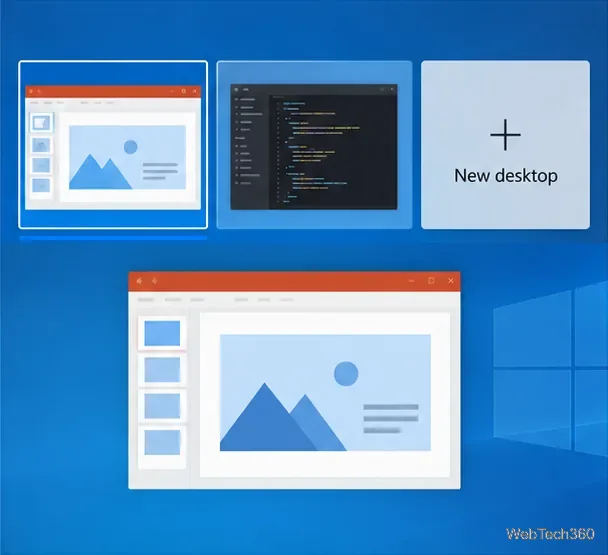
Keep sensitive apps on a different Windows virtual desktop, then share only the desktop you prepared for the meeting. A virtual desktop is a separate workspace; it does not close the app or erase its data. Be careful not to switch desktops while the full-screen share is active.
Press Windows key + Tab to open Task View, then select New desktop.
In Task View, drag the private app window onto the new desktop, or right-click the window and choose Move to and the private desktop.
Return to the presentation desktop using Task View. Keep only the apps and files you are ready to show open there.
In the meeting app, select the specific monitor or desktop you prepared. Do not select another display that contains private material.
Move private apps to a separate workspace and return to the presentation desktop before sharing.
Microsoft documents creating desktops and moving open windows in its Windows multitasking guide. On Windows 10, you can also review Settings > System > Multitasking for desktop options that limit which desktops appear in taskbar and Alt+Tab views. The exact options depend on your Windows build.
Prevent notification pop-ups
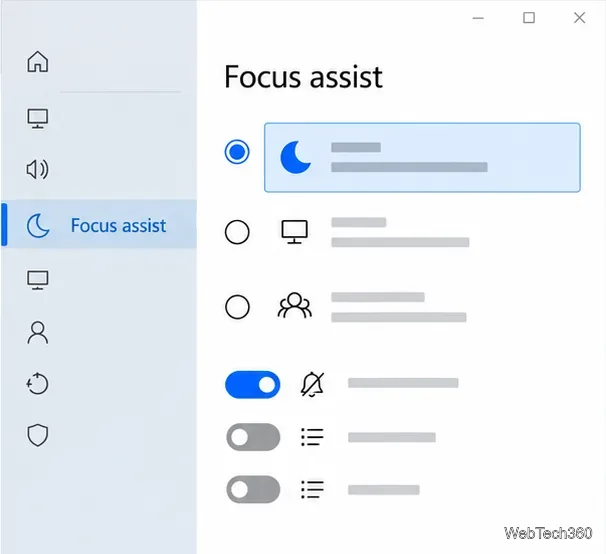
A private message can still appear as a banner even when you share just one app, depending on the notification and meeting app. Before the call, open Start > Settings > System > Focus assist. Choose Alarms only for the quietest setting, or Priority only if you need selected alerts. You can return to Off after the presentation to receive notifications normally.
Turn on Focus assist before presenting to keep notification banners off the shared view.
Focus assist reduces interruptions; it does not hide an app window or replace window sharing. Microsoft explains the available modes and notification behavior in its Focus and Focus assist guide.
What a screen share can still reveal
Taskbar previews: Hovering over an app icon can display a thumbnail and window title. Avoid hovering over private apps while presenting.
Desktop switching: If you switch from the clean desktop to the private one during a full-desktop share, participants can see the private app. Stop sharing first if you need to change workspaces.
Overlays: Older guides describe third-party utilities such as Cover Windows, which place a movable blank panel over screen pixels. An overlay does not close or secure the underlying app, and it can leave previews or notifications exposed. Use a window-only share for sensitive content instead of relying on a cover.
Multiple displays: Check which screen is selected in the share chooser. A second monitor is useful only when the meeting app is sharing the intended display or window.
Check the shared view before continuing; controls and previews differ between meeting apps.
Quick privacy check before you present
Choose one app window whenever the meeting software allows it.
Close private documents and move sensitive windows off the presentation desktop.
Turn on Focus assist and close personal chat pop-ups.
Check the audience view or preview, and stop sharing before switching apps.
These steps reduce accidental exposure, but no desktop arrangement can make a full-screen share foolproof. For confidential material, share only the specific window needed and stop the share as soon as you finish.