How to Set Different Scaling Levels for Multiple Monitors in Windows 10

Adjust each Windows 10 monitor independently with per-display scaling, keep text readable, and troubleshoot custom scaling or blurry apps.
To hide recent files shown when you right-click an app in Windows 10, turn off the system-wide recent-items switch. Open Settings > Personalization > Start, then turn off Show recently opened items in Jump Lists on Start or the taskbar and in File Explorer Quick Access. The wording can vary slightly by Windows 10 build. This setting applies across apps that use Windows Jump Lists; Windows does not provide a built-in switch for just one app.
A Jump List is the menu that appears when you right-click an app on the Start menu or taskbar. Depending on the app, it can show recently opened files, folders, or websites alongside pinned entries and app commands. Windows also uses the recent-items setting for File Explorer Quick Access. Microsoft lists the control under Settings > Personalization > Start and describes it as the way to show or hide recently opened items.
Turning the switch off changes what Windows displays in these places. It does not delete the files themselves, clear a program’s own Recent page, erase browser history, or remove items you pinned. If you need to hide a particular document from every place where it might appear, check the app that opened it as well.
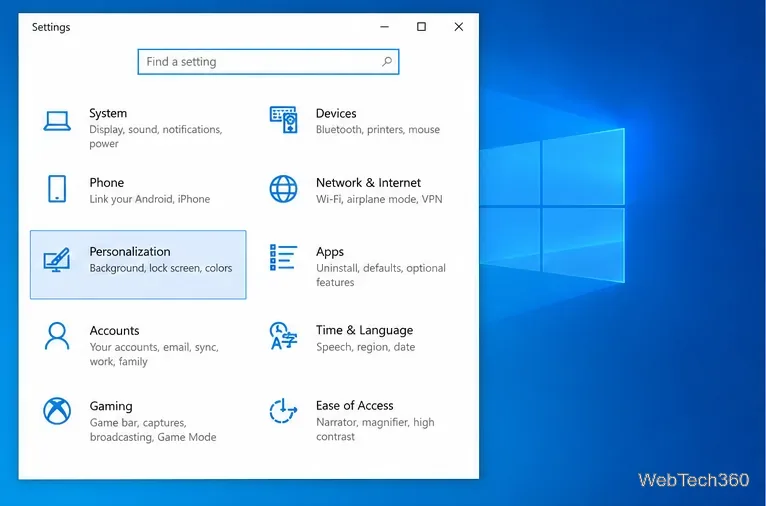
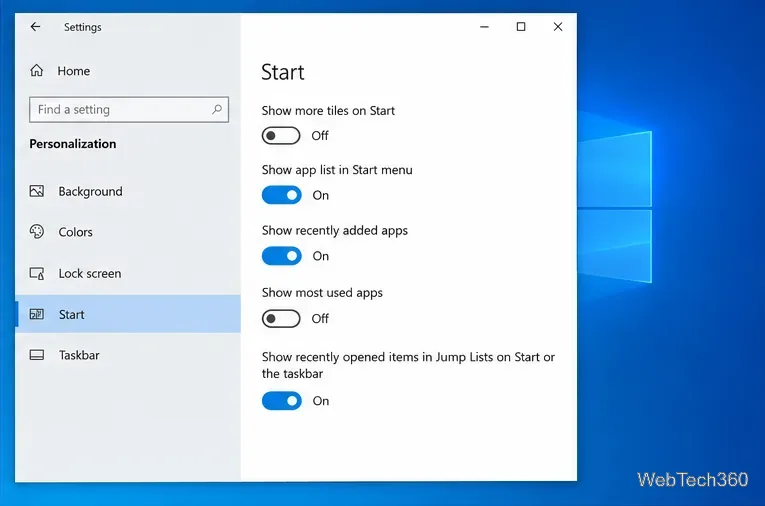
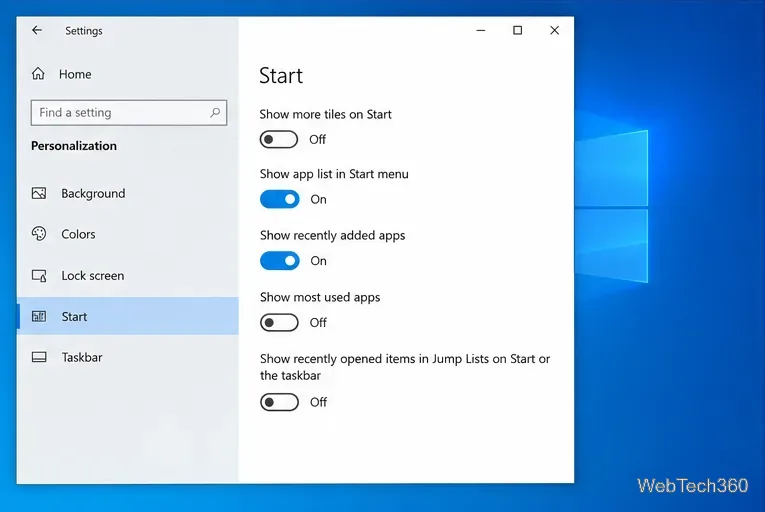
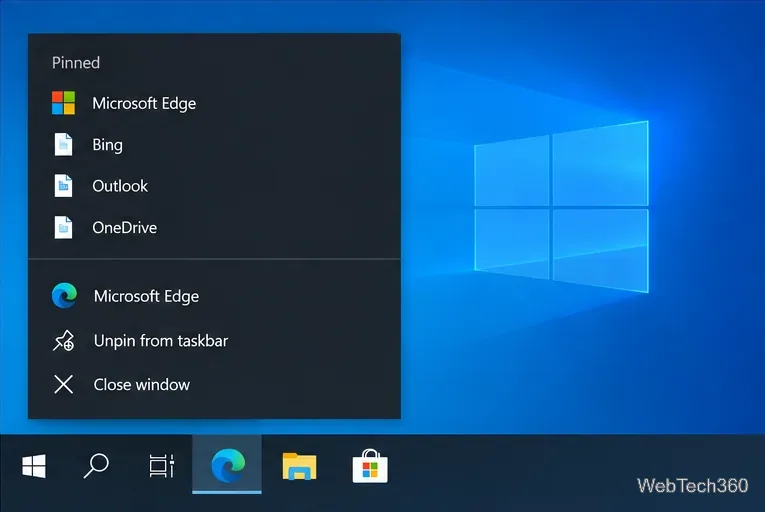
Not with the Windows 10 switch. It controls the Windows recent-items display across apps, so turning it off for privacy in one program also removes recent-item listings from other apps’ Jump Lists and from the Windows surfaces covered by that setting.
For a single app, look for a separate history or privacy option inside that program. Some desktop apps maintain their own “Recent” list in a File or Open menu; that list can be independent of Windows Jump Lists. You can also remove or unpin an individual entry from an app menu when the app offers that command, but doing so only affects that menu entry. It does not remove the original file or necessarily clear the app’s internal history.
On editions that include Local Group Policy Editor, an administrator can use Do not keep history of recently opened documents under User Configuration > Administrative Templates > Start Menu and Taskbar. Microsoft’s current policy reference also describes the related Hide recent jumplists setting. Enabling a policy can prevent Windows and apps from creating or displaying recent-document shortcuts, and users may not be able to change the behavior in Settings. The editor is not included in every Windows edition, and a company-managed computer may receive its policy from the organization. See Microsoft’s policy documentation before changing a managed PC.
Treat the switch as a display control, not as a secure deletion tool. Windows policy documentation notes that shortcuts saved before a history policy is enabled can reappear if the policy is later removed. App-specific histories may also remain inside their programs. If you are protecting sensitive information, clear the relevant app history separately and review any pinned entries rather than relying on the Windows toggle alone.
Adjust each Windows 10 monitor independently with per-display scaling, keep text readable, and troubleshoot custom scaling or blurry apps.
Use AirType’s browser pairing setup to type on an iPhone from a Windows 10 PC, with current setup steps, troubleshooting, and privacy limits.
Hide the mouse pointer in Windows 10 videos, games, and other apps with built-in typing controls or PowerToys CursorHide’s adjustable inactivity timer.
Find Control Panel Power Options on a Windows 10 desktop, open the page with a Run command, and adjust power plans, display timeouts, sleep, and button behavior.
Learn what Windows 10 deletion leaves behind, how to use SDelete on an HDD, and why SSDs and cloud backups need separate treatment.
Use FFmpeg’s DirectShow tools to open an integrated webcam’s driver properties in Windows 10, find the correct device, and troubleshoot missing controls.
Identify a keypress in Windows 10 with a browser event tester or SharpKeys, then separate layout, software, and keyboard hardware issues.
Use double quotes around each complete path with spaces in Command Prompt. Learn how to list, change to, copy, and troubleshoot Windows 10 files and folders.
Turn off the Windows 10 Start menu’s hover-to-expand behavior with a legacy Mach2 command, check build limits, and see the built-in app-list alternative.
Fix the iTunes Library.itl read error on Windows 10 by updating iTunes, restoring a compatible backup, or safely creating a new library without deleting media files.








