Home
» WINDOWS
»
How to Highlight Mouse Clicks on Windows 10 with PowerToys
How to Highlight Mouse Clicks on Windows 10 with PowerToys
How to Highlight Mouse Clicks on Windows 10 with PowerToys
Use Microsoft PowerToys Mouse Highlighter to show a visible effect whenever you click the primary or secondary mouse button. You can choose a ripple, circle, or spotlight style, adjust its colors, and toggle it with a keyboard shortcut. Windows 10 can also make the pointer larger or change its color, but those built-in options do not mark each click.
Check compatibility and install PowerToys
Microsoft's current installation requirements list Windows 10 version 2004 (20H1, build 19041) or newer and a 64-bit x64 or ARM64 processor. To check your Windows version, press Windows+R, enter winver, and press Enter. If the PC is older than the listed requirement, the current PowerToys installer may not work.
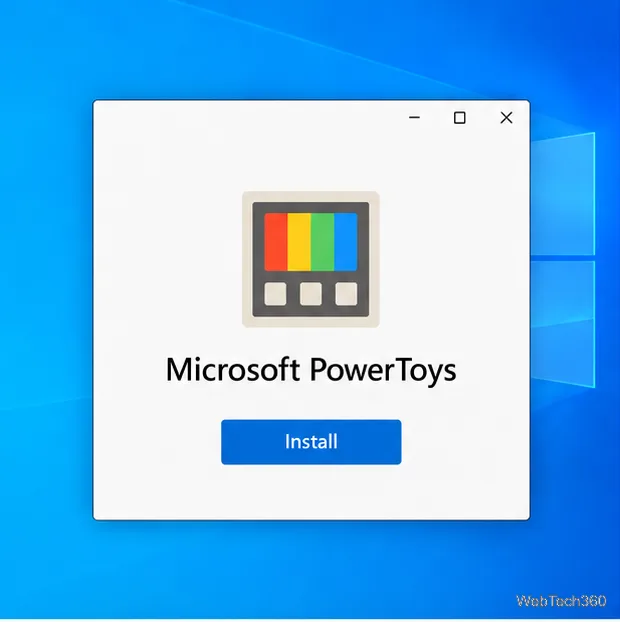
Install PowerToys from the Microsoft Store or the official PowerToys releases page. Choose the installer that matches your processor, then follow its prompts. If you use Windows Package Manager, Microsoft's install guide also lists this command:
The PowerToys installer is available from Microsoft's Store or official releases page.
Enable Mouse Highlighter
Open PowerToys from the Windows Start menu. If it is already running, open its Settings window from the notification area or Start.
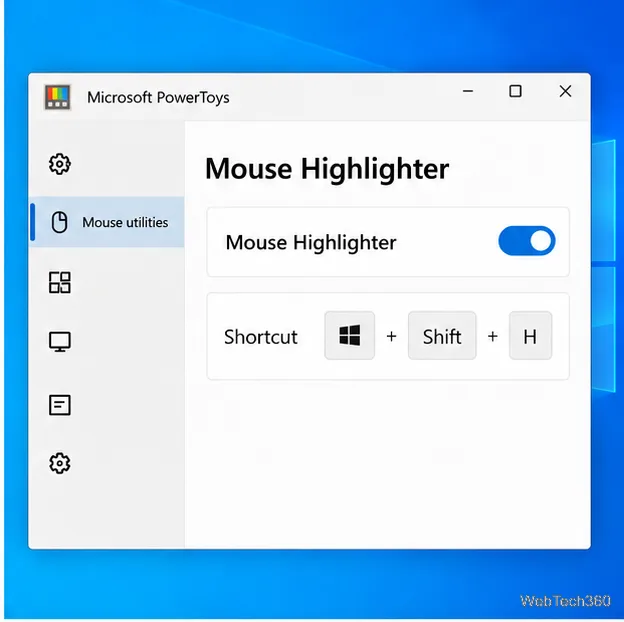
In Settings, select Mouse utilities, then open Mouse Highlighter.
Turn on the Mouse Highlighter switch. The utility's default shortcut is Windows+Shift+H; press it to turn the effect on or off while PowerToys is running.
If the shortcut does nothing, check that PowerToys is open and the Mouse Highlighter switch is enabled. You can also review or change the shortcut in the utility's settings. Microsoft's Mouse utilities documentation describes the current controls.
Turn on Mouse Highlighter in PowerToys Settings; the displayed shortcut toggles the effect during a demo.
Choose a click effect and colors
In the Mouse Highlighter settings, choose a mode that stays visible without obscuring what you are showing:
Ripple shows a brief pulse at the click. Microsoft lists Ripple as the default for a new settings profile.
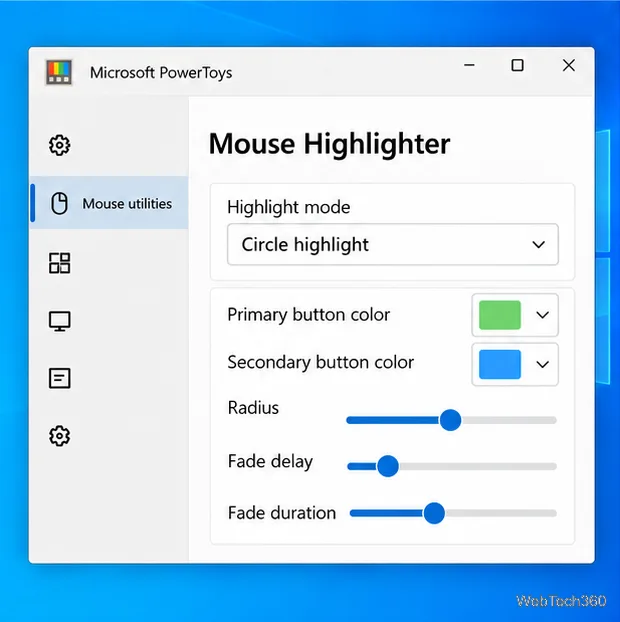
Circle highlight keeps a circle around the pointer and can distinguish primary and secondary clicks with separate colors.
Spotlight focuses attention on the pointer with a highlighted area. It may suit a presentation when you want viewers to follow the cursor.
Set the primary and secondary button colors so they contrast with the apps and background in your recording. These usually correspond to left- and right-click, respectively, though Windows lets users swap the primary button. For Circle highlight and Spotlight, adjust the radius and how long the effect waits and fades. Ripple has its own size, intensity, and duration controls. Older PowerToys builds may show different labels or fewer options, so update through the official source if a setting described here is missing.
Circle highlight provides separate click colors, radius, fade delay, and fade duration controls.
Test the highlight before recording
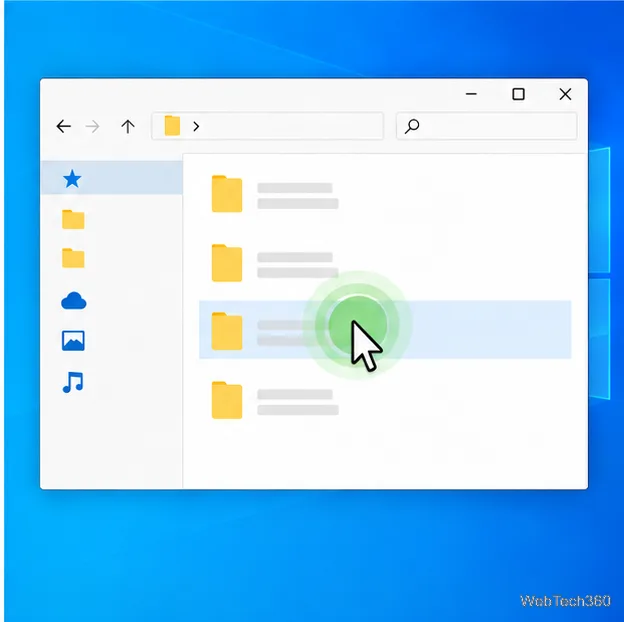
Open a harmless window, such as File Explorer, and try both mouse buttons. Confirm that the two indicators are distinct and that their color and size do not cover the text or controls viewers need to see. If the rings disappear too quickly, increase the fade timing or Ripple duration; if they dominate the screen, reduce the radius or size.
PowerToys supplies the on-screen indicator, while a separate screen recorder captures the presentation. Capture behavior can vary by recorder and capture mode, so record a short sample and play it back before making a longer tutorial. If the highlight is missing, try recording the full display instead of only one application window, then check the test clip again.
A single click indicator can make the exact selection visible in a screen demonstration.
Make the pointer easier to see with Windows settings
If you only need a more visible cursor, Windows 10 has built-in options. Open Settings > Ease of Access > Mouse pointer to change the pointer's size or color. To leave a trail while the pointer moves, open Settings > Devices > Mouse > Additional mouse options, select the Pointer Options tab, and turn on Display pointer trails. These options help viewers follow the cursor, but they do not add a separate visual signal for a click. See Microsoft's Windows accessibility guidance for the pointer settings.
Quick fixes
No effect appears: confirm PowerToys is running, Mouse Highlighter is on, and the feature has not been toggled off with its shortcut.
Only one click color is obvious: choose contrasting primary and secondary colors, then test on both light and dark parts of the screen.
The effect is distracting: switch from Spotlight to Ripple or Circle highlight, then reduce its size or fade duration.
The recording omits the indicator: test another capture mode and inspect a short playback before recording the full tutorial.
For a Windows 10 tutorial that needs viewers to see exactly when you click, Mouse Highlighter is the relevant PowerToys feature. Use the built-in pointer settings when cursor visibility alone is enough.