Home
» WINDOWS
»
How to Identify Taskbar Icons in Windows 10
How to Identify Taskbar Icons in Windows 10
Hover over an unfamiliar Windows 10 taskbar icon and wait for its tooltip; Windows often shows the app name. If it does not, check window previews, the right-click menu, or the notification area. The taskbar holds both pinned apps and open apps, so an icon alone does not mean a program is running. Start with checks that do not launch or remove anything.
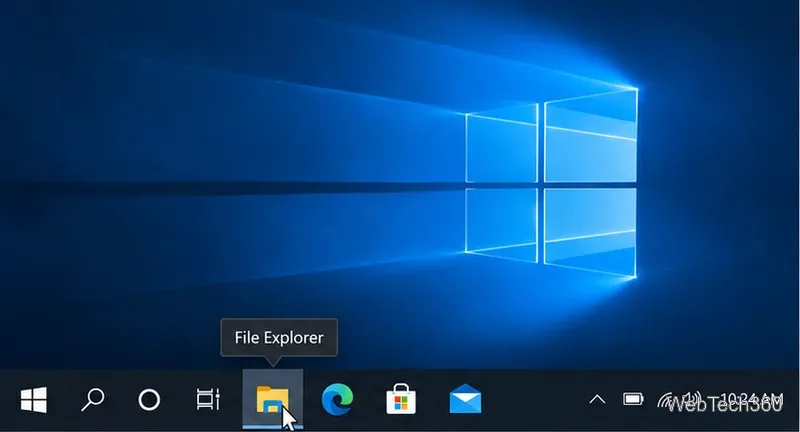
A hover label can reveal the name of a pinned app button.
Identify an app button
1. Hover over the icon
Move the pointer over the button and pause briefly. A tooltip may show the app’s name. If there is no label, move away and try again; tooltips can be easy to miss. Avoid clicking an unknown icon just to test it.
2. Check window previews
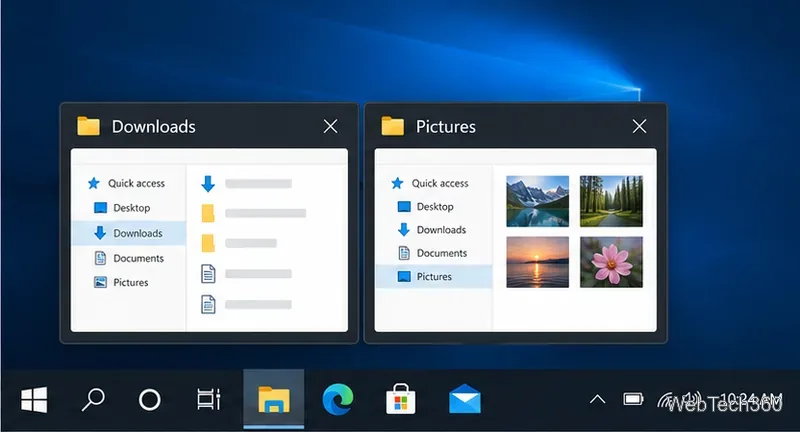
If the app is open, hovering may show a thumbnail for each window. Preview titles can identify a document, folder, or site. When several windows share a button, compare their labels. This can identify the open window even when the app’s logo is unfamiliar.
Preview titles can distinguish windows grouped under one taskbar button.
3. Read the right-click menu
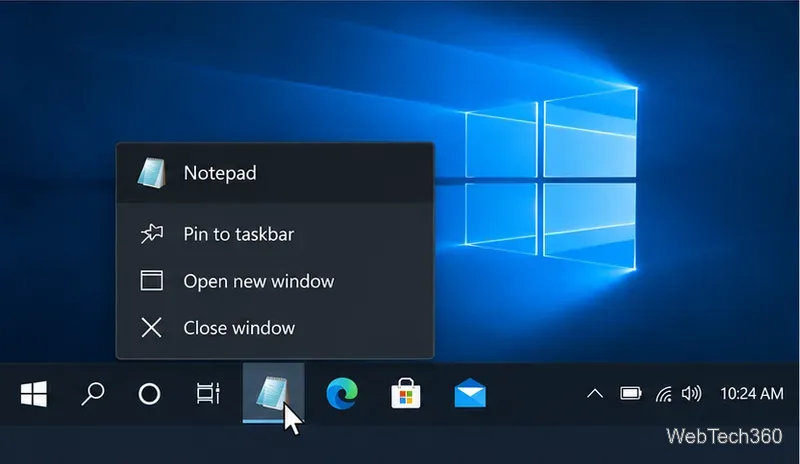
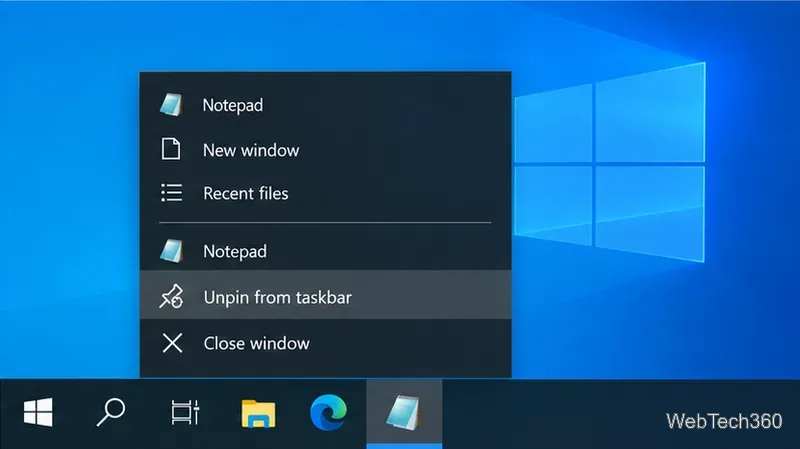
Right-click the button and inspect the menu before choosing anything. Many app menus show the app name and commands such as New window, recent items, Pin to taskbar, or Unpin from taskbar. Options vary by app and by whether it is open. Press Esc to close the menu. Microsoft’s taskbar customization guide covers pinning and notification-area settings.
A right-click menu may expose the app name and its available actions.
Check the notification area
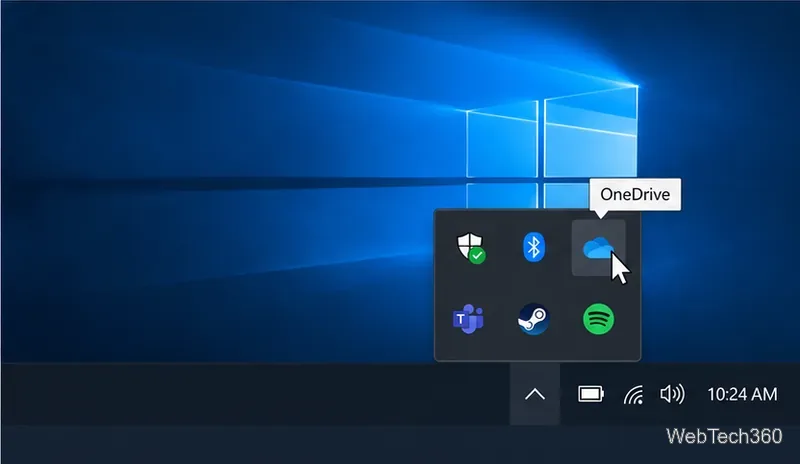
Icons near the clock are in the notification area, or system tray. They can represent Windows features or background apps rather than regular app windows. Select the up-arrow (Show hidden icons), then hover over an icon for its tooltip. Network, volume, battery, clock, and notification symbols are common system items. Microsoft’s taskbar navigation guide explains the tray. You can also press Windows+B and use arrow keys to move through notification-area icons.
Open the hidden-icons flyout and hover to see an app’s name.
Match it to an installed app
4. Search from Start
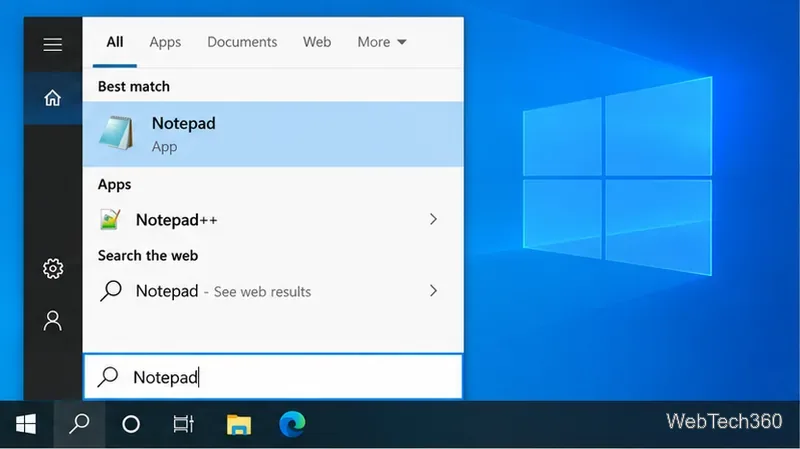
Press Windows+S or open Start and type a likely app name. Search results pair app names with icons, which helps when the taskbar button is pinned but closed. You can also browse Start’s alphabetical app list. Microsoft describes these ways to find apps in Windows. Avoid opening an unfamiliar result just to see what it does.
Start search pairs an app name with its icon.
5. Inspect a desktop shortcut’s target
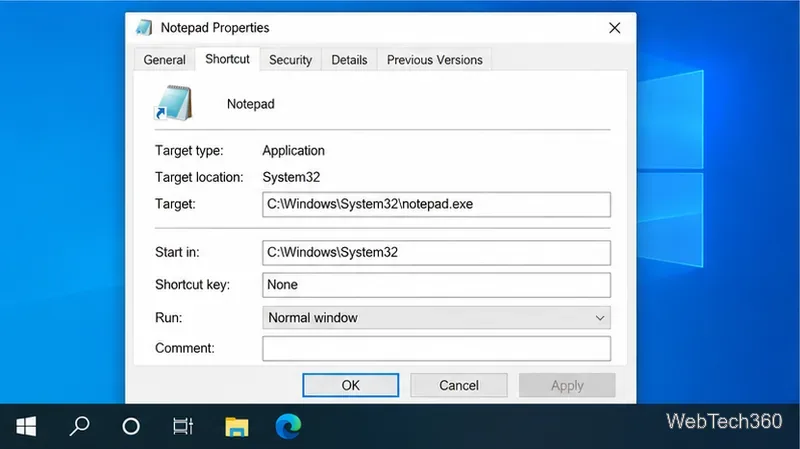
For a traditional desktop program, right-click its Start search result and choose Open file location if available. In File Explorer, right-click the shortcut, select Properties, and read the Target field on the Shortcut tab. The executable or folder name may identify the product. Do not edit the target. Some packaged or Store apps do not expose a regular shortcut; use Search or another check instead.
A desktop shortcut’s Target field can identify its program path; the path varies by app.
Use Task Manager as a cross-check
6. Compare running app names
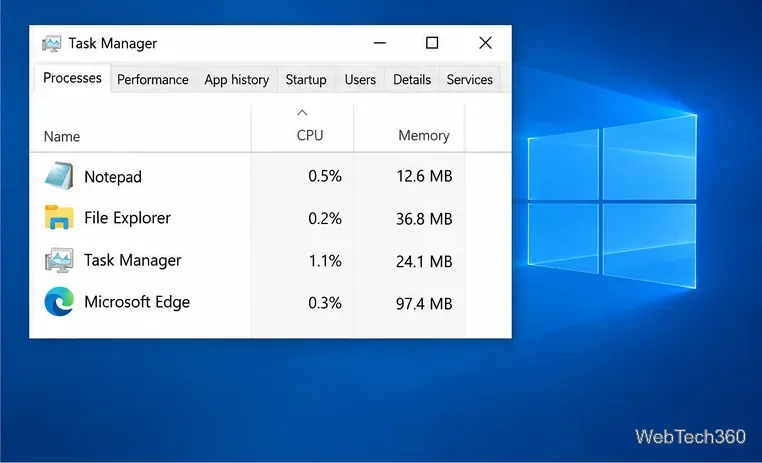
Press Ctrl+Shift+Esc and open the Processes tab. The Apps and background-process lists can confirm whether a named program is running. This is supporting evidence, not a one-to-one map: pinned apps remain visible while closed, and a process name may differ from the product name. Microsoft’s system-tools overview describes Task Manager’s role.
Do not end a process just because it is called cmd or Command Prompt, or because you do not recognize it. That will not identify the icon and could stop a script or other work. End a task only when you recognize it and have saved anything important.
Task Manager confirms running app names but may not identify a pinned icon.
Remove a stale pin only after identifying it
A blank or generic image can mean a shortcut’s target or icon file is missing, including after an app is removed. It does not by itself show that the icon is harmful or that a command is running. Once you know which app it belongs to, right-click and choose Unpin from taskbar if you no longer want it. To add the correct app, find it in Start, right-click the result, and choose Pin to taskbar. Leave an unidentified button in place.
Remove a pin only after confirming which app it belongs to.
Quick reference
Icon location or behavior
Try this
App button
Hover, then check previews or its menu.
Near the clock
Open Show hidden icons and hover.
Blank or unresponsive
Search Start, inspect a shortcut target if available, and use Task Manager only as a cross-check.
Taskbar contents and menu wording vary with installed apps, open windows, and tray settings. If no check identifies an icon, leave it in place until you can match it to an app name or shortcut.