How to Set Different Scaling Levels for Multiple Monitors in Windows 10

Adjust each Windows 10 monitor independently with per-display scaling, keep text readable, and troubleshoot custom scaling or blurry apps.
To move a custom Windows 10 theme to another PC, export it as a .deskthemepack file. In Settings, open Personalization > Themes, right-click the saved custom theme, and choose Save theme for sharing. Copy the resulting package to the other computer and open it there. A standalone .theme file can point to pictures or other assets that are not included, so it is not the best file to transfer by itself.
This guide covers the built-in export and import process, where Windows keeps installed theme files, and what to check if a background does not carry over.
A Windows theme can combine desktop backgrounds, colors, sounds, and mouse cursor settings. Windows saves theme settings in a .theme file, while a shareable theme pack includes the theme file and the assets needed to use it on another PC. Microsoft’s current Windows personalization guide identifies .deskthemepack as the file created by Save theme for sharing; its developer documentation explains why a theme file alone may need separate background images or other files.
Use a theme you have saved under your own name. The default Windows themes are already included with Windows and are not the same as a custom theme you created. The labels in Settings may vary slightly with the Windows 10 build, but the Personalization and Themes pages remain the route to the sharing command.
Open Themes settings. Press Windows+I to open Settings, then select Personalization and Themes. You can also right-click an empty area of the desktop, choose Personalize, and open Themes.
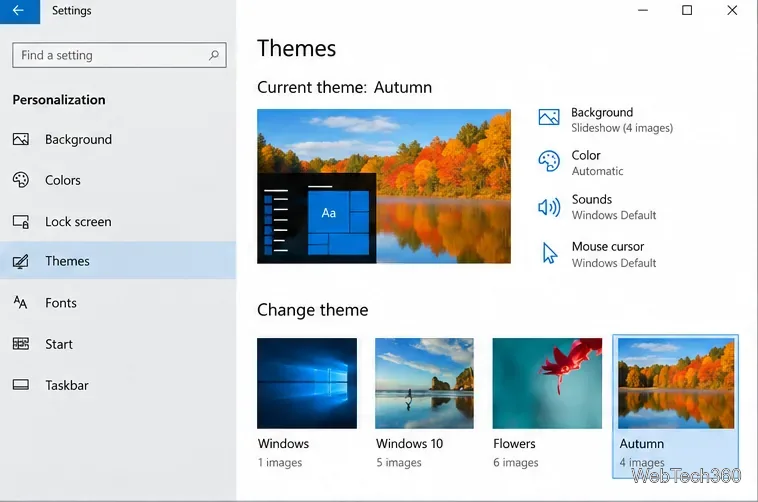
Save your custom theme first if needed. If you have just changed its background, color, sounds, or cursor, save those settings as a named theme on the Themes page. This makes the configuration easier to recognize in the list before you export it.
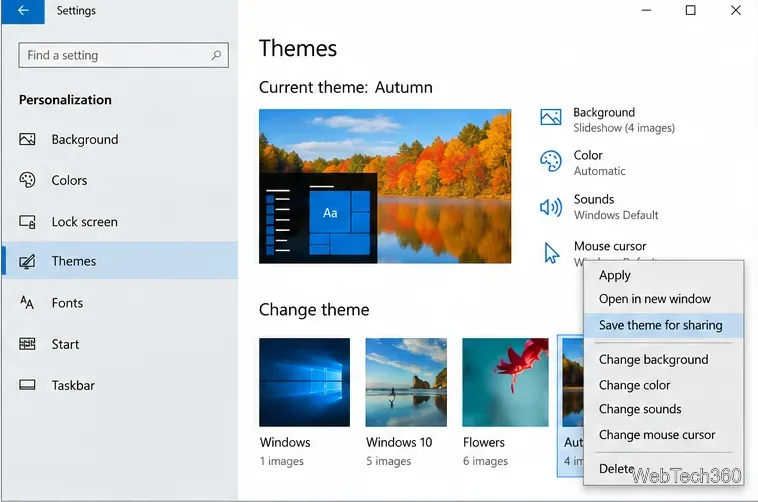
Open the theme’s sharing command. Right-click the saved custom theme tile and select Save theme for sharing. If the command is missing, confirm that you are opening the menu for a saved custom theme rather than a blank area or a default theme.
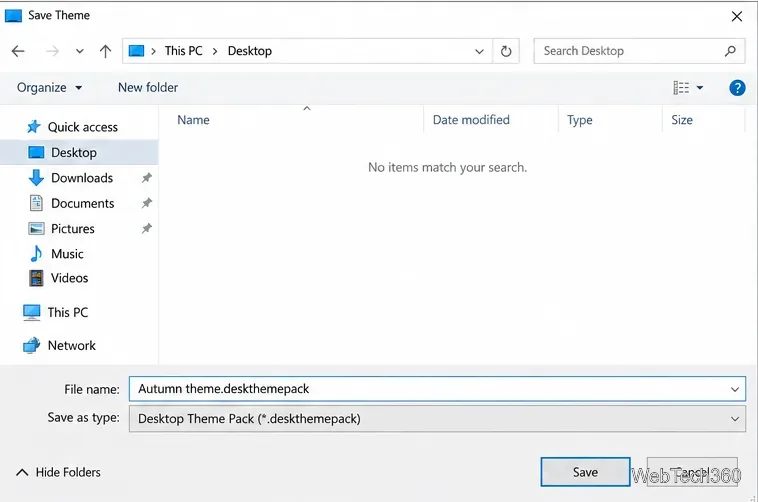
Name the package and save it. In the Save Theme dialog, choose a location you can find again, such as the Desktop, enter a name, and select Save. Windows creates a file with the .deskthemepack extension.
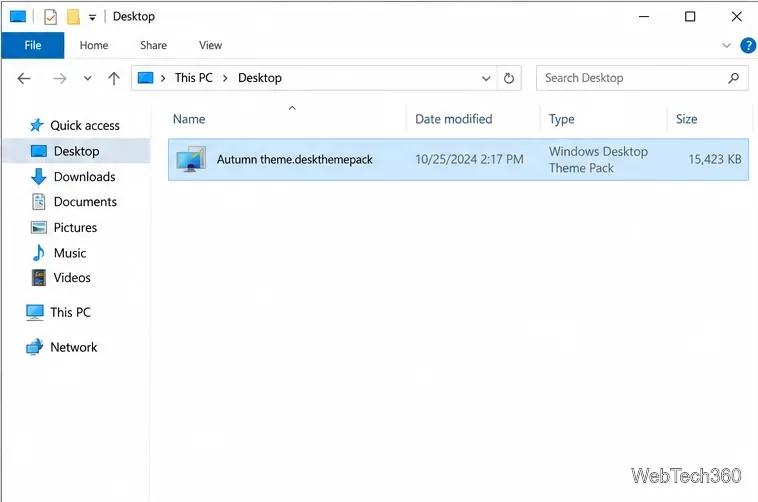
Check that the package was created. In File Explorer, open the folder you selected and confirm that the theme pack is there. Keep the .deskthemepack extension; do not rename it to .theme or add a second extension such as .zip.
Copy the package to the other computer. Transfer the .deskthemepack file with a USB drive, a shared folder, or a cloud service you trust. You can keep it in Downloads or another convenient folder. If the theme came from someone else, only open the file if you trust its source.
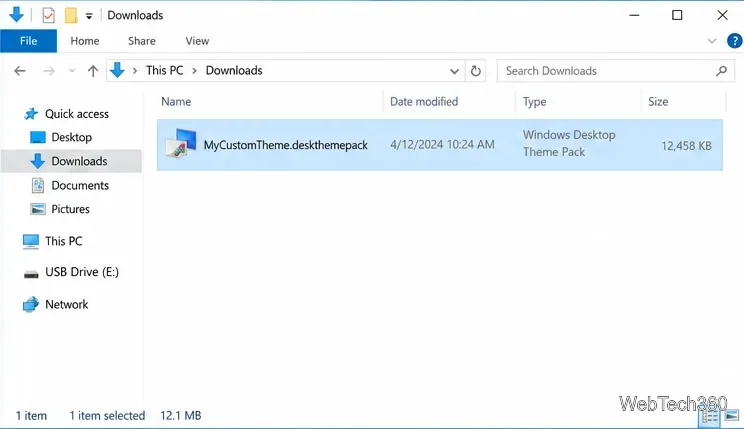
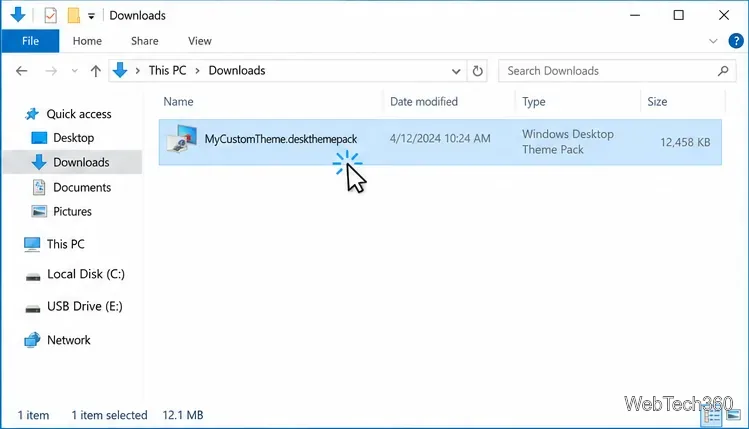
Open the theme pack. On the receiving PC, locate the file in File Explorer and double-click it. Windows processes the package and applies or adds the theme to the available themes. If Windows asks whether to open the file, confirm only when you trust where it came from.
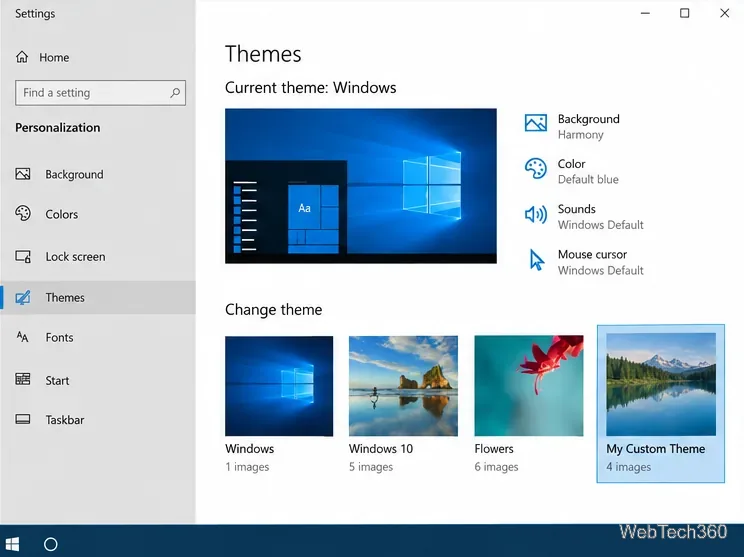
Check the Themes page. Open Settings > Personalization > Themes. The imported theme should appear in the theme gallery. If it is not immediately visible, close and reopen Settings and check that the package finished opening.
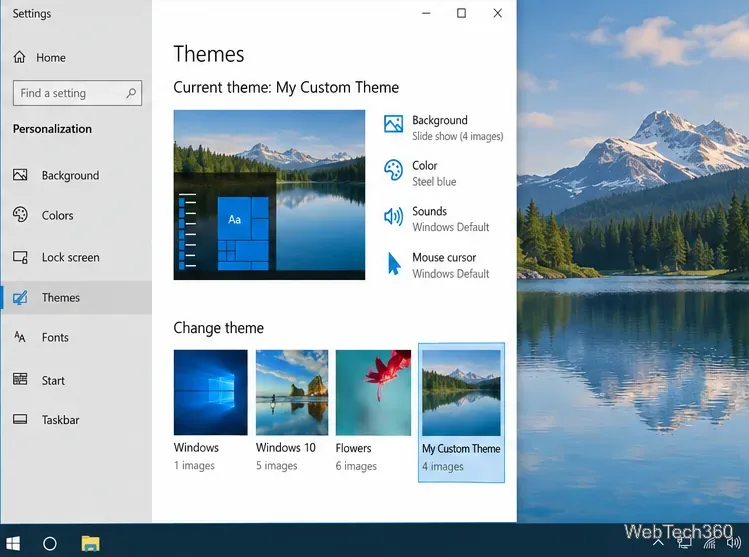
Select the imported theme to use it. Click its tile in the gallery. Windows applies the package’s available personalization settings; you can then select Background, Color, Sounds, or Mouse cursor to adjust individual parts.
Windows keeps user theme files and related assets under %LOCALAPPDATA%\Microsoft\Windows\Themes. To open the folder, press Windows+R, enter %LOCALAPPDATA%\Microsoft\Windows\Themes, and press Enter. An imported theme may have its own folder containing a .theme file and a DesktopBackground folder.
Copying that installed folder to a different PC is not a reliable import method: the theme file can reference local paths, and copying files alone does not necessarily register the theme in Settings. Keep and transfer the original .deskthemepack instead. If a wallpaper is missing after import, export the theme again from its source PC using Save theme for sharing; a plain .theme file may refer to an image that was never packaged.
These personalization steps apply to PCs that still run Windows 10. Microsoft ended support for most Windows 10 editions on October 14, 2025, so this local theme workflow does not change the device’s support or security-update status. Check Microsoft’s lifecycle information for edition-specific details.
For details, see Microsoft’s Windows themes and personalization guide, Theme File Format documentation, and Windows 10 lifecycle page.
Adjust each Windows 10 monitor independently with per-display scaling, keep text readable, and troubleshoot custom scaling or blurry apps.
Use AirType’s browser pairing setup to type on an iPhone from a Windows 10 PC, with current setup steps, troubleshooting, and privacy limits.
Hide the mouse pointer in Windows 10 videos, games, and other apps with built-in typing controls or PowerToys CursorHide’s adjustable inactivity timer.
Find Control Panel Power Options on a Windows 10 desktop, open the page with a Run command, and adjust power plans, display timeouts, sleep, and button behavior.
Learn what Windows 10 deletion leaves behind, how to use SDelete on an HDD, and why SSDs and cloud backups need separate treatment.
Use FFmpeg’s DirectShow tools to open an integrated webcam’s driver properties in Windows 10, find the correct device, and troubleshoot missing controls.
Identify a keypress in Windows 10 with a browser event tester or SharpKeys, then separate layout, software, and keyboard hardware issues.
Use double quotes around each complete path with spaces in Command Prompt. Learn how to list, change to, copy, and troubleshoot Windows 10 files and folders.
Turn off the Windows 10 Start menu’s hover-to-expand behavior with a legacy Mach2 command, check build limits, and see the built-in app-list alternative.
Fix the iTunes Library.itl read error on Windows 10 by updating iTunes, restoring a compatible backup, or safely creating a new library without deleting media files.








