How to Create a List of All Items in a Folder on Windows 10

Create a searchable Windows 10 folder inventory with PowerShell. Save every file and subfolder path as plain text or export details to a sortable CSV.
Yes, you can install Steam games on an external drive in Windows 10. The current Steam client lets you add another library under Steam > Settings > Storage, then choose that library when you install a game. You can also move games that are already installed without downloading them again.
For the most reliable setup, keep the Steam client itself on your internal drive and use the external SSD or hard drive only as an additional game library. Steam officially warns that external hard drives can cause performance or disconnect problems, so an internal drive remains the safer choice when a game is sensitive to storage speed or interruptions.
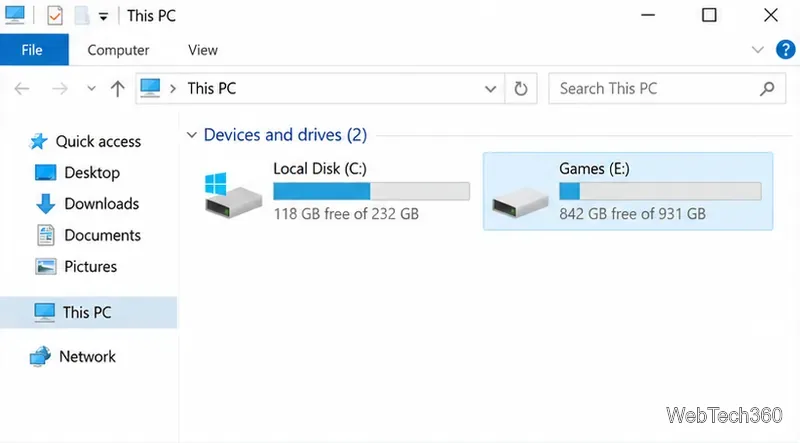
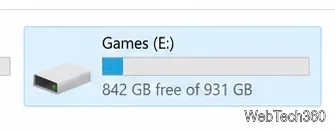
Open Steam, select Steam > Settings > Storage, and look for your available storage locations. Steam's current support documentation says you can create another installation path by selecting the + control at the top of Storage. If the external drive is not listed yet, add it and choose a folder for the Steam library.
You do not need to move the entire Steam program. A separate library on the external drive is enough for game content.
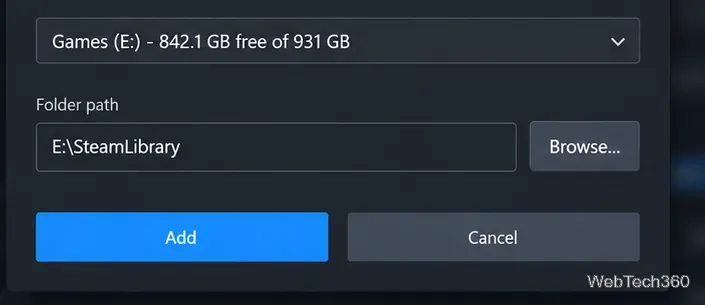
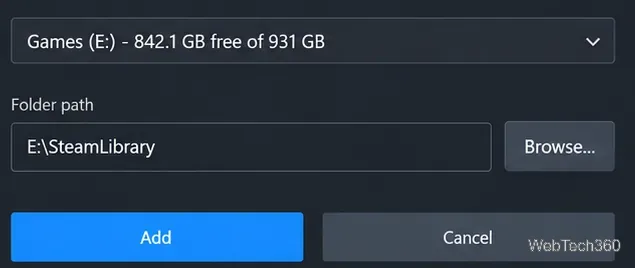
Choose the external drive and create a library location such as E:\SteamLibrary. The exact drive letter on your PC may be different. Steam needs write access to the folder so it can install and update game files.
Return to Library, select the game, and click Install. In the installation window, choose the external Steam library under Install To, then start the installation. Steam will download and unpack the game directly into that library.
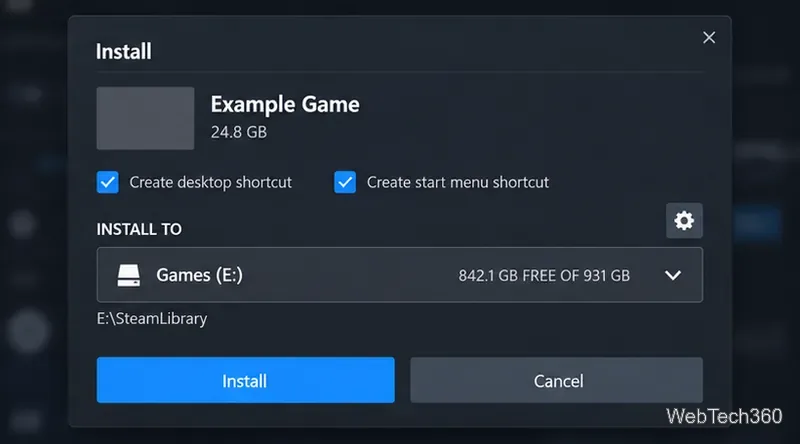
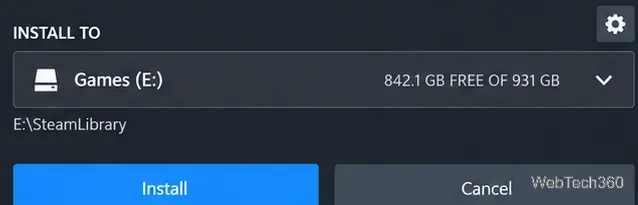
Steam's official Moving a Steam Installation and Games guide confirms that alternate library locations can be created on another drive and selected for future installations.
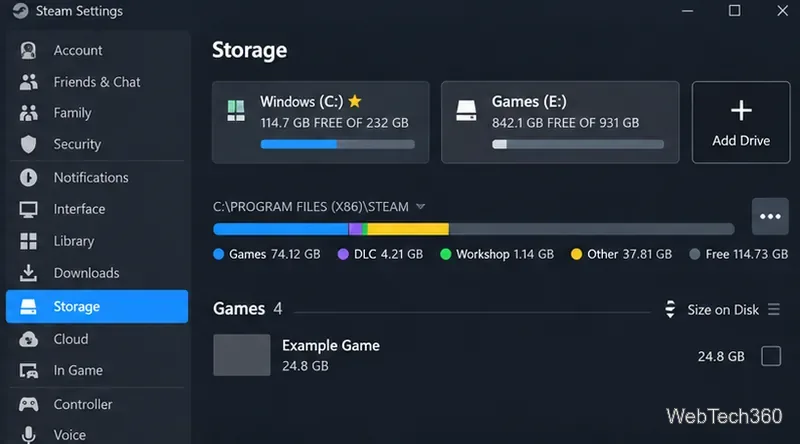
You do not need to uninstall and redownload the game. Steam's current support instructions specifically direct users to the Storage tab, the source drive, the game selection, and the Move command.
Not necessarily, and that is an important correction to older advice. A game's installation files and its save files are not always stored in the same place. Games that support Steam Cloud can synchronize supported saves and settings through your Steam account. Other games may store saves locally in Documents, AppData, a publisher-specific folder, or another location chosen by the developer.
Moving the installation through Steam normally does not require deleting your saves, but you should back up important local saves before major storage changes. If you are unsure where a particular game stores its progress, check the developer's support documentation.
Do not unplug the drive while Steam is writing to it or while a game stored on it is running. When you need to disconnect it, close the game and Steam first, then use Windows' safe-removal option. Microsoft recommends using Safely Remove Hardware before unplugging external storage to reduce the risk of data loss.
An external Steam library is a practical way to free internal storage, especially for large games. The key is to add the drive through Steam's current Storage settings, install or move games with Steam's built-in controls, and treat save files as separate data unless you have confirmed where a particular game keeps them.
Create a searchable Windows 10 folder inventory with PowerShell. Save every file and subfolder path as plain text or export details to a sortable CSV.
Add a custom reminder, quote, or label to your Windows 10 desktop with a Rainmeter text skin. Create the INI file, load it, then adjust its font and position.
Use Bluetooth Swift Pair on Windows 10 to pair a compatible accessory from a notification, with setup steps and fixes when the prompt does not appear.
Learn what common laptop function key symbols mean, how Fn and Fn Lock affect them, and how to confirm the right shortcut for your Windows 10 laptop model.
Turn off your Windows 10 display instantly with ScreenSleep, set a keyboard shortcut, and see when to use the built-in screen timeout instead.
Fix the “running scripts is disabled on this system” PowerShell error on Windows 10 with a current-user policy, a temporary session option, and safe steps for downloaded scripts.
Change the Windows 10 drag-selection color with a backup-first registry walkthrough, RGB examples, troubleshooting tips, and steps to restore your original values.
Check your router’s connected-device list or scan a local network with Fing Desktop on a supported PC. Learn what each method can show and how to verify unfamiliar entries.
Messenger does not offer a documented per-friend online alert. Learn how Active Status works, where to check the green dot, and which notifications you can enable instead.
Use 7-Zip to find an exact filename or wildcard match inside a ZIP or other supported archive on Windows 10 without unpacking its files.








