How to Set Different Scaling Levels for Multiple Monitors in Windows 10

Adjust each Windows 10 monitor independently with per-display scaling, keep text readable, and troubleshoot custom scaling or blurry apps.
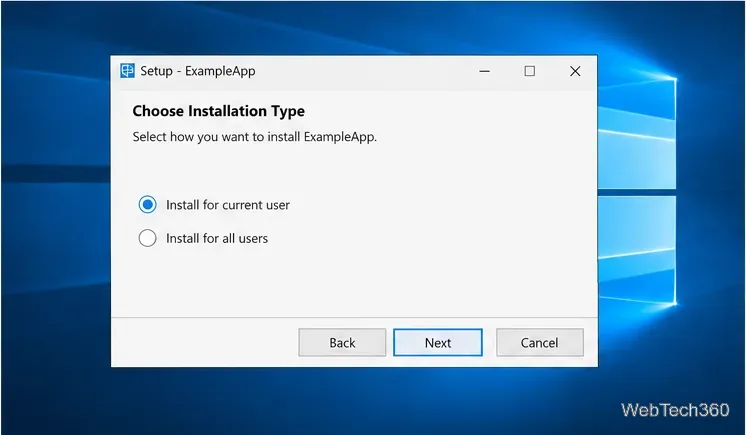
To install a Windows 10 desktop app for one account, run its installer while signed in to that account and choose “Just for me” or “Current user” if offered. If setup lets you choose a destination, a folder under %LOCALAPPDATA%\Programs\Vendor\AppName is a suitable user-profile location. Changing the folder alone does not turn an all-users installer into a per-user install; the setup package must support that scope.
Windows Installer offers two contexts: per-machine and per-user. The first is designed for all accounts; the second can place installer-managed items such as shortcuts and registrations in the current user’s locations. The package and installation mode determine the context. Copying program files into a profile folder alone does not. Microsoft’s installation-context documentation explains the difference.
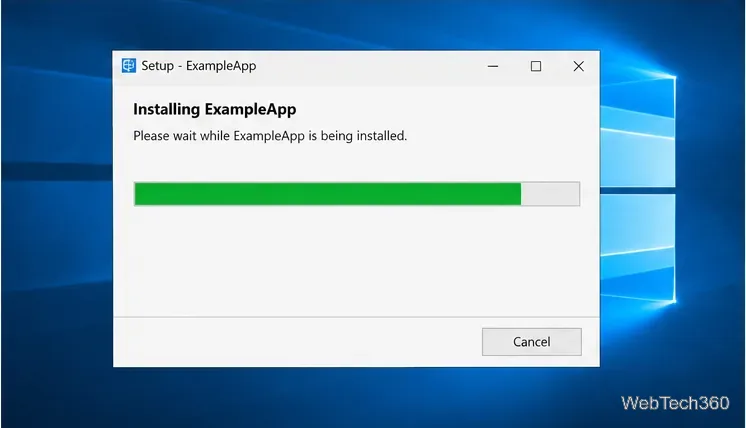
%LOCALAPPDATA%\Programs\Vendor\AppName. Press Windows+R, enter %LOCALAPPDATA%, and press Enter to open the current account’s Local AppData folder. In setup, create a separate folder for the app instead of placing files directly in AppData\Local. If the installer does not accept the variable, copy the full path from File Explorer. This is a suitable destination only when the installer supports per-user installation.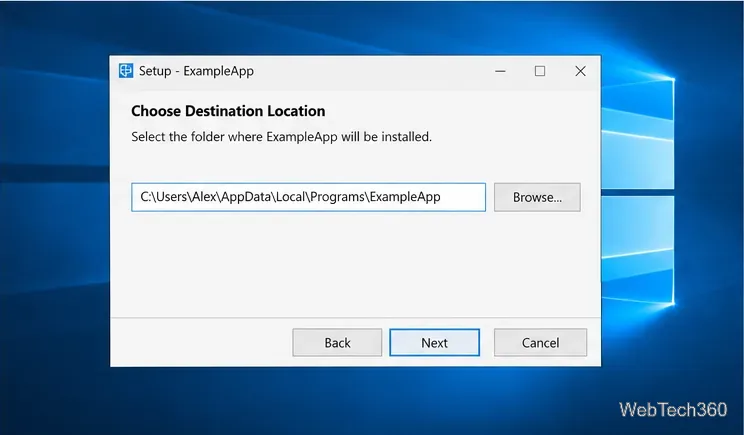
%APPDATA%\Microsoft\Windows\Start Menu\Programs, the current user’s Start Menu programs folder. The shared folder is %ProgramData%\Microsoft\Windows\Start Menu\Programs. Microsoft documents that Windows Installer places per-user shortcuts in the user profile and machine-wide shortcuts in the all-users profile. A shortcut’s location is a useful clue, but custom app installers may behave differently.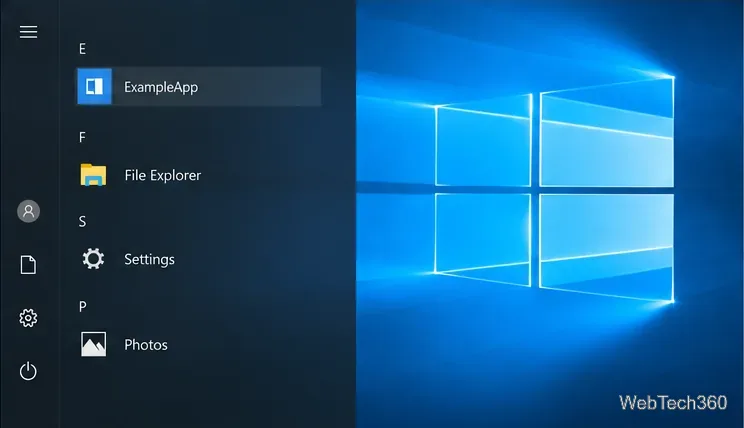
Do not assume that selecting an AppData destination makes an app single-user. Some installers support only per-machine setup, and changing the path does not move their registry entries, shortcuts, updaters, or services into a user context. For an MSI package, MSIINSTALLPERUSER works only when the package supports both contexts and uses ALLUSERS=2; otherwise Windows Installer ignores it. A generic command cannot convert an unsupported package. See Microsoft’s MSIINSTALLPERUSER reference and ask the publisher for supported per-user instructions.
MSIX and AppX use a different deployment model. Microsoft describes Add-AppxPackage as adding a signed package to a user account. For an MSIX or AppX download, follow the publisher’s installation steps; avoid admin provisioning methods meant to prepare apps for multiple users. See the Add-AppxPackage documentation.
Windows 10 support note: Microsoft ended support for Windows 10 on October 14, 2025; check the support status for your edition if you continue using it.
Adjust each Windows 10 monitor independently with per-display scaling, keep text readable, and troubleshoot custom scaling or blurry apps.
Use AirType’s browser pairing setup to type on an iPhone from a Windows 10 PC, with current setup steps, troubleshooting, and privacy limits.
Hide the mouse pointer in Windows 10 videos, games, and other apps with built-in typing controls or PowerToys CursorHide’s adjustable inactivity timer.
Find Control Panel Power Options on a Windows 10 desktop, open the page with a Run command, and adjust power plans, display timeouts, sleep, and button behavior.
Learn what Windows 10 deletion leaves behind, how to use SDelete on an HDD, and why SSDs and cloud backups need separate treatment.
Use FFmpeg’s DirectShow tools to open an integrated webcam’s driver properties in Windows 10, find the correct device, and troubleshoot missing controls.
Identify a keypress in Windows 10 with a browser event tester or SharpKeys, then separate layout, software, and keyboard hardware issues.
Use double quotes around each complete path with spaces in Command Prompt. Learn how to list, change to, copy, and troubleshoot Windows 10 files and folders.
Turn off the Windows 10 Start menu’s hover-to-expand behavior with a legacy Mach2 command, check build limits, and see the built-in app-list alternative.
Fix the iTunes Library.itl read error on Windows 10 by updating iTunes, restoring a compatible backup, or safely creating a new library without deleting media files.








