How to Install an APPX Application on Windows 10

Quick answer: You can install an APPX application on Windows 10 by opening the package with Microsoft App Installer or by running Add-AppxPackage in Windows PowerShell. Use only packages from publishers you trust, because Windows requires sideloaded app packages to be properly signed and trusted.

APPX is an older Windows app-package format that you may still encounter as .appx or .appxbundle. The same Windows tooling also handles newer MSIX packages. One important update to older advice: you normally do not need to run PowerShell as administrator just to add a package for your own user account.

Windows 10 itself reached end of support on October 14, 2025. The operating system still runs, but Microsoft recommends moving to a supported Windows version or using an applicable Extended Security Updates option. See Microsoft's Windows 10 end-of-support guidance.

Before installing an APPX file

  • Check the source. Prefer the Microsoft Store, your organization, or the software publisher's official download page.
  • Keep dependencies together. Some packages require framework or dependency packages supplied alongside the main APPX file.
  • Do not bypass certificate warnings casually. A package distributed outside the Store must be signed with a certificate Windows trusts.
  • Know your Windows 10 version. Microsoft states that sideloading is enabled by default starting with Windows 10 version 2004. Older releases may require the Sideload apps setting.

Method 1: Install APPX with App Installer

For most people, App Installer is the easiest method. Microsoft documents it as the graphical installer for packaged Windows apps and includes it with supported Windows 10 releases; it can also be serviced through the Microsoft Store.

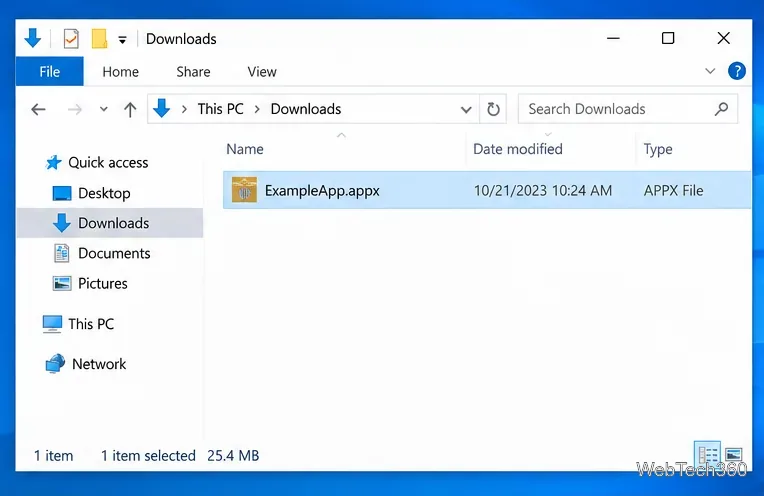
  1. Locate the package. Open File Explorer and browse to the downloaded .appx or .appxbundle file. Double-click the file to open it with App Installer.
Windows 10 File Explorer with ExampleApp.appx selected in the Downloads folder
Locate the APPX package in File Explorer and open it with App Installer.
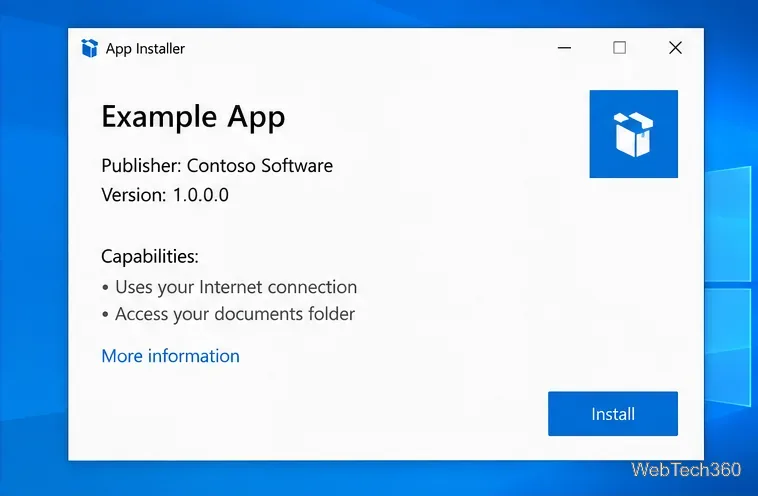
  1. Review the package details. Check the app name and publisher information shown by App Installer. If anything looks unexpected, cancel instead of continuing. Select Install when you are satisfied.
Windows 10 App Installer showing Example App publisher information and the Install button
Review the publisher and package information before selecting Install.
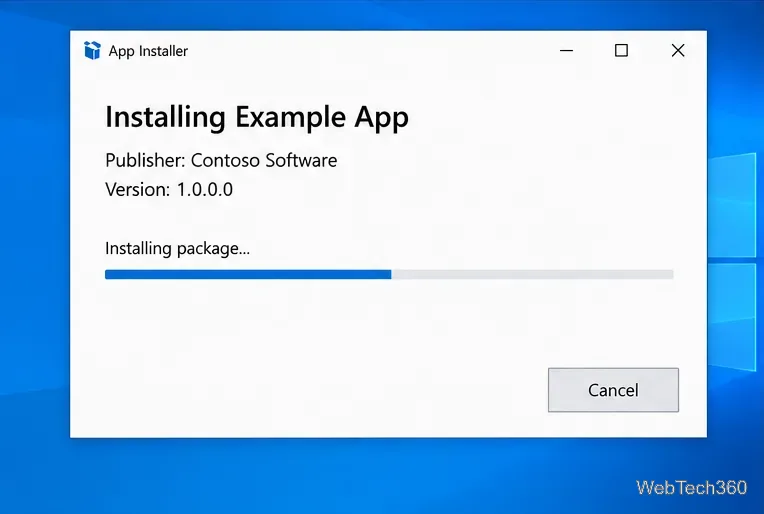
  1. Let installation finish. Keep the installer open until Windows completes package deployment.
Windows 10 App Installer showing installation progress for Example App
App Installer deploys the package and shows progress while it installs.
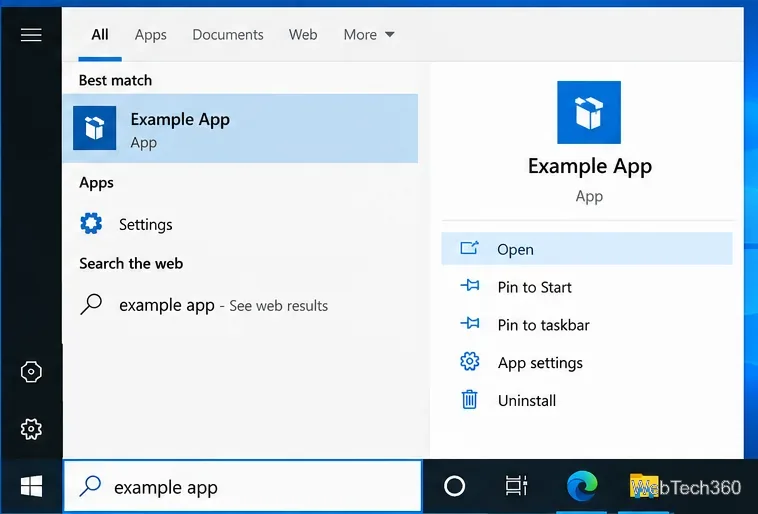
  1. Open the app. Search for the application from Start. If it appears there and opens normally, the installation is complete.
Windows 10 Start search showing the newly installed Example App with an Open command
After installation, search Start for the app and open it.

If App Installer is missing or outdated, follow Microsoft's App Installer installation and update guidance. App Installer can also handle .msix and bundle packages.

Method 2: Install an APPX with PowerShell

PowerShell is useful when double-clicking the package does not work or when you need to specify dependencies explicitly.

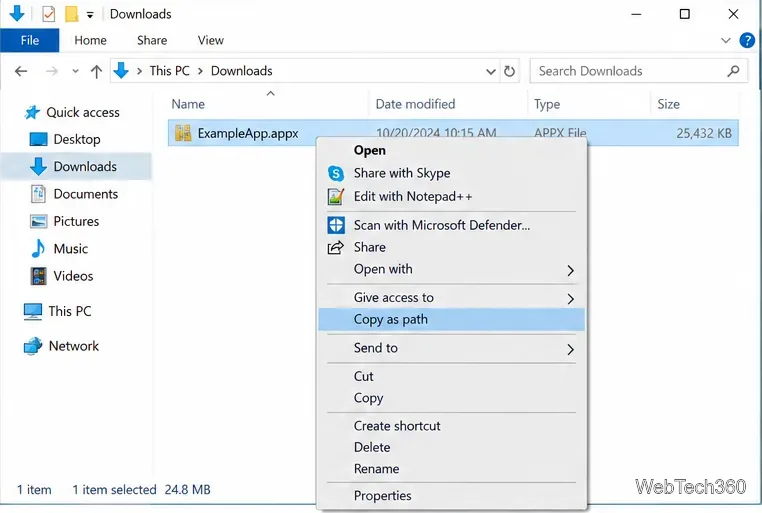
  1. Copy the package path. In File Explorer, right-click the APPX file and choose Copy as path.
Windows 10 File Explorer context menu with Copy as path selected for ExampleApp.appx
Copy the APPX file path so you can paste it into PowerShell without typing it manually.
  1. Open Windows PowerShell. A normal PowerShell window is usually enough for a per-user package installation. Use an elevated window only when a separate task, such as installing a machine-trusted certificate, specifically requires administrator rights.
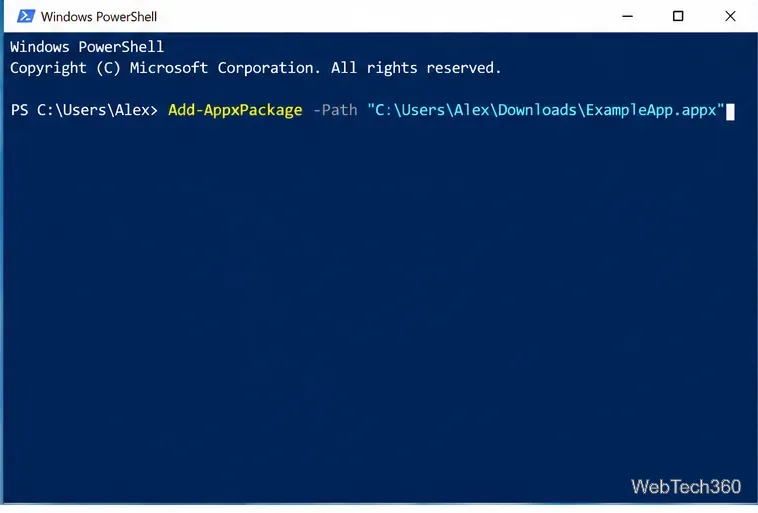
  2. Run Add-AppxPackage. Replace the sample path with the path to your package:
Add-AppxPackage -Path "C:\Users\Alex\Downloads\ExampleApp.appx"
Windows PowerShell on Windows 10 with an Add-AppxPackage command for ExampleApp.appx
Run Add-AppxPackage with the full path to the APPX file.
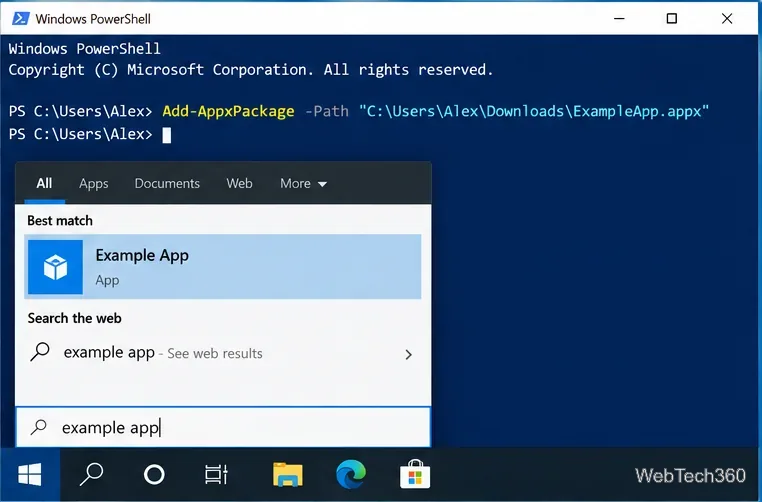
  1. Verify the result. If PowerShell returns to the prompt without an error, search Start for the application and launch it.
Windows PowerShell after Add-AppxPackage completes with Example App visible in Start search
A successful Add-AppxPackage command may simply return to the prompt; confirm the app from Start.

Microsoft's Add-AppxPackage documentation confirms that the cmdlet installs signed .appx, .appxbundle, .msix, and .msixbundle packages for a user account.

Install required dependency packages

If the publisher provides dependency packages, you can pass them with -DependencyPath. For example:

Add-AppxPackage -Path "C:\Apps\ExampleApp.appx" -DependencyPath "C:\Apps\Dependency1.appx","C:\Apps\Dependency2.appx"

Use dependencies from the same trusted publisher or official Microsoft source. Do not download random framework packages from unofficial sites to make an installation error disappear.

What to do if the APPX package will not install

  • The package is not trusted: the signing certificate is not trusted by the PC. For a legitimate self-signed or internal package, follow the publisher's instructions and Microsoft's sideloading guidance. Import a certificate only when you know and trust its source.
  • A dependency is missing: obtain the dependency packages from the publisher and install them with the main package, or use App Installer when the deployment source supplies dependencies correctly.
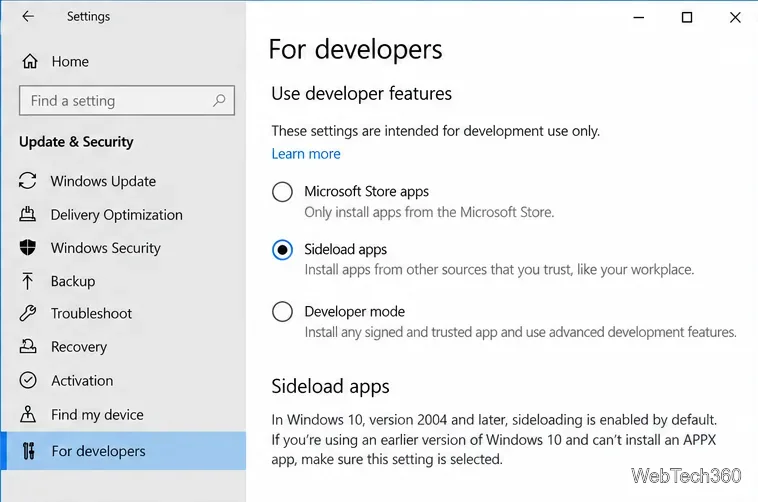
  • Sideloading is blocked: organization policy can prevent sideloading. On older Windows 10 releases, open Settings > Update & Security > For developers and use Sideload apps if that option is available and appropriate.
  • The package is not applicable: confirm that the app supports your Windows build and processor architecture, such as x86, x64, or ARM64.
Windows 10 For developers settings page with Sideload apps selected
Older Windows 10 releases may expose a Sideload apps option; version 2004 and later enables sideloading by default unless policy blocks it.

For a normal Store-distributed app, using the Microsoft Store remains preferable to downloading an APPX file from an unofficial mirror. Manual APPX installation is most appropriate when the software publisher or your organization intentionally distributes a signed package outside the Store.

Leave a Comment

How to Access a Network Location in Command Prompt on Windows 10

How to Access a Network Location in Command Prompt on Windows 10

Use pushd to open a UNC network path in Windows 10 Command Prompt, run commands in the shared folder, and return with popd.

How to Install a Rainmeter Skin From an INI File on Windows 10

How to Install a Rainmeter Skin From an INI File on Windows 10

Learn how to install a Rainmeter skin from an INI file by placing it in the right Skins folder, preserving its resources, refreshing Rainmeter, and loading it in Manage.

How to Open Folders in a New File Explorer Window on Windows 10

How to Open Folders in a New File Explorer Window on Windows 10

Open one folder in its own File Explorer window with Shift or the context menu, or change Folder Options to make every folder open separately.

How to Pin a Control Panel Setting to the Start Menu in Windows 10

How to Pin a Control Panel Setting to the Start Menu in Windows 10

Pin a frequently used Control Panel applet, such as Power Options or Sound, to the Windows 10 Start menu for one-click access.

How to Set a Custom Keyboard Shortcut for Language Switching in Windows 10

How to Set a Custom Keyboard Shortcut for Language Switching in Windows 10

Choose a supported Windows 10 hotkey for switching input languages, assign shortcuts to individual layouts, or disable an accidental shortcut.

How to Run an App on a Specific Monitor in Windows 10

How to Run an App on a Specific Monitor in Windows 10

Move a Windows 10 app to the display you want, use its game monitor setting, and handle full-screen apps with a practical primary-monitor workaround.

How to Add an Image Watermark to Your Windows 10 Screen

How to Add an Image Watermark to Your Windows 10 Screen

Use a transparent PNG and a Rainmeter skin to keep an image watermark above windows, adjust its transparency, and make it click-through on Windows 10.

How to Convert Stereo Audio to Mono on Windows 10

How to Convert Stereo Audio to Mono on Windows 10

Convert stereo audio to mono on Windows 10 with Audacity. Mix both channels into one mono track, export a new file, and verify the channel count.

How to Copy Multiple Items to the Clipboard in Windows 10

How to Copy Multiple Items to the Clipboard in Windows 10

Use Windows 10 Clipboard history to save recent text and images, paste an earlier clip with Windows key + V, and manage sync, pinned items, and privacy.

How to Zoom In on a Video While It’s Playing in Windows 10

How to Zoom In on a Video While It’s Playing in Windows 10

Learn how to zoom in on a video in Windows 10 with VLC’s Interactive Zoom, or use Windows Magnifier when the clip is playing in another app.