How to Create a List of All Items in a Folder on Windows 10

Create a searchable Windows 10 folder inventory with PowerShell. Save every file and subfolder path as plain text or export details to a sortable CSV.
You do not need to install iTunes just to get iPhone or iPad support on Windows 10. Apple’s current approach is to install the Apple Devices app from the Microsoft Store. That app provides the software Windows needs to recognize and manage an iPhone or iPad, and it replaces the old advice to extract Apple Mobile Device Support from an iTunes installer.
Apple does not currently publish Apple Mobile Device Support as a separate, standalone download for modern Windows 10 setups. If your goal is simply to connect an iPhone, back it up, update it, restore it, or sync supported content, use Apple Devices instead. Apple documents the app in its Apple Devices User Guide.
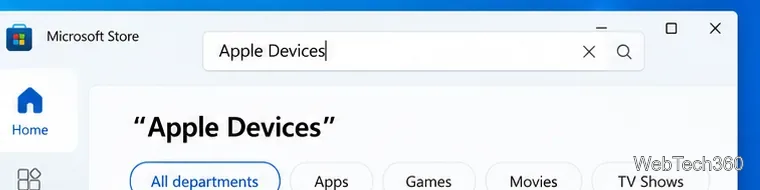

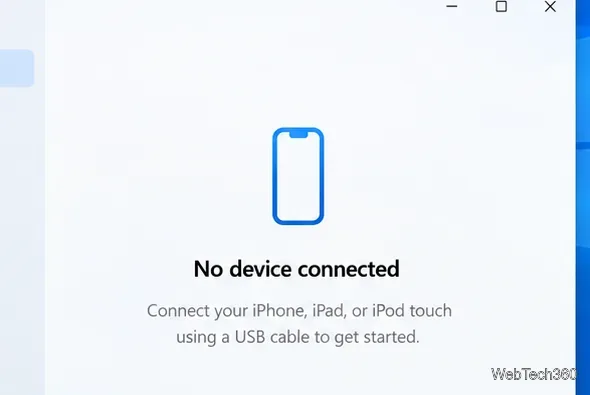
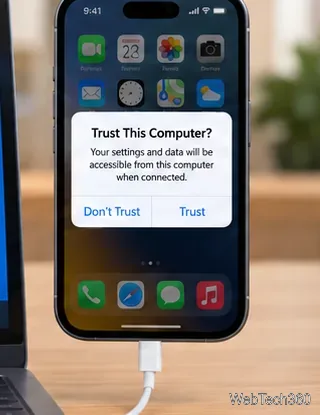
With the current Apple Devices workflow, the most useful check is not whether an old Apple Mobile Device Support entry appears under Apps & features. Instead, connect the device and confirm that it appears inside Apple Devices. If it does, Windows and Apple’s device software are communicating correctly.
You may also see the iPhone or iPad in Windows Device Manager or in Windows features that can access photos. The exact device name and category can vary, so avoid treating one particular Device Manager label as the only valid result.
Older guides often recommended downloading an iTunes executable, opening it with 7-Zip, and extracting files such as AppleApplicationSupport.msi and AppleMobileDeviceSupport64.msi. That method reflected an older Windows/iTunes packaging model. Apple’s current Windows 10 guidance points users to Microsoft Store and the dedicated Apple Devices app instead.
For that reason, do not download an Apple Mobile Device Support MSI from a third-party driver or file-hosting site. You could end up with an outdated, modified, or incompatible package. If you maintain specialized legacy software that explicitly requires an old Apple MSI, use a package supplied through your organization or the software vendor’s supported deployment process.
Not for basic iPhone or iPad device management. Apple Devices is the relevant app for backups, updates, restores, and manual device management. Apple Music and Apple TV are needed when you want to use their respective media libraries with Apple Devices. Apple still documents iTunes on Windows for podcasts and audiobooks, but installing iTunes is not required simply to make an iPhone or iPad connect through Apple Devices.
Create a searchable Windows 10 folder inventory with PowerShell. Save every file and subfolder path as plain text or export details to a sortable CSV.
Add a custom reminder, quote, or label to your Windows 10 desktop with a Rainmeter text skin. Create the INI file, load it, then adjust its font and position.
Use Bluetooth Swift Pair on Windows 10 to pair a compatible accessory from a notification, with setup steps and fixes when the prompt does not appear.
Learn what common laptop function key symbols mean, how Fn and Fn Lock affect them, and how to confirm the right shortcut for your Windows 10 laptop model.
Turn off your Windows 10 display instantly with ScreenSleep, set a keyboard shortcut, and see when to use the built-in screen timeout instead.
Fix the “running scripts is disabled on this system” PowerShell error on Windows 10 with a current-user policy, a temporary session option, and safe steps for downloaded scripts.
Change the Windows 10 drag-selection color with a backup-first registry walkthrough, RGB examples, troubleshooting tips, and steps to restore your original values.
Check your router’s connected-device list or scan a local network with Fing Desktop on a supported PC. Learn what each method can show and how to verify unfamiliar entries.
Messenger does not offer a documented per-friend online alert. Learn how Active Status works, where to check the green dot, and which notifications you can enable instead.
Use 7-Zip to find an exact filename or wildcard match inside a ZIP or other supported archive on Windows 10 without unpacking its files.








