How to Fix Lines on a Monitor Screen in Windows 10

Use a screenshot test, cable and port checks, monitor diagnostics, display settings, and driver rollback to pinpoint lines on a Windows 10 monitor.
If you want to customize a supported Microsoft mouse, keyboard, or number pad, install Microsoft Mouse and Keyboard Center from Microsoft’s current support page. Microsoft currently lists version 14.41 as the last version of the app and provides separate installers for 32-bit, 64-bit, and ARM64 Windows 11 and Windows 10 PCs.
The process is straightforward: check your Windows system type, download the matching installer, run it, and then open the app with your Microsoft accessory connected. Use the maintained Microsoft Mouse and Keyboard Center download page rather than relying on an old installer link saved in a previous guide.
Make sure you have a Windows 11 or Windows 10 PC and a device that appears on Microsoft’s supported-accessories list. The current support page includes many Microsoft mice and keyboards, plus Microsoft Number Pad, but not every Microsoft-branded accessory exposes advanced settings in the app.
You should also know your Windows architecture before downloading. Most Intel and AMD PCs use 64-bit Windows, while Windows on Arm devices need the ARM64 package. Older PCs can still be 32-bit.
Right-click Start, select Settings, then go to System > About. Under Device specifications, find System type. A line that says “64-bit operating system, x64-based processor” means you should use the 64-bit installer. If Windows reports an ARM-based processor, use ARM64. Choose the 32-bit package only when Windows specifically reports a 32-bit operating system.
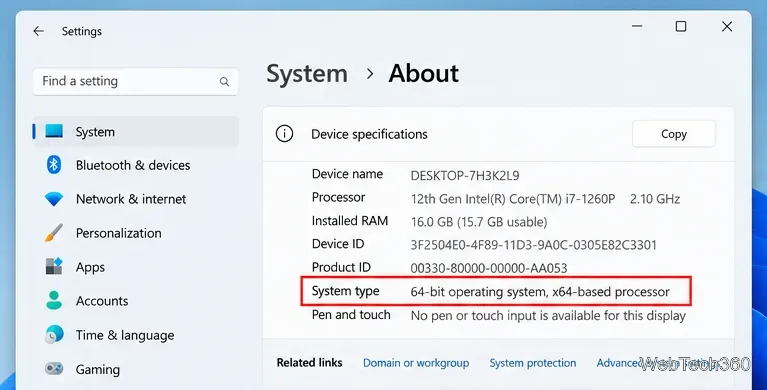
Open Microsoft’s official download page and select the link that matches the system type you just checked. Microsoft’s current page lists version 14.41 and offers all three architectures directly.
| System type | Download to choose |
|---|---|
| 32-bit operating system | 32-bit version |
| 64-bit, x64-based processor | 64-bit version |
| ARM-based Windows PC | ARM64 version |
For reference, Microsoft’s current 64-bit English link resolves to a file named MouseKeyboardCenter_64bit_ENG_14.41.exe. File names can differ by architecture and language, so match the architecture rather than copying an old filename from another article.

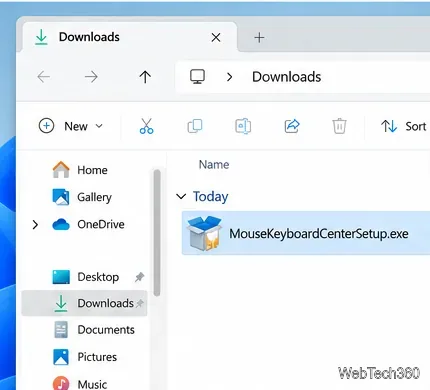
When the download finishes, open your Downloads folder and launch the Microsoft Mouse and Keyboard Center EXE. If Windows displays a User Account Control prompt, confirm that the publisher is Microsoft before allowing the installer to make changes.
Do not download the installer from third-party driver sites. The Microsoft support page provides the official packages and reduces the risk of installing an outdated or modified copy.
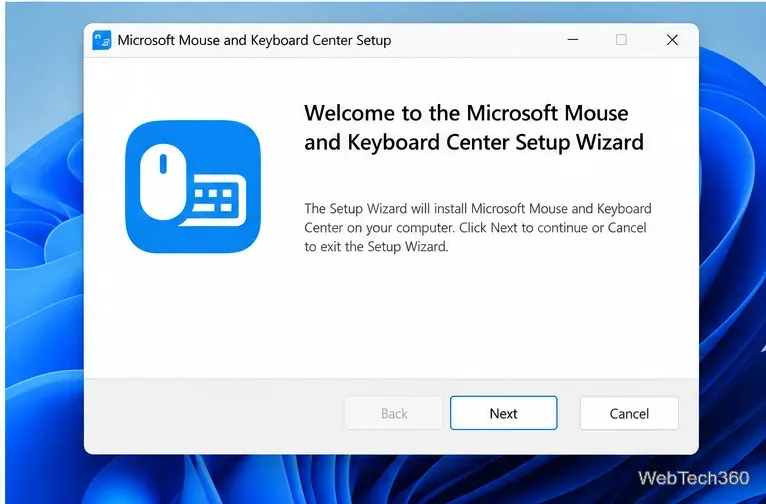
Follow the setup prompts until installation completes. The exact wording and layout can change between releases, so follow the installer you downloaded rather than expecting every screen to match an older tutorial.
Connect or pair your supported Microsoft mouse or keyboard, then search the Start menu for Mouse and Keyboard Center and open it. The app should show compatible connected devices and the settings available for that specific model.
Available controls depend on the accessory. On supported models, Mouse and Keyboard Center can provide options such as button or key reassignment and application-specific assignments. Some Microsoft mice also use the app for model-specific features such as Smart Switch. If a setting is missing, that does not necessarily mean the installation failed; the feature may not be supported by that accessory.
If the accessory is not supported by Mouse and Keyboard Center, use the standard Windows mouse, keyboard, Bluetooth, or typing settings instead. The app adds device-specific customization; it is not required for every basic mouse or keyboard function.
Use a screenshot test, cable and port checks, monitor diagnostics, display settings, and driver rollback to pinpoint lines on a Windows 10 monitor.
Show two other time zones beside your Windows 10 clock. Set up each additional clock, give it a clear label, and find it in the taskbar calendar.
Find the File Explorer extension that delays right-click menus in Windows 10, test it safely with ShellExView, and restore any menu features you still need.
Stop Windows 10 from powering down a specific network adapter or USB device with plan-level settings and Device Manager controls, plus tips to avoid excess battery drain.
Check whether Windows 10 uses a digital license or product key, find a firmware-stored OEM key, and save license details securely for a reinstall.
Identify a Windows 10 Task Manager process by checking its executable path, file properties, publisher, linked services, and a Microsoft Defender scan.
Create a searchable Windows 10 folder inventory with PowerShell. Save every file and subfolder path as plain text or export details to a sortable CSV.
Add a custom reminder, quote, or label to your Windows 10 desktop with a Rainmeter text skin. Create the INI file, load it, then adjust its font and position.
Use Bluetooth Swift Pair on Windows 10 to pair a compatible accessory from a notification, with setup steps and fixes when the prompt does not appear.
Learn what common laptop function key symbols mean, how Fn and Fn Lock affect them, and how to confirm the right shortcut for your Windows 10 laptop model.








