How to Access a Network Location in Command Prompt on Windows 10

Use pushd to open a UNC network path in Windows 10 Command Prompt, run commands in the shared folder, and return with popd.
Yes, you can install some software on Windows 10 without admin rights—but only if the app is designed to run in your user account. A standard user cannot legitimately grant itself administrator privileges. The safest options are a per-user installer, a portable version, or an app package your organization allows.
If an installer needs to write to protected system locations, install a driver or service, or change machine-wide settings, Windows can require administrator credentials. On a work or school PC, do not try to defeat device-management rules; ask IT to approve or deploy the app instead.
Windows Installer supports both per-user and per-machine installation contexts. Microsoft notes that per-machine installs can be blocked for standard users because they affect the whole computer, while software authored for per-user installation can place files and registrations in user-specific locations. See Microsoft’s Windows Installer installation context documentation.
%LOCALAPPDATA%\Programs is a good sign. Complete the setup.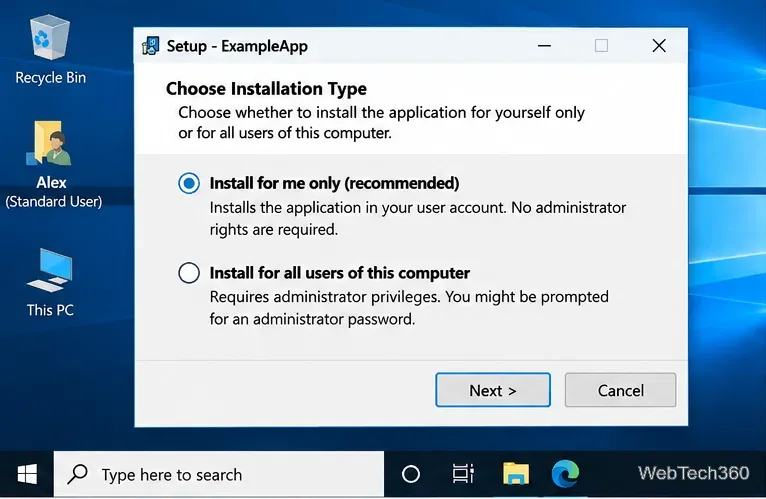
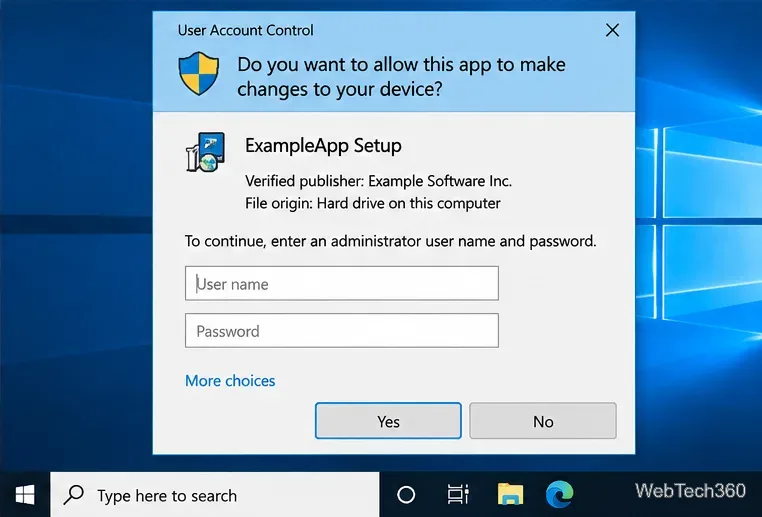
If the installer immediately asks for an administrator username and password, cancel it unless you have authorized credentials. That usually means the package is requesting elevation before it can continue.
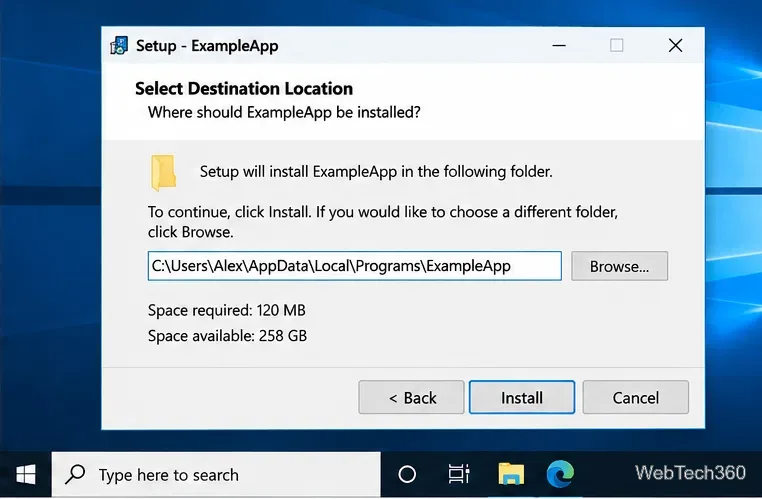
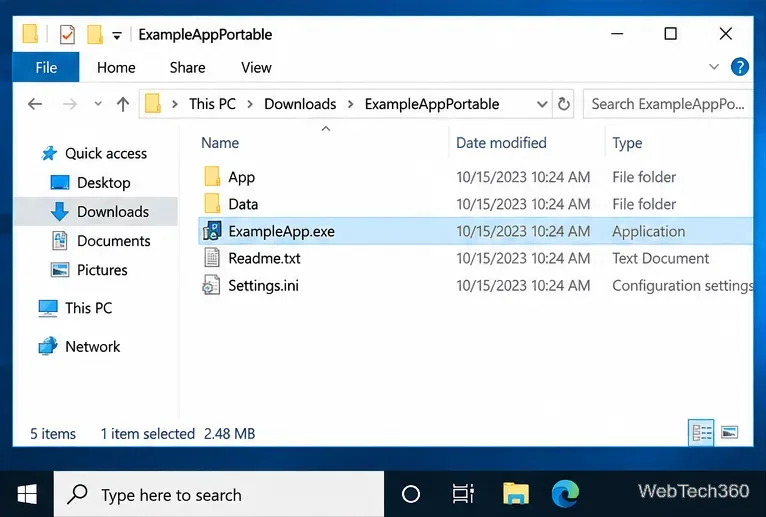
A portable app normally runs from a folder you can write to and does not need a traditional system-wide installation. If the publisher offers a ZIP or portable package, this is often the simplest option for a standard account.
Do not move the app into C:\Program Files unless an administrator does it for you. Also remember that a portable app can still be blocked by company security policy, application control, or endpoint protection.
Windows 10 can install packaged apps through Microsoft Store or App Installer, but the result depends on the package and device policy. Microsoft documents a policy named BlockNonAdminUserInstall that can prevent non-administrators from initiating packaged-app installs on managed editions. Store access can also be controlled separately. For details, see Microsoft’s ApplicationManagement policy reference and App Installer documentation.
If your organization provides an approved Store listing, Company Portal, or signed package, use that approved route rather than trying to alter system permissions yourself.
The older workaround often shown online uses the Windows compatibility setting RunAsInvoker. Microsoft describes this compatibility fix as running an application with the privileges of the process that launched it—it does not add administrator privileges. Microsoft’s application manifest documentation similarly explains that asInvoker runs with the same permission level as the parent process.
That means the trick can sometimes help only when an installer is incorrectly triggering elevation even though it can actually work entirely inside the current user profile. It cannot make a standard account write to protected areas, install system services or drivers, or perform other operations that require elevation. See Microsoft’s RunAsInvoker compatibility-fix description and administrator-privilege guidance.
For that reason, do not treat a BAT file as an admin-rights bypass. If setup fails with access-denied errors or asks for administrator credentials, the correct fix is to use a per-user/portable build or get administrator approval.
C:\Windows or machine-wide areas of the registry.Do not enable the Windows Installer AlwaysInstallElevated policy as a workaround. Microsoft explicitly warns that it creates a security risk because non-admin users could run installation packages with elevated privileges.
Microsoft ended general support for Windows 10 on October 14, 2025. Windows 10 PCs still run, and eligible devices can receive Extended Security Updates, but Microsoft recommends moving to a supported Windows version when possible. See the official Windows 10 end-of-support page.
Bottom line: if software offers a per-user installer, portable package, or approved packaged-app route, you may be able to use it without admin rights. If it truly needs elevated access, there is no legitimate standard-user shortcut around that requirement.
Use pushd to open a UNC network path in Windows 10 Command Prompt, run commands in the shared folder, and return with popd.
Learn how to install a Rainmeter skin from an INI file by placing it in the right Skins folder, preserving its resources, refreshing Rainmeter, and loading it in Manage.
Open one folder in its own File Explorer window with Shift or the context menu, or change Folder Options to make every folder open separately.
Pin a frequently used Control Panel applet, such as Power Options or Sound, to the Windows 10 Start menu for one-click access.
Choose a supported Windows 10 hotkey for switching input languages, assign shortcuts to individual layouts, or disable an accidental shortcut.
Move a Windows 10 app to the display you want, use its game monitor setting, and handle full-screen apps with a practical primary-monitor workaround.
Use a transparent PNG and a Rainmeter skin to keep an image watermark above windows, adjust its transparency, and make it click-through on Windows 10.
Convert stereo audio to mono on Windows 10 with Audacity. Mix both channels into one mono track, export a new file, and verify the channel count.
Use Windows 10 Clipboard history to save recent text and images, paste an earlier clip with Windows key + V, and manage sync, pinned items, and privacy.
Learn how to zoom in on a video in Windows 10 with VLC’s Interactive Zoom, or use Windows Magnifier when the clip is playing in another app.








