How to Set Different Scaling Levels for Multiple Monitors in Windows 10

Adjust each Windows 10 monitor independently with per-display scaling, keep text readable, and troubleshoot custom scaling or blurry apps.
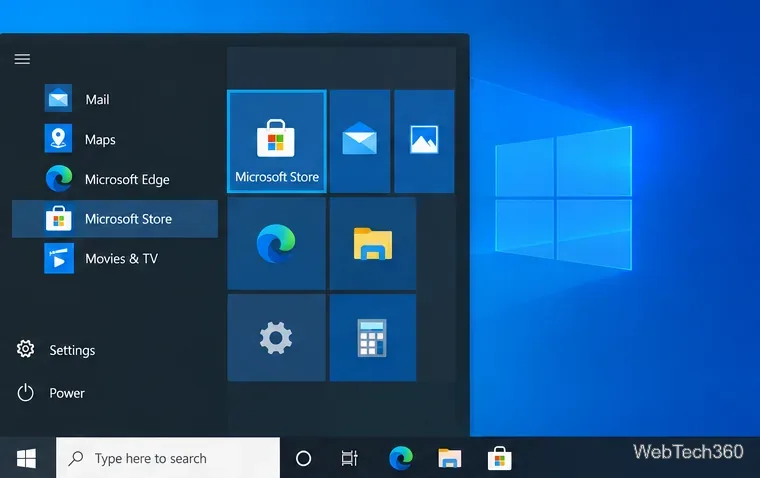
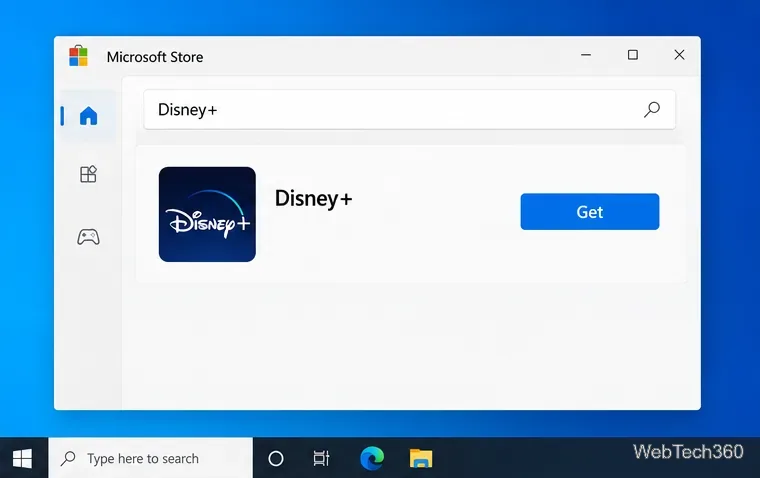
You can install the official Disney+ app on a Windows 10 PC through the Microsoft Store. Disney+ lists Windows 10 and Windows 11 computers among its supported devices and directs PC users to the Store. The app gives you a dedicated way to open the service from Windows. Older guides that only describe making an Edge shortcut are out of date for this installation method. See Disney+’s Windows device guide for its current platform guidance.
Make sure your PC can connect to the internet and open Microsoft Store. You may be asked to sign in to a Microsoft account to download the app. Keep your Disney+ login details nearby; installing the app does not create a Disney+ account or subscription. Disney+ plans and available titles vary by region, so check the service where you live if you are not sure your account is eligible.
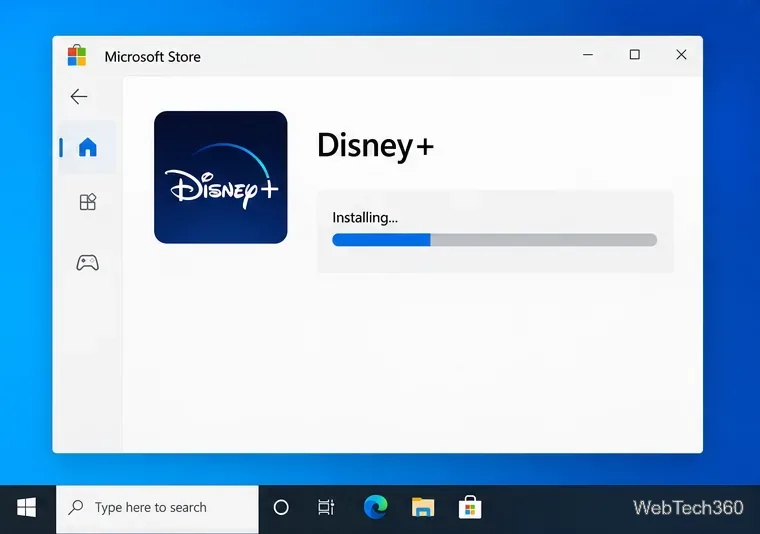
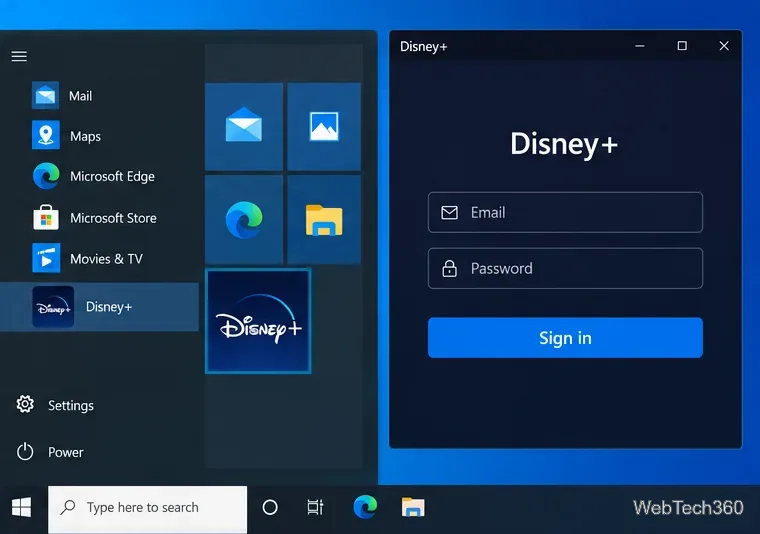
After installation, Disney+ appears in Windows Start search. Type Disney+ to launch it without reopening the Store. For quicker access, right-click the Disney+ result in Start and use the available pin option to add it to Start or the taskbar. If the app does not appear immediately, wait for the Store installation to complete and search again.
First, check that the Store is online and that you are signed in if it requests an account. Reopen the Disney+ listing from the official Store link and review the message shown on the page. If the app is unavailable for your device or storefront, Disney+ notes that device support and service availability can vary by territory. Check its Windows support page for the latest compatibility details.
You can also watch in a browser. Disney+ supports current versions of Microsoft Edge, Google Chrome, Firefox, and Opera on Windows 10 and newer; see its computer and browser requirements. In Edge, you can open DisneyPlus.com and select Settings and more > More tools > Apps > Install this site as an app. This creates a separate window and shortcut for the website, not another Microsoft Store installation. Microsoft documents this option in its guide to installing and managing apps in Edge.
The Windows app does not make Disney+ titles available offline. Disney+ says downloads are not supported on computers or Windows 10 and 11 tablets, so plan to stream while connected to the internet. See its download rules for supported devices.
Windows 10 itself reached the end of general support on October 14, 2025. A compatible Disney+ app can still run on a Windows 10 PC, but that does not restore regular Windows security updates. Microsoft recommends moving to a supported Windows release; read its Windows 10 end-of-support notice before deciding what to do with the PC.
Adjust each Windows 10 monitor independently with per-display scaling, keep text readable, and troubleshoot custom scaling or blurry apps.
Use AirType’s browser pairing setup to type on an iPhone from a Windows 10 PC, with current setup steps, troubleshooting, and privacy limits.
Hide the mouse pointer in Windows 10 videos, games, and other apps with built-in typing controls or PowerToys CursorHide’s adjustable inactivity timer.
Find Control Panel Power Options on a Windows 10 desktop, open the page with a Run command, and adjust power plans, display timeouts, sleep, and button behavior.
Learn what Windows 10 deletion leaves behind, how to use SDelete on an HDD, and why SSDs and cloud backups need separate treatment.
Use FFmpeg’s DirectShow tools to open an integrated webcam’s driver properties in Windows 10, find the correct device, and troubleshoot missing controls.
Identify a keypress in Windows 10 with a browser event tester or SharpKeys, then separate layout, software, and keyboard hardware issues.
Use double quotes around each complete path with spaces in Command Prompt. Learn how to list, change to, copy, and troubleshoot Windows 10 files and folders.
Turn off the Windows 10 Start menu’s hover-to-expand behavior with a legacy Mach2 command, check build limits, and see the built-in app-list alternative.
Fix the iTunes Library.itl read error on Windows 10 by updating iTunes, restoring a compatible backup, or safely creating a new library without deleting media files.








