How to Fix Lines on a Monitor Screen in Windows 10

Use a screenshot test, cable and port checks, monitor diagnostics, display settings, and driver rollback to pinpoint lines on a Windows 10 monitor.
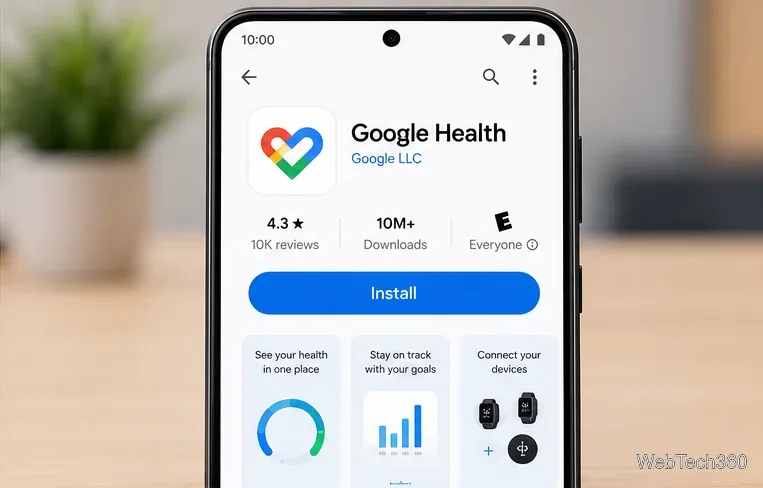
You can no longer install a supported Fitbit app on Windows 10. The old Windows desktop app was discontinued, and Fitbit's mobile app became the Google Health app on May 19, 2026. Google's current requirements list Google Health for Android phones running Android 11 or newer and iPhones running iOS 16.4 or newer, not Windows PCs. If you use Windows 10, the supported way to set up and sync a Fitbit is now through a compatible phone.
This changes the advice in older guides that tell you to open the Microsoft Store, install Fitbit for Windows, connect the tracker to the PC, and sync from the desktop. Those instructions are obsolete. The steps below show the current supported route without relying on old installers.
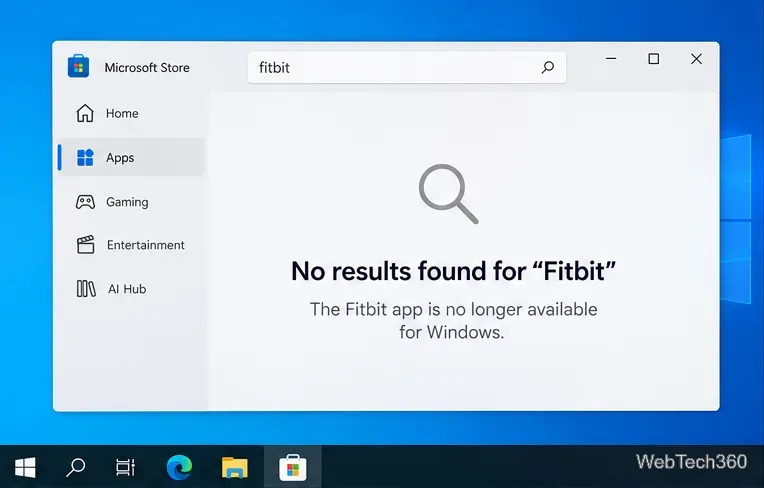
No current Google Health or Fitbit desktop app is supported on Windows 10. Google lists the Google Health app requirements as Android 11 or higher or iOS 16.4 or higher. Google also confirms that the Fitbit app was renamed and redesigned as Google Health beginning May 19, 2026.
You may still see references to a Microsoft Store Fitbit app, Fitbit Connect, or a Windows USB setup process in old articles and forum posts. Do not download legacy installers from third-party archive sites. Even if an old package installs, it is not the current supported setup and sync path.
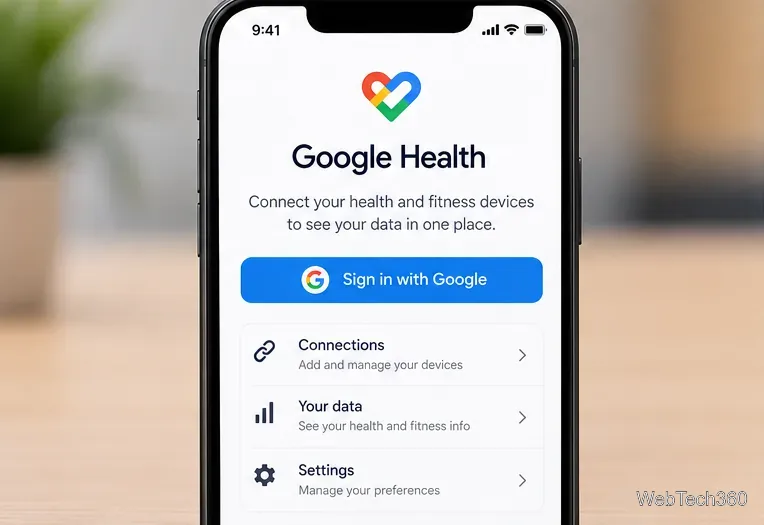
Your PC can still be useful for account-related tasks that do not require direct tracker syncing. For example, Google provides a process to export Google Health and Fitbit data and save downloaded archives to a computer. You can also use the browser to read Google Health help documentation or manage other Google Account settings.
What Windows 10 cannot replace is the supported mobile pairing and sync process. Having Bluetooth on the PC does not restore the discontinued desktop app, and connecting a Fitbit charging cable to the computer does not turn Windows into a supported sync client.
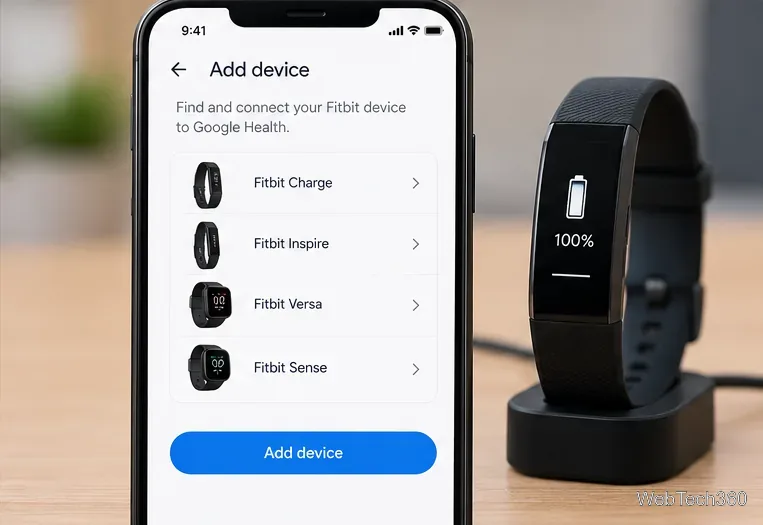
Start with the basics: keep the Fitbit close to the phone, charge it, verify Bluetooth is on, and make sure the phone has an internet connection. On Android, battery-saving modes or missing permissions can also interfere with setup. Google's Fitbit setup troubleshooting guide recommends checking phone compatibility, Bluetooth, and required permissions before trying again.
If the tracker was previously paired to another phone, remove or forget that old Bluetooth pairing before attempting setup on the new phone. Restarting the Fitbit and phone can also help with a stalled connection. The key point is that troubleshooting should now happen between the Fitbit and the supported mobile app, not between the Fitbit and the Windows 10 computer.
There is no current Fitbit app to install on Windows 10. Use Google Health on a compatible Android phone or iPhone to add the device, sync activity, and manage Fitbit data. Treat old Microsoft Store instructions, Fitbit Connect downloads, and PC-cable setup steps as outdated.
Use a screenshot test, cable and port checks, monitor diagnostics, display settings, and driver rollback to pinpoint lines on a Windows 10 monitor.
Show two other time zones beside your Windows 10 clock. Set up each additional clock, give it a clear label, and find it in the taskbar calendar.
Find the File Explorer extension that delays right-click menus in Windows 10, test it safely with ShellExView, and restore any menu features you still need.
Stop Windows 10 from powering down a specific network adapter or USB device with plan-level settings and Device Manager controls, plus tips to avoid excess battery drain.
Check whether Windows 10 uses a digital license or product key, find a firmware-stored OEM key, and save license details securely for a reinstall.
Identify a Windows 10 Task Manager process by checking its executable path, file properties, publisher, linked services, and a Microsoft Defender scan.
Create a searchable Windows 10 folder inventory with PowerShell. Save every file and subfolder path as plain text or export details to a sortable CSV.
Add a custom reminder, quote, or label to your Windows 10 desktop with a Rainmeter text skin. Create the INI file, load it, then adjust its font and position.
Use Bluetooth Swift Pair on Windows 10 to pair a compatible accessory from a notification, with setup steps and fixes when the prompt does not appear.
Learn what common laptop function key symbols mean, how Fn and Fn Lock affect them, and how to confirm the right shortcut for your Windows 10 laptop model.








