How to Set Different Scaling Levels for Multiple Monitors in Windows 10

Adjust each Windows 10 monitor independently with per-display scaling, keep text readable, and troubleshoot custom scaling or blurry apps.
To force-close every running process that uses the same executable name in Windows, run taskkill /IM app.exe /F in Command Prompt or PowerShell, replacing app.exe with the app’s exact image name. For example, taskkill /IM notepad.exe /F ends all running processes named notepad.exe. Save your work first: /F forces the processes to stop, so unsaved documents, browser forms, or other work can be lost.
This method is useful when an app is frozen or has left background processes running after its windows have closed. It matches processes by executable image name, not by the app’s friendly display name. It does not automatically identify or stop every helper process associated with a product.
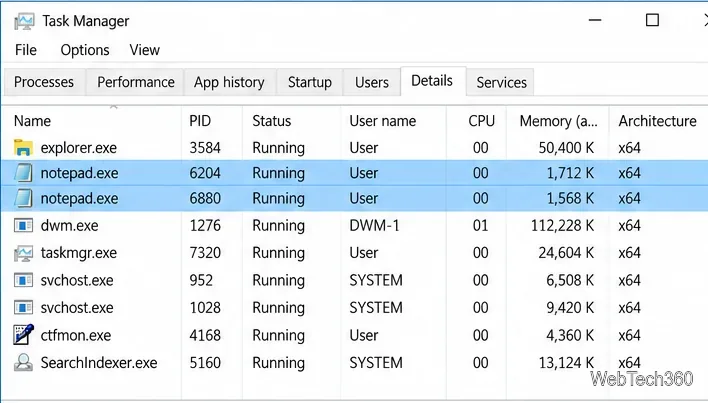
Open Task Manager with Ctrl + Shift + Esc. If Task Manager opens in its compact view, choose More details. Select the Details tab and look in the Name or image-name column for the process you want to stop. Microsoft lists this shortcut to open Task Manager in its Windows keyboard shortcuts reference. Its Details list can show separate rows, each with a different process ID (PID).
Use the executable name shown there, including the .exe extension. Don’t guess from an app’s tile or window title. A packaged or Microsoft Store app may run under a process name that is not an obvious match for its display name, and Windows components such as shared host processes can serve more than one app. If the name is unclear, inspect the running entries before ending anything.
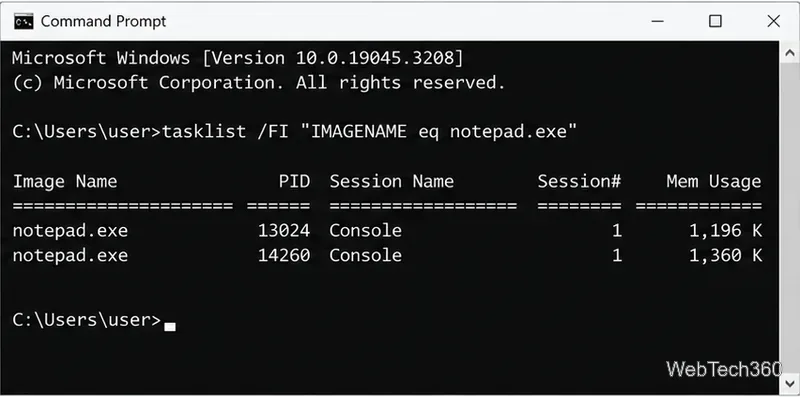
Open Command Prompt or PowerShell from the Start menu. Run tasklist with an exact image-name filter. This example checks Notepad:
tasklist /FI "IMAGENAME eq notepad.exe"Replace notepad.exe with the name you found in Task Manager. If the command lists several rows, each row is a separate process with its own PID. This check helps you confirm the spelling and see whether more than one instance is running. Microsoft documents the available filters in its tasklist command reference.
Run the following command, changing the executable name to match your app:
taskkill /IM notepad.exe /F/IM tells taskkill to target a process by its image name; /F forces termination. When multiple processes share that image name, the command targets each match rather than requiring you to enter PIDs one by one. Microsoft’s taskkill reference lists these switches and describes how the command ends one or more tasks.
Start with a regular Command Prompt or PowerShell window. The command runs with the permissions available to that session. If Windows reports Access is denied, verify the exact process and that it is one you intend to stop. Don’t use a broad wildcard or elevate the command blindly; protected Windows processes and processes owned under another security context may require different permissions.
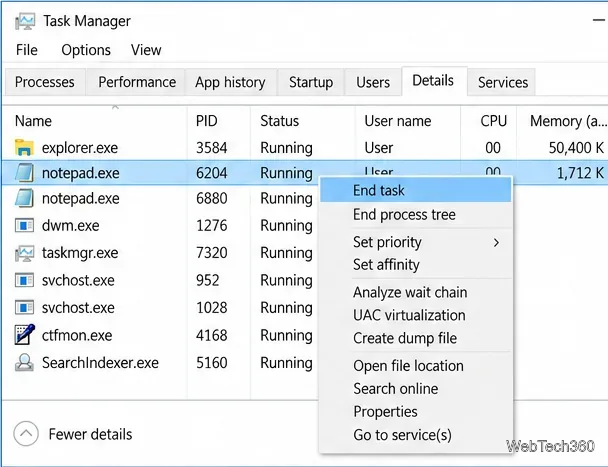
You can also use Task Manager if you prefer a visual method. In the Details tab, right-click a matching row and choose End task. Repeat for each row with the same image name. This ends the selected process, while the command above is quicker when you want Windows to target every process that matches one executable name.
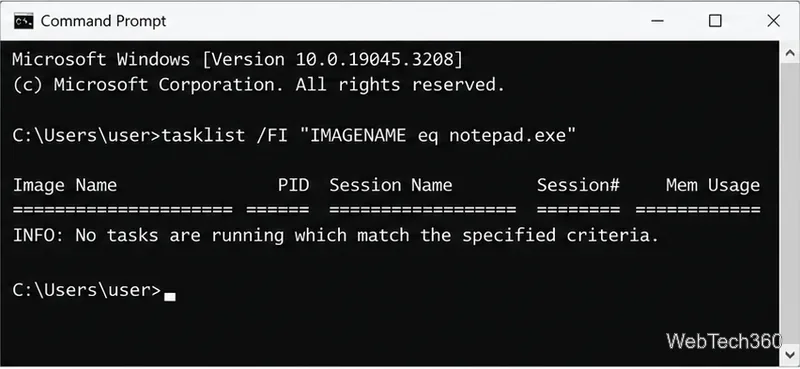
Run the same filtered tasklist command again:
tasklist /FI "IMAGENAME eq notepad.exe"If Windows reports that no tasks match the specified criteria, there are no running processes with that exact image name at that moment. If rows remain, check Task Manager again: you may have used a different executable name, or an app component may have restarted the process. Confirm the new entry before running taskkill again.
Use the exact image name and verify the result. That keeps the command focused on the process you mean to stop and makes it easier to tell whether the app has actually exited or simply restarted.
Adjust each Windows 10 monitor independently with per-display scaling, keep text readable, and troubleshoot custom scaling or blurry apps.
Use AirType’s browser pairing setup to type on an iPhone from a Windows 10 PC, with current setup steps, troubleshooting, and privacy limits.
Hide the mouse pointer in Windows 10 videos, games, and other apps with built-in typing controls or PowerToys CursorHide’s adjustable inactivity timer.
Find Control Panel Power Options on a Windows 10 desktop, open the page with a Run command, and adjust power plans, display timeouts, sleep, and button behavior.
Learn what Windows 10 deletion leaves behind, how to use SDelete on an HDD, and why SSDs and cloud backups need separate treatment.
Use FFmpeg’s DirectShow tools to open an integrated webcam’s driver properties in Windows 10, find the correct device, and troubleshoot missing controls.
Identify a keypress in Windows 10 with a browser event tester or SharpKeys, then separate layout, software, and keyboard hardware issues.
Use double quotes around each complete path with spaces in Command Prompt. Learn how to list, change to, copy, and troubleshoot Windows 10 files and folders.
Turn off the Windows 10 Start menu’s hover-to-expand behavior with a legacy Mach2 command, check build limits, and see the built-in app-list alternative.
Fix the iTunes Library.itl read error on Windows 10 by updating iTunes, restoring a compatible backup, or safely creating a new library without deleting media files.








