How to Set Different Scaling Levels for Multiple Monitors in Windows 10

Adjust each Windows 10 monitor independently with per-display scaling, keep text readable, and troubleshoot custom scaling or blurry apps.
Short answer: the classic Paint app included with Windows 10 cannot save a cutout with a true transparent background. Its Transparent selection option only affects how a selection is copied and pasted. If Paint 3D is already installed, you can remove the background with Magic Select and save a transparent PNG. Microsoft removed Paint 3D from the Microsoft Store on November 4, 2024, so it is not a dependable new install.
Open an image in Paint and expand Select. The menu includes Rectangular selection, Free-form selection, and, in classic versions, Transparent selection. That last option can help you copy an object without carrying its background color into a paste. It is useful when placing a roughly cut-out object over another image, especially when the background is one flat color.
It does not turn deleted pixels into an alpha channel. If you invert a selection and press Delete, Paint fills the cleared area with the current background color; saving that canvas as PNG does not make the fill transparent. A white area may look transparent on a white page, but it will show as a white box over a colored background. JPG also cannot store transparency.
So use classic Paint for a quick copy-and-paste workaround, not for exporting a reusable transparent logo, sticker, or product cutout. For a real transparent background, continue with Paint 3D if your PC still has it, or use an editor with alpha-channel support.
Paint 3D is a legacy option. Microsoft’s Windows client deprecation list says the app was removed from the Store on November 4, 2024. If Paint 3D appears in Start and opens, follow these steps. If it is missing, skip to the alternative below; avoid unofficial app packages.
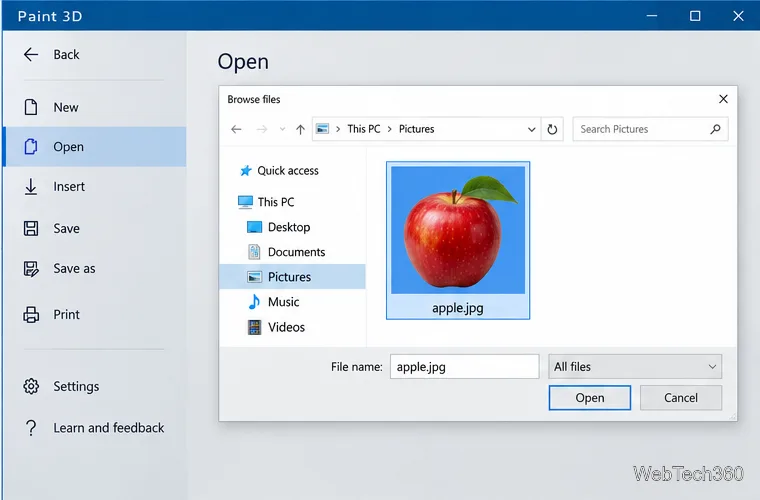
Open Paint 3D, choose Menu > Open > Browse files, and select the image. Work from a copy if you want to keep the original untouched.
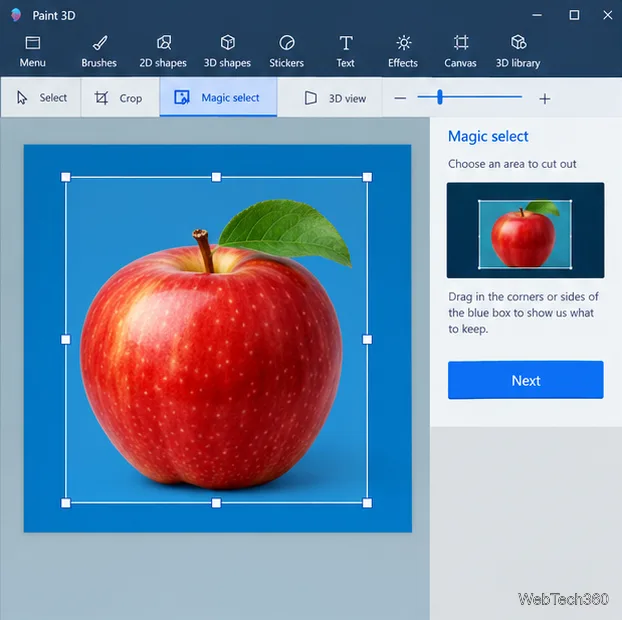
Choose Magic Select from the toolbar and drag the selection box around the object. Keep the box fairly close to the subject, but leave a little breathing room so you do not cut off an edge. Select Next to let Paint 3D identify the foreground.
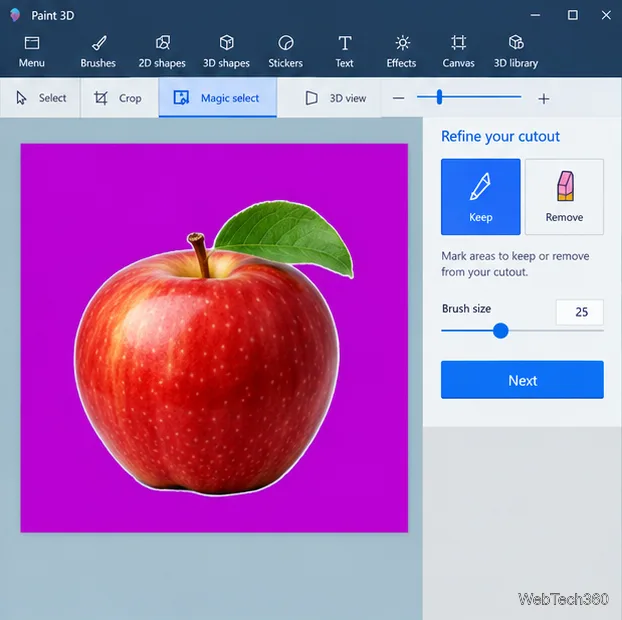
The preview marks the proposed background for removal. Use Keep to restore a piece of the subject that was missed, or Remove to mark leftover background. Zoom in around thin details such as leaves, hair, spokes, or transparent glass; an automatic selection may need manual correction. Click Done when the outline is acceptable.
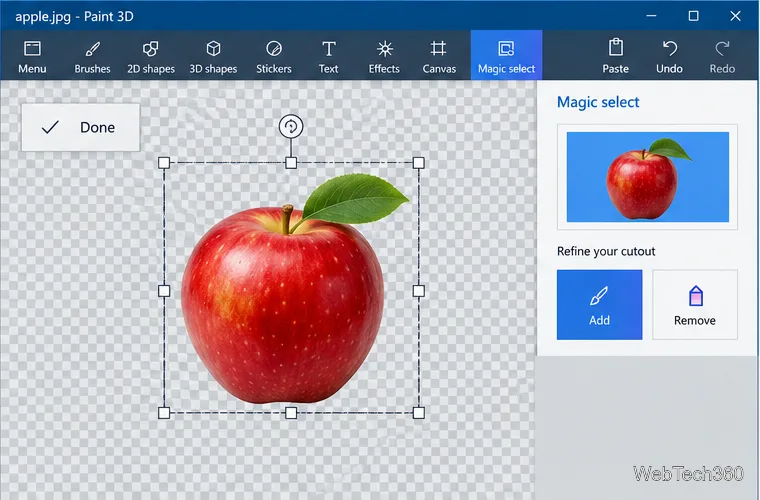
With the cutout selected, press Ctrl+C. This lets you paste the object onto a clean canvas instead of relying on the original picture’s canvas color.
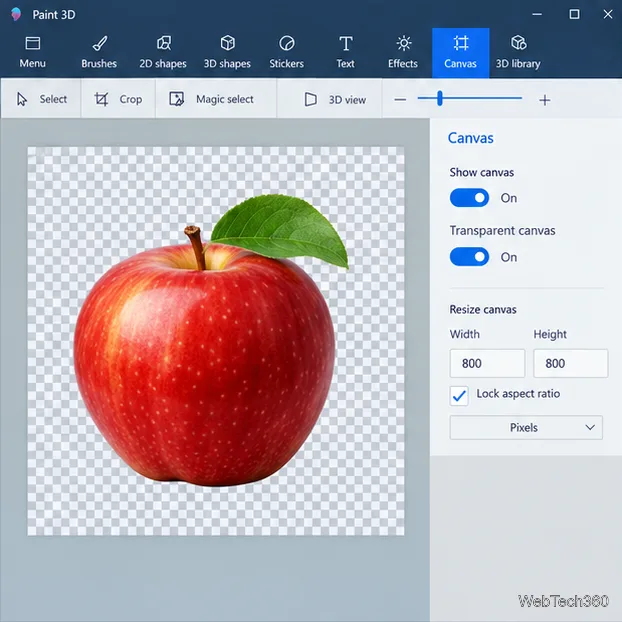
Choose Menu > New. Open the Canvas panel and switch on Transparent canvas. The checkerboard is Paint 3D’s transparency indicator; it is not part of the exported image.
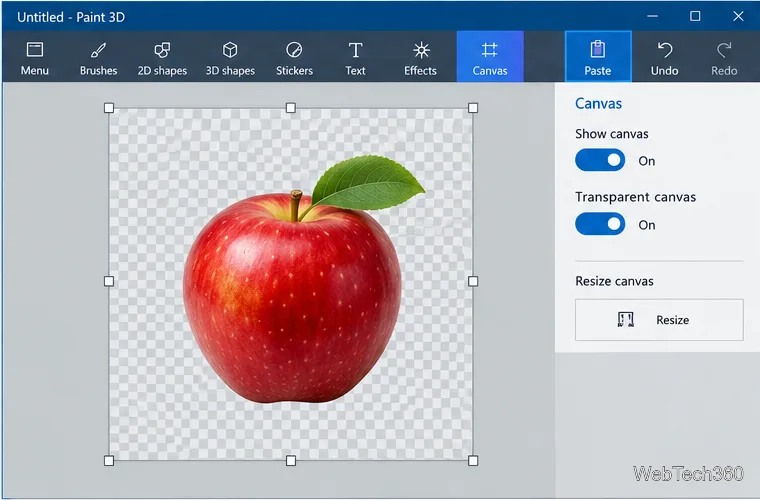
Press Ctrl+V to paste. Move the object into position and make sure the checkerboard is visible around it. If a solid rectangle remains inside the pasted picture, the background was not removed cleanly; undo and refine the Magic Select mask before saving.
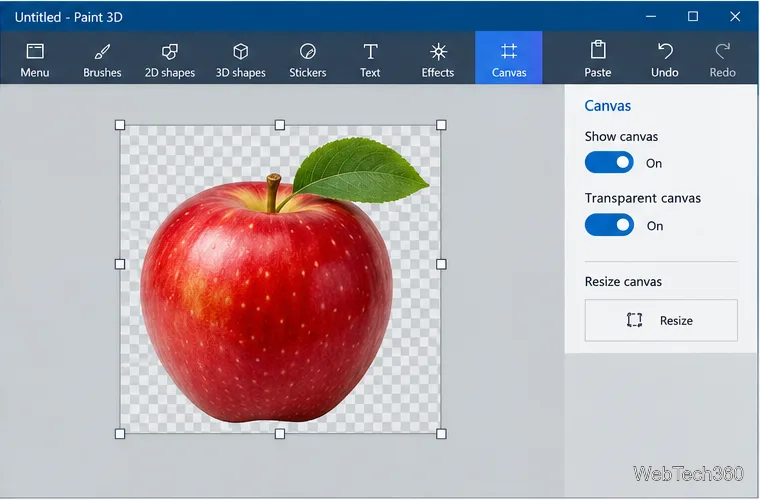
Use the Canvas resize controls to bring the edges closer to the subject while leaving a small margin. Do not crop into the object. This step only trims empty transparent space; it should not add a white fill.
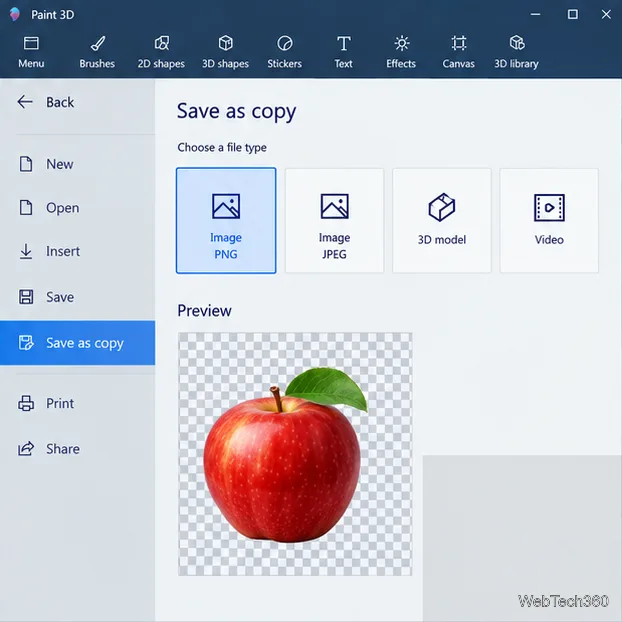
Choose Menu > Save as > Image, select PNG, and save a new file. PNG supports alpha transparency. Reopen it in an app that shows a checkerboard, or paste it over a colored background, to confirm the empty areas are see-through rather than white.
Use an editor that supports alpha transparency, such as GIMP. Its official manual explains how to add an alpha channel through Layer > Transparency > Add Alpha Channel and export the finished image as PNG. Use a free-select or foreground-selection tool to outline the subject, delete the background, and check the result on the transparency checkerboard. Get the installer from GIMP’s official download page, and see the GIMP alpha-channel guide for the layer setting. Microsoft’s newer Paint app also supports transparent PNGs and background removal, but Microsoft documents those features for Paint on Windows 11, not classic Paint on Windows 10; see the Paint transparency announcement.
Adjust each Windows 10 monitor independently with per-display scaling, keep text readable, and troubleshoot custom scaling or blurry apps.
Use AirType’s browser pairing setup to type on an iPhone from a Windows 10 PC, with current setup steps, troubleshooting, and privacy limits.
Hide the mouse pointer in Windows 10 videos, games, and other apps with built-in typing controls or PowerToys CursorHide’s adjustable inactivity timer.
Find Control Panel Power Options on a Windows 10 desktop, open the page with a Run command, and adjust power plans, display timeouts, sleep, and button behavior.
Learn what Windows 10 deletion leaves behind, how to use SDelete on an HDD, and why SSDs and cloud backups need separate treatment.
Use FFmpeg’s DirectShow tools to open an integrated webcam’s driver properties in Windows 10, find the correct device, and troubleshoot missing controls.
Identify a keypress in Windows 10 with a browser event tester or SharpKeys, then separate layout, software, and keyboard hardware issues.
Use double quotes around each complete path with spaces in Command Prompt. Learn how to list, change to, copy, and troubleshoot Windows 10 files and folders.
Turn off the Windows 10 Start menu’s hover-to-expand behavior with a legacy Mach2 command, check build limits, and see the built-in app-list alternative.
Fix the iTunes Library.itl read error on Windows 10 by updating iTunes, restoring a compatible backup, or safely creating a new library without deleting media files.








