How to Fix Lines on a Monitor Screen in Windows 10

Use a screenshot test, cable and port checks, monitor diagnostics, display settings, and driver rollback to pinpoint lines on a Windows 10 monitor.
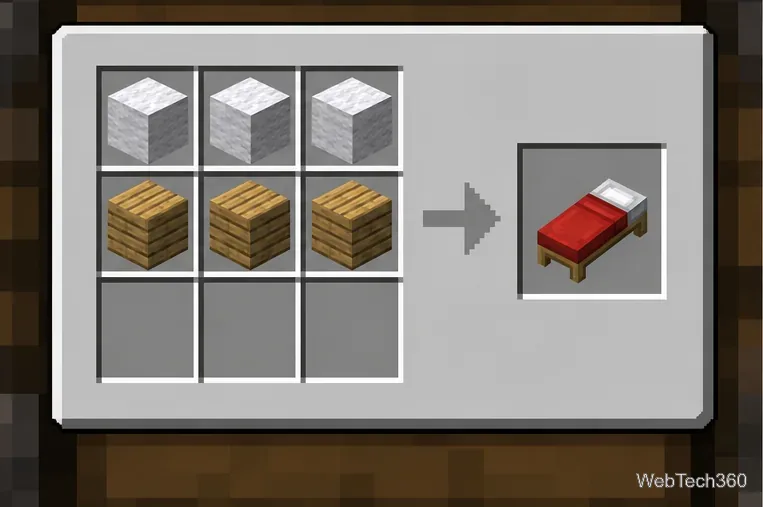
To make a bed in Minecraft, you need 3 wool blocks of the same color, 3 wooden planks, and a crafting table. Arrange the wool in one horizontal row and the three planks directly beneath it. The result is one bed. Once placed in the Overworld, a bed lets you skip the night when sleeping is allowed and set a respawn point so you can return there after dying.
Mojang's official spawning and dying guide confirms the standard bed recipe and explains how beds work as Overworld respawn points.
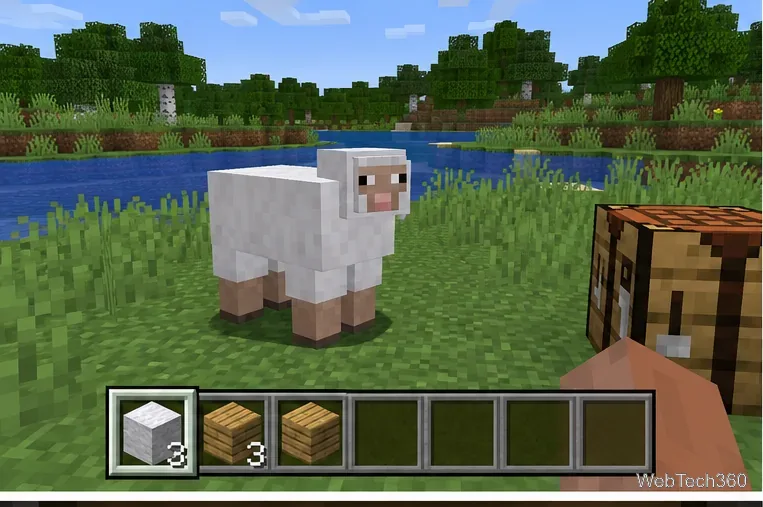
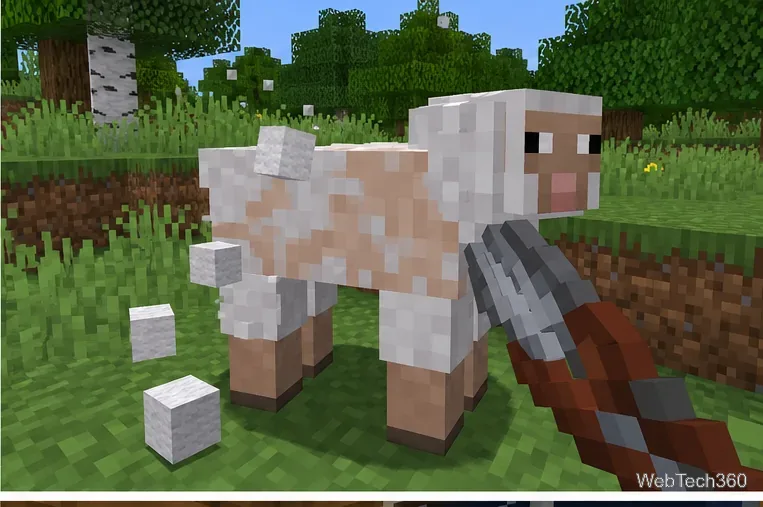
Sheep are the easiest early-game source of wool. If you already have iron, craft shears from two iron ingots and use them on a sheep. Shearing keeps the sheep alive, and it can grow its wool back after eating grass. Mojang's guide to shears specifically notes that shears are used to obtain wool from sheep without hurting them.
You can also kill sheep for wool if you are still in the first few minutes of a new world, or craft a wool block from four string when sheep are hard to find. Whatever method you use, make sure all three wool blocks match in color before you try the bed recipe.
Break a log or stem and convert it into planks in your crafting grid. You only need three planks for the bed itself. The plank species does not determine the finished bed color; the wool does.
If you are starting a new Survival world, collect a little extra wood at the same time. You will need four planks for a crafting table if you do not already have one, and extra blocks are useful for a basic shelter before night.
The recipe can sit in either valid pair of adjacent rows in the 3×3 crafting grid; the important part is a complete row of wool directly above a complete row of planks.
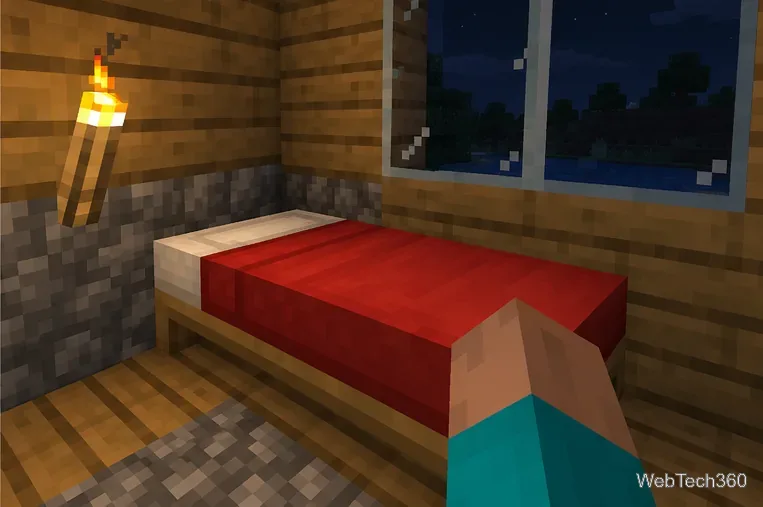
Choose a safe spot in the Overworld with enough room for the two-block-long bed, then use your normal place control. Interact with the bed to use it. At night, sleeping can advance the world to morning when the game's sleep conditions are met. During the day, interacting with the bed can still set your respawn point even though you cannot sleep through daytime.
When your respawn point is successfully set, the game confirms it. This is useful even if you are not ready to sleep yet. Mojang also explains in its first-night survival guide that a bed both lets you sleep through the night and creates a new spawn location.
A correctly crafted bed can still refuse to let you sleep. The most common reasons are simple:
If you break or move the bed after setting your spawn, the old respawn point does not move with it. Place the bed in its new location and use it again to set a new spawn point. If the saved bed is missing or unusable when you die, the game can send you back to world spawn instead.
The bed's color comes from the wool. If your three wool blocks do not match, dye them to the same color before crafting. You can also find ready-made beds in many village houses, which can save time on the first night if a village is nearby.
One last survival tip: avoiding sleep for long periods can eventually allow phantoms to appear at night under normal game rules. A bed is therefore useful for more than convenience—it helps keep your base as a reliable respawn location and gives you a practical way to manage dangerous nights.
Use a screenshot test, cable and port checks, monitor diagnostics, display settings, and driver rollback to pinpoint lines on a Windows 10 monitor.
Show two other time zones beside your Windows 10 clock. Set up each additional clock, give it a clear label, and find it in the taskbar calendar.
Find the File Explorer extension that delays right-click menus in Windows 10, test it safely with ShellExView, and restore any menu features you still need.
Stop Windows 10 from powering down a specific network adapter or USB device with plan-level settings and Device Manager controls, plus tips to avoid excess battery drain.
Check whether Windows 10 uses a digital license or product key, find a firmware-stored OEM key, and save license details securely for a reinstall.
Identify a Windows 10 Task Manager process by checking its executable path, file properties, publisher, linked services, and a Microsoft Defender scan.
Create a searchable Windows 10 folder inventory with PowerShell. Save every file and subfolder path as plain text or export details to a sortable CSV.
Add a custom reminder, quote, or label to your Windows 10 desktop with a Rainmeter text skin. Create the INI file, load it, then adjust its font and position.
Use Bluetooth Swift Pair on Windows 10 to pair a compatible accessory from a notification, with setup steps and fixes when the prompt does not appear.
Learn what common laptop function key symbols mean, how Fn and Fn Lock affect them, and how to confirm the right shortcut for your Windows 10 laptop model.








