Home
» WINDOWS
»
How to Map a Controller to Keyboard Keys in Windows 10
How to Map a Controller to Keyboard Keys in Windows 10
To map a controller to keyboard keys in Windows 10, use a remapping app such as AntiMicroX. Connect the gamepad, assign each button or direction to a keyboard key, save the profile, and leave AntiMicroX running while you play. This sends keyboard input to Windows; it does not make a game that only accepts gamepad input recognize the controller as a different gamepad.
The interface illustrations below show the general workflow. AntiMicroX can look different depending on its theme and the controller Windows detects, so button names and layout may not match your screen exactly.
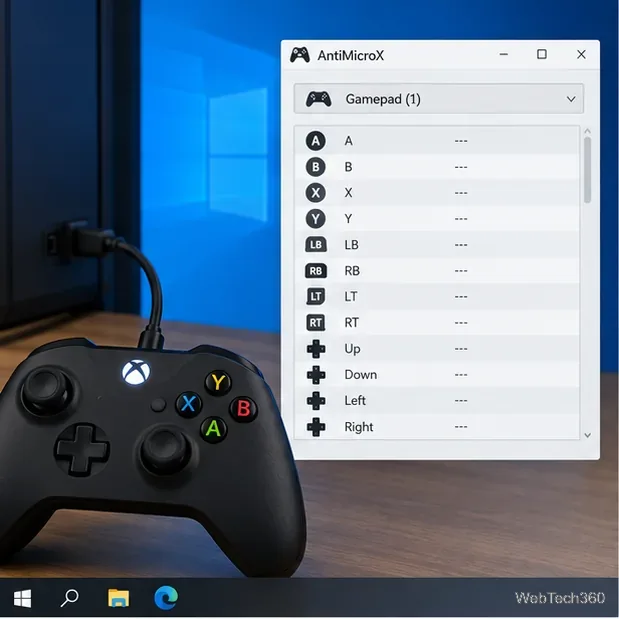
A connected controller appears in AntiMicroX as a set of inputs that can be assigned.
Before you start
Windows can recognize a game controller without converting its input into keyboard presses. AntiMicroX is a separate desktop utility for mapping gamepad inputs to keyboard keys and mouse controls, and the project documents Windows support. Download the Windows installer from the official AntiMicroX releases page; the project README identifies the Windows package by an AMD64 EXE filename pattern. Avoid third-party download sites.
As of October 21, 2026, the project page says AntiMicroX is looking for a new maintainer and that support is limited. The latest release listed when checked is version 3.6.1, dated May 22, 2026. Its official repository is the best place to confirm the current package and release notes before installing.
Map controller buttons to keyboard keys
Install AntiMicroX. Open the official releases page, download the Windows installer offered for your system, and run it. Follow the installer prompts, then connect your controller by USB or pair it with Windows over Bluetooth. A wired connection is a simple first check if the controller is not detected.
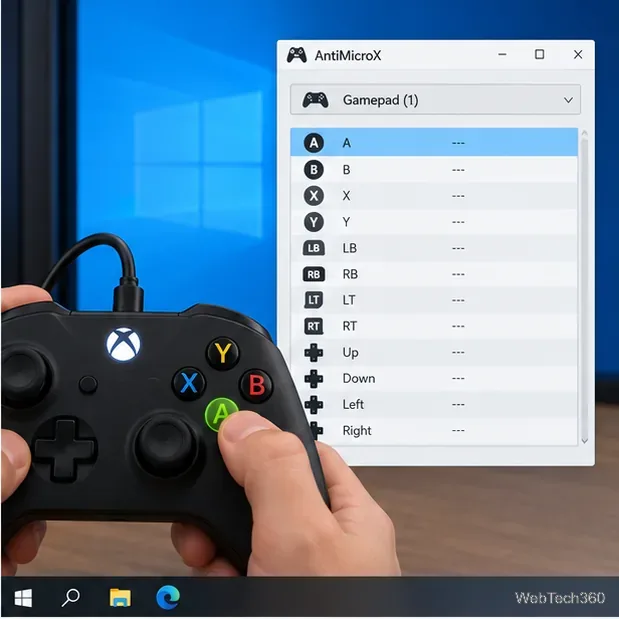
Check that the controller is detected. Start AntiMicroX with the gamepad connected. The window should show the device and its available buttons or axes. Press a controller button or move a stick and watch for the corresponding input to respond or highlight. If nothing changes, see the troubleshooting steps below before creating a profile.
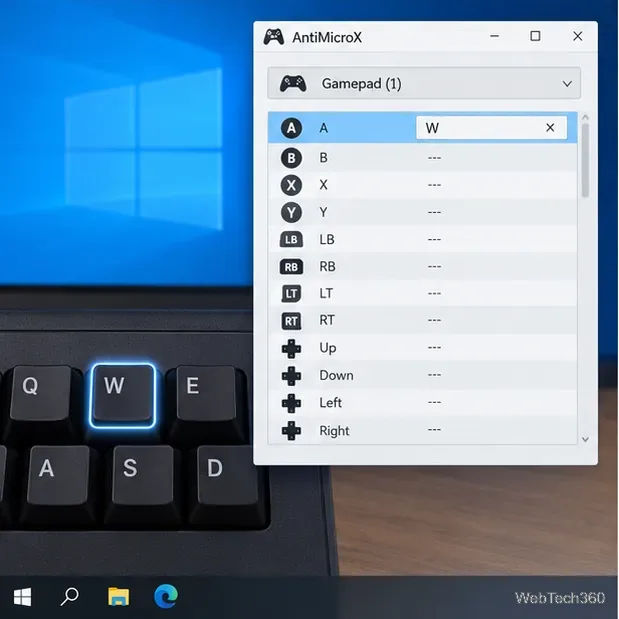
Assign the keys the game expects. Select the input you want to configure and choose a keyboard assignment in its mapping controls. Use the game's own keyboard settings as your reference: for example, map a direction pad to the game's movement keys, and map face buttons to actions such as jump, interact, or confirm. Use the same mapping consistently across the controls you need. You can also assign mouse actions when a game requires them. A stick mapped to keyboard directions behaves digitally, like keys being pressed, rather than preserving smooth analog movement.
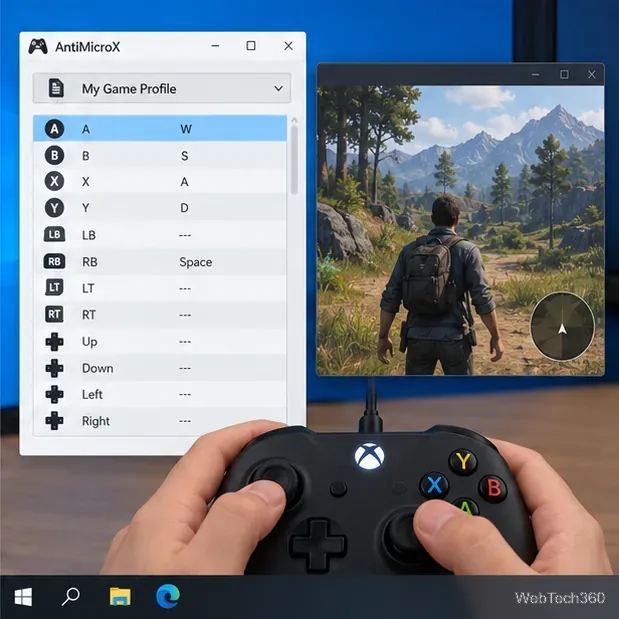
Save and test the profile. Use AntiMicroX's profile save command and give the file a name that identifies the game. Keep the app open with that profile active, launch the game, and test one low-risk action first. Return to AntiMicroX to adjust any key that triggers the wrong action, then save the profile again. The remap is useful only while the mapping app is running and the saved profile is active.
Press each controller input once so you can identify the matching row before assigning a key.A keyboard assignment connects one gamepad input to the key the game already uses.Save a separate profile for the game, then test the mapping with AntiMicroX running.
When Steam Input is a better fit
If you use the 2015 Steam Controller, Steam's own configuration can assign keyboard or mouse commands to flexible input styles. Valve's Steam Controller configuration guidance also explains that gamepad-only commands work only when the game supports gamepad input. Steam's options depend on the controller and game, so check the current layout available for that title instead of following old button-chord instructions as if they applied to every device. For a controller that needs to send keyboard presses to a non-Steam app, AntiMicroX is the more direct route.
Troubleshoot a controller that is not working
Windows does not see the controller: reconnect the USB cable, check Bluetooth pairing, or try another port. In Windows 10, press Win+R, enter joy.cpl, and press Enter to open Joystick Properties. Microsoft lists this Control Panel command; use the window's test controls to check whether Windows receives button input. If the controller does not respond there, fix its connection before remapping it.
AntiMicroX sees input, but the game does not: confirm the right profile is active and keep the utility open. Close other controller remappers temporarily so two apps are not sending competing inputs. Some games or anti-cheat systems may block simulated keyboard input; follow the game's rules and do not try to bypass those restrictions.
The game shows the wrong prompts or movement feels different: keyboard remapping makes the game receive keyboard commands, so it may switch to keyboard prompts. A stick mapped to keys also loses analog precision. If a game needs native analog control, use its controller support or a Steam layout intended for that device.
Once the gamepad buttons trigger the same keys shown in the game's control settings, save the profile and keep AntiMicroX active for that session. If the game requires native gamepad signals, keyboard mapping cannot replace that support.