How to Set Different Scaling Levels for Multiple Monitors in Windows 10

Adjust each Windows 10 monitor independently with per-display scaling, keep text readable, and troubleshoot custom scaling or blurry apps.
When a video call freezes, a download stalls, or an online game disconnects, use Windows Command Prompt to watch whether a destination keeps responding. A continuous ping test shows round-trip time and missed replies over time; press Ctrl+C to see packet-loss and latency statistics. Compare your router, a public IP address, and the affected site to narrow down where the instability may be.
Ping is a quick diagnostic, not a full internet-quality test. It sends ICMP echo requests to one destination and measures the replies, so it can reveal reachability and delay but does not measure download speed or prove that every app is reachable. Microsoft documents these uses and the continuous-test switch in its Windows ping command reference.
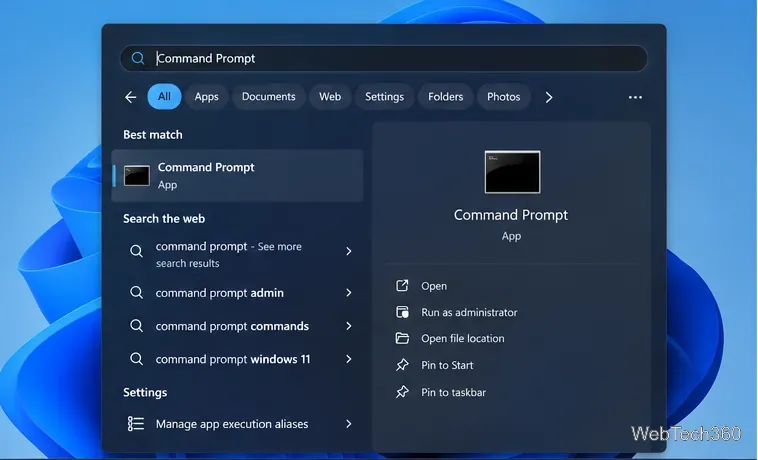
Open Start, type Command Prompt, and launch the app. You do not need to run it as an administrator for a basic ping test. Keep the window open while you use the connection normally or wait for the problem to happen.
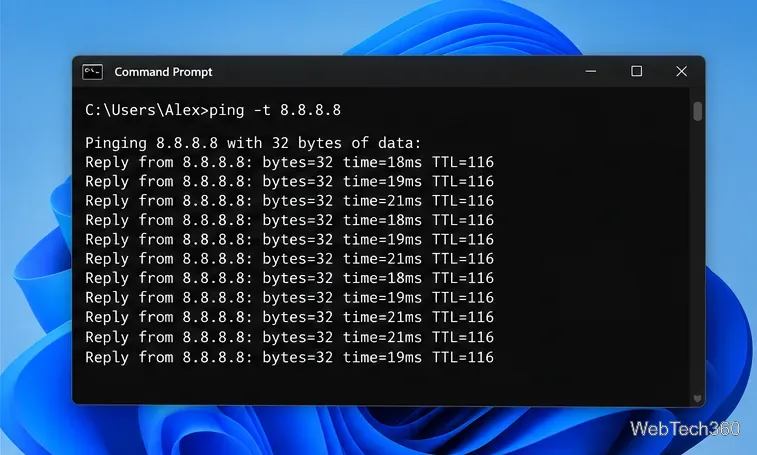
At the prompt, enter this command and press Enter:
ping -t 8.8.8.88.8.8.8 is one of the IPv4 addresses for Google Public DNS, which makes it a convenient public destination to compare against your local network. The address is listed in Google’s Public DNS setup documentation. You are only pinging that IP; you are not changing your computer’s DNS settings.
Leave the command running for a few minutes, ideally while the interruption occurs. Each reply shows a round-trip time in milliseconds. A steady series is more useful than one fast result because it lets you spot repeated timeouts or sharp changes while the issue is happening.
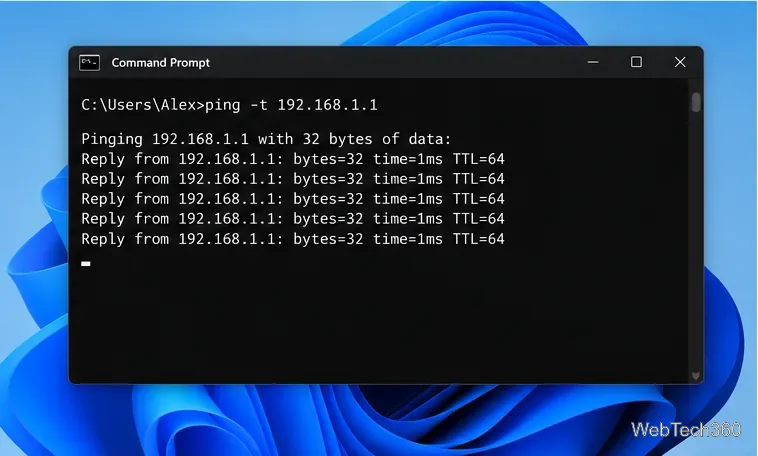
Stop the current test with Ctrl+C, then type ipconfig and press Enter. Find Default Gateway under the active Wi-Fi or Ethernet adapter. The gateway is usually your router; use the exact address shown on your PC, since it may not be 192.168.1.1.
Run another test, replacing the example address with your gateway:
ping -t 192.168.1.1Then stop it and, if useful, test the hostname of the site or service that is failing, such as ping example.com. Run these tests one at a time so the output is easy to compare. Some routers, websites, and firewalls ignore or limit ping requests, so a timeout from one destination alone does not establish that your internet is down.
Ctrl+C, review Sent, Received, Lost, and the minimum, maximum, and average round-trip times. Repeated packet loss is a concern; one brief outlier is less conclusive.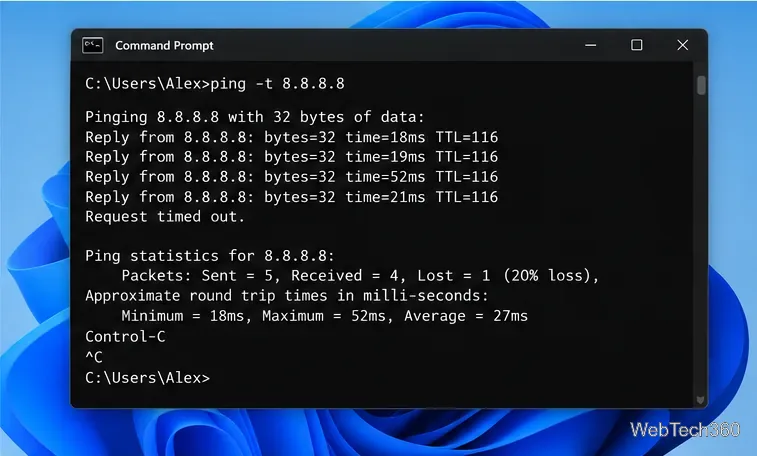
Microsoft’s TCP/IP troubleshooting guidance notes that ICMP can be blocked by a network or firewall. Interpret failed replies alongside other checks instead of treating them as proof of an outage. For a useful record, note the test destination, connection type, time of the issue, and packet-loss percentage from each run.
To stop any continuous test and print its summary, press Ctrl+C. If you need to monitor a specific work or game server, use its hostname or IP when available; a clean result from Google’s address cannot guarantee a stable route to a different service.
Adjust each Windows 10 monitor independently with per-display scaling, keep text readable, and troubleshoot custom scaling or blurry apps.
Use AirType’s browser pairing setup to type on an iPhone from a Windows 10 PC, with current setup steps, troubleshooting, and privacy limits.
Hide the mouse pointer in Windows 10 videos, games, and other apps with built-in typing controls or PowerToys CursorHide’s adjustable inactivity timer.
Find Control Panel Power Options on a Windows 10 desktop, open the page with a Run command, and adjust power plans, display timeouts, sleep, and button behavior.
Learn what Windows 10 deletion leaves behind, how to use SDelete on an HDD, and why SSDs and cloud backups need separate treatment.
Use FFmpeg’s DirectShow tools to open an integrated webcam’s driver properties in Windows 10, find the correct device, and troubleshoot missing controls.
Identify a keypress in Windows 10 with a browser event tester or SharpKeys, then separate layout, software, and keyboard hardware issues.
Use double quotes around each complete path with spaces in Command Prompt. Learn how to list, change to, copy, and troubleshoot Windows 10 files and folders.
Turn off the Windows 10 Start menu’s hover-to-expand behavior with a legacy Mach2 command, check build limits, and see the built-in app-list alternative.
Fix the iTunes Library.itl read error on Windows 10 by updating iTunes, restoring a compatible backup, or safely creating a new library without deleting media files.








