How to Set Different Scaling Levels for Multiple Monitors in Windows 10

Adjust each Windows 10 monitor independently with per-display scaling, keep text readable, and troubleshoot custom scaling or blurry apps.
On Windows 10, you can move the taskbar that contains the system tray to a secondary monitor without making that monitor the primary display. Set the screens to Extend, unlock the taskbars, and drag the main taskbar to the other screen. The notification area—often called the system tray—moves with that taskbar.
This drag method is for Windows 10. Windows 11 uses different taskbar controls; see the version note below. The illustrations show Windows 10-style controls, and exact menu wording can vary by build and taskbar settings.
Windows must recognize both displays as separate screens. Press Windows key + P and choose Extend. In extended mode, each display has its own desktop area, so you can move the pointer and windows between screens. Duplicate mode mirrors the same desktop and is not the setup needed here.
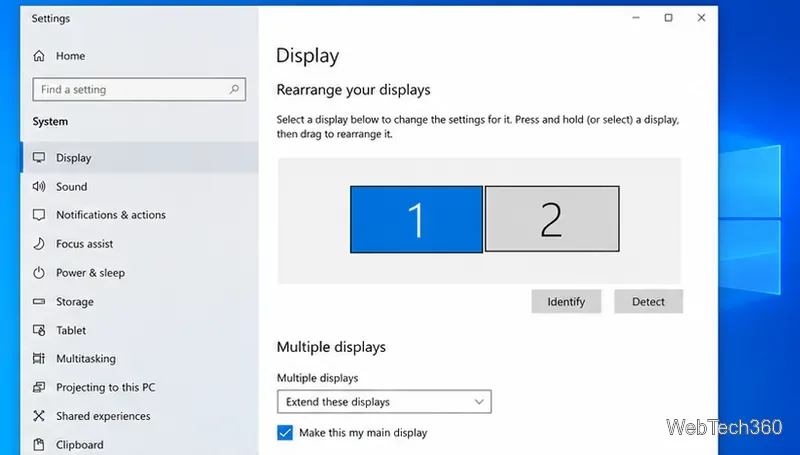
If the second monitor is missing, open Settings > System > Display. Check the connections, then select Detect under Multiple displays. Arrange the numbered display boxes to match the physical positions of your monitors; this helps the pointer cross between the screens in the expected direction. Microsoft’s multiple-monitor guide covers display detection, arrangement, and Extend mode.
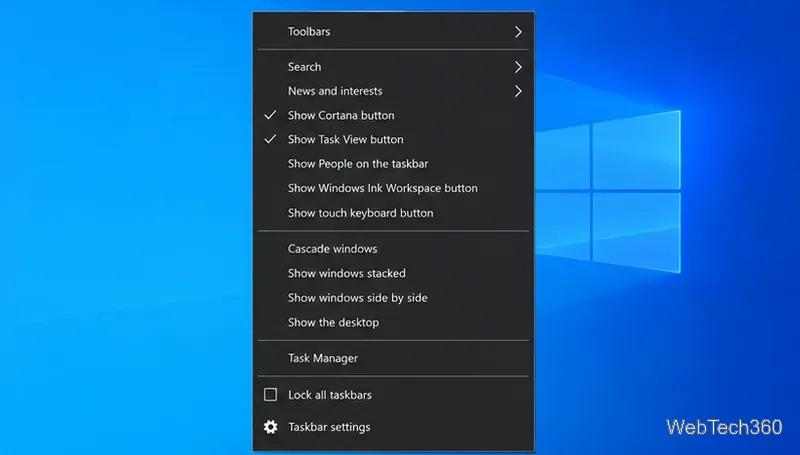
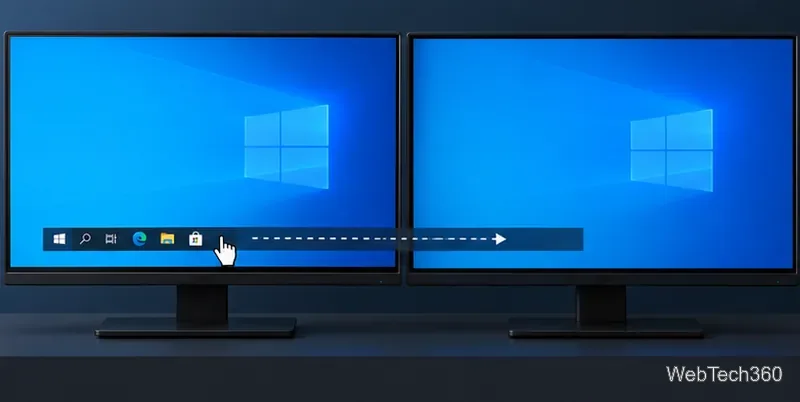
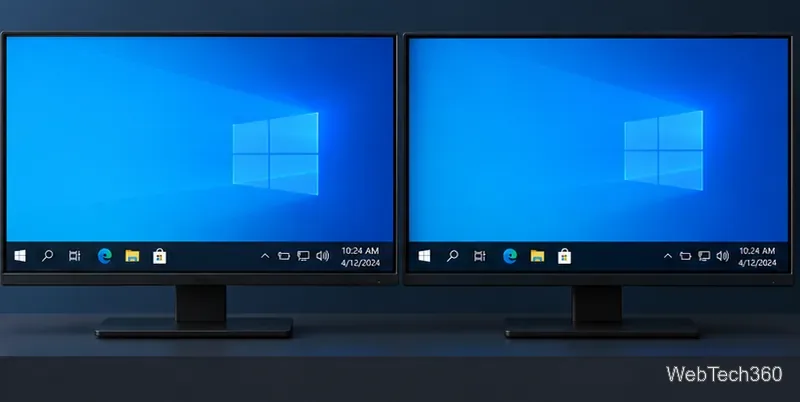
This move changes the taskbar’s location, not the primary-display assignment. Windows will continue to treat the display marked as main as the primary one for system behavior that depends on that setting. Apps may open on the main display or return to the screen where they were last used, depending on the app. If you want the second display to become primary, select it in Settings > System > Display and turn on Make this my main display; that is a separate change.
To return the system tray, unlock the taskbar again and drag it back to the original display. If it will not move, confirm that the desktop is extended, the taskbar is unlocked, and you are dragging a blank section rather than an icon. If the pointer cannot reach the second screen in the direction you expect, correct the monitor arrangement in Display settings.
Windows 11 does not use the Windows 10 drag-across-displays method. Open Settings > Personalization > Taskbar > Taskbar behaviors and enable Show my taskbar on all displays to show a taskbar on each connected screen. Microsoft’s current taskbar guide says this also provides the system tray on each display. If you want Windows to treat one particular monitor as the main display, choose it in Settings > System > Display and select Make this my main display. The Windows 11 option shows taskbars across displays; it is not a Windows 10-style way to drag a single tray to one secondary screen.
Windows 10 still works, but Microsoft ended support on October 14, 2025. Unless the device is covered by an applicable Extended Security Updates program, it no longer receives regular security updates or technical support. See Microsoft’s Windows 10 end-of-support notice for details.
Adjust each Windows 10 monitor independently with per-display scaling, keep text readable, and troubleshoot custom scaling or blurry apps.
Use AirType’s browser pairing setup to type on an iPhone from a Windows 10 PC, with current setup steps, troubleshooting, and privacy limits.
Hide the mouse pointer in Windows 10 videos, games, and other apps with built-in typing controls or PowerToys CursorHide’s adjustable inactivity timer.
Find Control Panel Power Options on a Windows 10 desktop, open the page with a Run command, and adjust power plans, display timeouts, sleep, and button behavior.
Learn what Windows 10 deletion leaves behind, how to use SDelete on an HDD, and why SSDs and cloud backups need separate treatment.
Use FFmpeg’s DirectShow tools to open an integrated webcam’s driver properties in Windows 10, find the correct device, and troubleshoot missing controls.
Identify a keypress in Windows 10 with a browser event tester or SharpKeys, then separate layout, software, and keyboard hardware issues.
Use double quotes around each complete path with spaces in Command Prompt. Learn how to list, change to, copy, and troubleshoot Windows 10 files and folders.
Turn off the Windows 10 Start menu’s hover-to-expand behavior with a legacy Mach2 command, check build limits, and see the built-in app-list alternative.
Fix the iTunes Library.itl read error on Windows 10 by updating iTunes, restoring a compatible backup, or safely creating a new library without deleting media files.








