How to Fix Lines on a Monitor Screen in Windows 10

Use a screenshot test, cable and port checks, monitor diagnostics, display settings, and driver rollback to pinpoint lines on a Windows 10 monitor.
A .key file is usually an Apple Keynote presentation. On Windows 10, the most reliable way to open one is Keynote for iCloud: sign in with an Apple Account, upload the presentation, then view or edit it in your browser. If you only need a quick look, Google Drive can preview .key files. If you need to work in Microsoft PowerPoint, convert the presentation to .pptx first.
Microsoft's current list of PowerPoint-supported file formats does not include Apple's .key format, so double-clicking a Keynote file in Windows PowerPoint is not a dependable solution. This guide assumes your .key file is a Keynote presentation; some unrelated apps also use the .key extension for other kinds of data.
Apple says Keynote for iCloud works on a Windows device in a supported browser. It is the best option when you want to preserve Keynote-specific content and make edits without access to a Mac, iPhone, or iPad.
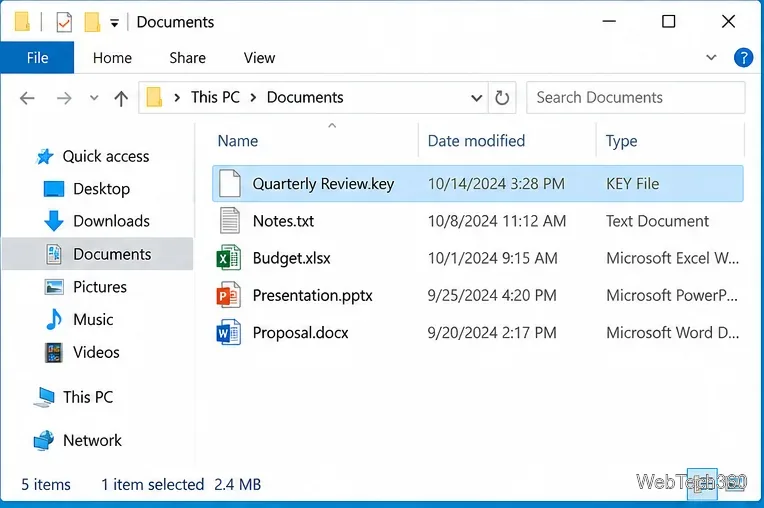
Open File Explorer and check that the filename ends in .key. If Windows hides extensions, you can turn on View > File name extensions in File Explorer. If the file came from a Mac or iPhone user and has a presentation-style name, it is likely a Keynote file.
These steps follow Apple's current Keynote for iCloud upload instructions.
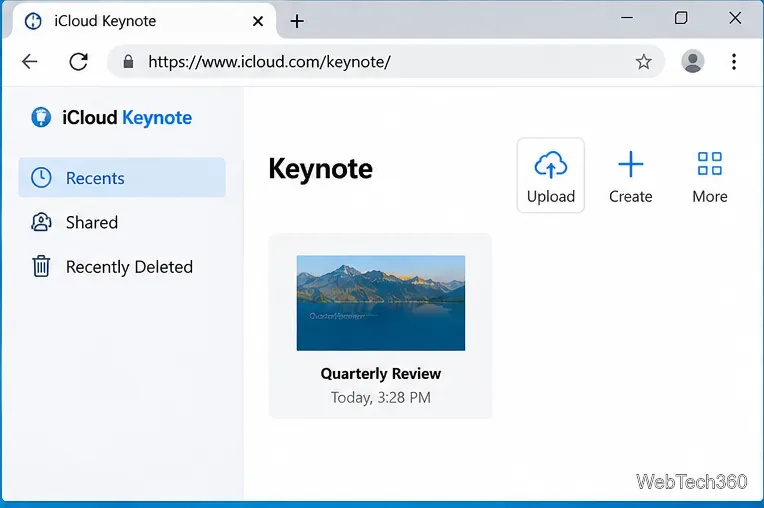
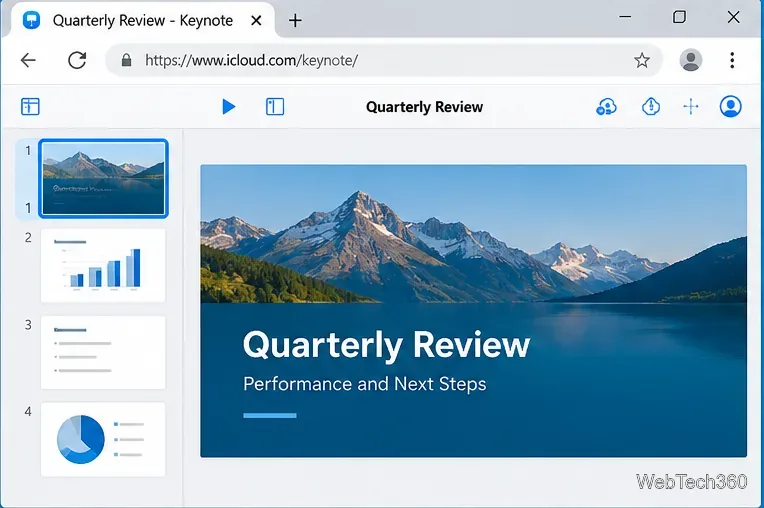
Select the uploaded presentation to open it. Keynote for iCloud lets you view and edit slides in the browser. Apple notes that some features can differ between Keynote for iCloud and the native Keynote apps, so check important fonts, transitions, media, charts, and layouts before sharing the result.
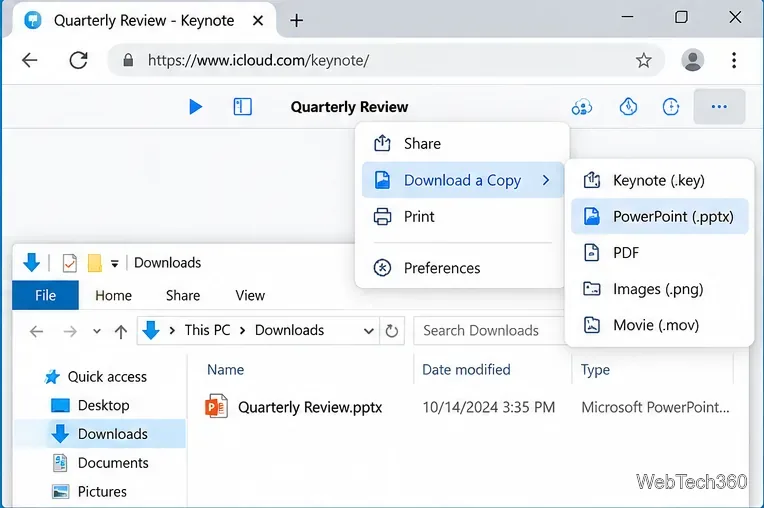
With the presentation open, choose the More menu, select Download a Copy, then choose PowerPoint. Apple states that Keynote for iCloud can download presentations in Keynote, PDF, or Microsoft PowerPoint format. The converted file is saved to the download location configured in your browser.
For the exact current menu path, see Apple's download instructions for Keynote for iCloud.
Google's current Google Drive file-type documentation lists Apple .key files among the formats Drive can preview. Upload the file to Drive and open its preview if you only need to inspect the slides.
This is different from editing the presentation in Google Slides. If you need a fully editable Slides or PowerPoint workflow, convert the Keynote file to .pptx first, then open that converted copy in the presentation app you plan to use.
If someone else created the presentation, the cleanest solution may be to ask them to export another copy from Keynote. Apple's current Keynote compatibility guidance confirms that Keynote can convert presentations to Microsoft PowerPoint (.pptx) and PDF.
After conversion, review the result for font substitutions, animation changes, or layout differences before presenting it.
Do not simply rename .key to .pptx. Changing the filename extension does not convert the underlying presentation format. Also be cautious with third-party online converters when a deck contains confidential or sensitive information; Keynote for iCloud gives you an Apple-supported conversion path without uploading the file to an unrelated conversion service.
Windows 10 note: Microsoft ended standard Windows 10 support on October 14, 2025. The browser-based methods above can still work on a Windows 10 PC with a compatible browser, but Microsoft recommends moving to a supported Windows release or using an eligible Extended Security Updates option. See Microsoft's Windows 10 end-of-support guidance.
Use a screenshot test, cable and port checks, monitor diagnostics, display settings, and driver rollback to pinpoint lines on a Windows 10 monitor.
Show two other time zones beside your Windows 10 clock. Set up each additional clock, give it a clear label, and find it in the taskbar calendar.
Find the File Explorer extension that delays right-click menus in Windows 10, test it safely with ShellExView, and restore any menu features you still need.
Stop Windows 10 from powering down a specific network adapter or USB device with plan-level settings and Device Manager controls, plus tips to avoid excess battery drain.
Check whether Windows 10 uses a digital license or product key, find a firmware-stored OEM key, and save license details securely for a reinstall.
Identify a Windows 10 Task Manager process by checking its executable path, file properties, publisher, linked services, and a Microsoft Defender scan.
Create a searchable Windows 10 folder inventory with PowerShell. Save every file and subfolder path as plain text or export details to a sortable CSV.
Add a custom reminder, quote, or label to your Windows 10 desktop with a Rainmeter text skin. Create the INI file, load it, then adjust its font and position.
Use Bluetooth Swift Pair on Windows 10 to pair a compatible accessory from a notification, with setup steps and fixes when the prompt does not appear.
Learn what common laptop function key symbols mean, how Fn and Fn Lock affect them, and how to confirm the right shortcut for your Windows 10 laptop model.








