Home
» WINDOWS
»
How to Open the Steam Console on Windows 10
How to Open the Steam Console on Windows 10
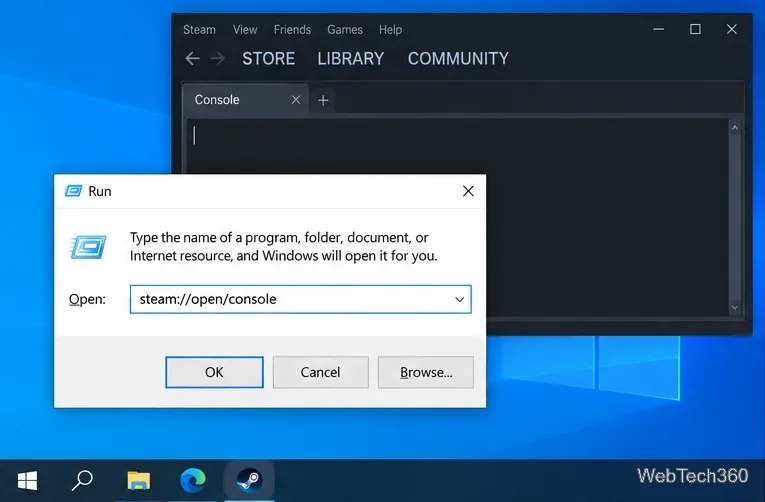
To open the Steam client’s Console tab in Windows 10, press Windows key + R, enter steam://open/console, and press Enter. Steam should open or come to the foreground with its Console tab selected. Valve documents this address for opening the Steam console from Windows Run or a browser, and also documents -console as a Steam launch option.
This guide covers the Steam desktop client console. It is different from a game’s developer console, which appears inside a supported game and uses that game’s own settings or launch options. It is also different from SteamCMD.
1. Open the console from the Run dialog
Make sure the Steam desktop app is installed. It can already be open; the link can also start it.
Press Windows key + R to open Run.
Type steam://open/console exactly, then press Enter.
If Windows asks which app should handle the link, choose Steam. When Steam appears, select the Console tab if it is not already active.
Enter the Steam protocol address in Run to open the client Console tab.
The address is not a website. It uses Steam’s registered link handler, so do not add a web address prefix or change the punctuation. The command is the same regardless of which drive contains your Steam installation.
2. Use File Explorer’s address bar
Open File Explorer.
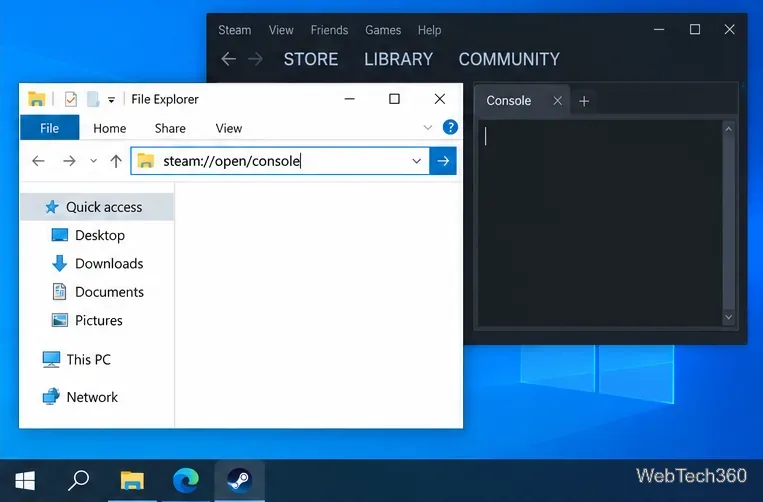
Click its address bar, replace the current path with steam://open/console, and press Enter.
If Windows displays an app prompt, allow the link to open in Steam.
File Explorer can pass the same Steam link to the desktop client.
This is another way to send the protocol link to Steam. If Explorer treats the text as a search or does not switch to Steam, use the Run dialog instead; it is the most direct Windows route.
3. Open the link from a web browser
Open a desktop browser on the same Windows computer.
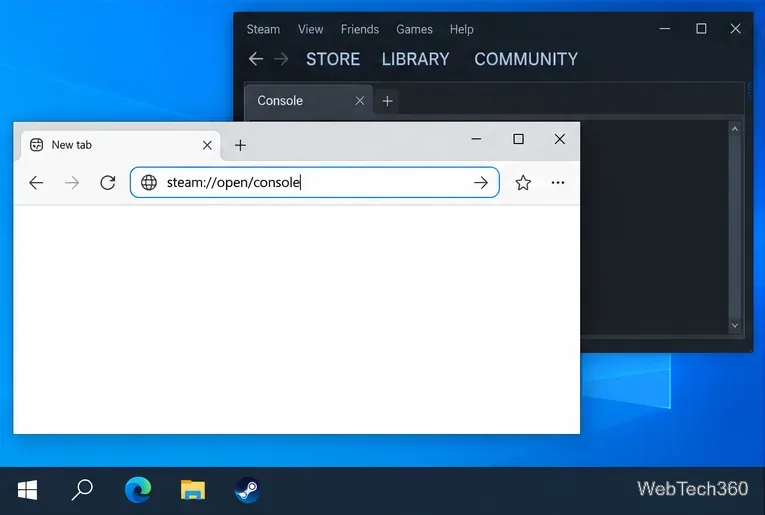
Enter steam://open/console in the address bar and press Enter.
If the browser asks whether to open Steam, approve the request.
A browser can hand the Steam protocol link to the installed desktop app.
Browser prompts vary, and some browsers may block or ignore a custom application link. If that happens, do not search the address as a web page; use steam://open/console in Run or File Explorer.
4. Launch Steam with a desktop shortcut
Use this method if you want Steam to start with the Console tab enabled each time you launch it from that shortcut.
Right-click a Steam desktop shortcut and choose Properties. If you do not have one, find Steam in the Start menu, use Open file location if available, and create a desktop shortcut from there.
In the Shortcut tab, click the Target field.
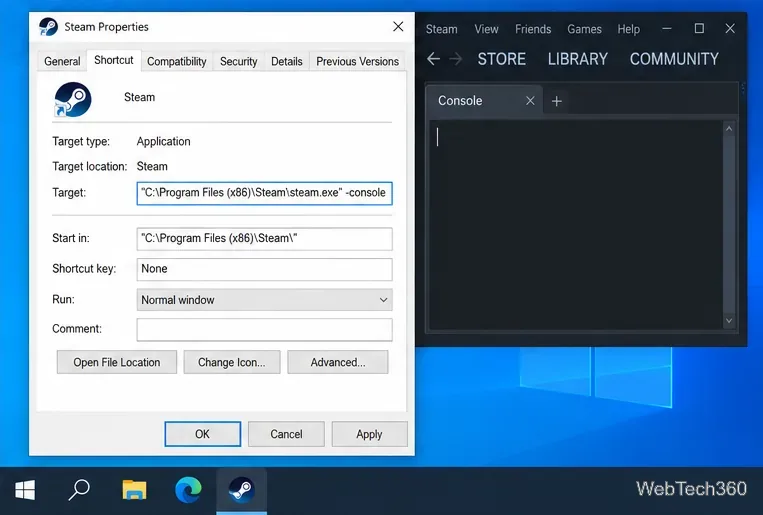
Go to the end of the existing target, type one space, then add -console.
Choose Apply, then OK. Open Steam with this modified shortcut.
Place -console after the executable path, outside its quotation marks.
For example, a typical Target may read "C:\Program Files (x86)\Steam\steam.exe" -console. Your installation path may differ, so keep the path already shown on your computer. If it contains spaces, leave the executable path in quotation marks and put -console after the closing quote, separated by a space. Do not put this in a game’s Steam Library launch-options box; that box passes arguments to the selected game.
If the Steam Console tab does not appear
Check the link spelling: it must be steam://open/console with one colon and two slashes.
If a browser does not hand the link to Steam, run the address from Windows key + R.
If the shortcut method fails, verify that -console follows the executable path and is outside the closing quotation mark. Choose Apply, exit Steam from its Steam > Exit menu, then relaunch it from the modified shortcut.
If Windows cannot find an app for the Steam link, start or reinstall the official Steam client so Windows can register its protocol handler. Avoid editing registry entries based on random instructions.
What the Steam client console is for
The client console is a text interface for Steam commands and developer diagnostics. Valve’s Steamworks documentation lists examples such as find for looking up available commands and app_info_print for displaying app information. Available commands depend on Steam and the task, so do not assume every command found online is supported or appropriate for a regular account.
Opening this tab does not enable a universal cheat console, change every game’s graphics or controller behavior, or automatically expose a game’s in-game developer console. For a Valve game’s separate developer console, follow the instructions for that specific title in Steam Support’s developer-console guide. For the Steam client’s -console option and protocol address, see Valve’s Steamworks debugging documentation.