How to Partition a USB or SD Card With Disk Management in Windows 10

To split a USB flash drive or SD card in Windows 10, shrink an existing volume in Disk Management and create a new simple volume in the space that becomes unallocated. Back up the card first: formatting erases the selected partition, and selecting the wrong disk can affect unrelated files.

Windows 10 version 1703 and later supports multiple USB partitions, though a reader or target device may show only one. See Microsoft’s Disk Management guide for the built-in tool’s volume actions.

Before you begin

Copy important files elsewhere. In Disk Management, identify the removable disk by its capacity and current drive letter; disk numbers can differ across PCs. Shrinking an eligible volume normally keeps its existing files, but a backup is still essential.

Disk Management can shrink NTFS or unformatted partitions, not FAT32 or exFAT volumes. If Shrink Volume is unavailable, check the file system. On a FAT32/exFAT card, the clean-start option below erases the device and should be used only after a verified backup.

Partition the USB drive or SD card

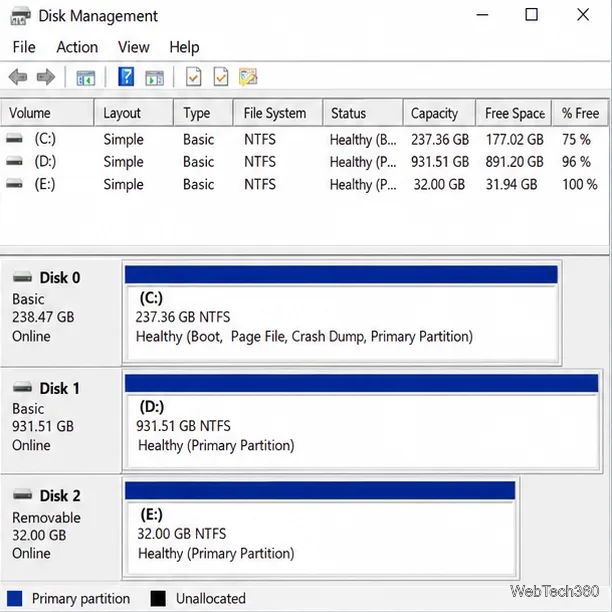
  1. Connect and identify the device. Insert the USB drive or SD card reader. Open Disk Management and match its capacity and drive letter before making changes.
    Disk Management lists a 32 GB USB drive as Disk 2 with one NTFS volume, separate from the internal disks.
    Identify the USB disk by its capacity.
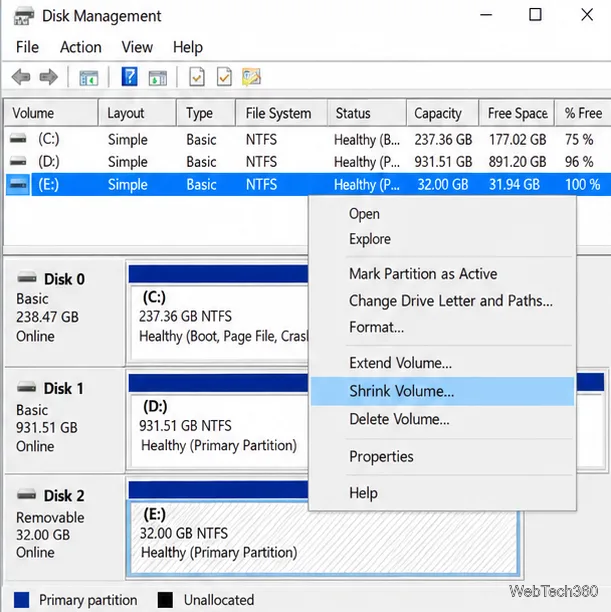
  2. Open Disk Management. Right-click Start and choose Disk Management, or press Windows + R, type diskmgmt.msc, and press Enter. In the lower pane, right-click the device’s existing volume and select Shrink Volume—not the disk label or an internal partition.
    The USB volume is selected in Disk Management, with Shrink Volume highlighted in its context menu.
    Right-click the existing volume and choose Shrink Volume.
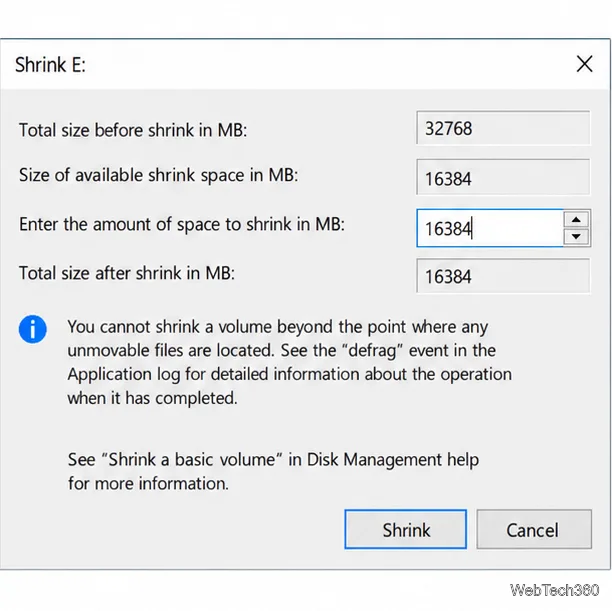
  3. Enter the shrink amount. Type how many megabytes to free. For example, 16,384 MB is about 16 GB. That amount becomes unallocated space; the original volume keeps the remainder. Windows may offer less than the free space shown because some files cannot be moved.
    The Shrink E dialog shows 32,768 MB total and 16,384 MB entered as the amount to shrink.
    Enter how much space to free for the new partition.
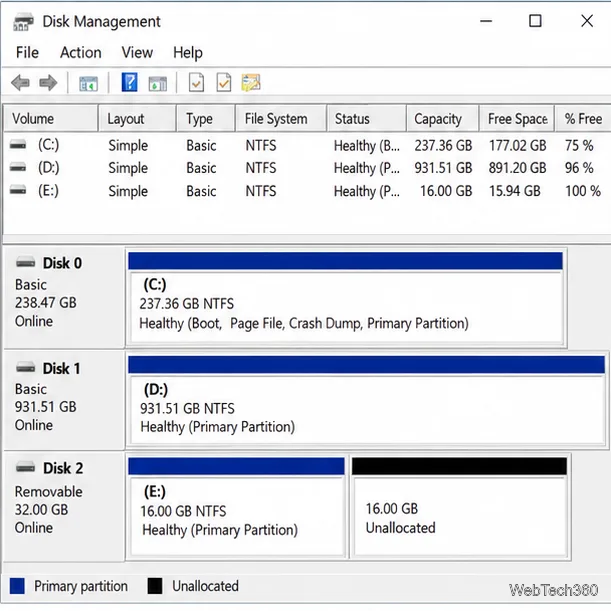
  4. Shrink the volume. Select Shrink. When the map refreshes, check that the same disk shows the original partition and a black Unallocated area. Confirm the sizes before proceeding.
    Disk Management shows the original E partition and 16 GB of unallocated space on the same USB disk.
    The new space appears as Unallocated.
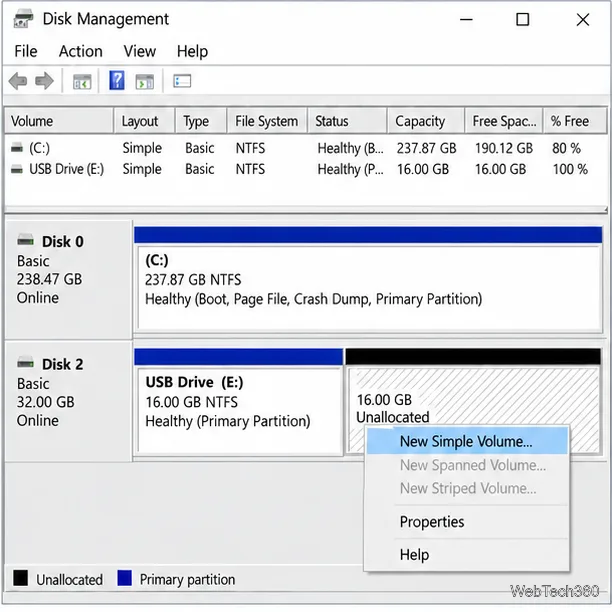
  5. Start a new volume. Right-click the unallocated area on that disk and select New Simple Volume. This wizard uses the free space for the new partition; it does not reformat the volume you just shrank.
    The unallocated area on Disk 2 is selected, with New Simple Volume highlighted in the context menu.
    Start the New Simple Volume Wizard.
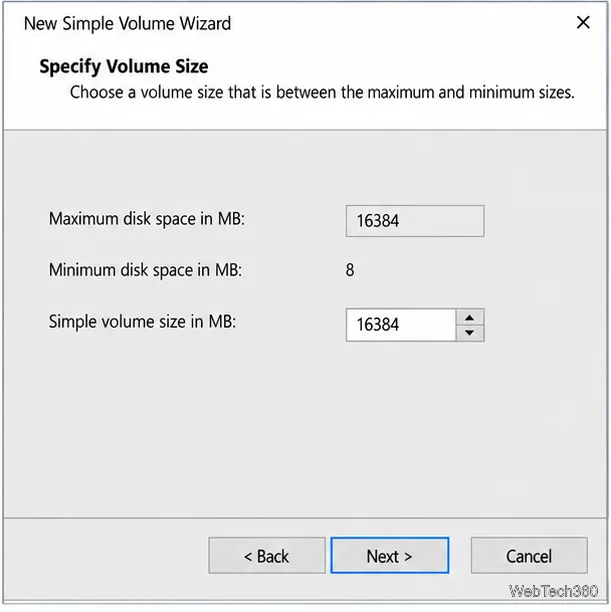
  6. Set the volume size. Enter a size in MB or accept the maximum to use all remaining space for the second partition. To make more than two partitions, leave some space unallocated and repeat the wizard later. Select Next.
    The New Simple Volume Wizard shows 16,384 MB as the maximum and selected volume size.
    Choose the size of the new partition.
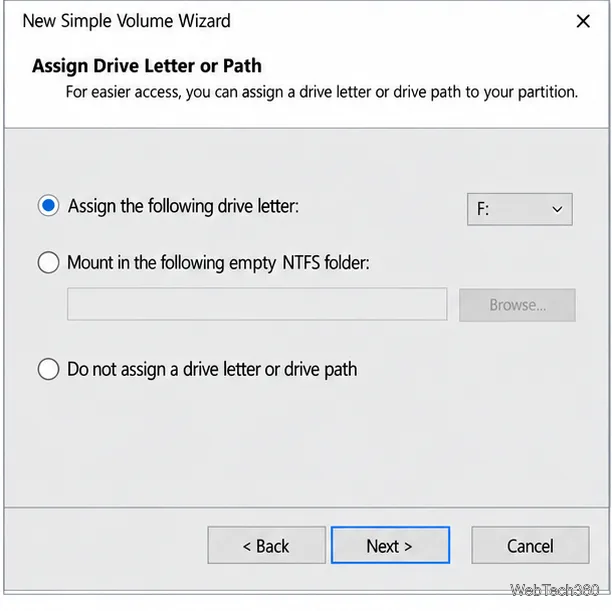
  7. Assign a letter. Choose an unused drive letter, or mount the volume in an empty folder. A letter makes it accessible in File Explorer. Select Next.
    The wizard’s Assign Drive Letter or Path page is set to assign the letter F to the new volume.
    Assign an unused drive letter.
  8. Choose a format and finish. Use NTFS for a Windows-focused volume, exFAT for compatible removable devices, or FAT32 only when an older device requires it; FAT32 cannot store a single file larger than 4 GB. Choose a label. Quick Format is normally sufficient for a new partition. Select Next, review the summary, and select Finish. Formatting erases data on that new volume, so verify the disk and size first.
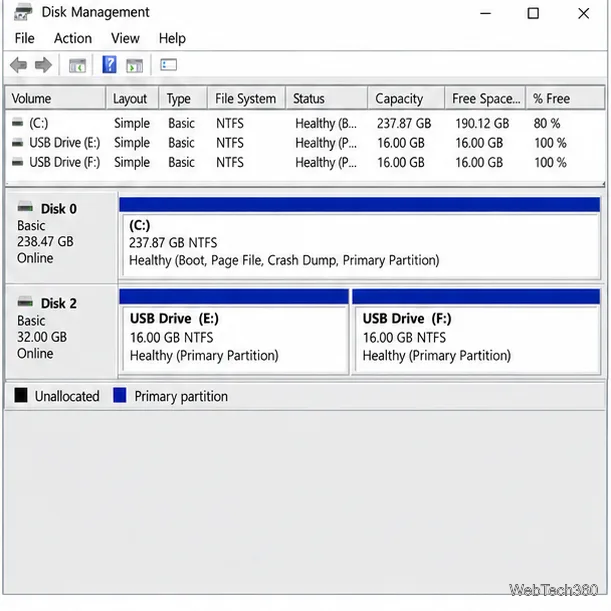
    Disk Management shows two healthy 16 GB NTFS partitions, E and F, on the 32 GB USB drive.
    Confirm both partitions appear on the same disk.

Check the partitions or troubleshoot

Confirm both volumes appear as Healthy on the same disk, then check This PC in File Explorer. If a healthy partition is missing there, right-click it in Disk Management, choose Change Drive Letter and Paths, select Add, and assign an unused letter. A RAW volume needs formatting before use; do that only if it contains no data you need.

If the device is FAT32 or exFAT, or Windows cannot shrink it, you may need to erase and recreate the layout. After backing up, right-click the existing volume, choose Delete Volume, then create smaller volumes from the unallocated space if the device allows multiple partitions. Deleting removes the volume’s contents. Microsoft’s shrink-volume guidance explains the NTFS limitation and why unmovable files can restrict shrinking. Its multiple-partition USB guidance covers Windows 10 version 1703 or later and the FAT32 4 GB file-size limit. Check the camera, console, or other device’s format requirements before copying files.

Leave a Comment

How to Set Different Scaling Levels for Multiple Monitors in Windows 10

How to Set Different Scaling Levels for Multiple Monitors in Windows 10

Adjust each Windows 10 monitor independently with per-display scaling, keep text readable, and troubleshoot custom scaling or blurry apps.

How to Type on an iPhone From a Windows 10 PC

How to Type on an iPhone From a Windows 10 PC

Use AirType’s browser pairing setup to type on an iPhone from a Windows 10 PC, with current setup steps, troubleshooting, and privacy limits.

How to Hide the Mouse Cursor in Windows 10 Apps

How to Hide the Mouse Cursor in Windows 10 Apps

Hide the mouse pointer in Windows 10 videos, games, and other apps with built-in typing controls or PowerToys CursorHide’s adjustable inactivity timer.

How to Open Control Panel Power Options on a Windows 10 Desktop

How to Open Control Panel Power Options on a Windows 10 Desktop

Find Control Panel Power Options on a Windows 10 desktop, open the page with a Run command, and adjust power plans, display timeouts, sleep, and button behavior.

How to Prevent a File from Being Recovered on Windows 10

How to Prevent a File from Being Recovered on Windows 10

Learn what Windows 10 deletion leaves behind, how to use SDelete on an HDD, and why SSDs and cloud backups need separate treatment.

How to Access Advanced Settings for an Integrated Webcam in Windows 10

How to Access Advanced Settings for an Integrated Webcam in Windows 10

Use FFmpeg’s DirectShow tools to open an integrated webcam’s driver properties in Windows 10, find the correct device, and troubleshoot missing controls.

How to Identify a Keypress on Windows 10

How to Identify a Keypress on Windows 10

Identify a keypress in Windows 10 with a browser event tester or SharpKeys, then separate layout, software, and keyboard hardware issues.

How to Enter File or Folder Paths with Spaces in Windows 10 Command Prompt

How to Enter File or Folder Paths with Spaces in Windows 10 Command Prompt

Use double quotes around each complete path with spaces in Command Prompt. Learn how to list, change to, copy, and troubleshoot Windows 10 files and folders.

How to Disable Start Menu Auto-Expand on Windows 10

How to Disable Start Menu Auto-Expand on Windows 10

Turn off the Windows 10 Start menu’s hover-to-expand behavior with a legacy Mach2 command, check build limits, and see the built-in app-list alternative.

How to Fix the “iTunes Library.itl Cannot Be Read” Error in Windows 10

How to Fix the “iTunes Library.itl Cannot Be Read” Error in Windows 10

Fix the iTunes Library.itl read error on Windows 10 by updating iTunes, restoring a compatible backup, or safely creating a new library without deleting media files.