How to Access a Network Location in Command Prompt on Windows 10

Use pushd to open a UNC network path in Windows 10 Command Prompt, run commands in the shared folder, and return with popd.
Quick answer: to play a video with FFmpeg on Windows 10, use ffplay, the small media player that ships with many FFmpeg builds. If FFmpeg is on your PATH, the basic command is ffplay "C:\Videos\My video.mp4". Add -fs if you want the video to start full-screen.
FFplay is intentionally simple. The official ffplay documentation describes it as a portable media player built on the FFmpeg libraries and SDL, mainly used as a testbed for FFmpeg APIs. That means it is excellent for quick previews and troubleshooting, but it does not behave like a full desktop player with a permanent transport bar.
The FFmpeg project publishes source code rather than its own Windows installer. Its official download page points Windows users to compiled builds. After downloading and extracting a build, open its bin folder and confirm that ffplay.exe is present alongside tools such as ffmpeg.exe and ffprobe.exe.
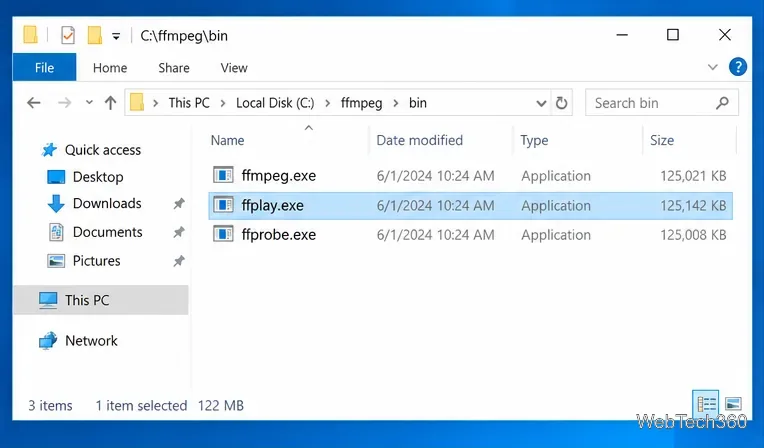
If your package does not contain ffplay.exe, use a Windows build that includes it. You do not need a separate GUI frontend just to preview a local video.
Open Command Prompt or PowerShell and run:
ffplay -version
If you see version information, Windows can find the executable. If you get a message such as 'ffplay' is not recognized, either add the FFmpeg bin directory to PATH or run the executable by its full path, for example:
C:\ffmpeg\bin\ffplay.exe -version
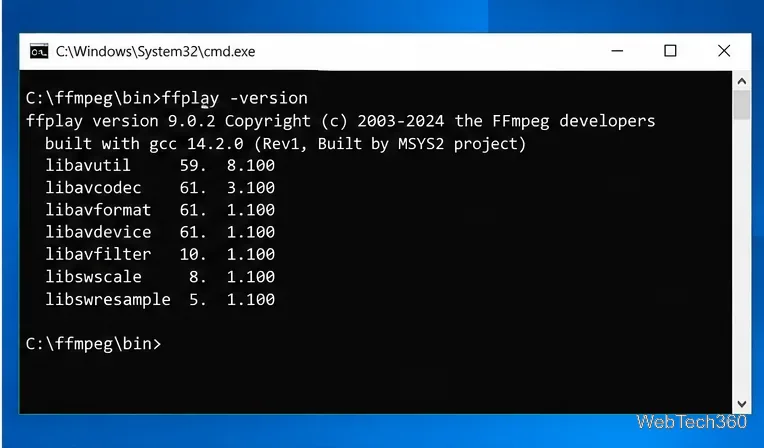
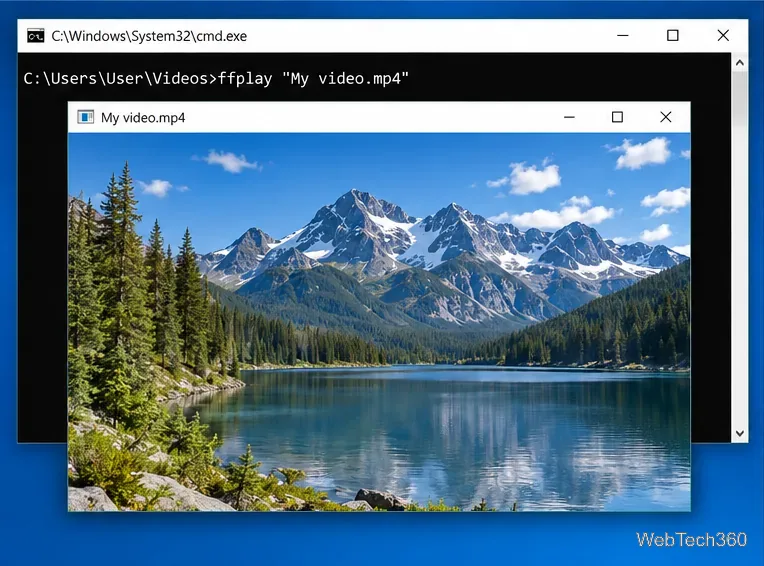
The simplest method is to pass the video file to ffplay. Quotation marks are important when a folder or filename contains spaces:
ffplay "C:\Users\YourName\Videos\My video.mp4"
You can also change to the video's folder first:
cd /d "C:\Users\YourName\Videos"ffplay "My video.mp4"
FFplay opens a separate playback window and starts the file. Unlike a typical media player, it does not require visible on-screen playback controls; most interaction is done with the keyboard and mouse.
FFplay does not need to start full-screen. To request full-screen at launch, use the documented -fs option:
ffplay -fs "C:\Users\YourName\Videos\My video.mp4"
You can also set a startup volume from 0 to 100, for example ffplay -volume 60 "My video.mp4", or loop continuously with ffplay -loop 0 "My video.mp4".

Useful controls from the current ffplay documentation include:
| Key | Action |
|---|---|
q or Esc | Quit playback |
f | Toggle full-screen mode |
p or Space | Pause or resume |
m | Mute or unmute |
| Left / Right | Seek backward or forward 10 seconds by default |
| Down / Up | Seek backward or forward one minute |
s | Step to the next video frame |
This is usually a PATH problem or a build that does not contain ffplay.exe. Run the full path to ffplay.exe first. If that works, you can add the FFmpeg bin folder to PATH for convenience.
Put the full path in double quotes, especially when it contains spaces. Also verify the extension and filename in File Explorer instead of typing them from memory.
Launch ffplay from an already-open terminal rather than double-clicking an executable. The terminal remains visible so you can read any decoder, file-access, or syntax error that ffplay prints.
Codec and format support can vary with the Windows build you installed. Try a current build linked from the FFmpeg download page and read the console output for the specific decoder or stream error. You can also run ffprobe "file.mp4" to inspect the streams before playback.
Microsoft ended standard support for Windows 10 Home, Pro, Enterprise, and Education on October 14, 2025. The ffplay commands above can still work on Windows 10 systems that can run your chosen FFmpeg build, but Microsoft recommends moving to a supported Windows release when possible. See Microsoft's Windows 10 end-of-support notice for lifecycle details.
Use pushd to open a UNC network path in Windows 10 Command Prompt, run commands in the shared folder, and return with popd.
Learn how to install a Rainmeter skin from an INI file by placing it in the right Skins folder, preserving its resources, refreshing Rainmeter, and loading it in Manage.
Open one folder in its own File Explorer window with Shift or the context menu, or change Folder Options to make every folder open separately.
Pin a frequently used Control Panel applet, such as Power Options or Sound, to the Windows 10 Start menu for one-click access.
Choose a supported Windows 10 hotkey for switching input languages, assign shortcuts to individual layouts, or disable an accidental shortcut.
Move a Windows 10 app to the display you want, use its game monitor setting, and handle full-screen apps with a practical primary-monitor workaround.
Use a transparent PNG and a Rainmeter skin to keep an image watermark above windows, adjust its transparency, and make it click-through on Windows 10.
Convert stereo audio to mono on Windows 10 with Audacity. Mix both channels into one mono track, export a new file, and verify the channel count.
Use Windows 10 Clipboard history to save recent text and images, paste an earlier clip with Windows key + V, and manage sync, pinned items, and privacy.
Learn how to zoom in on a video in Windows 10 with VLC’s Interactive Zoom, or use Windows Magnifier when the clip is playing in another app.








