How to Play Minecraft Java With an Xbox Controller on Windows 10

A standard Minecraft: Java Edition installation does not provide native Xbox controller controls. On Windows 10, the most direct way to add them is to connect the controller and install Controlify in a compatible Fabric or NeoForge game instance. Controlify recognizes common XInput gamepads on Windows, adds controller bindings and lets you adjust sensitivity and deadzones. The server does not need the mod installed.

If you want to stay with an unmodded game, Steam Input can translate controller inputs into keyboard and mouse actions, but it takes more manual setup. The modded setup below gives you gamepad controls inside Java Edition.

The images are visual guides. App layouts and labels can change between releases, so use the version and loader shown on the current project page.

Set up an Xbox controller for Minecraft Java

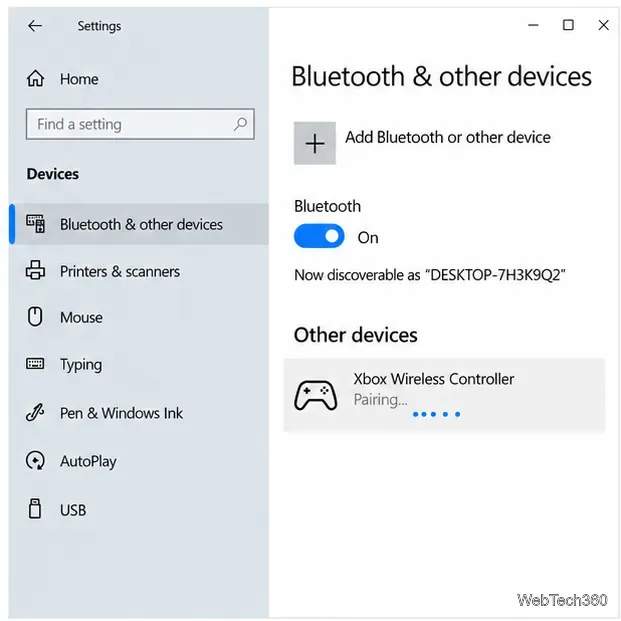
  1. Connect the controller to Windows. Plug it in with a USB cable for the simplest setup. For a Bluetooth controller, open Start > Settings > Devices > Bluetooth & other devices, choose Add Bluetooth or other device, put the controller in pairing mode, and select it when Windows finds it. Microsoft’s Windows pairing instructions cover the Bluetooth steps. Make sure Windows has connected the controller before you open the game.
  2. Windows 10 Bluetooth & other devices settings showing an Xbox Wireless Controller during pairing.
    Windows 10 lists the Xbox Wireless Controller while it is being paired.
  3. Install the Modrinth App and sign in. Get the app from the official Modrinth App page. Sign in with the Microsoft account that owns Minecraft: Java Edition if prompted. Keep your existing worlds safe by creating a separate instance for this controller setup.
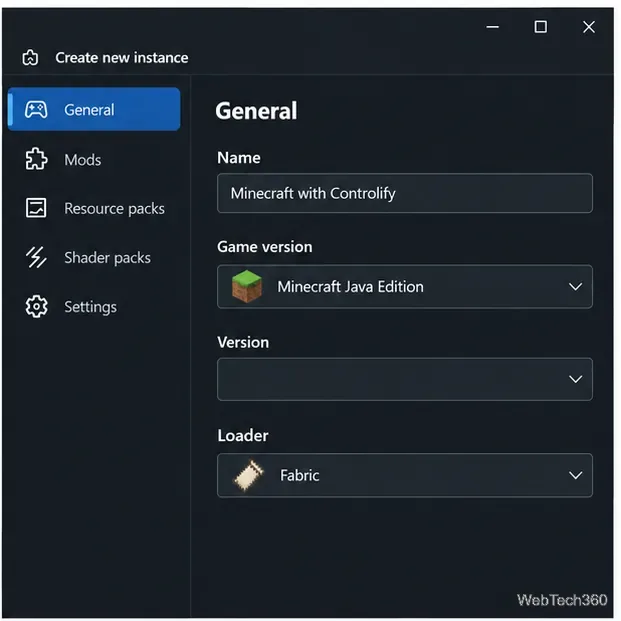
  4. Create a modded Java instance. In the app, create a new Minecraft instance. Choose the Minecraft version you want to play and select Fabric or NeoForge. Controlify supports both loaders, but each download is tied to specific game versions. Check its current versions page and select a matching version and loader. Modrinth’s loader setup guide explains how to change an instance’s game version or loader.
  5. A new Minecraft Java instance form with Fabric selected as the mod loader.
    Choose a separate instance and a loader supported by the Controlify release you plan to use.
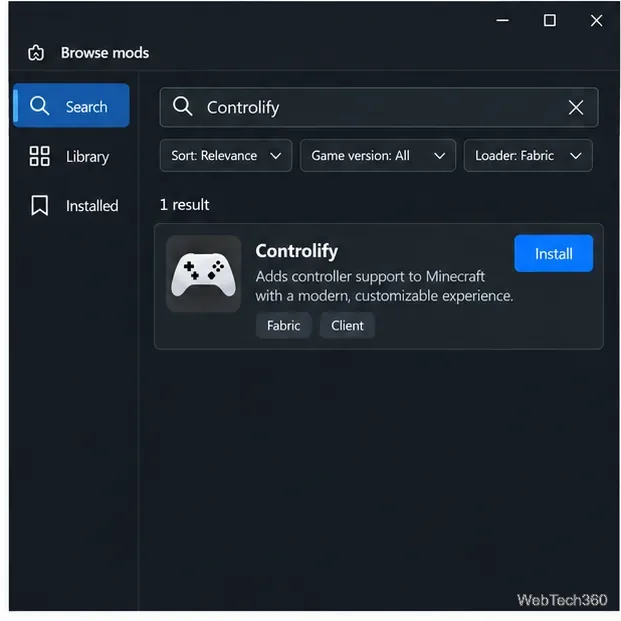
  6. Find and install Controlify. Open the instance’s mod browser, search for Controlify, and install the release that matches the instance’s Minecraft version and loader. Use the project’s Modrinth page; do not download a random jar from a third-party mirror. If the app asks for required dependencies, install the compatible ones it lists.
  7. A mod browser search result showing Controlify and an Install button.
    Search the mod browser for Controlify and check the game version and loader before installing.
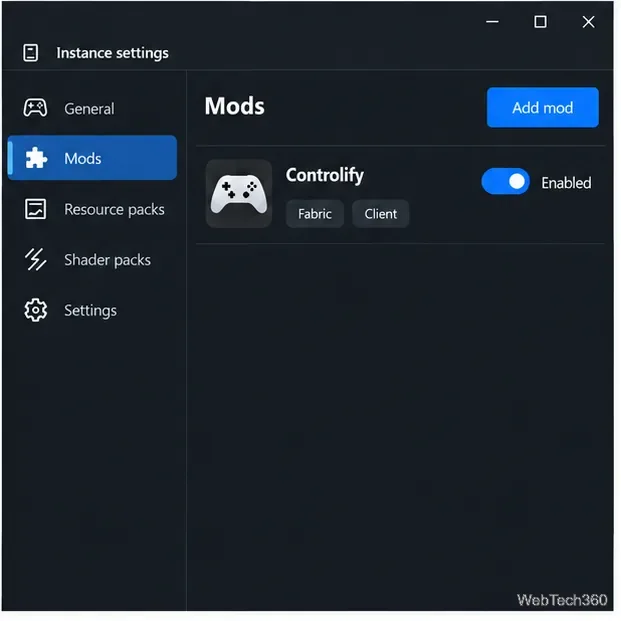
  8. Check the instance’s Mods list. Confirm that Controlify is enabled in this instance. If it is missing, revisit the game-version and loader filters: a Fabric file will not load in a NeoForge profile, and a mod built for a different Minecraft version may fail to start.
  9. An instance Mods panel showing Controlify enabled for a client-side Fabric profile.
    Confirm that Controlify appears in the instance’s Mods list.
  10. Launch the modded profile. Start the instance from the Modrinth App and wait for Minecraft to reach its main menu. Starting the normal vanilla profile will not load the mod. If the game opens without controller hints, confirm that you launched the new instance and restart after installing the mod.
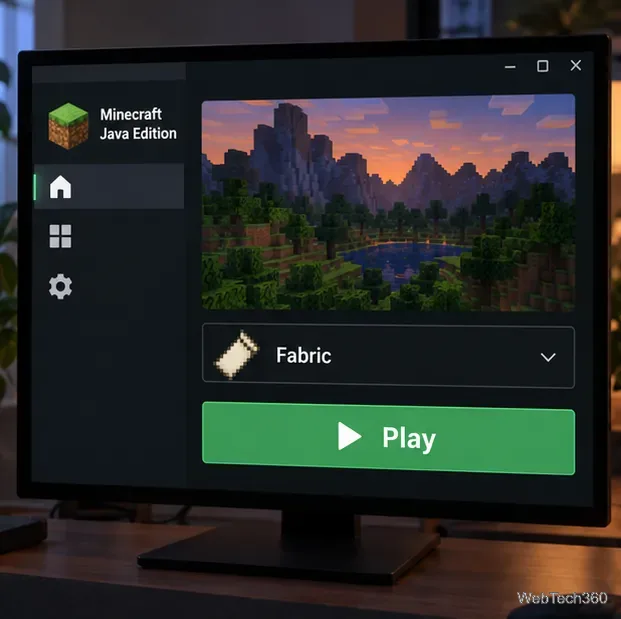
  11. A Minecraft Java launcher screen with a Fabric profile selected and a Play button.
    Launch the Fabric profile that contains Controlify.
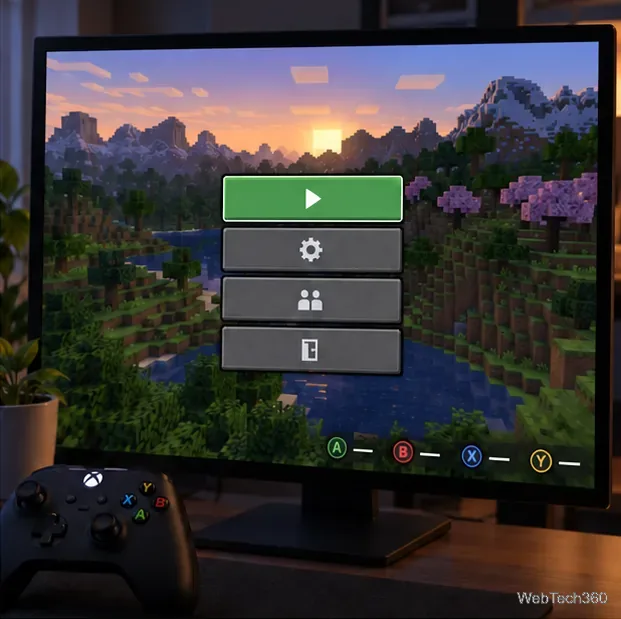
    An Xbox controller beside a Minecraft Java menu with controller button hints.
    Controlify adds controller button glyphs to compatible game screens.
  12. Adjust the controller bindings. Open Controlify’s controller settings in Minecraft and review the Controls page. Rebind any action that feels awkward, then tune look sensitivity and stick deadzones. Controlify supports remapping, gamepad button guides, and controller navigation through compatible screens. Its built-in bindings reference lists the available actions.
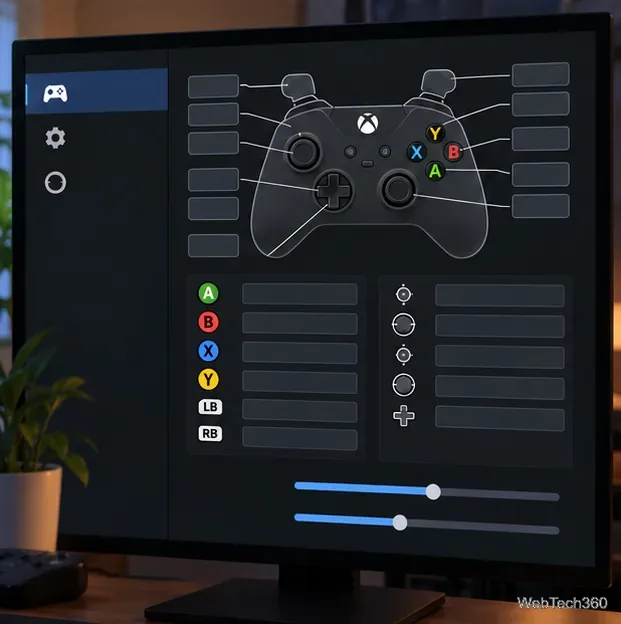
  13. A controller bindings screen with Xbox buttons and sensitivity sliders.
    Adjust bindings, camera sensitivity, and stick deadzones in the controller settings.
  14. Test the controls in a world. Load a single-player world and try moving, looking, jumping, using an item, and opening the inventory. Follow the on-screen Xbox glyphs rather than assuming every mod or controller model uses identical defaults. Controlify’s current controller support page lists tested controller and Windows combinations; support can vary by controller mode, connection, and driver.
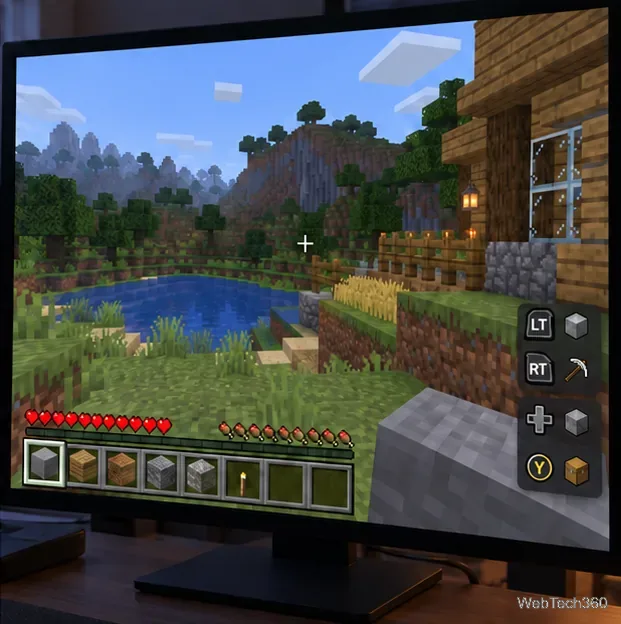
  15. Minecraft gameplay with a controller action guide beside the hotbar.
    Use the in-game button guide to test the controller actions.

Can you use Steam Input instead?

Yes. Steam can add a non-Steam shortcut and apply a controller layout that maps buttons and sticks to keyboard and mouse controls. In the Steam client, open Settings > Library > Add a Non-Steam Game, select the Minecraft Launcher, and add it. Then open that shortcut’s controller layout, choose a keyboard-and-mouse style layout, and map movement, looking, jump, attack, and use to the controller. Launch Minecraft through Steam so the layout is active. Steam notes that this creates only a shortcut; it does not install the game, deliver Minecraft updates, or prove ownership. See Steam’s Add Non-Steam Games guide and controller setup guide. If the keyboard-and-mouse mapping is awkward, Controlify is the more gamepad-focused option.

Troubleshooting

  • Windows does not see the controller: try USB, check that Bluetooth is on, and pair the controller again. A Bluetooth connection is not required when using USB.
  • Controlify does not load: verify the instance uses a supported Minecraft version and the same loader as the mod file. Check the current compatibility list and make sure you launched that instance, not vanilla Minecraft.
  • Multiplayer behaves differently: Controlify works on regular Minecraft servers without a server-side installation. Its default server movement uses keyboard-like WASD input because some anti-cheat systems reject analog stick movement.

Once the correct modded profile is running, the Xbox controller can handle movement, menus, inventory, and other supported actions in Minecraft Java on Windows 10.

Leave a Comment

How to Set Different Scaling Levels for Multiple Monitors in Windows 10

How to Set Different Scaling Levels for Multiple Monitors in Windows 10

Adjust each Windows 10 monitor independently with per-display scaling, keep text readable, and troubleshoot custom scaling or blurry apps.

How to Type on an iPhone From a Windows 10 PC

How to Type on an iPhone From a Windows 10 PC

Use AirType’s browser pairing setup to type on an iPhone from a Windows 10 PC, with current setup steps, troubleshooting, and privacy limits.

How to Hide the Mouse Cursor in Windows 10 Apps

How to Hide the Mouse Cursor in Windows 10 Apps

Hide the mouse pointer in Windows 10 videos, games, and other apps with built-in typing controls or PowerToys CursorHide’s adjustable inactivity timer.

How to Open Control Panel Power Options on a Windows 10 Desktop

How to Open Control Panel Power Options on a Windows 10 Desktop

Find Control Panel Power Options on a Windows 10 desktop, open the page with a Run command, and adjust power plans, display timeouts, sleep, and button behavior.

How to Prevent a File from Being Recovered on Windows 10

How to Prevent a File from Being Recovered on Windows 10

Learn what Windows 10 deletion leaves behind, how to use SDelete on an HDD, and why SSDs and cloud backups need separate treatment.

How to Access Advanced Settings for an Integrated Webcam in Windows 10

How to Access Advanced Settings for an Integrated Webcam in Windows 10

Use FFmpeg’s DirectShow tools to open an integrated webcam’s driver properties in Windows 10, find the correct device, and troubleshoot missing controls.

How to Identify a Keypress on Windows 10

How to Identify a Keypress on Windows 10

Identify a keypress in Windows 10 with a browser event tester or SharpKeys, then separate layout, software, and keyboard hardware issues.

How to Enter File or Folder Paths with Spaces in Windows 10 Command Prompt

How to Enter File or Folder Paths with Spaces in Windows 10 Command Prompt

Use double quotes around each complete path with spaces in Command Prompt. Learn how to list, change to, copy, and troubleshoot Windows 10 files and folders.

How to Disable Start Menu Auto-Expand on Windows 10

How to Disable Start Menu Auto-Expand on Windows 10

Turn off the Windows 10 Start menu’s hover-to-expand behavior with a legacy Mach2 command, check build limits, and see the built-in app-list alternative.

How to Fix the “iTunes Library.itl Cannot Be Read” Error in Windows 10

How to Fix the “iTunes Library.itl Cannot Be Read” Error in Windows 10

Fix the iTunes Library.itl read error on Windows 10 by updating iTunes, restoring a compatible backup, or safely creating a new library without deleting media files.