How to Move Minecraft to Another Drive in Windows 10

Move Minecraft for Windows to another drive with the built-in Settings option, protect your worlds, and see what to do if Move is unavailable.
To record two app windows at the same time on Windows 10, use OBS Studio and add each app as its own Window Capture source. Resize the two sources so they sit side by side on the OBS canvas, then start recording. OBS saves the combined layout as one video.
OBS currently lists Windows 10 and Windows 11 as supported Windows platforms. Download it from the official OBS Studio download page. Window Capture records a specific app window instead of your entire display, so unrelated desktop windows do not have to appear in the final video.
This method creates one recording with two live windows visible at once. It works well for comparisons, demonstrations, browser-and-notes layouts, and similar tutorials. It does not automatically create a separate video for each window.
Install and launch OBS, then open the two application windows you want to capture. Keep both apps running while you build the scene.
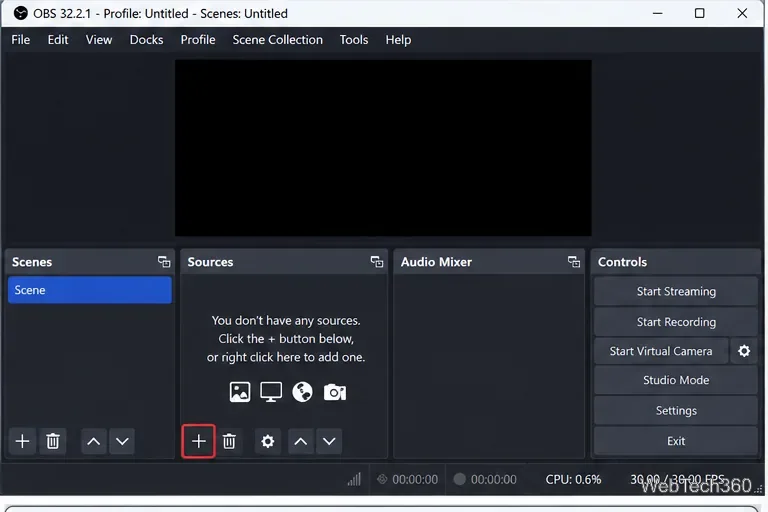
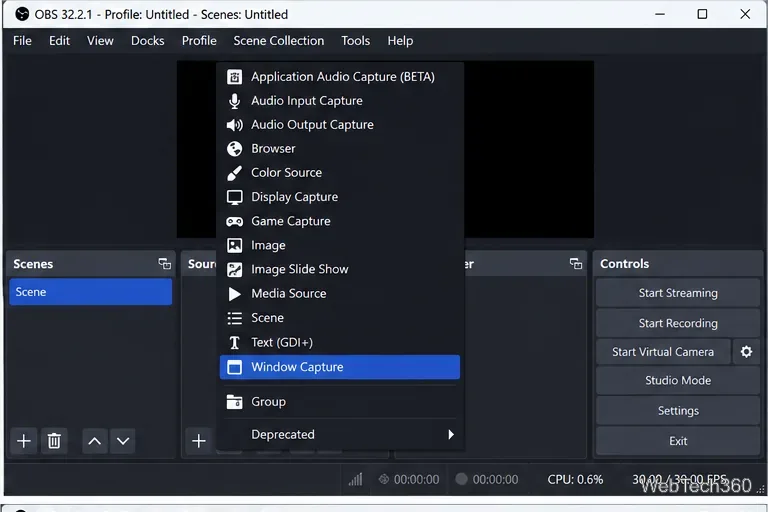
In the Sources dock, click + and choose Window Capture. Give the source a recognizable name, such as the app name.
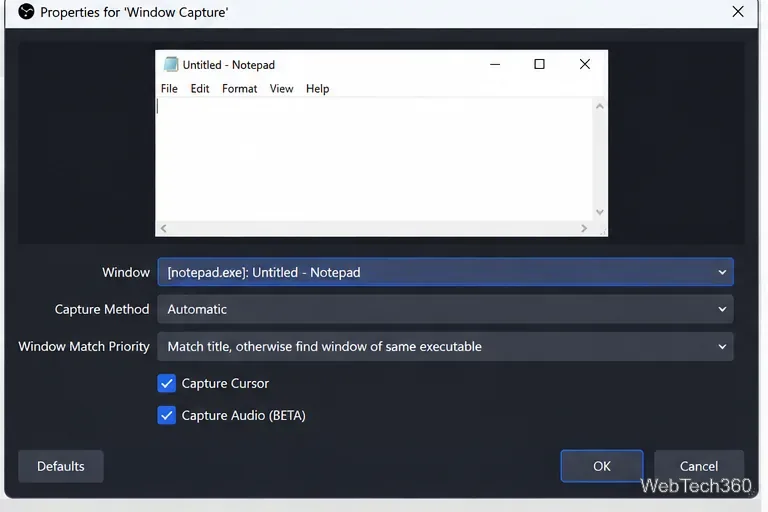
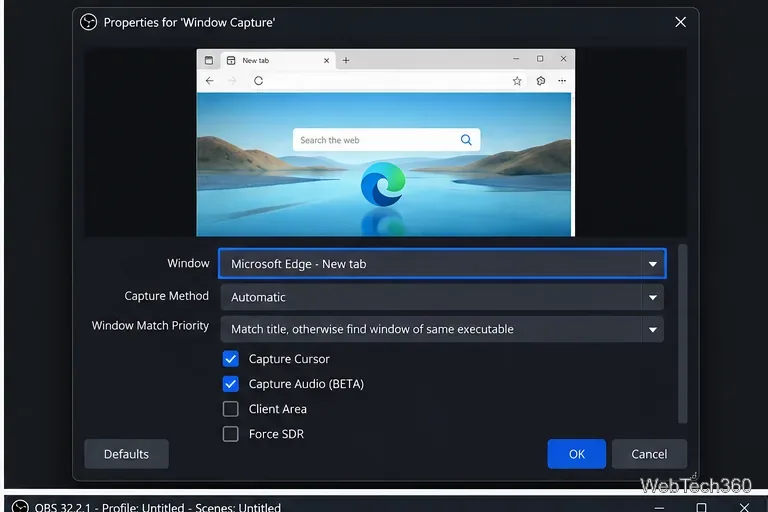
In Window Capture properties, open the Window menu and select the first app. Leave Capture Method on Automatic unless you are troubleshooting compatibility. You can also choose whether to capture the cursor.
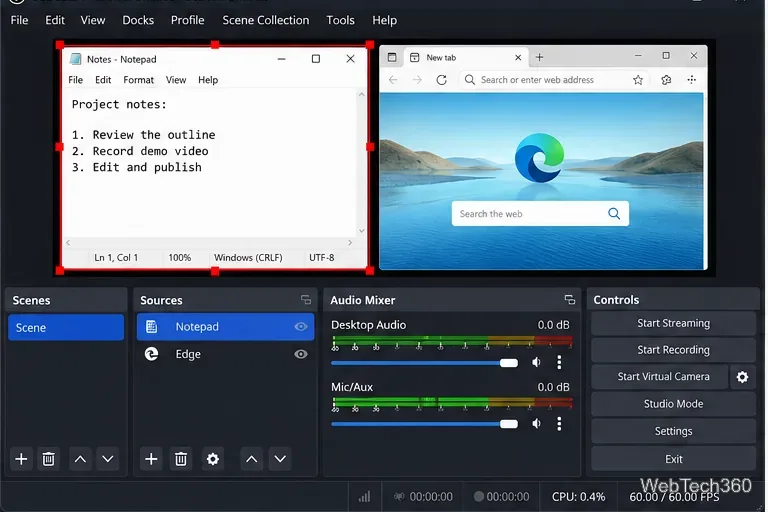
Select the source in the preview and drag its red handles to resize it. Move it to the left or right half of the canvas. For precise placement, use Edit > Transform > Edit Transform. To crop unwanted edges, hold Alt while dragging a source edge. These controls are documented in the OBS Sources Guide.
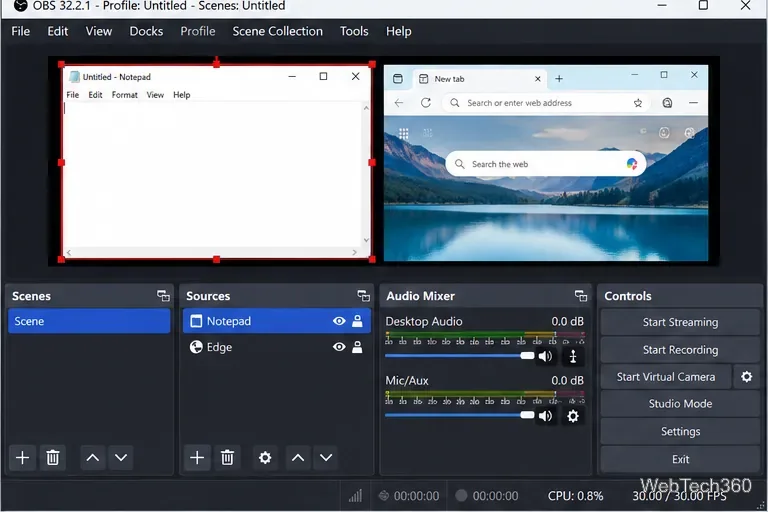
Click + under Sources again, choose Window Capture, and create a new source. Each source must point to a different window.
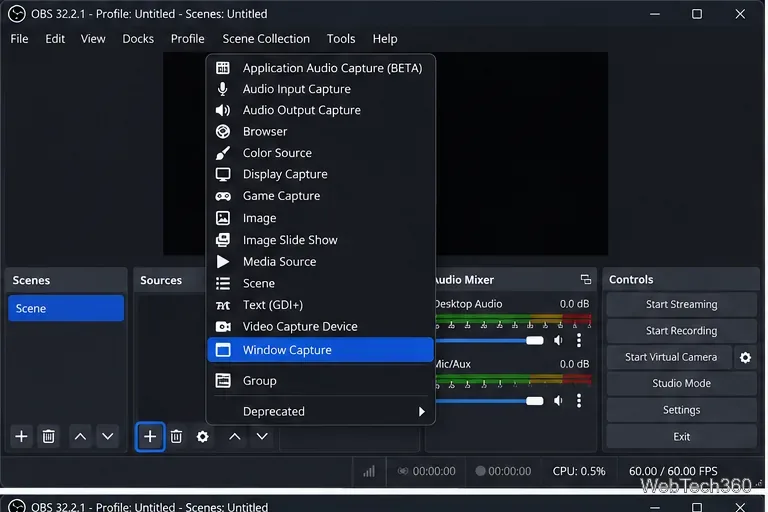
Choose the second application from the Window menu and confirm the source. OBS says Window Capture can keep showing the selected window even when other windows are in front of it. See the official Window Capture documentation for capture-method and window-matching options.
Resize and move both sources until they fill the canvas without overlapping. For a clean 50/50 layout, make them similar in height and crop only when needed.
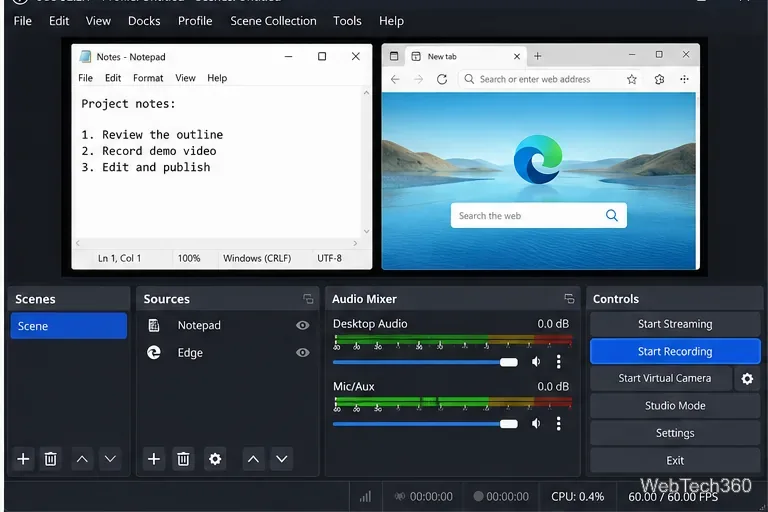
Watch the Audio Mixer to make sure the sound you want is active, then click Start Recording. OBS recommends making a short test recording before a longer session. Click Stop Recording when finished.
On Windows 10 version 2004 or later, OBS supports per-application audio capture. Newer OBS versions can include a Capture Audio (BETA) option with Window Capture. The OBS Application Audio Capture Guide explains the supported Windows versions and options.
Avoid capturing the same app through both per-app audio and global Desktop Audio, which can duplicate the sound.
Before a long session, open Settings > Output and confirm the recording path and format. The official OBS recording guide recommends MKV because an interrupted recording is less likely to make the entire file unusable. If you need MP4 afterward, use File > Remux Recordings.
Once both Window Capture sources are visible and positioned correctly, OBS will record the two windows side by side in a single video.
Move Minecraft for Windows to another drive with the built-in Settings option, protect your worlds, and see what to do if Move is unavailable.
Find out why Windows 10 hides SmartScreen’s Run anyway button, how to review the warning, and how to allow a bypass while keeping SmartScreen on.
Combine left and right channels so you can hear the full mix through one earbud. Follow the Windows 10 Settings path and learn how to restore stereo when you want it.
Learn how to build a custom grid for your display in Windows 10 with PowerToys FancyZones, adjust zones, choose each monitor, and snap apps into place.
Set Windows 10 to sign in automatically at startup with Microsoft Sysinternals Autologon, then learn how to disable it and understand the security tradeoffs.
Add the Ultimate Performance power plan in Windows 10 with an elevated command, select it in Power Options, and check compatibility and power-use limits.
Refresh missing or incorrect bookmark icons in Edge by reopening the saved page, clearing cached images, or rebuilding the favicon cache safely.
Turn the number row into virtual numpad keys on Windows 10 with AutoHotkey v2. Set up a Caps Lock toggle, test it in your app, and see what the script cannot remap.
Turn off a wired Ethernet adapter in Windows 10, confirm you selected the right device, restore it later, or use PowerShell.
Pair Bluetooth headphones with Windows 10, choose them as your audio output, and fix common discovery or sound problems.








