How to Create a List of All Items in a Folder on Windows 10

Create a searchable Windows 10 folder inventory with PowerShell. Save every file and subfolder path as plain text or export details to a sortable CSV.
If you see a Windows10Upgrade folder on the root of your C: drive, it is usually a leftover from the Windows 10 Update Assistant. You can remove it once no Windows 10 feature upgrade is running and you no longer need the Update Assistant. The cleanest approach is to uninstall the assistant first, then delete any folder that remains.
This folder is not the same as Windows.old. Microsoft uses Windows.old and related setup files for the limited-time Go back option after an upgrade, so deleting Windows10Upgrade does not by itself remove that rollback data. Microsoft notes that Windows 10 reached end of support on October 14, 2025, so on most PCs this is now a legacy cleanup task rather than part of an active feature-upgrade workflow.
Make sure Windows is not currently installing an upgrade and the Windows 10 Update Assistant is not open. If you recently changed Windows versions and might want to roll back, leave Windows.old and $Windows.~BT alone until you are sure you will not use the rollback option. Microsoft says the Go back option is generally available for 10 days after an upgrade and depends on those setup files remaining in place. See Microsoft's rollback guidance for details.
If Windows 10 Update Assistant appears in your installed apps, remove it before deleting the folder. Microsoft specifically documents uninstalling the assistant as the normal removal method.
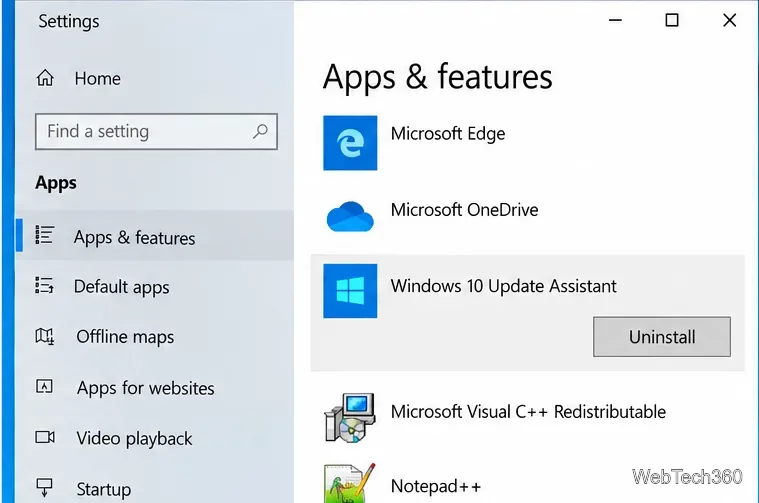
Microsoft's support article also lists command-line removal methods for older Windows 10 systems. You can review them in Microsoft's Windows 10 Update Assistant removal instructions.
After the Update Assistant is gone, check the system drive. The folder is normally located at C:\Windows10Upgrade.
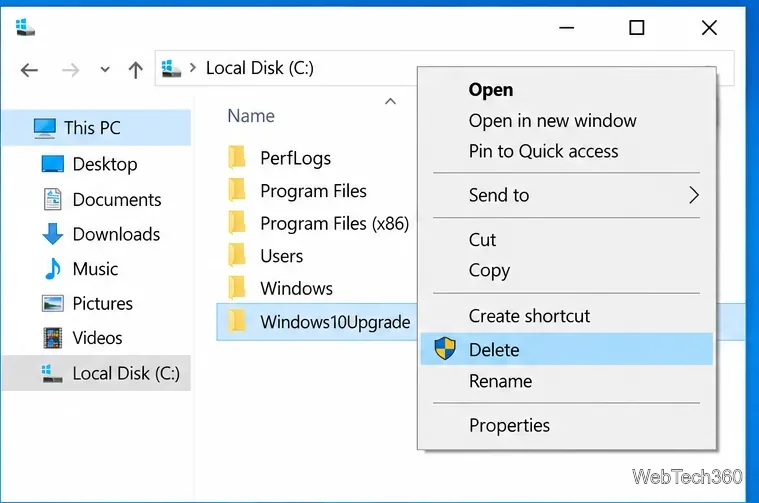
If Windows says the folder is in use, do not force-delete it immediately. Close the Update Assistant if it is running, restart the PC, and try again. A running Windows10UpgraderApp.exe process can prevent removal on older installations.
For systems where the normal uninstall leaves folders behind, Microsoft documents removing both the Windows10Upgrade folder and the UpdateAssistant folder from an elevated Command Prompt.
rmdir /q /s %SystemDrive%\Windows10Upgrade
rmdir /q /s %SystemDrive%\Windows\UpdateAssistant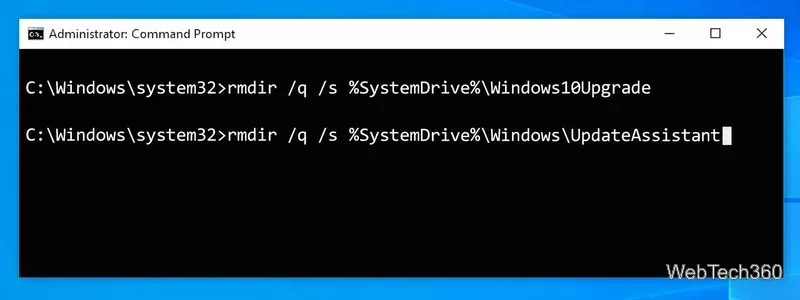
These commands permanently remove the named folders without sending them to the Recycle Bin, so copy anything you intentionally stored there before running them. If the command reports that files are in use, restart Windows and try again after confirming the Update Assistant is not running.
Deleting Windows10Upgrade does not remove every Windows update file. If your goal is to free space, use Windows' built-in cleanup tools instead of deleting random system folders. Microsoft recommends Storage Sense or Disk Cleanup for temporary and update-related files.
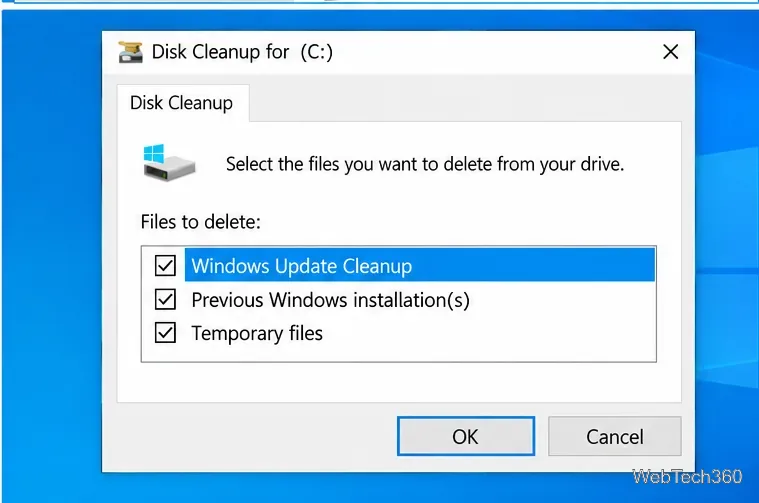
Open Start, search for Disk Cleanup, choose the system drive, and select Clean up system files if that option is available. Review the categories carefully. In particular, deleting Previous Windows installation(s) removes the Windows.old rollback files and cannot be undone. Microsoft's current storage guidance is available at Free up drive space in Windows.
Yes, in the usual case: if the Windows 10 Update Assistant is no longer running and no upgrade is in progress, the Windows10Upgrade folder is not required for day-to-day Windows operation. Removing the Update Assistant first is preferable because it cleans up the related application rather than leaving an orphaned install behind.
If the folder comes back after you delete it, check whether the Update Assistant is still installed. Repeatedly deleting the folder without removing the program that created it will not solve the underlying issue.
Create a searchable Windows 10 folder inventory with PowerShell. Save every file and subfolder path as plain text or export details to a sortable CSV.
Add a custom reminder, quote, or label to your Windows 10 desktop with a Rainmeter text skin. Create the INI file, load it, then adjust its font and position.
Use Bluetooth Swift Pair on Windows 10 to pair a compatible accessory from a notification, with setup steps and fixes when the prompt does not appear.
Learn what common laptop function key symbols mean, how Fn and Fn Lock affect them, and how to confirm the right shortcut for your Windows 10 laptop model.
Turn off your Windows 10 display instantly with ScreenSleep, set a keyboard shortcut, and see when to use the built-in screen timeout instead.
Fix the “running scripts is disabled on this system” PowerShell error on Windows 10 with a current-user policy, a temporary session option, and safe steps for downloaded scripts.
Change the Windows 10 drag-selection color with a backup-first registry walkthrough, RGB examples, troubleshooting tips, and steps to restore your original values.
Check your router’s connected-device list or scan a local network with Fing Desktop on a supported PC. Learn what each method can show and how to verify unfamiliar entries.
Messenger does not offer a documented per-friend online alert. Learn how Active Status works, where to check the green dot, and which notifications you can enable instead.
Use 7-Zip to find an exact filename or wildcard match inside a ZIP or other supported archive on Windows 10 without unpacking its files.








