Home
» WINDOWS
»
How to Reset or Refresh Firefox to Fix Browser Problems
How to Reset or Refresh Firefox to Fix Browser Problems
To reset Firefox, use its built-in Refresh Firefox feature. It creates a fresh profile, keeps key data such as bookmarks and passwords, and removes extensions, themes, and many custom settings. On a desktop or laptop, open Help > More troubleshooting information, select Refresh Firefox…, confirm, and finish the restart. You can also enter about:support in the address bar to go straight to the troubleshooting page.
Refreshing Firefox is useful when add-ons, damaged preferences, or browser customizations cause problems. It is different from reinstalling Firefox: the refresh works with your profile data, while reinstalling the app alone may leave that profile untouched.
What Refresh Firefox keeps and removes
Mozilla says a refresh creates a new profile and imports selected personal data from the old one. You do not need Firefox Sync to keep the data on this computer. Review the items below before starting, especially if you rely on custom settings or accessibility changes.
Kept
Removed or reset
Bookmarks, browsing and download history, passwords, cookies, web form autofill, and personal dictionary
Extensions and themes, website permissions, modified preferences, added search engines, DOM storage, security certificate and device settings, download actions, toolbar customizations, and user styles
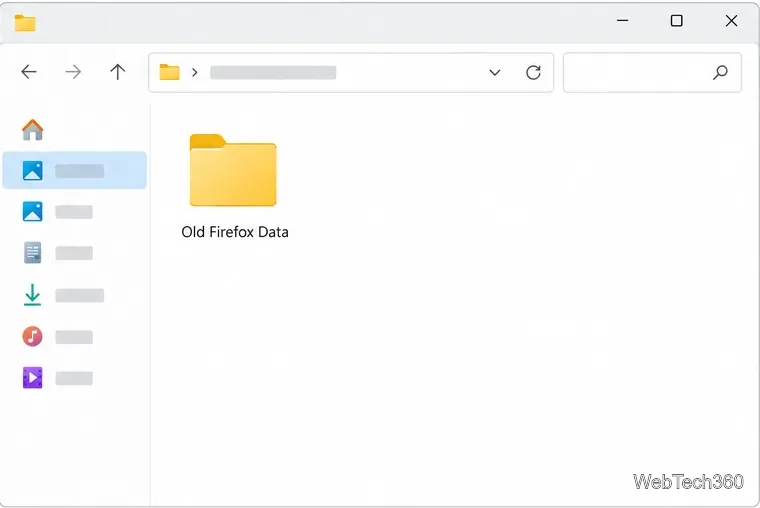
Firefox will close during the process. When it reopens, it lets you choose whether to restore your previous windows and tabs. The old profile is moved to an Old Firefox Data folder on the desktop, which can help if you later need to recover something. Keep that folder private because it may contain personal browsing data; delete it when you are sure you no longer need it.
Firefox places the previous profile backup in an Old Firefox Data folder on the desktop.
Before you begin, save open work and make a separate profile backup if you need a complete recovery copy. Note any settings you will need to recreate, such as custom proxy, toolbar, certificate, or accessibility preferences. Mozilla’s Refresh Firefox guide lists the current saved and removed items.
How to refresh Firefox
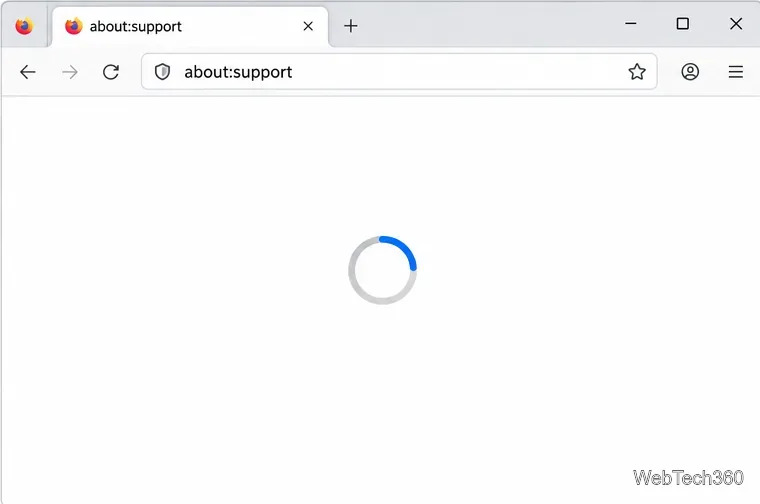
Open Firefox. If you do not see the Help menu, type about:support in the address bar and press Enter. The Troubleshooting Information page opens.
Type about:support in the address bar to open Firefox’s troubleshooting page directly.
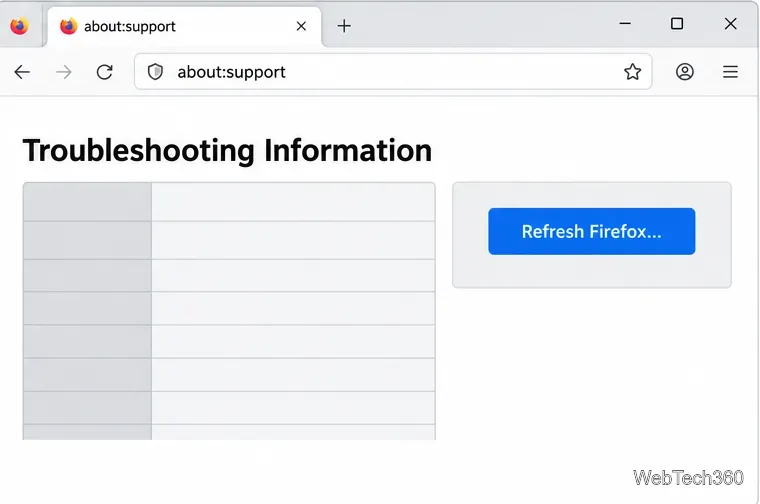
On that page, select Refresh Firefox… on the right.
The Refresh Firefox button appears on the right side of the about:support page.
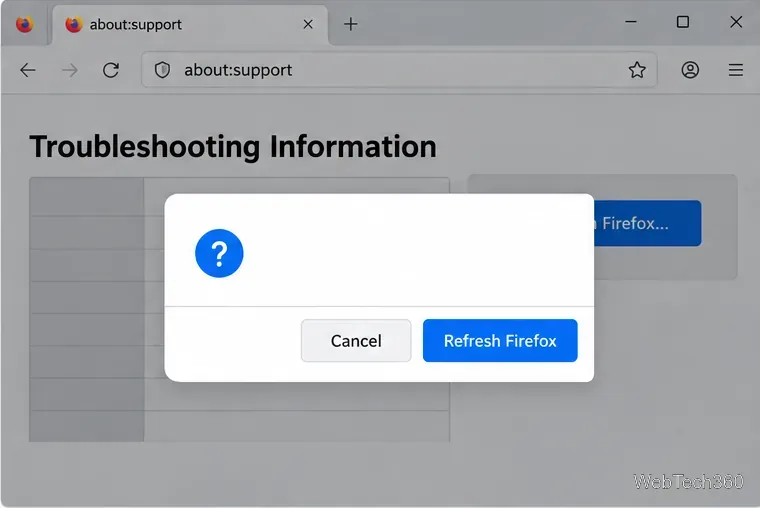
In the confirmation dialog, choose Refresh Firefox to continue.
Confirm the refresh only after reviewing the data Firefox keeps and removes.
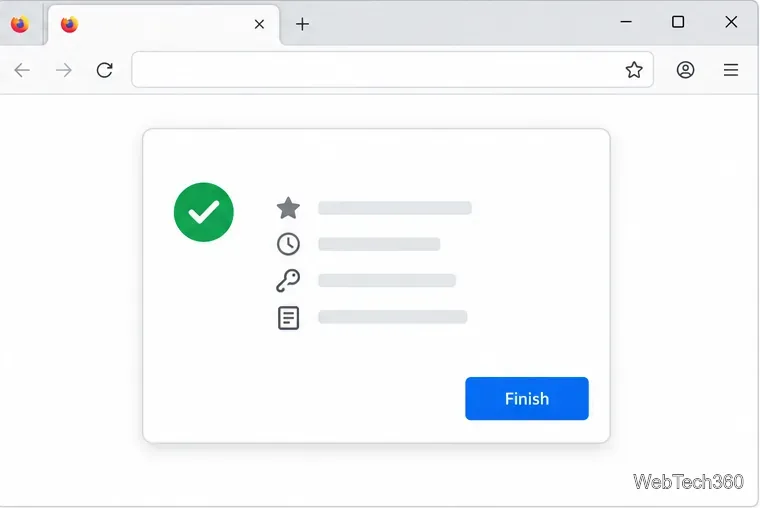
Wait while Firefox closes and restarts. When the import summary appears, select Finish.
After Firefox restarts, click Finish and then choose whether to restore the previous windows and tabs.
Choose whether Firefox should reopen your previous windows and tabs, then select Let’s go! to return to browsing.
You can use either the menu route—Help > More troubleshooting information—or the address-bar shortcut shown above. The page is called about:support; it also contains diagnostics that can help you describe a problem to Mozilla Support.
Try Troubleshoot Mode before a full refresh
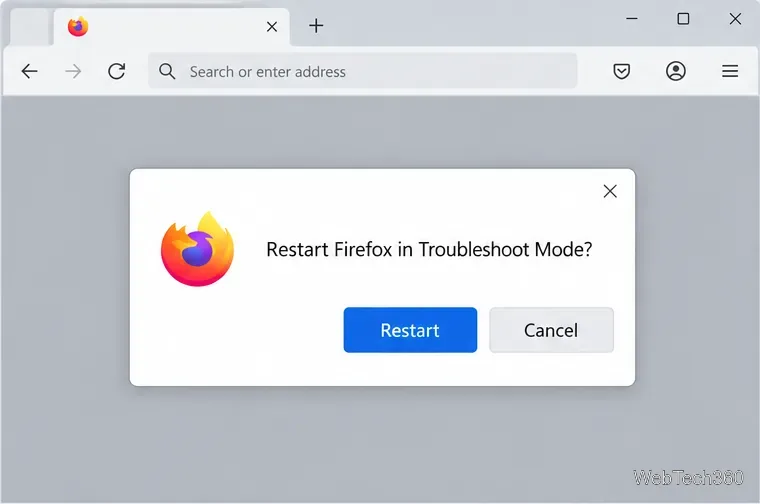
If Firefox still opens, test Troubleshoot Mode first. Open the menu, choose Help, select Troubleshoot Mode…, and confirm with Restart. This mode temporarily disables extensions and themes, hardware acceleration, and some customizations; it does not erase your profile. If the issue disappears, an item that Troubleshoot Mode disabled may be responsible. Exit the mode and disable or update the likely add-on before refreshing.
Troubleshoot Mode temporarily disables add-ons and some customizations so you can check whether they are causing the issue.
If the Refresh Firefox button is missing
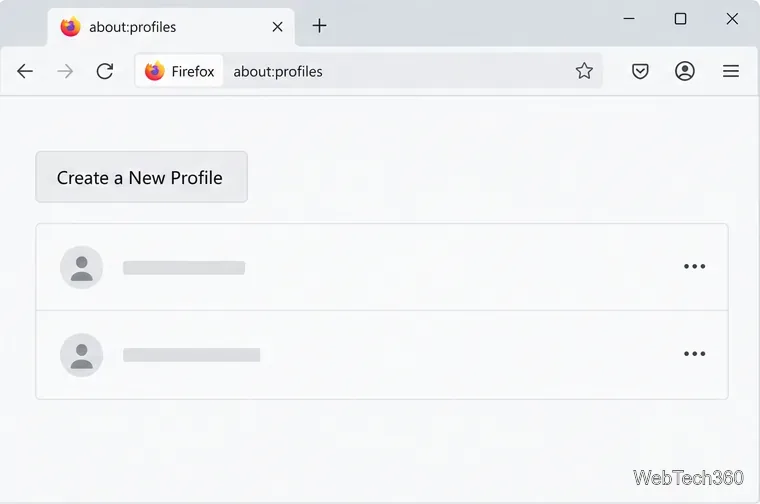
First check for Firefox updates and restart the browser. Mozilla notes that the button may be unavailable with the newer profile-management system in some versions; its current guidance says this limitation is resolved in Firefox 150 and later. If the button remains unavailable, you can create a separate clean profile by entering about:profiles in the address bar and selecting Create a New Profile.
If Refresh Firefox is unavailable, about:profiles provides a way to create a separate profile.
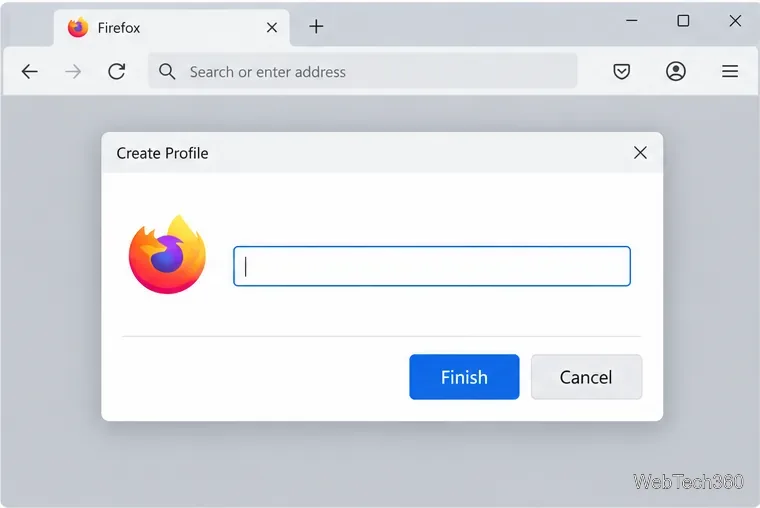
Follow the profile wizard, give the profile a name, and finish. Firefox keeps profiles separate, so the new one starts without your old extensions and settings. This can help determine whether the problem belongs to the old profile. Use Mozilla’s profile manager instructions if you need to choose or switch profiles.
Give the new profile a name in the wizard, then select Finish.
If you need to bring data over, copy only the essential items instead of copying the entire old profile folder. Preferences and extensions can carry the same issue into the new profile. Mozilla explains how to recover bookmarks, passwords, and other data from an old profile.
What to do if the problem returns
A refresh repairs Firefox’s profile; it does not scan your computer or remove software installed outside the profile. If an unwanted search engine, toolbar, or pop-up returns after the refresh, review recently installed apps and extensions and run a full scan with your trusted security software. Mozilla’s malware troubleshooting guide covers symptoms that may point to unwanted software on the computer.
Keep the old-data folder only while you may need to recover information. Once Firefox is working and your essential data is present, remove that folder if you no longer need the backup.