How to Move Minecraft to Another Drive in Windows 10

Move Minecraft for Windows to another drive with the built-in Settings option, protect your worlds, and see what to do if Move is unavailable.
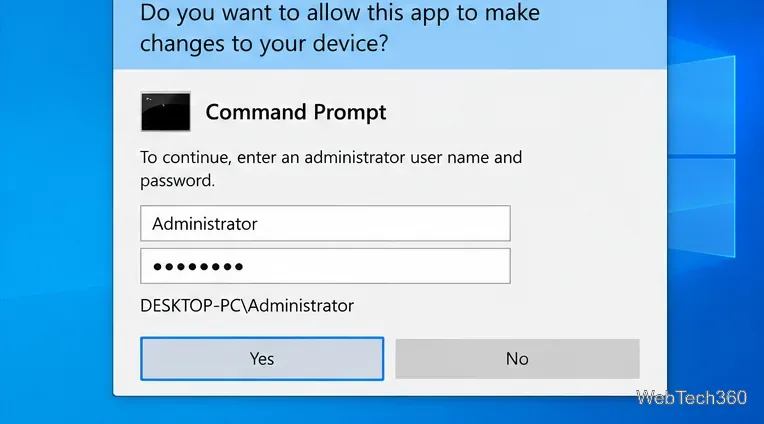
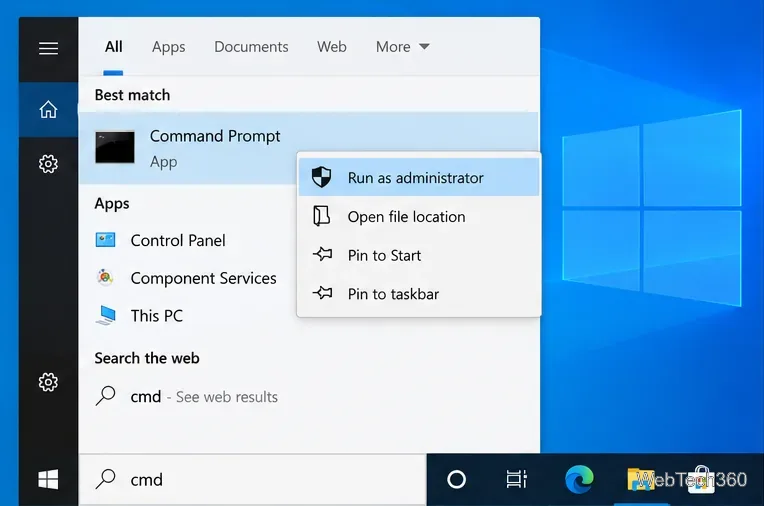
Quick answer: on Windows 10, the simplest way to run a desktop app with administrator rights is to find it in Start or Windows Search, right-click it, and choose Run as administrator. If you are signed in with a standard account, Windows normally asks for the credentials of an administrator account. If you are already an administrator, User Account Control (UAC) usually asks you to approve the elevation.
Windows 10 support note: Microsoft ended regular Windows 10 support on October 14, 2025. These steps still apply to PCs that continue to run Windows 10, but Microsoft recommends moving to a supported Windows release or using an applicable Extended Security Updates option. See Microsoft's Windows 10 end-of-support guidance.
Most apps start with the permissions of the account you are currently using. Choosing Run as administrator asks Windows to start that app with elevated permissions so it can make protected system changes, write to restricted locations, install components, or perform other administrative tasks.
UAC is the security layer that handles this request. Microsoft explains that a standard user normally sees a credential prompt, while an administrator normally sees a consent prompt. A standard user therefore needs valid credentials for an administrator account on the PC unless an organization has configured a different policy. For more detail, see Microsoft's UAC documentation.
This is the best method for most users because you do not need to know where the program's executable file is stored.
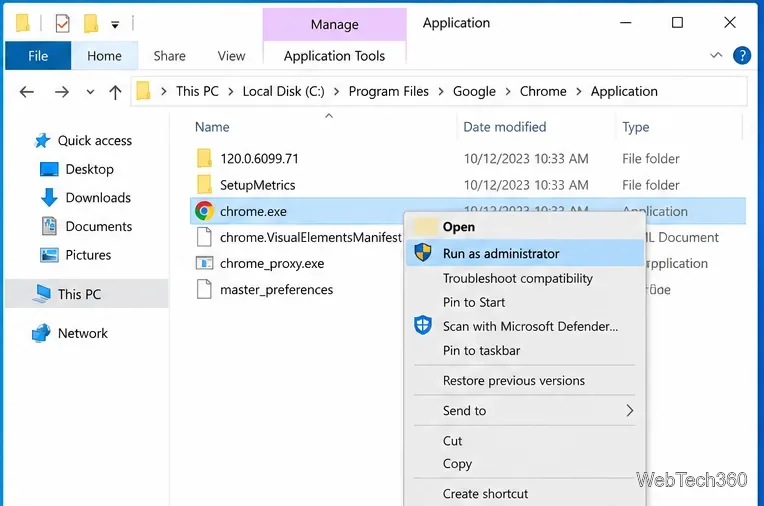
If the Start menu shortcut does not show the option you need, launch the app from its actual executable file instead.
If you only have a shortcut, right-click it and choose Open file location when that option is available. Some shortcuts lead to another shortcut, so you may need to repeat the action before reaching the real executable.
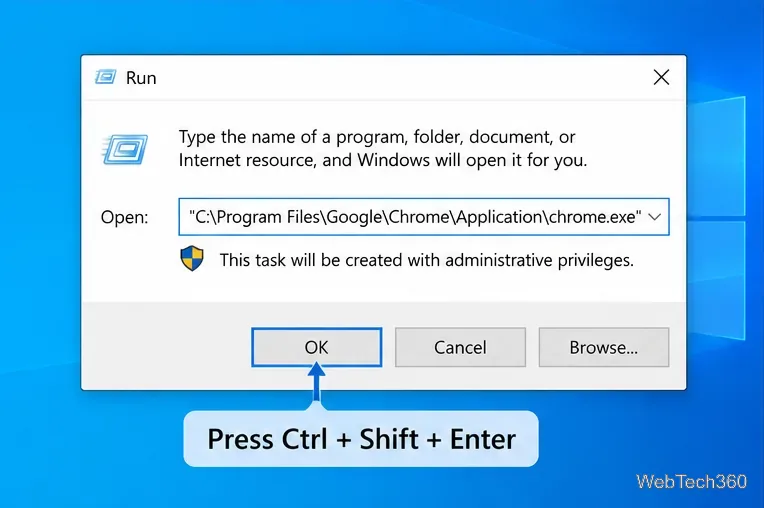
The Run dialog is useful when you already know the program name or full executable path.
For example, you can type cmd to request an elevated Command Prompt. For third-party software, use the app's real executable path rather than copying a path from an old guide, because installation locations can vary by version and by 32-bit versus 64-bit software.
For many desktop apps pinned to the Windows 10 taskbar, hold Ctrl+Shift while clicking the app's taskbar icon. Windows should request elevation through UAC. If the shortcut does not respond as expected, use the Start/Search method instead; it is easier to verify because Run as administrator is shown explicitly.
Running every program as administrator increases the amount of damage a buggy or malicious app could cause. Use elevation for trusted tools that genuinely need it, such as system utilities, installers, or maintenance tasks, and run ordinary apps normally whenever possible.
Move Minecraft for Windows to another drive with the built-in Settings option, protect your worlds, and see what to do if Move is unavailable.
Find out why Windows 10 hides SmartScreen’s Run anyway button, how to review the warning, and how to allow a bypass while keeping SmartScreen on.
Combine left and right channels so you can hear the full mix through one earbud. Follow the Windows 10 Settings path and learn how to restore stereo when you want it.
Learn how to build a custom grid for your display in Windows 10 with PowerToys FancyZones, adjust zones, choose each monitor, and snap apps into place.
Set Windows 10 to sign in automatically at startup with Microsoft Sysinternals Autologon, then learn how to disable it and understand the security tradeoffs.
Add the Ultimate Performance power plan in Windows 10 with an elevated command, select it in Power Options, and check compatibility and power-use limits.
Refresh missing or incorrect bookmark icons in Edge by reopening the saved page, clearing cached images, or rebuilding the favicon cache safely.
Turn the number row into virtual numpad keys on Windows 10 with AutoHotkey v2. Set up a Caps Lock toggle, test it in your app, and see what the script cannot remap.
Turn off a wired Ethernet adapter in Windows 10, confirm you selected the right device, restore it later, or use PowerShell.
Pair Bluetooth headphones with Windows 10, choose them as your audio output, and fix common discovery or sound problems.








