How to Check Hard Drive Health in Windows Server
Check Windows Server disk status and reliability counters, verify SMART data when available, and separate hardware warnings from NTFS errors.
To run Docker containers on Windows Server, install a Windows container runtime, pull an image built for a compatible Windows release, and start it with docker run. The steps below use Microsoft’s documented Moby (Docker CE) setup script and Docker CLI. Many older tutorials use DockerMsftProvider; the Microsoft quick-start now documents a different, script-based setup path.
Microsoft’s Windows Server container guide lists Moby (Docker CE), Mirantis Container Runtime (MCR), and containerd as runtime options. Moby provides the familiar Docker command line used here. For a vendor-supported production runtime, Microsoft’s on-premises support guidance recommends MCR; check the current Mirantis compatibility matrix, licensing, and support terms before installing it. Microsoft’s Windows container setup guide explains the options.
Docker Desktop is not supported on Windows Server. Native Windows Server containers run Windows images; they cannot run Linux images directly because containers share the host kernel. If your workload needs Linux containers, use a Linux host or a Linux virtual machine. Microsoft says Linux Containers on Windows Server (LCOW) is deprecated, and Docker Desktop is not supported on server editions. See Microsoft’s Windows Server support policy and Docker’s Windows installation guidance.
Sign in with an account that can install Windows features, then open PowerShell as Administrator. Record the server release and build so you can choose a matching container image later:
Get-CimInstance Win32_OperatingSystem | Select Caption, Version, BuildNumber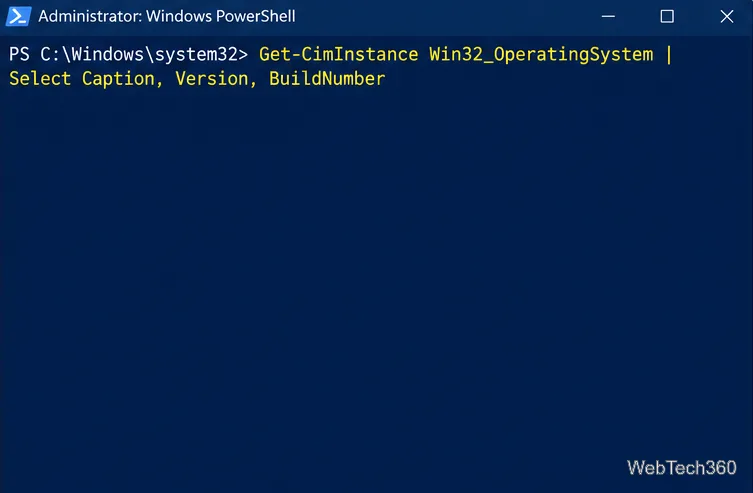
Keep the host patched. If the server is a Hyper-V virtual machine and you plan to run Hyper-V-isolated containers, the VM needs nested virtualization; process-isolated containers do not use that additional Hyper-V layer. See Microsoft’s Windows container host requirements before choosing an isolation mode.
Microsoft’s current quick-start uses a PowerShell script from its Windows-Containers repository. In the elevated PowerShell window, download the script:
Invoke-WebRequest -UseBasicParsing "https://raw.githubusercontent.com/microsoft/Windows-Containers/Main/helpful_tools/Install-DockerCE/install-docker-ce.ps1" -OutFile install-docker-ce.ps1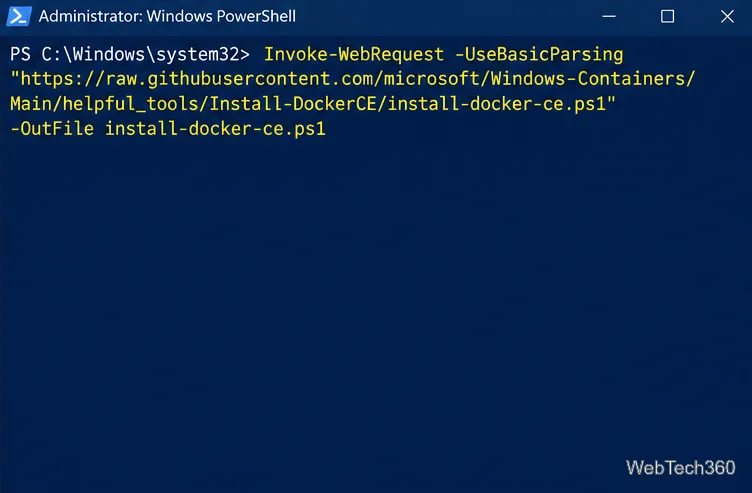
For a managed server, follow your organization’s script-review process before running downloaded code. The official setup page identifies this script as the Moby/Docker CE installation method and says it enables the container-related operating-system features as well as installs the runtime.
Run the downloaded script from the directory where it was saved:
.install-docker-ce.ps1Allow the setup to finish and follow any restart prompt. The script configures the Windows container host and installs Docker Engine components. If PowerShell blocks the script because of your organization’s execution policy, use your approved software-deployment process rather than changing machine-wide policy.
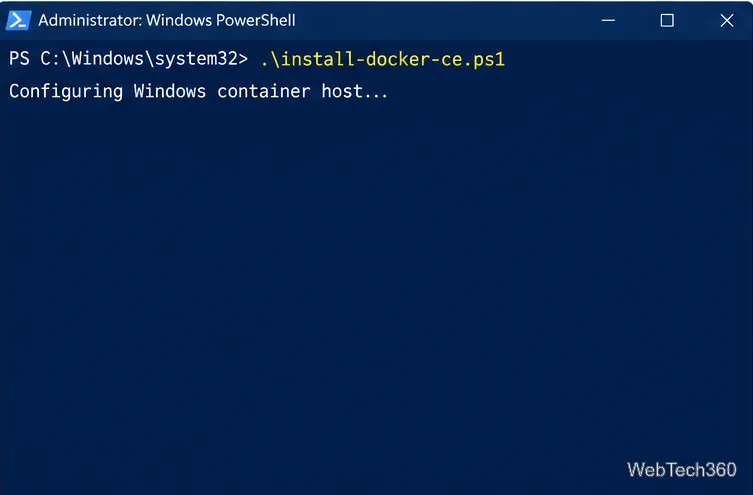
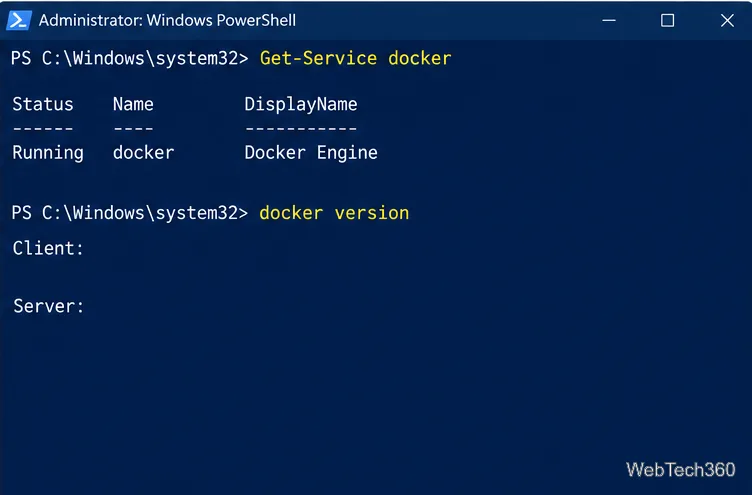
After installation—and after restarting if prompted—sign back in and check the service and client-to-daemon connection:
Get-Service docker
docker version
docker info
Get-Service should report the Docker service as running. In docker version, confirm that both the Client and Server sections appear. If the Server section is missing, check the service state and whether the setup still needs a reboot.
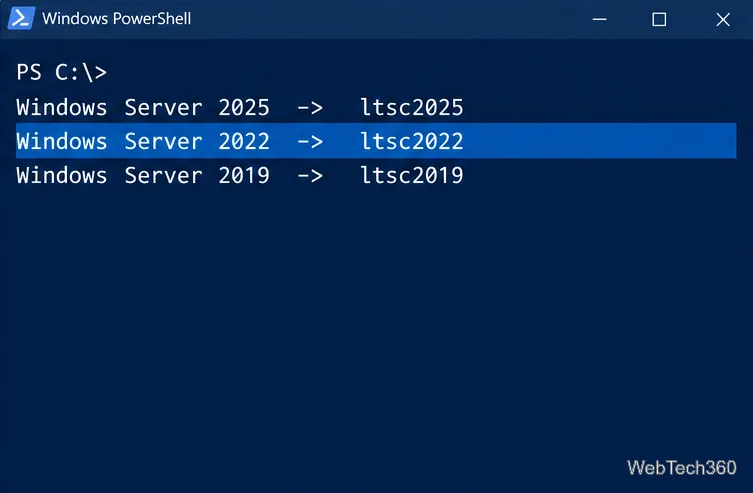
Windows container images are tied more closely to host OS versions than typical Linux images. Start with the corresponding Long-Term Servicing Channel (LTSC) tag:
| Windows Server host | Server Core image tag |
|---|---|
| Windows Server 2025 | ltsc2025 |
| Windows Server 2022 | ltsc2022 |
| Windows Server 2019 | ltsc2019 |
Matching the host and image release is the safest starting point. Microsoft’s Windows container compatibility table covers exceptions and isolation behavior. Use images from a trusted registry, and check the image publisher’s instructions for application-specific requirements.
For a Windows Server 2022 host, pull Microsoft’s Server Core image with the matching tag. Substitute ltsc2025 or ltsc2019 when using those host releases:
docker pull mcr.microsoft.com/windows/servercore:ltsc2022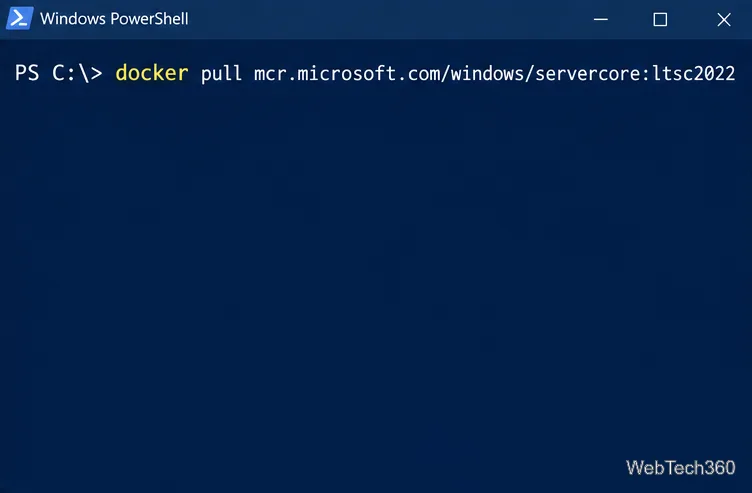
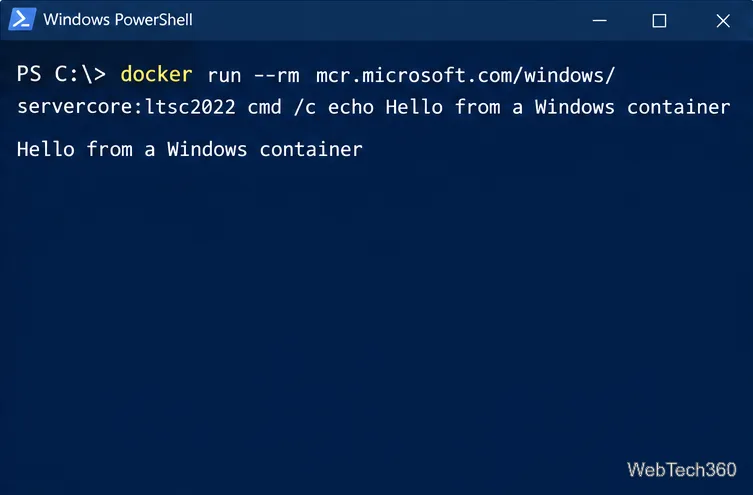
Run a one-time command to verify that the image can start. The --rm option removes this test container when the command exits:
docker run --rm mcr.microsoft.com/windows/servercore:ltsc2022 cmd /c echo Hello from a Windows containerYou should see the text printed in PowerShell. The image remains cached locally, while the temporary container is removed.
For an application image, follow its publisher’s run instructions and replace YOUR_IMAGE with the complete image name and tag. This example starts a background container named webapp and maps host port 8080 to container port 80; use those ports only if the application listens on port 80:
docker run -d --name webapp -p 8080:80 YOUR_IMAGEThen inspect and clean up the container as needed:
docker ps
docker ps -a
docker logs webapp
docker stop webapp
docker rm webapp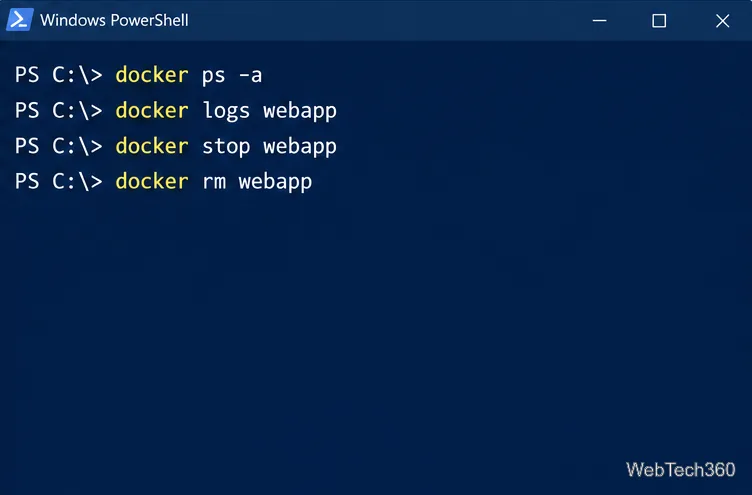
docker ps shows running containers, while docker ps -a also lists stopped ones. Removing a container does not remove its image. If the application stores data that must survive container replacement, configure a Docker volume or bind mount using the image’s documentation, and allow the mapped host port through Windows Firewall only when external access is intended.
Get-Service docker, start or restart the service if appropriate, and complete any pending host restart.For runtime selection, image servicing, and host support details, use the linked Microsoft and Mirantis documentation because supported versions and installation guidance can change.
Check Windows Server disk status and reliability counters, verify SMART data when available, and separate hardware warnings from NTFS errors.
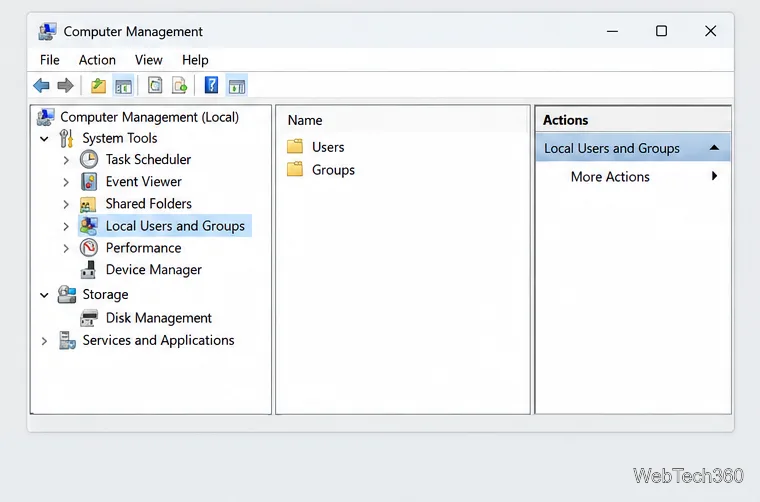
Create, grant admin rights to, disable, or remove local Windows Server users with Computer Management or PowerShell. Learn when to use Active Directory instead.
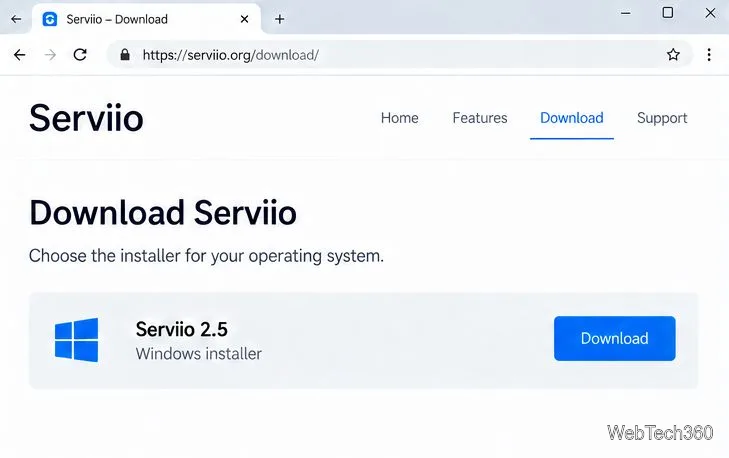
Install Serviio on Windows Server, share local or NAS media folders, and test DLNA playback. Learn how to check the Windows service, firewall, and Pro-only browser features.
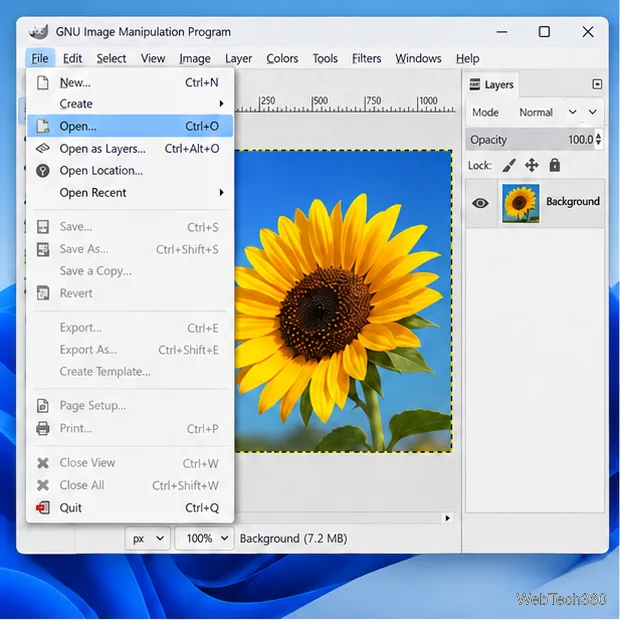
Convert PNG, JPG, or BMP files to Windows ICO with GIMP. Prepare a square image, keep transparency when needed, add standard sizes, and check the export.
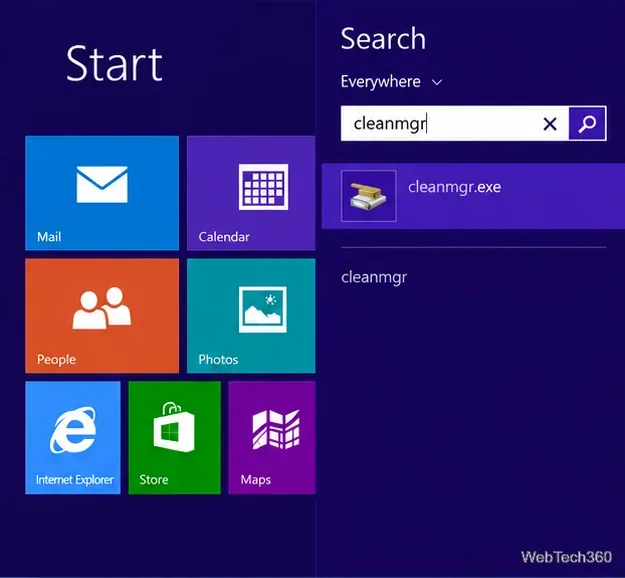
Clear thumbnail, DNS, Internet Explorer, Microsoft Store, Search, and Live Tile data with Windows 8’s built-in tools, and learn what each cleanup removes.
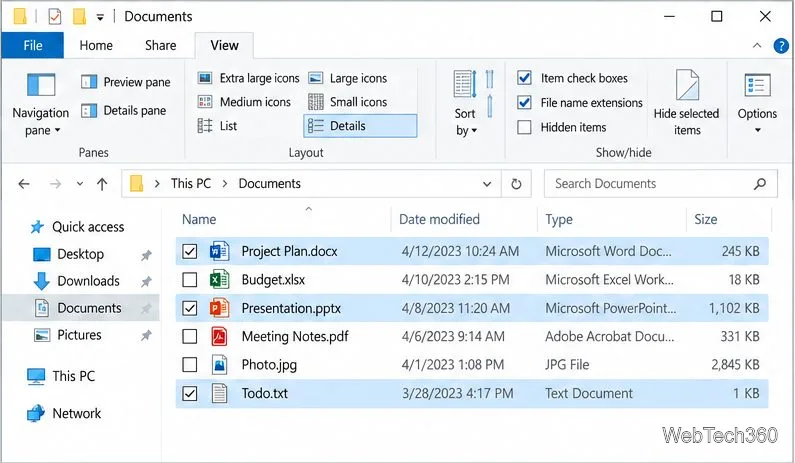
Turn off Windows 10 item check boxes in File Explorer with the View ribbon, or use Folder Options if the toggle is missing. See what changes and how to select multiple files without boxes.
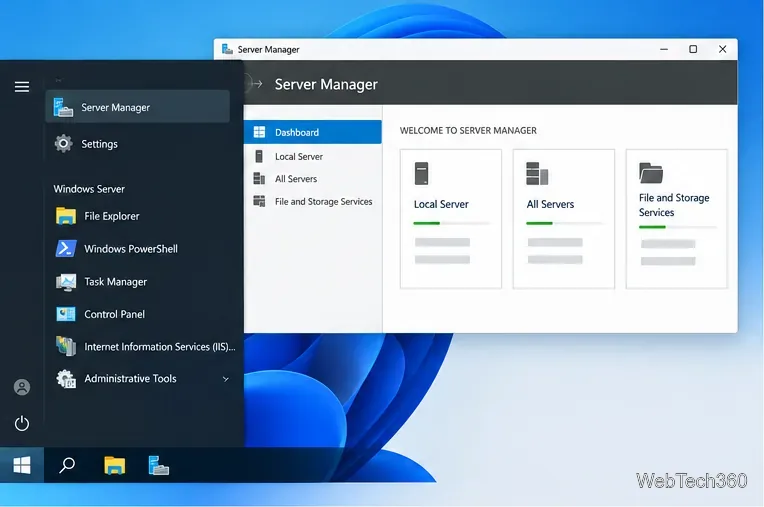
Install VMware Workstation Pro on a compatible Windows Server host, from checking support and downloading the right build to creating your first VM.
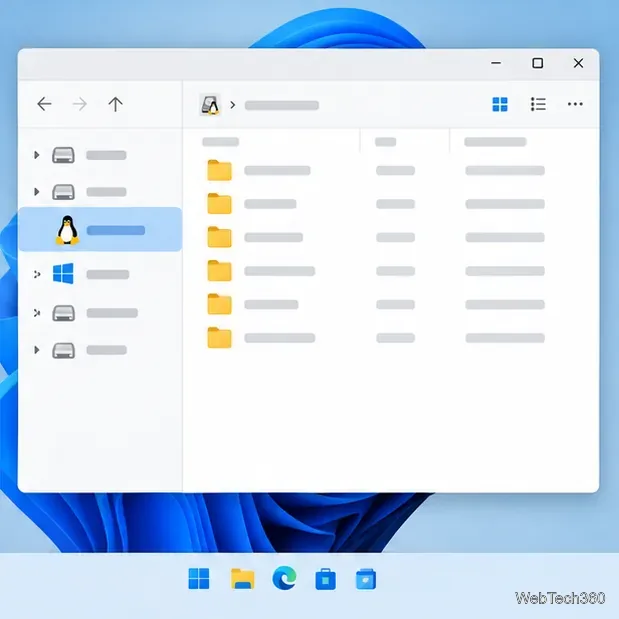
Browse and copy Ext2, Ext3, or Ext4 files on Windows with a read-only workflow. See what Linux Reader’s free edition supports and when WSL fits.
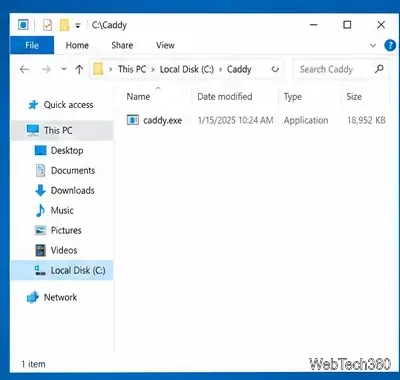
Install Caddy’s native Windows binary, serve a test site, enable automatic HTTPS for a domain, and run Caddy as a Windows Server service.
Run Linux Docker containers alongside Windows Server by creating an Ubuntu Hyper-V VM, installing Docker Engine, and publishing a test service safely.