How to Set Different Scaling Levels for Multiple Monitors in Windows 10

Adjust each Windows 10 monitor independently with per-display scaling, keep text readable, and troubleshoot custom scaling or blurry apps.
Windows 10 does not calculate a total for each folder in File Explorer’s Size column. To check one folder quickly, hover over it for a tooltip or open its Properties dialog. To compare many folders and see which subfolders use the most space, use TreeSize Free. Windows Storage settings are useful for a broader view by drive and category.
This is the fastest check when the tooltip appears. If it does not show a size, or you need a value you can inspect more carefully, use Properties.
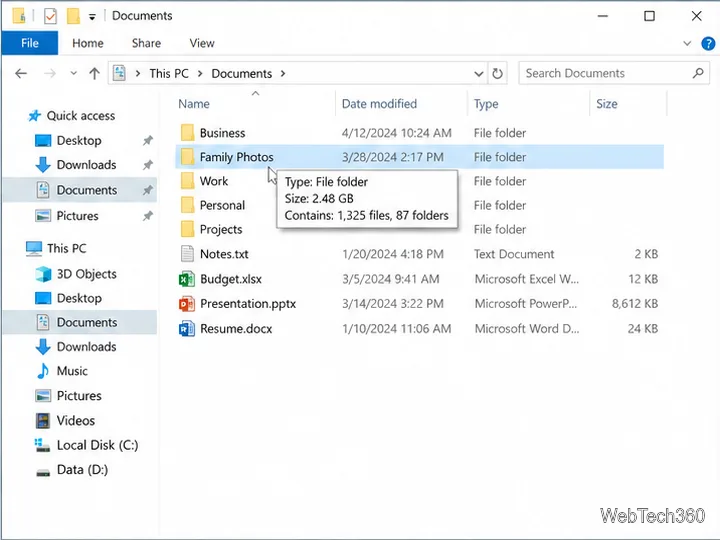
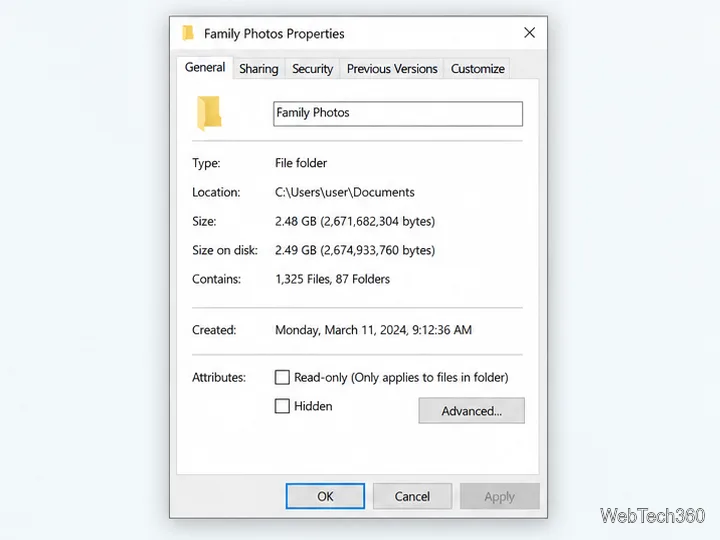
Size is the total length of the files. Size on disk is the space those files occupy on the drive, so the two numbers can differ because of allocation units, compression, or other file-system features. Properties is usually the best built-in choice for one folder.
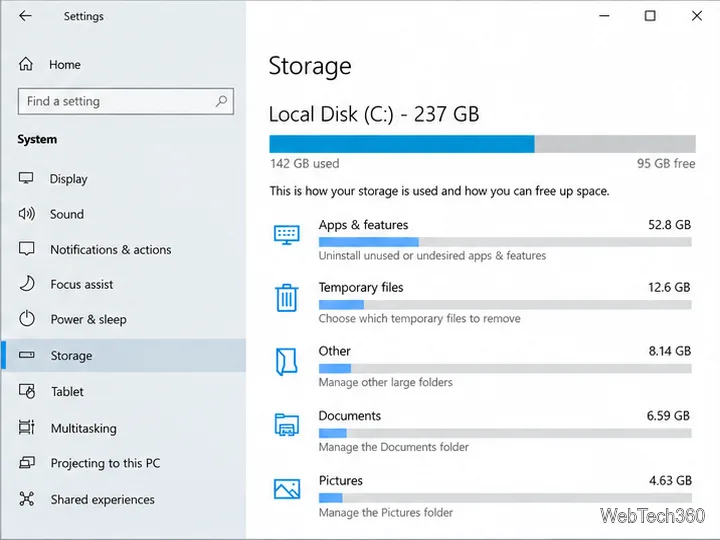
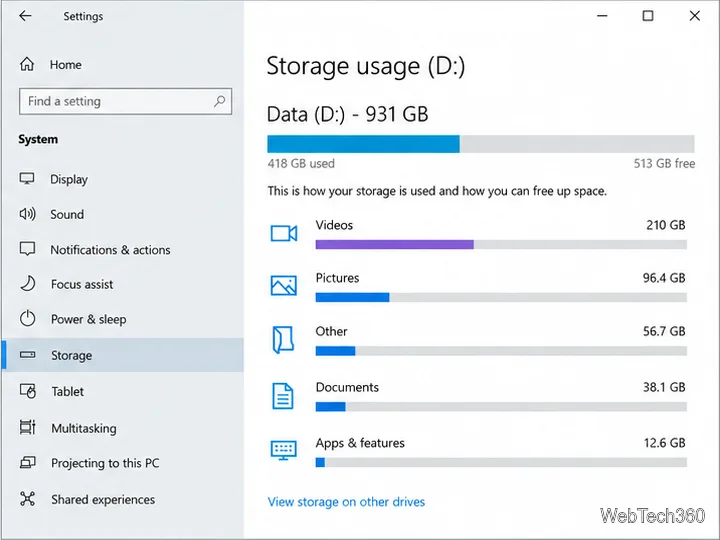
Storage settings answer a different question: which categories are using space on a drive? They can help you narrow a full disk to apps, temporary files, documents, pictures, videos, or other content, but they do not provide a complete expandable tree for every arbitrary folder.
Microsoft describes this page as a category breakdown for connected drives. Use it to identify the general type of data occupying space; use Properties or a folder-scanning utility when you need a recursive folder total.
For a large drive or a folder with many subfolders, TreeSize Free displays a directory tree with a size for each level. Get it from JAM Software’s official TreeSize Free page; the current download information lists Windows 10 64-bit compatibility. The free edition is listed for private, noncommercial use, so organizations should review the current license before installing it.
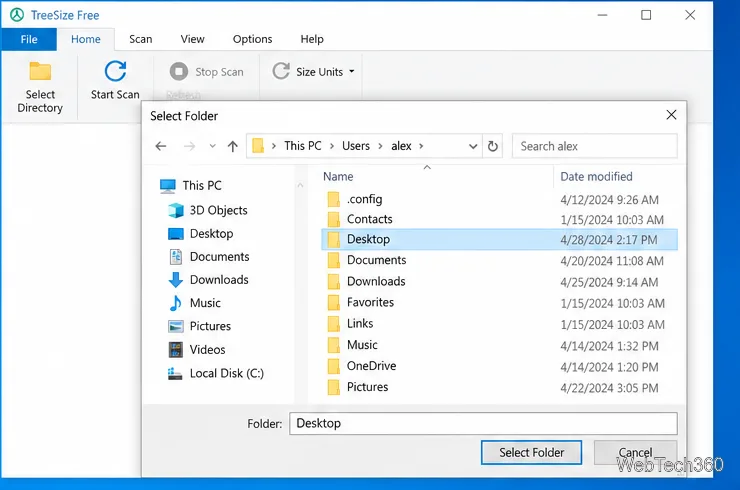
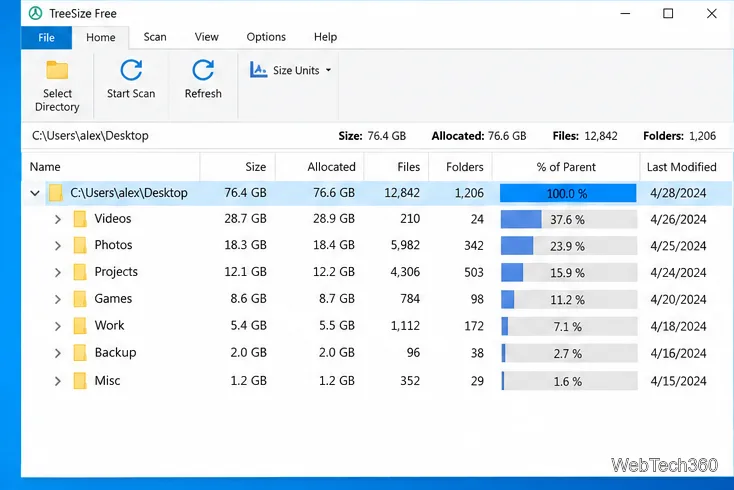
TreeSize distinguishes logical Size from Allocated space. On a system drive, protected locations or reserved Windows storage can make the scan total differ from the amount Settings reports. JAM Software notes that access restrictions can leave parts of a drive unscanned; elevated access may show more, but only scan folders you are authorized to inspect.
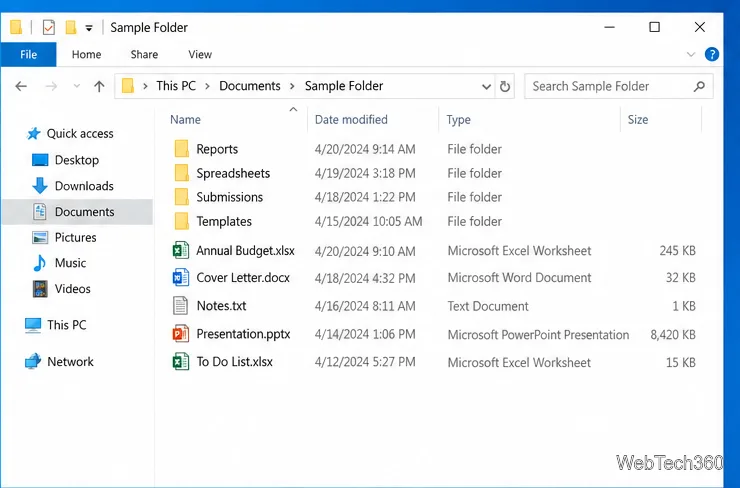
In File Explorer’s Details view, the Size column is populated for files, not with recursive totals for folders. Adding that column therefore does not turn Explorer into a folder-size report.
File Explorer search can still help find large files. Search within a location, then use Search Tools > Size or an Advanced Query Syntax filter such as size:>1GB. Search results are files that match the filter; Windows does not add up the contents of each parent folder. Results can also depend on the location searched and Windows Search indexing.
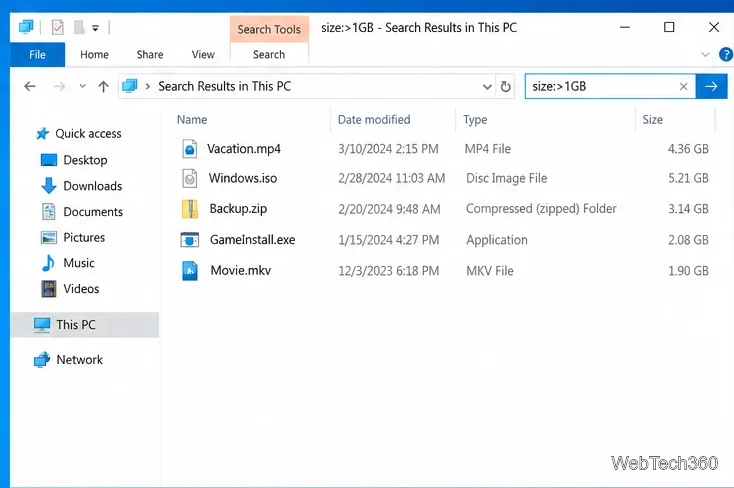
For the query syntax, see Microsoft’s Advanced Query Syntax reference.
Use a size report to decide what to review, not as a reason to remove unfamiliar system data. Move or back up personal videos, downloads, and project files before deleting them. For cleanup, review Windows’ temporary-file options or use Storage Sense, which can remove items such as temporary files and eligible Recycle Bin contents. Uninstall apps through Settings instead of deleting their folders by hand. Avoid deleting items under Windows, Program Files, or an app’s data folder unless you know what the files are for.
Microsoft’s Storage Sense guide explains the built-in cleanup controls. After moving or removing files, refresh the scan or reopen Storage to see the updated totals.
Adjust each Windows 10 monitor independently with per-display scaling, keep text readable, and troubleshoot custom scaling or blurry apps.
Use AirType’s browser pairing setup to type on an iPhone from a Windows 10 PC, with current setup steps, troubleshooting, and privacy limits.
Hide the mouse pointer in Windows 10 videos, games, and other apps with built-in typing controls or PowerToys CursorHide’s adjustable inactivity timer.
Find Control Panel Power Options on a Windows 10 desktop, open the page with a Run command, and adjust power plans, display timeouts, sleep, and button behavior.
Learn what Windows 10 deletion leaves behind, how to use SDelete on an HDD, and why SSDs and cloud backups need separate treatment.
Use FFmpeg’s DirectShow tools to open an integrated webcam’s driver properties in Windows 10, find the correct device, and troubleshoot missing controls.
Identify a keypress in Windows 10 with a browser event tester or SharpKeys, then separate layout, software, and keyboard hardware issues.
Use double quotes around each complete path with spaces in Command Prompt. Learn how to list, change to, copy, and troubleshoot Windows 10 files and folders.
Turn off the Windows 10 Start menu’s hover-to-expand behavior with a legacy Mach2 command, check build limits, and see the built-in app-list alternative.
Fix the iTunes Library.itl read error on Windows 10 by updating iTunes, restoring a compatible backup, or safely creating a new library without deleting media files.








