Home
» WINDOWS
»
How to Set a Custom Page Size in Google Docs
How to Set a Custom Page Size in Google Docs
Google Docs’ built-in Page setup can change a document to a listed paper size, but it does not provide fields for any width and height you choose. To make a truly custom page, use a third-party Docs add-on such as Page Sizer, then enter the dimensions and review the reflowed document. If you only need a wider, continuous screen layout, switch to Pageless instead; that does not create a custom paper size for printing.
Check the built-in page-size options first
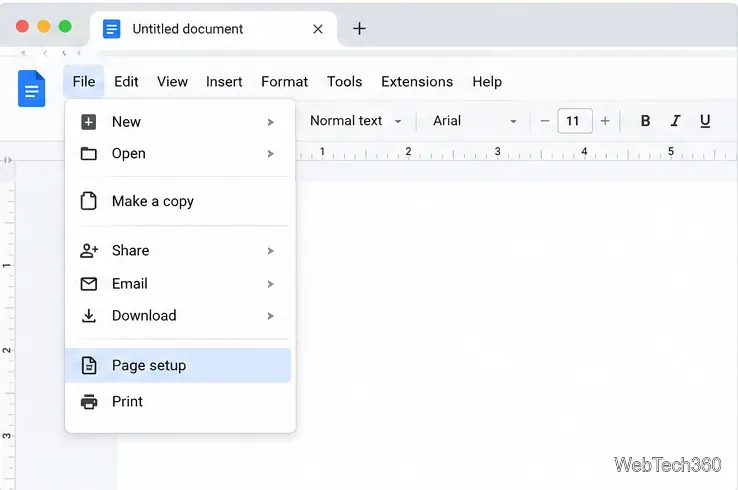
On a computer, open the document and select File > Page setup. Choose Pages at the top of the dialog, then select a paper size and orientation. You can also set the margins here. Click OK to apply the settings. Google’s Page setup instructions cover paper size, orientation, margins, and page color, but the built-in paper-size control is a preset list rather than a place to type arbitrary dimensions.
Open Page setup to see the built-in paper-size presets.
If no preset fits your project—for example, a 6-by-9-inch book page—continue with an add-on.
Set custom dimensions with Page Sizer
1. Find and install the add-on
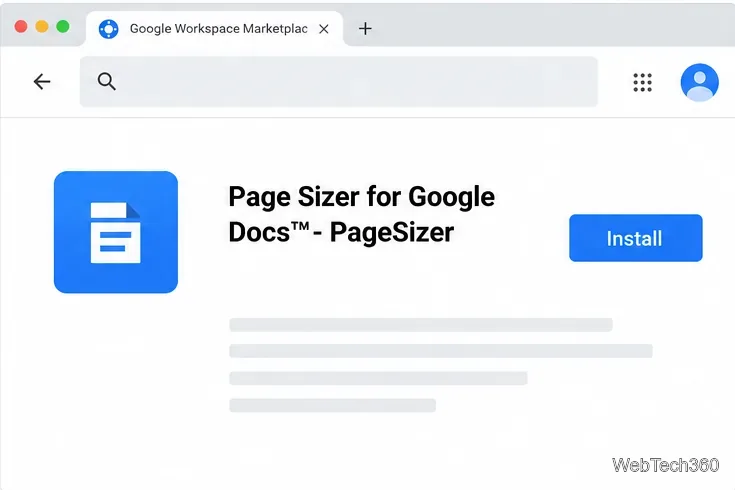
Open a Google Doc on a computer, then choose Extensions > Add-ons > Get add-ons. Search for Page Sizer for Google Docs™ - PageSizer, or open its Google Workspace Marketplace listing. Check the publisher and listing before installing, then select Install and follow Google’s prompts to continue.
Find the current Page Sizer listing in the Google Workspace Marketplace.
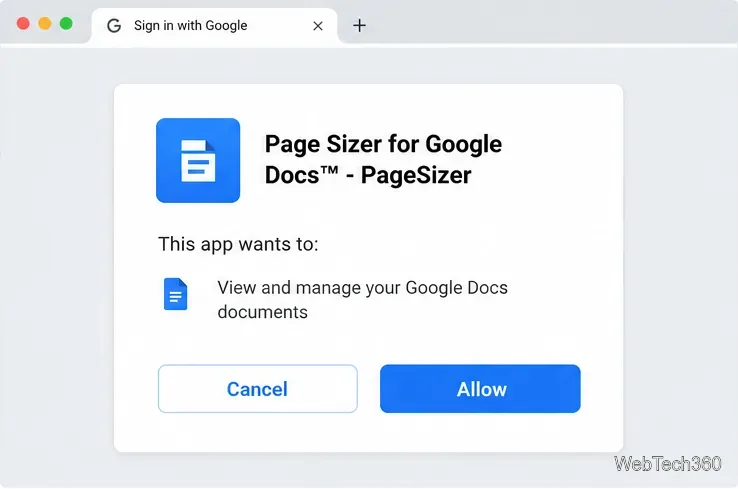
Check the price and access request before you approve it. As of October 21, 2026, the Marketplace listing labels Page Sizer as paid. It also says the add-on can see, edit, create, and delete Google Docs documents. Review the current terms and permissions in Google’s own screen; do not allow the add-on if that access is broader than you are comfortable granting.
Read the live authorization details before allowing an add-on to access your documents.
Google’s add-on instructions say to read the access request before clicking Allow. If you do not see a newly installed add-on, refresh the document and confirm you are using Google Docs rather than editing an Office file in compatibility mode.
2. Open the page-size controls
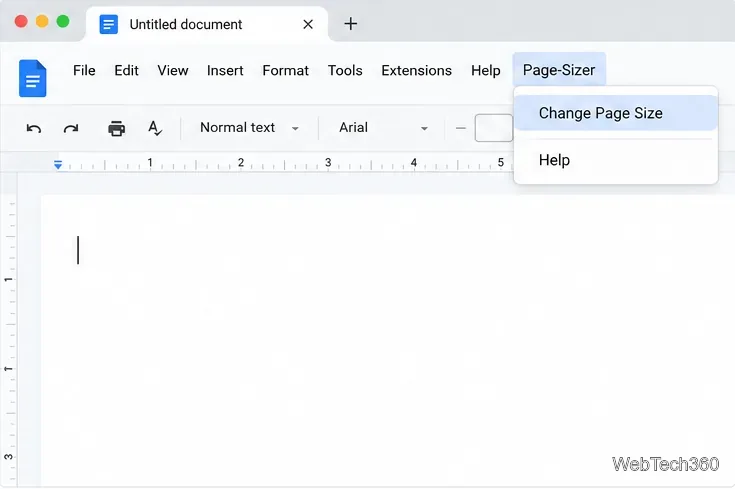
Return to the document and open Page-Sizer > Change Page Size. These are the menu labels in the add-on’s Marketplace instructions; placement may vary by account or browser window.
After installation, open Page-Sizer and choose Change Page Size.
3. Enter the width and height
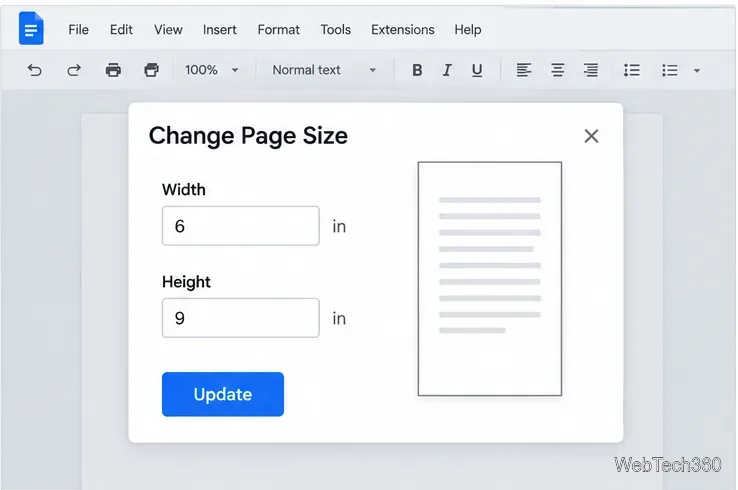
Type the dimensions you need into the width and height fields, using the units displayed in the add-on, and click Update. For a portrait 6-by-9-inch page, enter a width of 6 and a height of 9. For landscape, reverse the dimensions. Confirm which value is width and which is height before applying the change, especially when copying measurements from a printer, publisher, or template.
Enter width and height in the units shown by the add-on, then apply the dimensions.
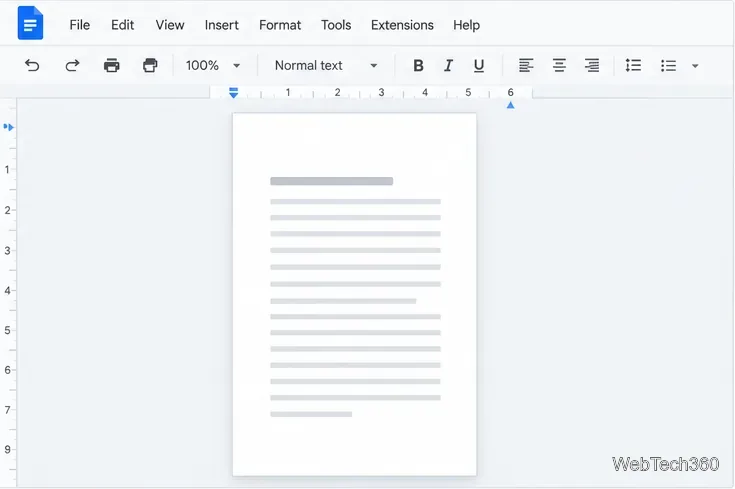
This changes the open document, not every new Doc. Because a narrower or wider page reflows text, tables, images, headers, and page breaks, inspect the full file after updating.
4. Review margins and layout
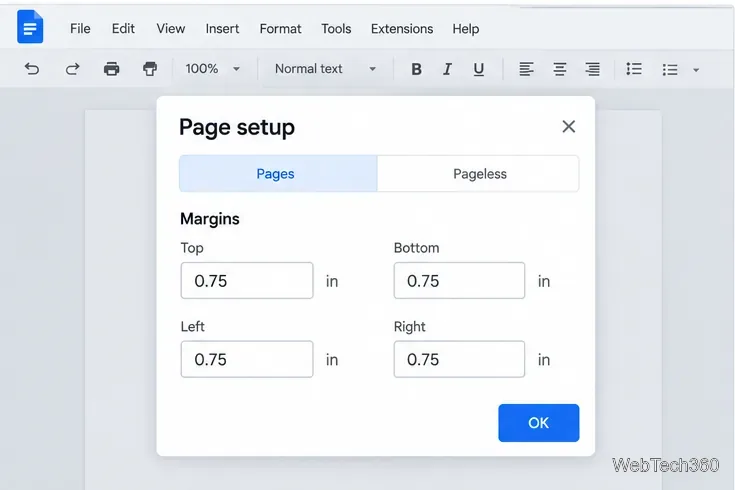
Recheck the margins after resizing. Page Sizer’s Marketplace listing describes controls for the top, bottom, left, and right margins; enter the values you need and choose Update Margins. Keep margins large enough for the printer or binding method you plan to use. If your content sits too close to an edge, reduce the content width or increase the margins before printing.
Check all four margins after changing the page dimensions.
Check page breaks, tables, and images in print view or in a downloaded PDF. Confirm that your printer or print service accepts the same dimensions; a custom Docs page cannot add paper sizes the printer does not support.
Review the reflowed page before printing or sharing the finished document.
When Pageless is the better choice
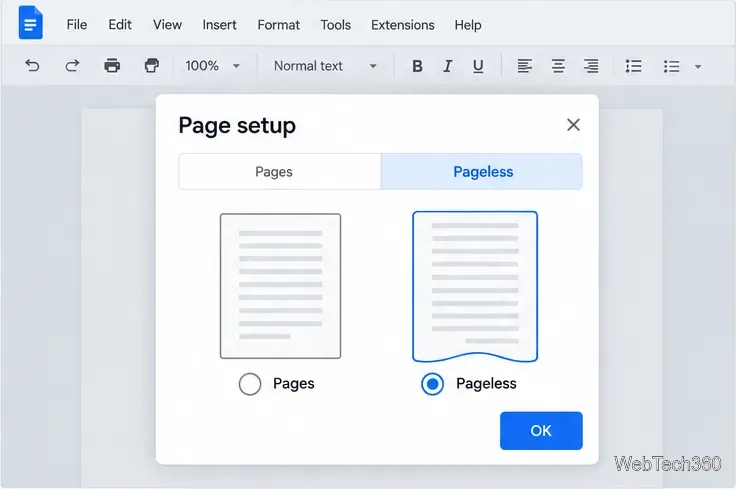
If you want text to flow across a wide browser window for reading or collaboration, open File > Page setup, choose Pageless, and click OK. Google’s Pages-or-Pageless guide describes Pageless as a layout without fixed page breaks; it is useful for screen-first documents but is not a substitute for specifying a physical paper width and height. Choose Pages again when you need page numbers, headers, or a print-oriented layout.
Pageless changes the on-screen flow of text; it does not define custom print dimensions.
Quick checks before you finish
Confirm the width, height, and units match the dimensions required by your project.
Review all four margins and inspect page breaks, tables, and images after the text reflows.
Check the current add-on price and its Google permissions before authorizing it.
Preview or export a PDF and verify that your printer or publishing service supports the selected size.
For another document, repeat the sizing steps and verify its layout separately; arbitrary dimensions are not a global Docs default.