How to Check Hard Drive Health in Windows Server
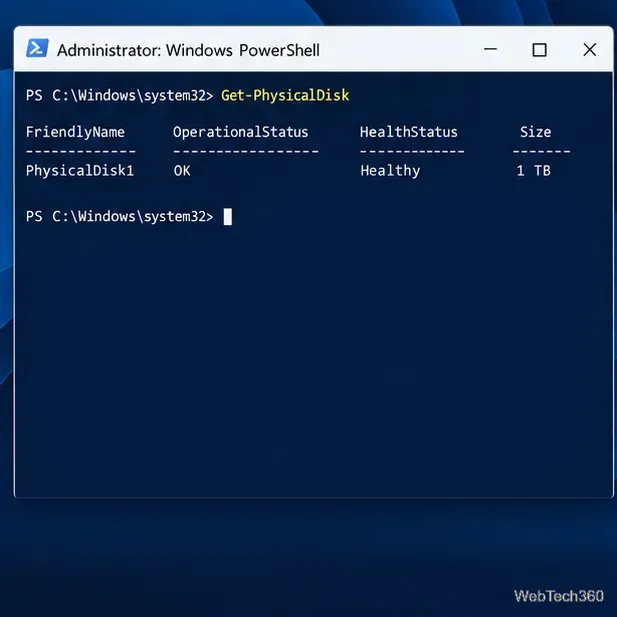
Check Windows Server disk status and reliability counters, verify SMART data when available, and separate hardware warnings from NTFS errors.
Windows 10 does not include a File Explorer button for choosing a different thumbnail for each video. You can, however, add a custom cover image to a supported video file’s embedded metadata with Tag Editor. That stores the artwork in the file, but it does not guarantee that File Explorer will display it: Windows uses a thumbnail handler and cache, and some handlers generate a frame from the video instead of reading cover art.
Tag Editor edits media tags; it does not install a Windows thumbnail handler. Its project documents support for formats and tag families including MP4, ID3, Vorbis, Opus, FLAC, and Matroska/WebM. Cover-art support varies by container. The embedded image travels with the file when the format can store it, so compatible players may show it too. Each app decides whether it uses that artwork.
Get the Windows archive from the official Tag Editor releases page and extract it to a folder you can find again. In the extracted files, locate tageditor-cli.exe. The project specifically recommends this command-line wrapper on Windows; tageditor.exe is the graphical application. The Qt 6 build requires Windows 10 version 1809 or later, according to the project’s CLI documentation.
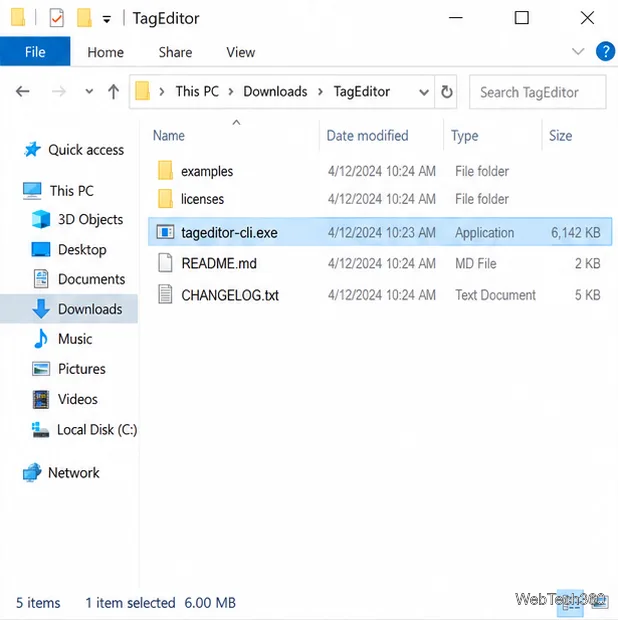
Download only from the project’s official release page. If Windows displays a security warning, verify the download and its source before deciding whether to run it.
Use a JPEG image you own or have permission to use. A clear still related to the video is easy to recognize; for a widescreen video, a landscape composition often fits naturally. Save it somewhere with a short path, such as C:\Videos\cover.jpg. Keep the original video safe and edit a copy first. Tag Editor notes that some changes can require rewriting the whole media file, so allow time and disk space for a large video.
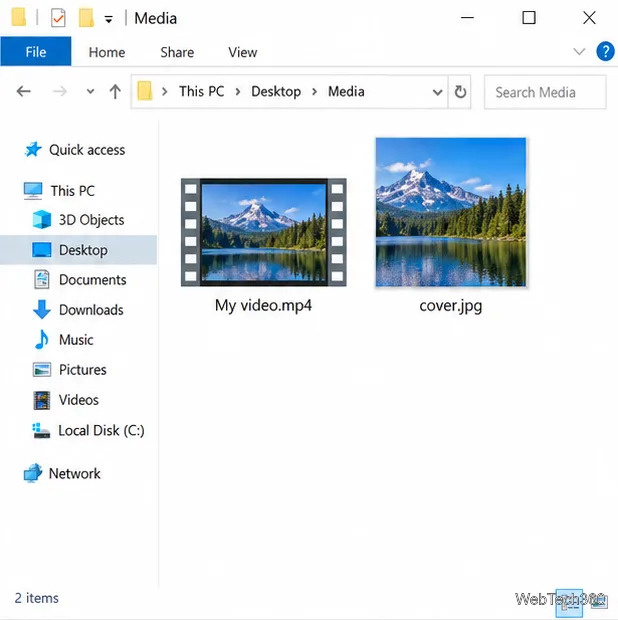
Open File Explorer to the folder containing tageditor-cli.exe. Click the address bar, type cmd, and press Enter to open Command Prompt in that folder. Then enter the command below, replacing each sample path with the full path on your PC. Keep the quotation marks when a path contains spaces.
"C:\Tools\TagEditor\tageditor-cli.exe" set "cover=C:\Videos\cover.jpg" --files "C:\Videos\My video.mp4"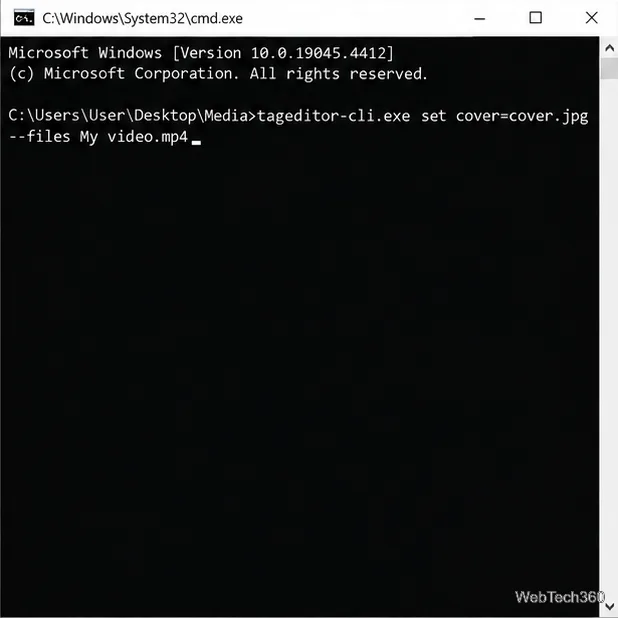
Here, set tells Tag Editor to modify tags, cover= points to the JPEG, and --files names the video to update. Press Enter and wait for the command prompt to return. Do not close the window or interrupt the process while the file is being written. For a folder of videos that should all share the same cover, the CLI can accept multiple file paths; run separate commands when each video needs its own image.
Use Tag Editor’s documented extract operation to copy the embedded cover back out as a new JPEG. Replace the executable and video paths as before:
"C:\Tools\TagEditor\tageditor-cli.exe" extract cover --output-file "C:\Videos\check.jpg" --file "C:\Videos\My video.mp4"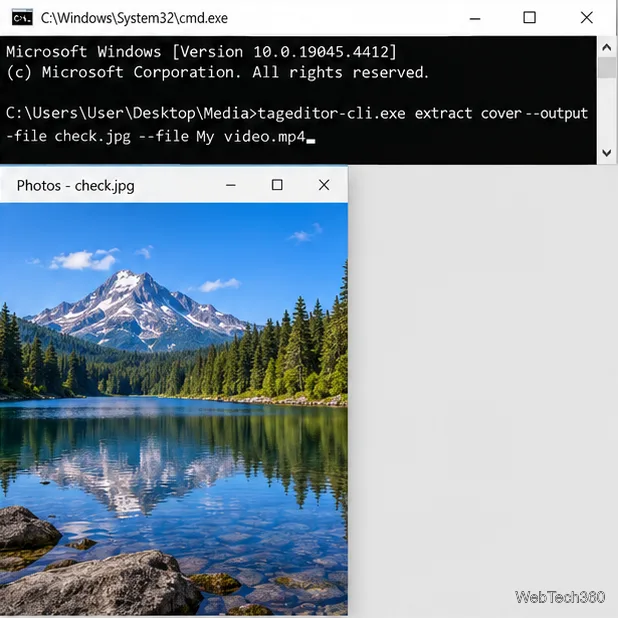
Open check.jpg and compare it with the cover you chose. Tag Editor does not convert the image during extraction, so use a JPEG cover with this example. Then return to File Explorer, switch to Medium, Large, or Extra large icons, and press F5 or reopen the folder.
tageditor-cli.exe, not the GUI executable; check each path and quote; and make sure the video container is supported. The project’s README includes the current CLI syntax and supported formats.This process embeds portable cover art where the video’s container supports it. It is useful for compatible media apps and workflows, but Windows 10 File Explorer may continue to show its own generated video thumbnail.
Check Windows Server disk status and reliability counters, verify SMART data when available, and separate hardware warnings from NTFS errors.
Create, grant admin rights to, disable, or remove local Windows Server users with Computer Management or PowerShell. Learn when to use Active Directory instead.
Install Serviio on Windows Server, share local or NAS media folders, and test DLNA playback. Learn how to check the Windows service, firewall, and Pro-only browser features.
Convert PNG, JPG, or BMP files to Windows ICO with GIMP. Prepare a square image, keep transparency when needed, add standard sizes, and check the export.
Clear thumbnail, DNS, Internet Explorer, Microsoft Store, Search, and Live Tile data with Windows 8’s built-in tools, and learn what each cleanup removes.
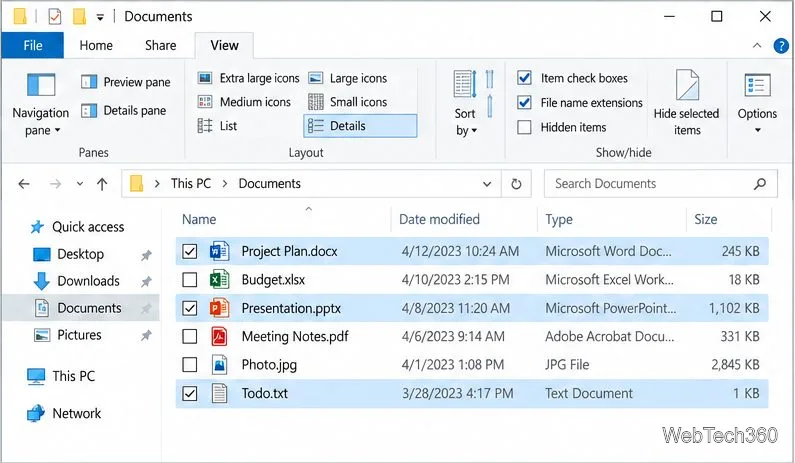
Turn off Windows 10 item check boxes in File Explorer with the View ribbon, or use Folder Options if the toggle is missing. See what changes and how to select multiple files without boxes.
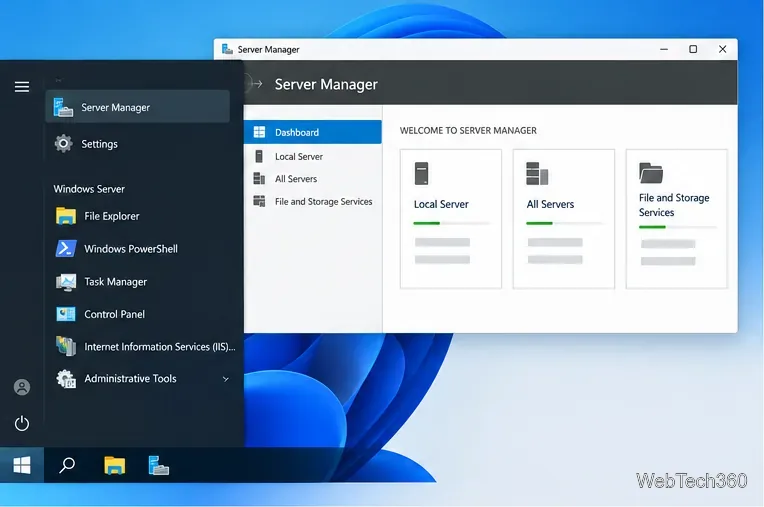
Install VMware Workstation Pro on a compatible Windows Server host, from checking support and downloading the right build to creating your first VM.
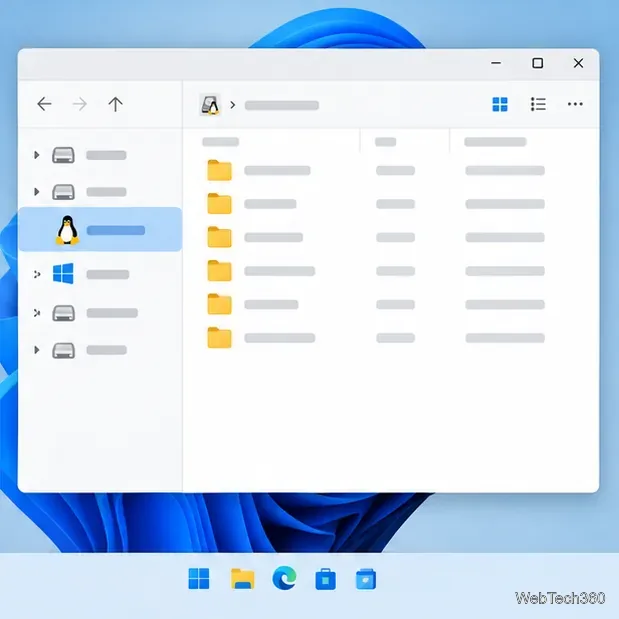
Browse and copy Ext2, Ext3, or Ext4 files on Windows with a read-only workflow. See what Linux Reader’s free edition supports and when WSL fits.
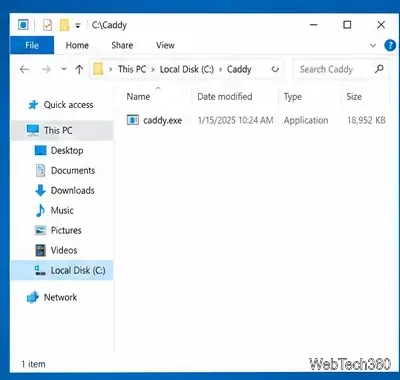
Install Caddy’s native Windows binary, serve a test site, enable automatic HTTPS for a domain, and run Caddy as a Windows Server service.
Run Linux Docker containers alongside Windows Server by creating an Ubuntu Hyper-V VM, installing Docker Engine, and publishing a test service safely.