How to Check Hard Drive Health in Windows Server
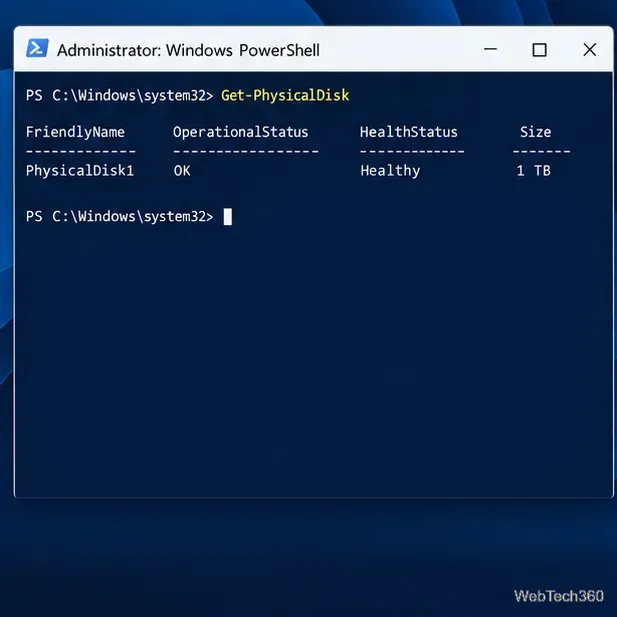
Check Windows Server disk status and reliability counters, verify SMART data when available, and separate hardware warnings from NTFS errors.
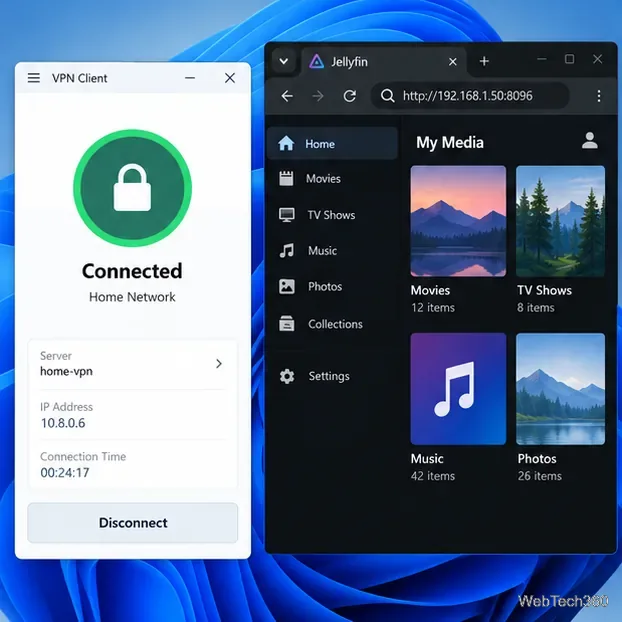
Install Jellyfin’s current Windows x64 build as a service, grant Network Service access to its configuration and media folders, and open it to your LAN on TCP 8096. For remote playback, choose a secure path such as a VPN or HTTPS reverse proxy; do not expose the default HTTP port directly to the internet.
Create a media folder such as D:\Media and reserve a stable LAN address for the server. Jellyfin can serve local media without internet access, but metadata providers need a connection.
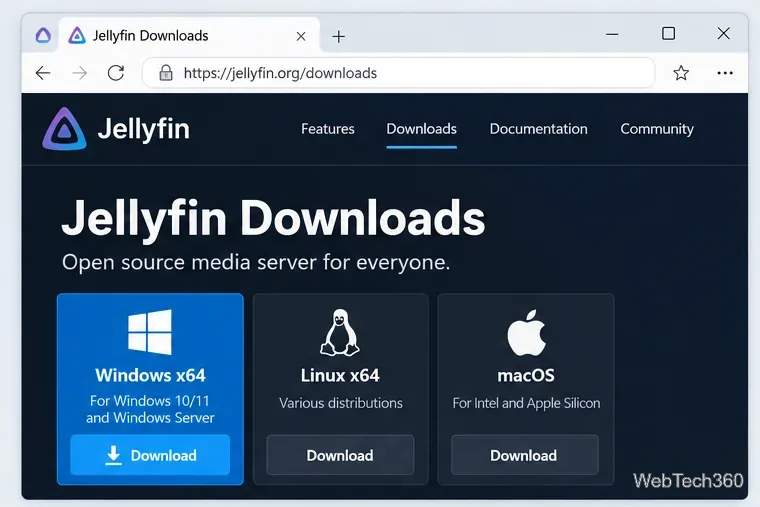
Open the official Jellyfin Windows downloads page and choose the latest stable x64 server installer. The page also offers a portable ZIP, but the installer is simpler for a dedicated host. Jellyfin’s Windows installation instructions do not list a Windows Server compatibility matrix, so check requirements for your exact Server release.
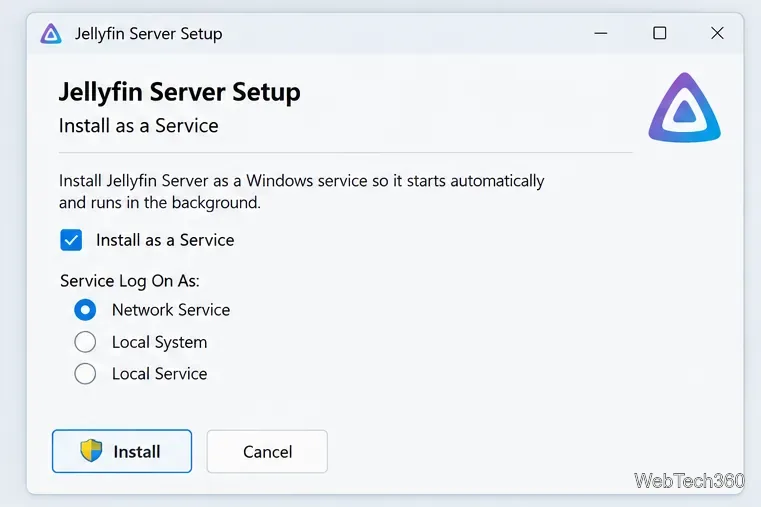
Run the EXE as an administrator and select Install as a Service for an always-on host. Jellyfin’s Windows Service guide recommends this for dedicated servers; the service starts at boot and runs without a signed-in user. Keep the default program path C:\Program Files\Jellyfin\Server and data path C:\ProgramData\Jellyfin\Server. Choose Network Service, then leave “Start Service after Install” unchecked until permissions are set.
In the security settings for C:\ProgramData\Jellyfin, grant NETWORK SERVICE Modify access so Jellyfin can manage its own data. On media folders, grant Read & execute and ensure it can list parent folders. Avoid Full Control on media; it could let the service change or delete originals. For a network share, grant access at the share level too.
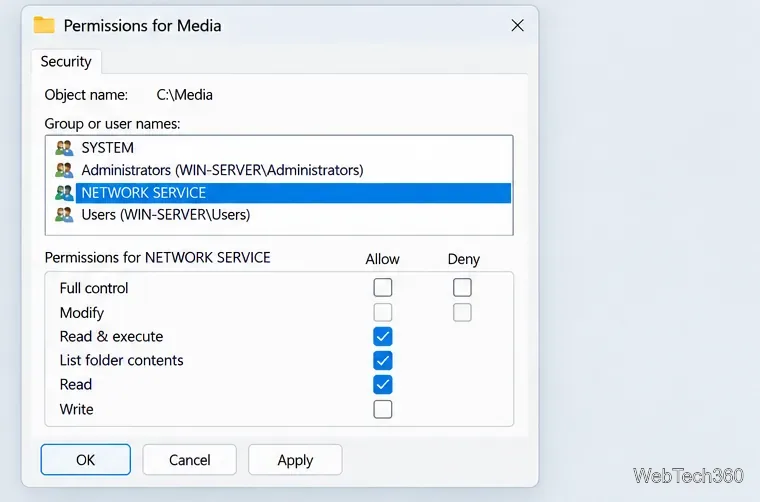
In services.msc, confirm Jellyfin Server runs as Network Service and start it. Open http://localhost:8096 on the server, choose a language, and create an administrator account with a strong password.
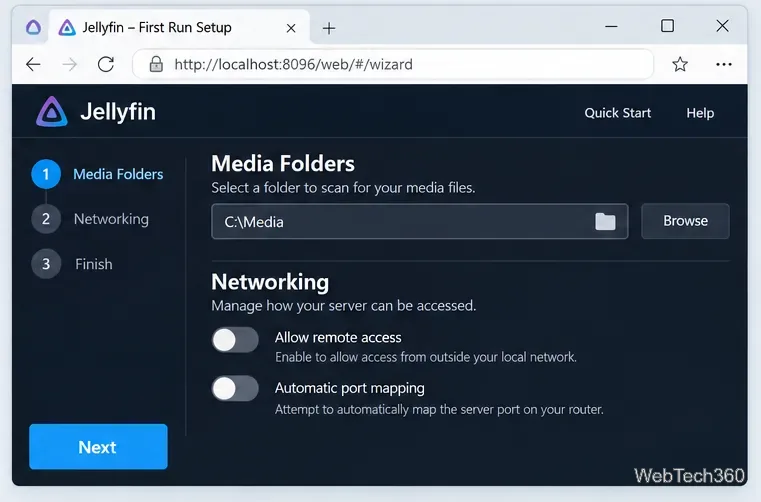
Add a library for each media type, name it, and select its folder. Set the preferred metadata language and region. If a folder is missing or its library stays empty, recheck service-account access to the folder and its parent path. See Jellyfin’s setup wizard guide for library options.
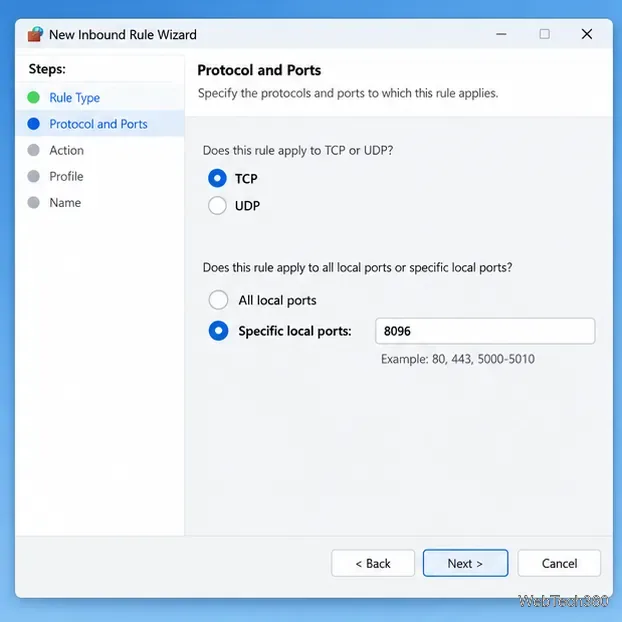
Jellyfin’s default web connection uses TCP 8096. Create an inbound rule for that port and limit it to the network profile you use: Private for a typical home LAN or Domain for a domain network. Do not allow Public access. Clients can use the server address directly without discovery. See the networking guide for default ports and firewall details.
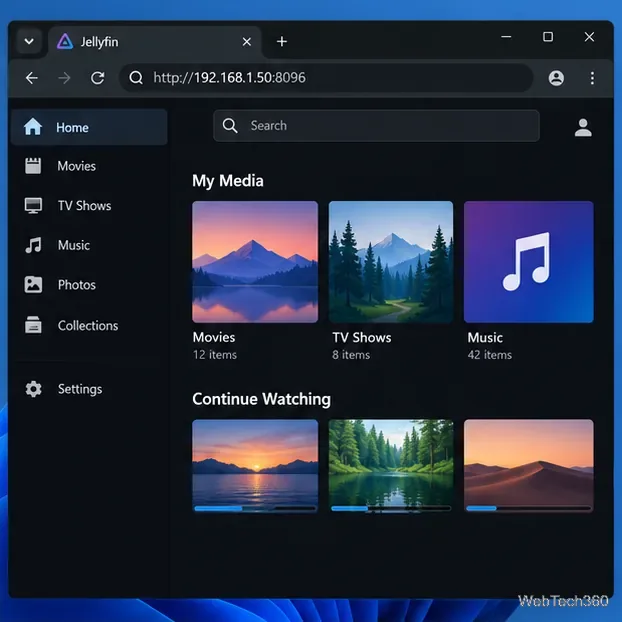
On another LAN device, visit http://<server-ip>:8096 or use a client from Jellyfin’s official clients page. Sign in as a regular user and play a file. Check the dashboard for Direct Play or transcoding; transcoding uses more resources and may be needed when a client cannot handle the format or bitrate.
For home-only use, leave remote access disabled. If streaming away from home, enable it only for selected users and use a VPN or an HTTPS reverse proxy. Jellyfin discourages forwarding its ports directly to the internet and recommends leaving UPnP automatic mapping off unless you deliberately choose it. Port 8096 is not an encrypted public endpoint.
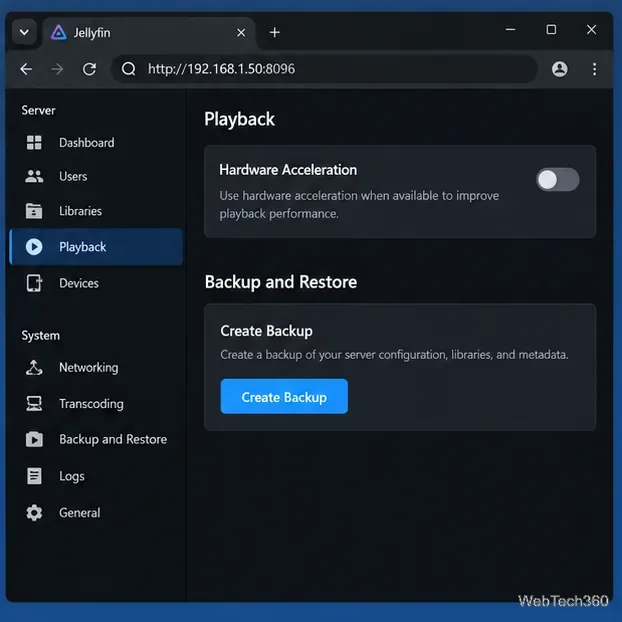
Use Backup and Restore to create an archive before major changes. For a Windows service install, backups default to C:\ProgramData\Jellyfin\Server\data\backups; keep a copy off the server too. To update, stop Jellyfin, download the current installer, and run it again using the Windows update instructions. If your hardware supports it, test acceleration during a transcode and check the transcoding guide.
If Jellyfin works locally but not on another device, check the firewall rule, network, and server IP. For file-specific playback failures, check client format support and the server’s transcoding status.
Check Windows Server disk status and reliability counters, verify SMART data when available, and separate hardware warnings from NTFS errors.
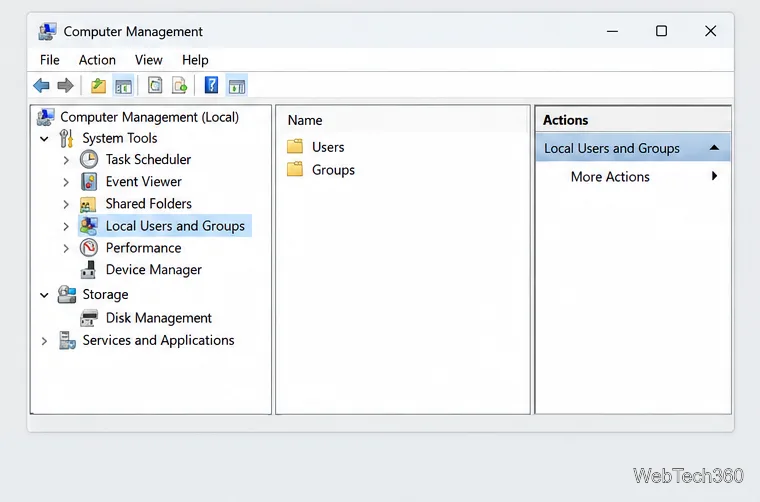
Create, grant admin rights to, disable, or remove local Windows Server users with Computer Management or PowerShell. Learn when to use Active Directory instead.
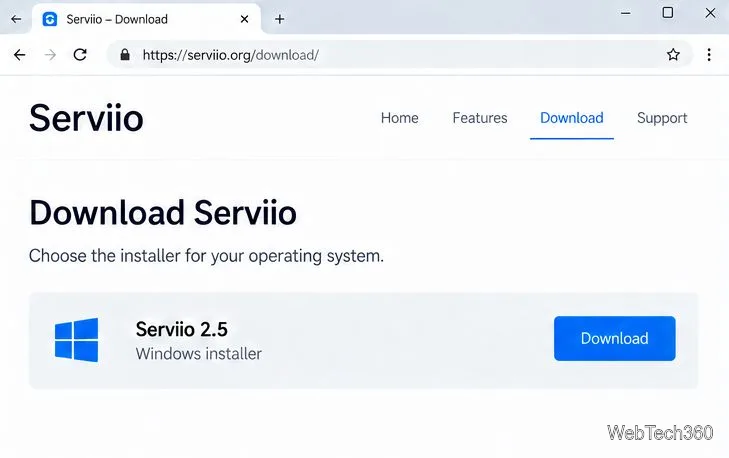
Install Serviio on Windows Server, share local or NAS media folders, and test DLNA playback. Learn how to check the Windows service, firewall, and Pro-only browser features.
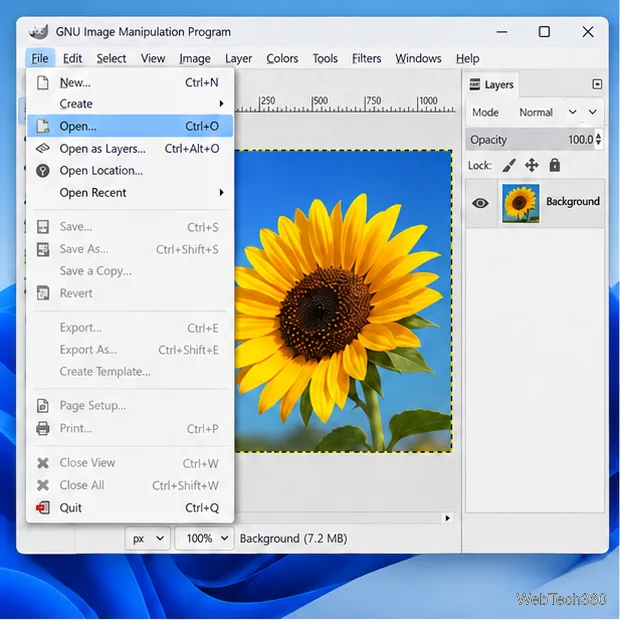
Convert PNG, JPG, or BMP files to Windows ICO with GIMP. Prepare a square image, keep transparency when needed, add standard sizes, and check the export.
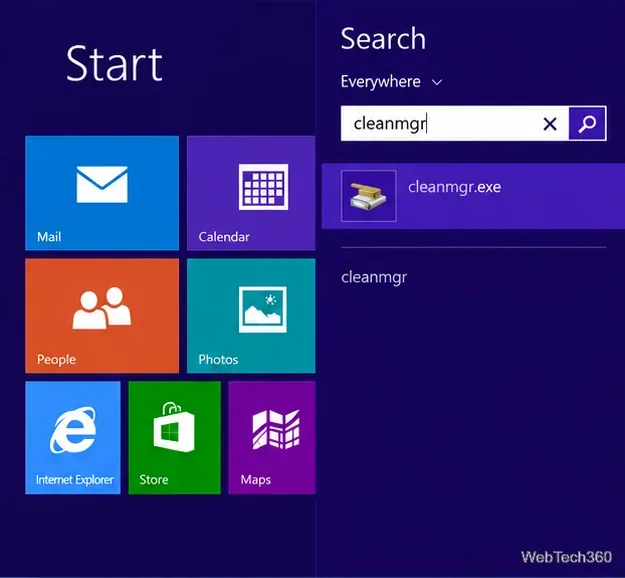
Clear thumbnail, DNS, Internet Explorer, Microsoft Store, Search, and Live Tile data with Windows 8’s built-in tools, and learn what each cleanup removes.
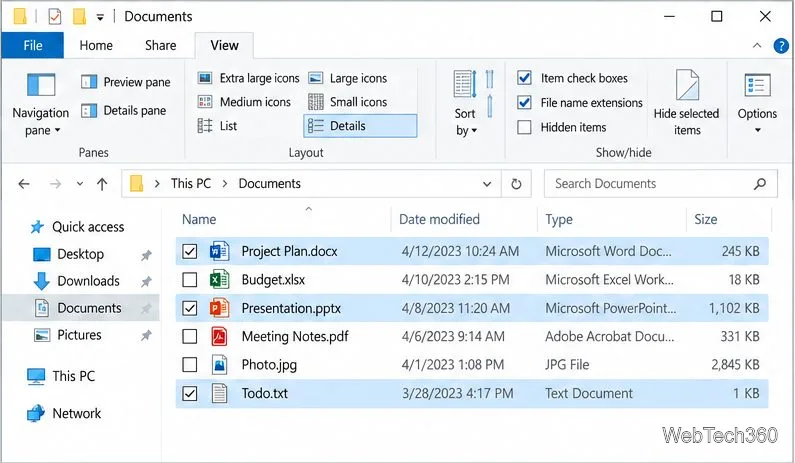
Turn off Windows 10 item check boxes in File Explorer with the View ribbon, or use Folder Options if the toggle is missing. See what changes and how to select multiple files without boxes.
Install VMware Workstation Pro on a compatible Windows Server host, from checking support and downloading the right build to creating your first VM.
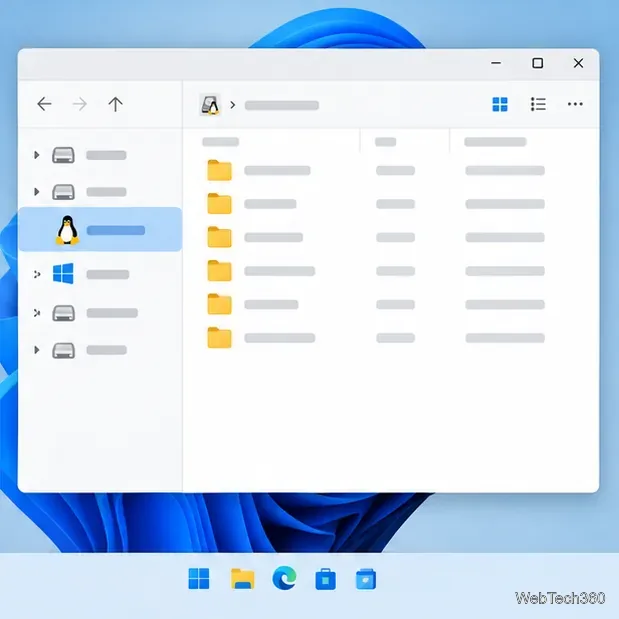
Browse and copy Ext2, Ext3, or Ext4 files on Windows with a read-only workflow. See what Linux Reader’s free edition supports and when WSL fits.
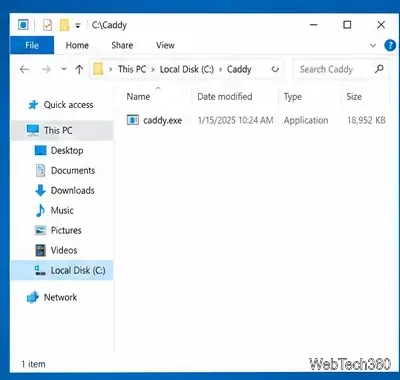
Install Caddy’s native Windows binary, serve a test site, enable automatic HTTPS for a domain, and run Caddy as a Windows Server service.
Run Linux Docker containers alongside Windows Server by creating an Ubuntu Hyper-V VM, installing Docker Engine, and publishing a test service safely.