How to Fix Lines on a Monitor Screen in Windows 10

Use a screenshot test, cable and port checks, monitor diagnostics, display settings, and driver rollback to pinpoint lines on a Windows 10 monitor.
Quick Assist is Microsoft’s remote-support app for Windows. On Windows 10, you can use it to let a trusted person view your screen and, only after you approve it, control your PC to troubleshoot a problem. The current workflow is simpler than the older built-in version: the helper generates a short-lived security code, you approve screen sharing, and full control is requested separately.
Microsoft still documents Quick Assist for Windows 10, although the current app is distributed through the Microsoft Store. Also note that standard Windows 10 support ended on October 14, 2025. If you still use Windows 10, consider a supported upgrade path or the appropriate Extended Security Updates option where available.
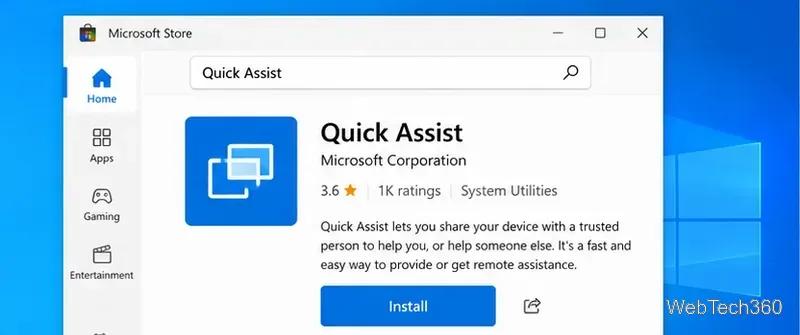
For Microsoft’s current technical requirements and network details, see the official Quick Assist documentation.
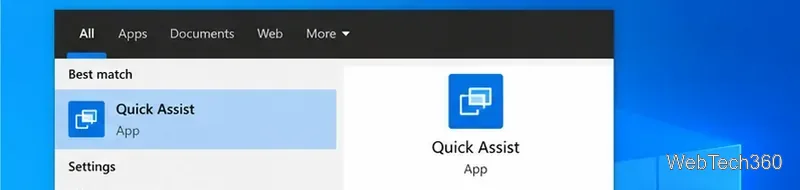
The quickest method is to open Start, type Quick Assist, and select the app from the results. You can also press Ctrl + Windows + Q. On some Windows 10 installations, Quick Assist can still appear under Windows Accessories in Start.
Both people should open Quick Assist before beginning. The person giving assistance is the helper; the person sharing the PC is the sharer.
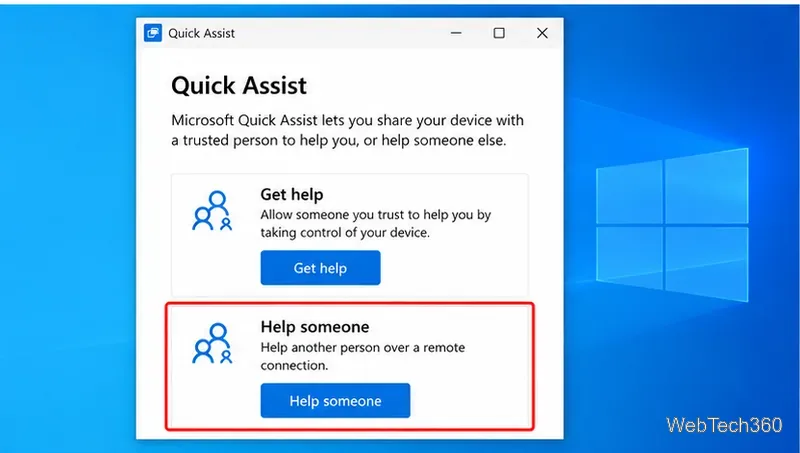
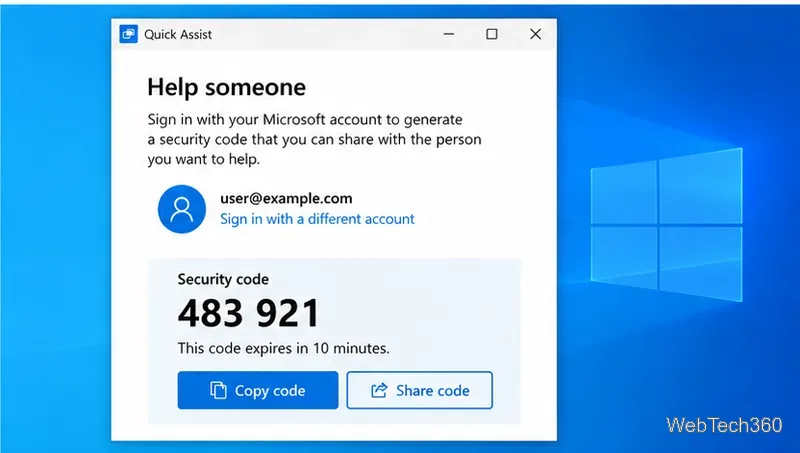
Once connected, the helper can view the shared screen. Current Quick Assist versions include tools such as a laser pointer, annotation, and chat. If control has been granted, the helper can interact with the PC using the sharer’s keyboard layout and mouse settings.
The sharer remains in control of permission. You can use Cancel control to stop the helper from controlling the PC, or Leave to end the Quick Assist session. Some User Account Control prompts may still require the sharer to respond directly on the PC.
Only use Quick Assist with someone you trust. Do not enter a code because an unsolicited caller, pop-up, or message claims your computer has a virus or urgent problem. Microsoft specifically warns that remote-support tools are used in tech-support scams. If you did not initiate the support interaction, do not approve the connection.
Remember that screen sharing can expose open documents, notifications, browser tabs, and other private information. Close anything sensitive before starting, and do not approve full control unless it is necessary.
Microsoft ended standard support for Windows 10 on October 14, 2025. Quick Assist is still documented as applying to Windows 10, but the operating system itself no longer receives normal free security updates or technical support. Microsoft recommends moving to Windows 11 when possible; eligible Windows 10 systems may also have Extended Security Updates options. See Microsoft’s Windows 10 end-of-support information for current guidance.
Use a screenshot test, cable and port checks, monitor diagnostics, display settings, and driver rollback to pinpoint lines on a Windows 10 monitor.
Show two other time zones beside your Windows 10 clock. Set up each additional clock, give it a clear label, and find it in the taskbar calendar.
Find the File Explorer extension that delays right-click menus in Windows 10, test it safely with ShellExView, and restore any menu features you still need.
Stop Windows 10 from powering down a specific network adapter or USB device with plan-level settings and Device Manager controls, plus tips to avoid excess battery drain.
Check whether Windows 10 uses a digital license or product key, find a firmware-stored OEM key, and save license details securely for a reinstall.
Identify a Windows 10 Task Manager process by checking its executable path, file properties, publisher, linked services, and a Microsoft Defender scan.
Create a searchable Windows 10 folder inventory with PowerShell. Save every file and subfolder path as plain text or export details to a sortable CSV.
Add a custom reminder, quote, or label to your Windows 10 desktop with a Rainmeter text skin. Create the INI file, load it, then adjust its font and position.
Use Bluetooth Swift Pair on Windows 10 to pair a compatible accessory from a notification, with setup steps and fixes when the prompt does not appear.
Learn what common laptop function key symbols mean, how Fn and Fn Lock affect them, and how to confirm the right shortcut for your Windows 10 laptop model.








