Home
» WINDOWS
»
How to Set WinRAR to Delete an Archive After Extraction
How to Set WinRAR to Delete an Archive After Extraction
To make WinRAR automatically delete an archive after extracting it, open the extraction options, select Always under Delete archive, then save that choice as the default. WinRAR removes the source archive only after a successful extraction of all files. If you want a chance to recover it, enable Move to Recycle Bin before saving.
This setting is useful for clearing out downloaded .RAR and .ZIP files, but it can remove your only copy of the archive. Review the options below before using Always on archives you may need again.
Set WinRAR to delete archives automatically
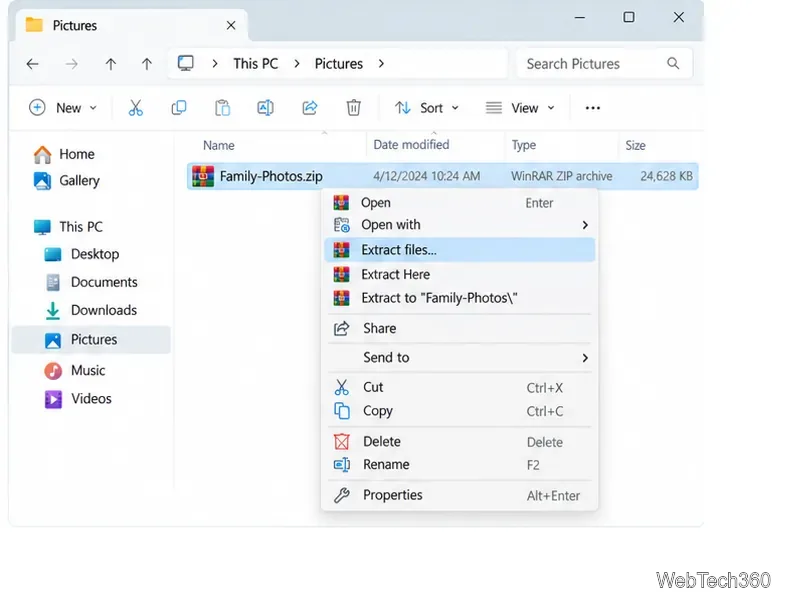
Open the extraction dialog. In File Explorer, right-click the archive and choose Extract files.... This opens WinRAR’s Extraction path and options window, where you can change the destination and extraction settings. On Windows 11, the WinRAR command may be under Show more options in the classic context menu. If you do not see it, open the archive in WinRAR and use Extract To instead.
Choose “Extract files...” to open WinRAR’s extraction options.
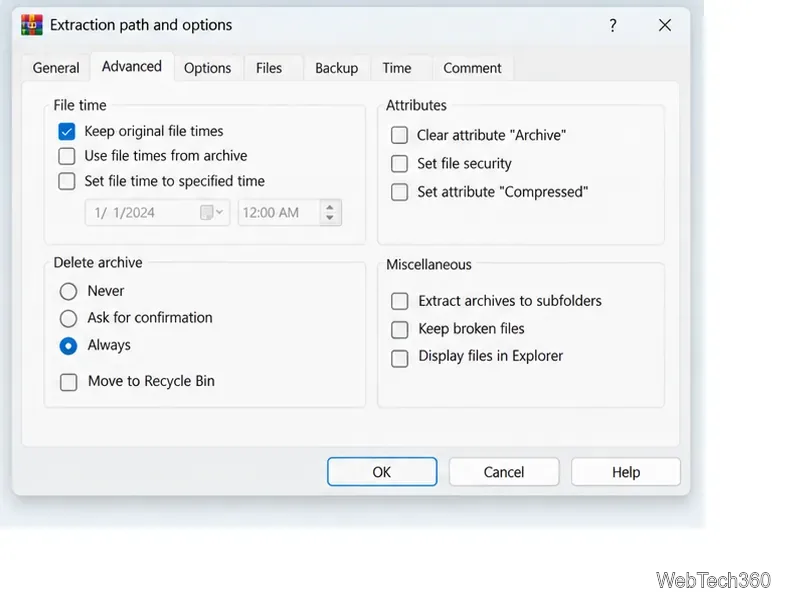
Choose the archive deletion behavior. In the extraction window, open the Advanced tab and find Delete archive. Select Always to remove the archive without a prompt after extraction. Choose Ask for confirmation if WinRAR should ask each time, or Never to keep the archive. To make a deletion easier to undo, check Move to Recycle Bin, if that option is available.
The Advanced tab contains the Always, Ask for confirmation, and Never choices.
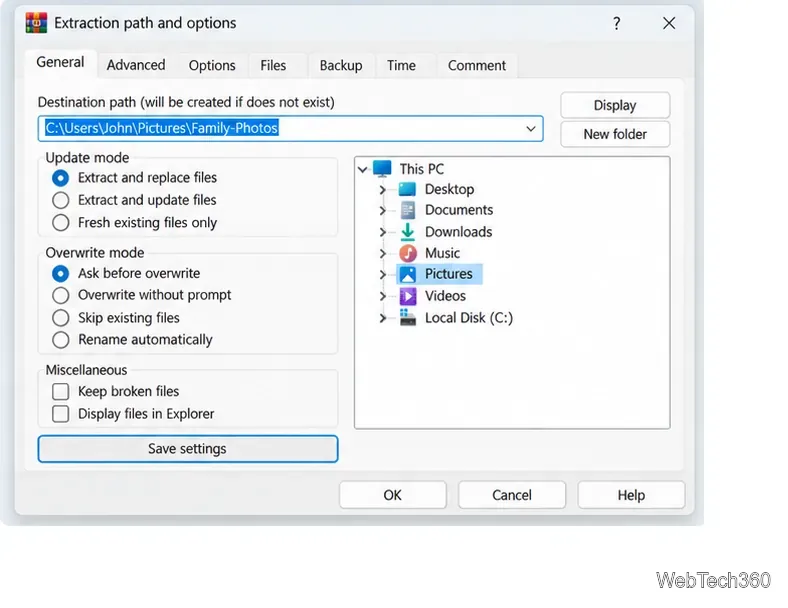
Save the choice as the default. Return to the General tab and click Save settings. WinRAR saves the extraction options for later use; it does not save the destination folder as part of this button. You can choose a destination for the current extraction separately.
Save settings on the General tab makes the selected extraction behavior the default.
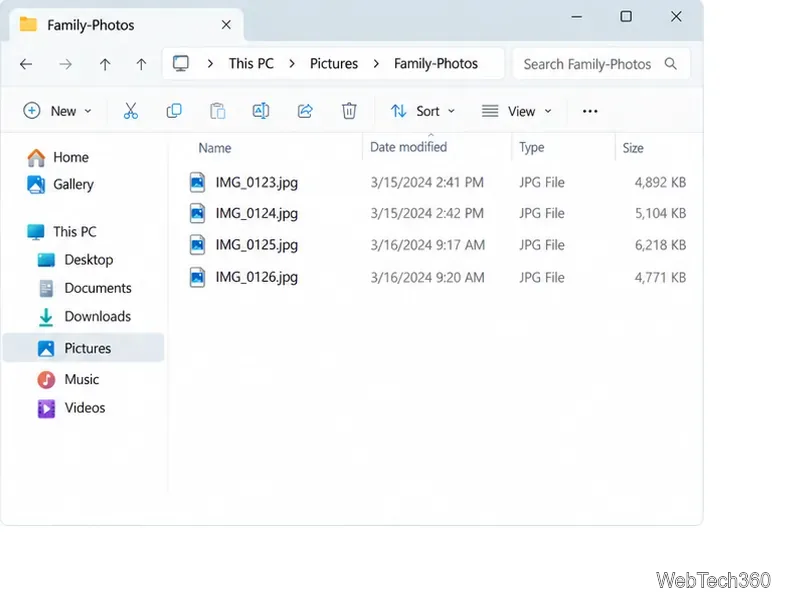
Run the extraction. Click OK to unpack the current archive. If you only wanted to set the default and do not want to extract this archive now, close the dialog with Cancel after saving. For a first check, use an archive you can replace, and confirm the extracted files are present before relying on automatic cleanup.
After extraction, check the destination folder for the unpacked files.
When does WinRAR delete the archive?
Always does not mean “delete as soon as extraction starts.” WinRAR’s help documentation says it deletes an archive only if the contents were unpacked without errors and all archived files were selected. If you open an archive in WinRAR and extract only some of its files, the archive stays in place. The same is true when extraction reports an error; fix the problem and extract the complete archive before expecting it to be removed.
For a successful extraction of a multivolume archive, WinRAR deletes all volumes in the set, not just the part you opened. Be careful with files named like backup.part1.rar and backup.part2.rar: using Always can remove the entire set. Select Move to Recycle Bin if you want deleted archives sent to the Windows Recycle Bin instead of being removed immediately. You can then restore an archive from the Recycle Bin while it remains there.
If WinRAR still leaves the archive behind
First, make sure you selected Extract files... and saved the choice from the General tab. A one-time setting in the Advanced tab may not become your default until you click Save settings. Reopen the dialog to confirm that Always is still selected.
Next, check the extraction result. A damaged archive, a password problem, a write-permission issue, or another error can prevent WinRAR from treating the operation as a successful full extraction. Also confirm you selected every file in the archive. If you extracted only selected items from inside WinRAR, the source archive is expected to remain. The saved default applies to WinRAR’s context-menu extraction commands as well, so you can use Extract here or Extract to [folder] after saving it.
Change the setting later
To stop automatic deletion, open an archive’s extraction dialog again, select Never or Ask for confirmation on the Advanced tab, then click Save settings on the General tab. Choose Ask for confirmation if you want to decide separately for each archive. Keep the original archive when it is your only backup or when you may need to extract the files again.