How to Set Different Scaling Levels for Multiple Monitors in Windows 10

Adjust each Windows 10 monitor independently with per-display scaling, keep text readable, and troubleshoot custom scaling or blurry apps.
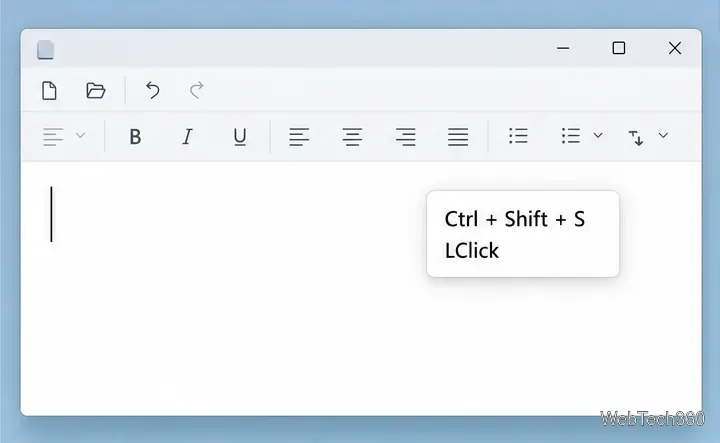
To show both keystrokes and mouse clicks in a Windows screen recording, use ShowOff, a small utility that places a movable activity box over the desktop. It displays pressed keys and mouse buttons as you work. The author’s page currently lists ShowOff version 1.2, last updated December 12, 2017, so test it on your Windows version before relying on it for an important recording.
ShowOff is useful when viewers need to follow shortcuts or clicks without guessing. It does not draw a trail for mouse movement or identify the control under the pointer. If you only need click highlights, Microsoft PowerToys has a separate Mouse Highlighter feature.
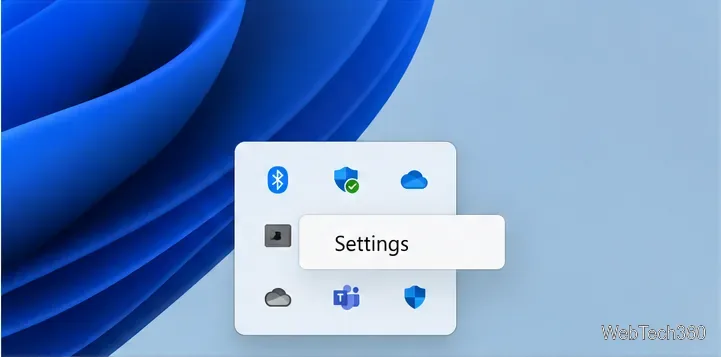
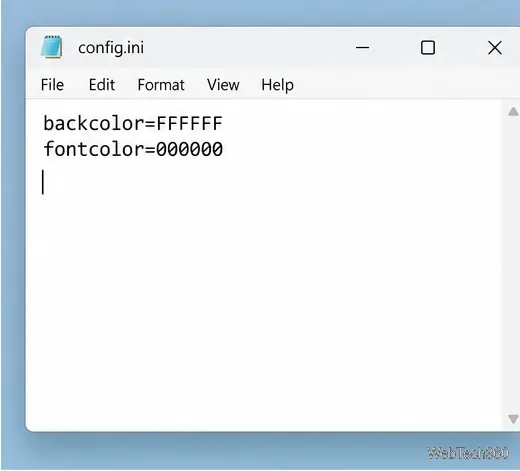
If the default white box and dark text blend into your recording, the older ShowOff instructions describe editing the utility’s INI settings file. Right-click the ShowOff icon in the notification area and choose Settings; in that build, the command opens the text file for editing. Before changing it, save a copy of the original file so you can restore the defaults.
Look for the backcolor and fontcolor entries. These control the box background and the text color. Change only the color values, using the same format already present in your file; the sample below shows six-digit RGB-style values for a white background and black text. Save the file, then close and reopen ShowOff if the display does not update. Avoid replacing the whole file with a sample from another version, because settings and syntax can differ.
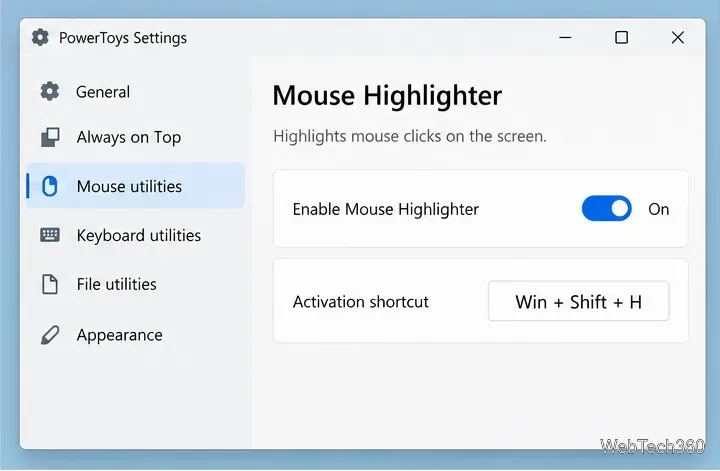
For mouse clicks without a keystroke overlay, install PowerToys using Microsoft’s official installation instructions. Microsoft lists Windows 10 version 2004 (build 19041) or later, or Windows 11, as requirements. In PowerToys Settings, open Mouse utilities, select Mouse Highlighter, and enable it. The default shortcut for toggling the highlight is Win+Shift+H. The feature marks clicks of the primary and secondary mouse buttons, but it does not display typed keys, so use ShowOff when both types of input need to be visible.
Because ShowOff displays keyboard and mouse activity, keep passwords, private messages, account details, and other sensitive information off-screen while recording. Its small status box is best treated as a teaching aid for deliberate demonstrations, not as a complete pointer-tracking or annotation tool. For current feature details, see the author’s ShowOff page and Microsoft’s Mouse Utilities documentation.
Adjust each Windows 10 monitor independently with per-display scaling, keep text readable, and troubleshoot custom scaling or blurry apps.
Use AirType’s browser pairing setup to type on an iPhone from a Windows 10 PC, with current setup steps, troubleshooting, and privacy limits.
Hide the mouse pointer in Windows 10 videos, games, and other apps with built-in typing controls or PowerToys CursorHide’s adjustable inactivity timer.
Find Control Panel Power Options on a Windows 10 desktop, open the page with a Run command, and adjust power plans, display timeouts, sleep, and button behavior.
Learn what Windows 10 deletion leaves behind, how to use SDelete on an HDD, and why SSDs and cloud backups need separate treatment.
Use FFmpeg’s DirectShow tools to open an integrated webcam’s driver properties in Windows 10, find the correct device, and troubleshoot missing controls.
Identify a keypress in Windows 10 with a browser event tester or SharpKeys, then separate layout, software, and keyboard hardware issues.
Use double quotes around each complete path with spaces in Command Prompt. Learn how to list, change to, copy, and troubleshoot Windows 10 files and folders.
Turn off the Windows 10 Start menu’s hover-to-expand behavior with a legacy Mach2 command, check build limits, and see the built-in app-list alternative.
Fix the iTunes Library.itl read error on Windows 10 by updating iTunes, restoring a compatible backup, or safely creating a new library without deleting media files.








