How to Set Different Scaling Levels for Multiple Monitors in Windows 10

Adjust each Windows 10 monitor independently with per-display scaling, keep text readable, and troubleshoot custom scaling or blurry apps.
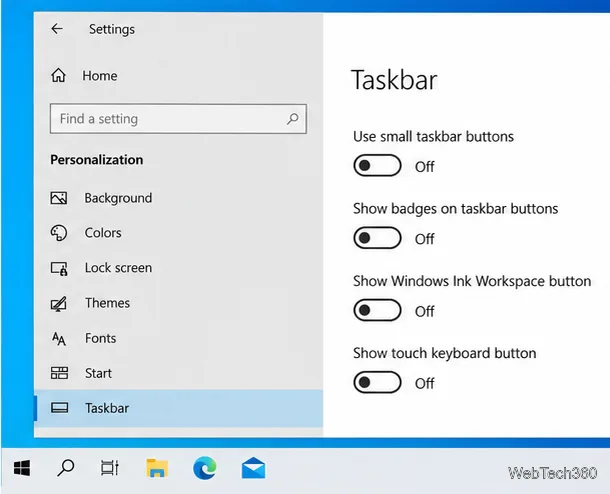
To show or hide app badges on the Windows 10 taskbar, open Taskbar settings and switch Show badges on taskbar buttons on or off. This is one Windows-wide setting: it controls badges for every taskbar app that supports them. It does not turn off the app’s notification banners or remove its taskbar icon.
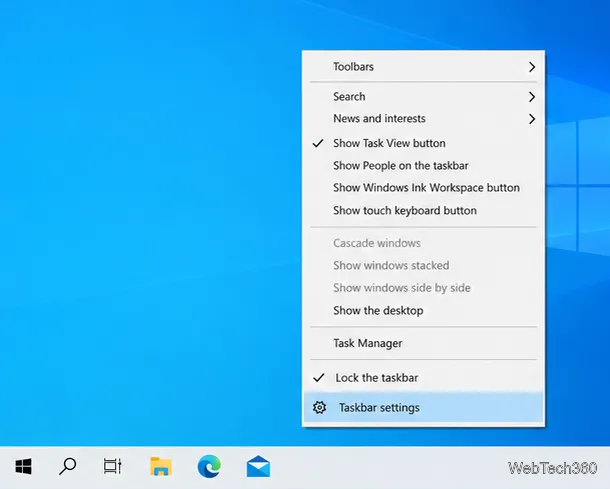
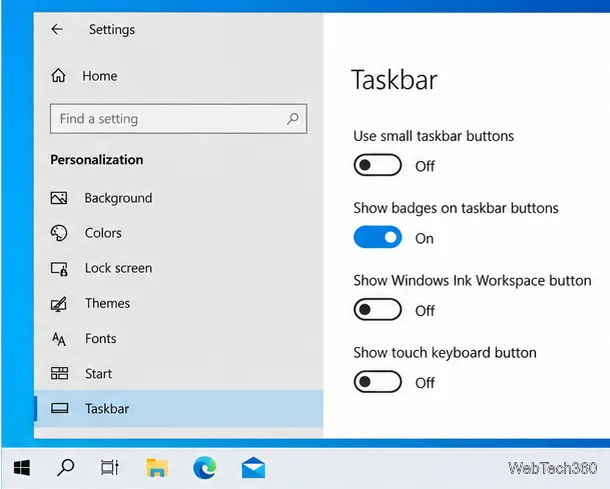
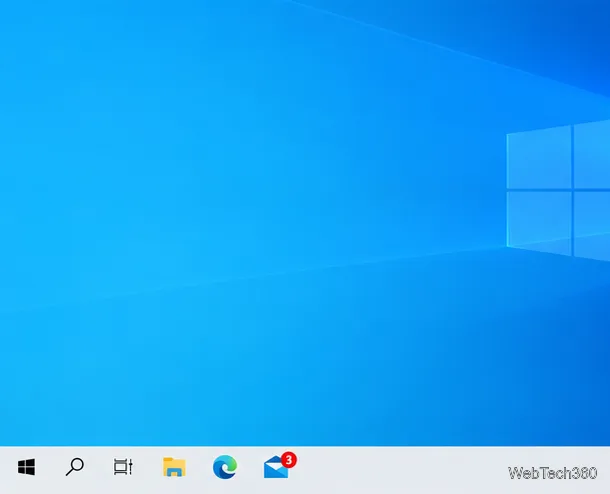
A badge is a compact status indicator attached to an app’s taskbar button. Depending on the app, it may be a number, such as an unread-item count, or a system status symbol. The badge is supplied by the app; Windows provides the setting that lets you show or hide it. That means the global switch cannot make an app display a badge if the app does not implement the feature.
An app does not always have to be open for its badge to appear. Microsoft’s Windows app documentation says supported apps can update a badge on a pinned taskbar icon even while the app is not running. Whether that works depends on the app and how it was built. So if an app shows no badge, first check that it supports taskbar badges and has new activity to report.
The Windows 10 switch is global, not a per-app selector. If you want to keep badges for one app but hide them for another, check whether the individual app has its own badge or status setting. Windows 10 does not provide separate taskbar badge switches for each app.
Turning badges off hides only the marker on the taskbar button. It does not mark messages as read, dismiss a reminder, stop an app from syncing, or remove the app from the taskbar. The activity remains inside the app, and other alerts may still appear according to that app’s settings.
A badge is also different from a taskbar button flashing to get your attention. Windows has a separate Show flashing on taskbar apps option. If an icon still flashes after you turn badges off, that is expected; change the flashing option separately if you want to stop that behavior.
For the current Windows taskbar instructions, see Microsoft’s Customize the taskbar in Windows. For details on how apps provide badges, see Microsoft Learn’s badge notifications documentation. Microsoft also explains the separate Windows notification settings.
Adjust each Windows 10 monitor independently with per-display scaling, keep text readable, and troubleshoot custom scaling or blurry apps.
Use AirType’s browser pairing setup to type on an iPhone from a Windows 10 PC, with current setup steps, troubleshooting, and privacy limits.
Hide the mouse pointer in Windows 10 videos, games, and other apps with built-in typing controls or PowerToys CursorHide’s adjustable inactivity timer.
Find Control Panel Power Options on a Windows 10 desktop, open the page with a Run command, and adjust power plans, display timeouts, sleep, and button behavior.
Learn what Windows 10 deletion leaves behind, how to use SDelete on an HDD, and why SSDs and cloud backups need separate treatment.
Use FFmpeg’s DirectShow tools to open an integrated webcam’s driver properties in Windows 10, find the correct device, and troubleshoot missing controls.
Identify a keypress in Windows 10 with a browser event tester or SharpKeys, then separate layout, software, and keyboard hardware issues.
Use double quotes around each complete path with spaces in Command Prompt. Learn how to list, change to, copy, and troubleshoot Windows 10 files and folders.
Turn off the Windows 10 Start menu’s hover-to-expand behavior with a legacy Mach2 command, check build limits, and see the built-in app-list alternative.
Fix the iTunes Library.itl read error on Windows 10 by updating iTunes, restoring a compatible backup, or safely creating a new library without deleting media files.








