How to Access a Network Location in Command Prompt on Windows 10

Use pushd to open a UNC network path in Windows 10 Command Prompt, run commands in the shared folder, and return with popd.
If Windows 10 is ready to install an update, the Power menu may show Update and shut down or Update and restart. If you need to turn off the PC now, first look for a separate Shut down option and choose that instead. You can also request a normal shutdown from the desktop or with the built-in shutdown command.
These methods postpone the update; they do not cancel it. A downloaded or staged update can still install later, and some update work may have to finish the next time Windows starts or restarts. If Windows has already committed to an installation, there is no supported switch that guarantees you can bypass it indefinitely.
This is the simplest option when Windows shows both choices.
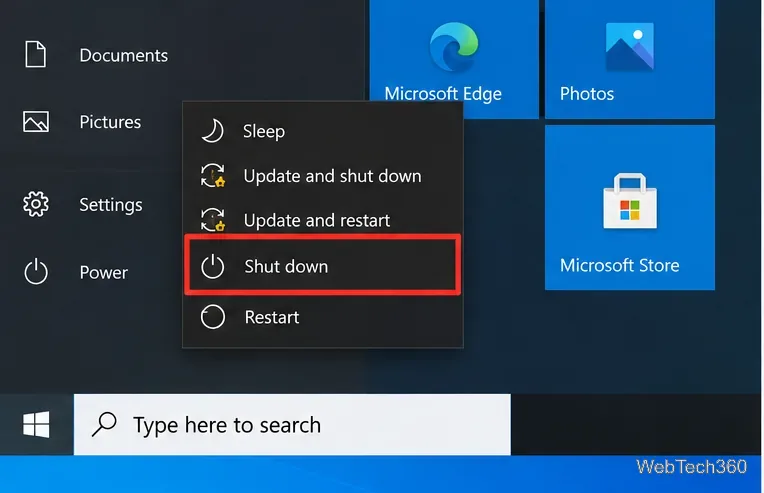
If the plain option is not present, use one of the next methods. Menu choices can vary depending on the exact update state and policies applied to the PC.
The classic Shut Down Windows dialog can provide a normal shutdown choice even when you do not want to use the Start menu.
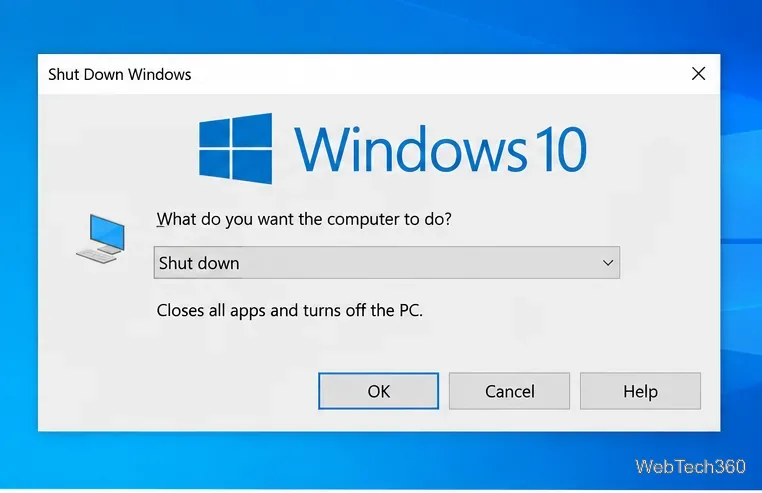
If Alt+F4 closes an app instead, the desktop was not active. Press Win+D first, then try the shortcut again.
Windows includes a supported command-line shutdown tool. Microsoft's shutdown command documentation lists Windows 10 as supported and defines /s as shutting down the computer and /t as the timeout.
cmd, and press Enter.shutdown /s /t 0.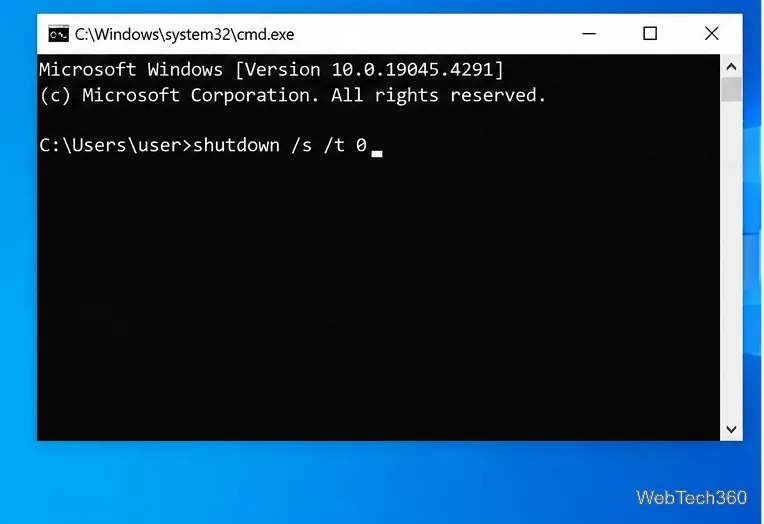
shutdown /s /t 0 requests an immediate normal shutdown.This is useful when the Start menu emphasizes update-related power options. It does not delete a pending update, and Windows servicing can still require the update to finish later.
If your real goal is to avoid another forced update at an inconvenient time, pausing updates is better than repeatedly working around the shutdown menu. Microsoft still documents this feature for Windows 10.
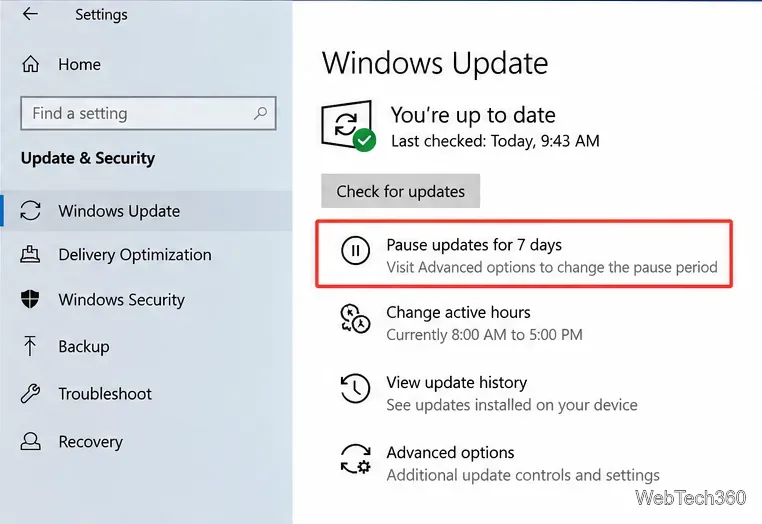
Microsoft explains that pausing updates temporarily stops new updates from downloading or installing and postpones update-related restarts. It does not permanently disable Windows Update. See Microsoft's Pause updates in Windows guidance for the current behavior.
If an update is already in progress or Windows only offers update-related shutdown choices, save your work and allow the servicing process to complete when practical. Avoid holding the physical power button unless the PC is genuinely frozen; cutting power during system servicing can cause file-system or update problems.
You can also use Windows Update's restart controls for a more convenient time. Microsoft's Windows Update FAQ recommends pausing updates temporarily or scheduling a restart instead of trying to disable updating permanently.
Microsoft ended regular Windows 10 support on October 14, 2025. Windows 10 PCs continue to run, but standard feature and security servicing has ended outside applicable Extended Security Updates arrangements. If you still use Windows 10, review Microsoft's current Windows 10 end-of-support guidance and consider moving to Windows 11 on compatible hardware.
To shut down Windows 10 without intentionally starting an available update, choose the plain Shut down option when it appears, use the desktop Alt+F4 dialog, or run shutdown /s /t 0. For future updates, pause Windows Update before the package is staged. None of these methods removes a pending update, so plan to install it later rather than treating shutdown avoidance as a permanent update-blocking method.
Use pushd to open a UNC network path in Windows 10 Command Prompt, run commands in the shared folder, and return with popd.
Learn how to install a Rainmeter skin from an INI file by placing it in the right Skins folder, preserving its resources, refreshing Rainmeter, and loading it in Manage.
Open one folder in its own File Explorer window with Shift or the context menu, or change Folder Options to make every folder open separately.
Pin a frequently used Control Panel applet, such as Power Options or Sound, to the Windows 10 Start menu for one-click access.
Choose a supported Windows 10 hotkey for switching input languages, assign shortcuts to individual layouts, or disable an accidental shortcut.
Move a Windows 10 app to the display you want, use its game monitor setting, and handle full-screen apps with a practical primary-monitor workaround.
Use a transparent PNG and a Rainmeter skin to keep an image watermark above windows, adjust its transparency, and make it click-through on Windows 10.
Convert stereo audio to mono on Windows 10 with Audacity. Mix both channels into one mono track, export a new file, and verify the channel count.
Use Windows 10 Clipboard history to save recent text and images, paste an earlier clip with Windows key + V, and manage sync, pinned items, and privacy.
Learn how to zoom in on a video in Windows 10 with VLC’s Interactive Zoom, or use Windows Magnifier when the clip is playing in another app.








