Home
» WINDOWS
»
How to Start and Stop a Service in Windows 10
How to Start and Stop a Service in Windows 10
To start or stop a Windows 10 service, open the Services console, select the service, and choose Start or Stop. You can also control a service from an elevated Command Prompt with sc.exe. Check the service’s name, purpose, and status first: some services support Windows or other apps, and stopping the wrong one can disrupt a feature.
A service is a background component managed by Windows. It is different from a regular desktop app, and an app may use more than one service—or none at all.
Start or stop a service in the Services console
1. Open Services
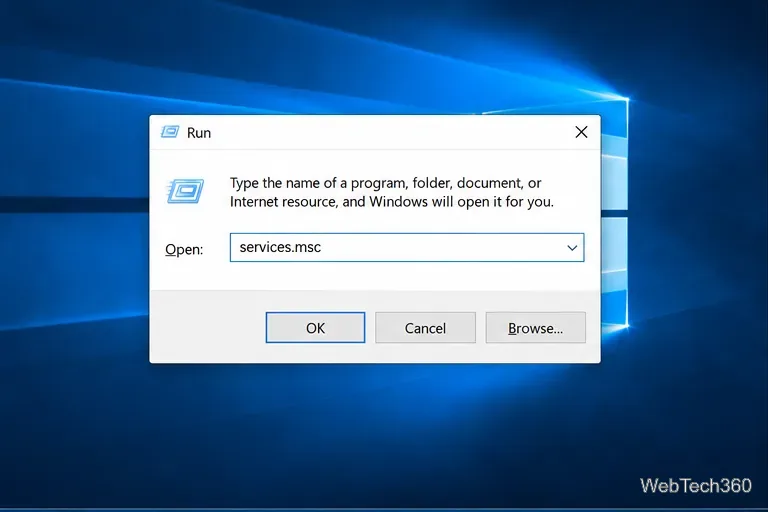
Press Windows key + R, enter services.msc, and press Enter. If Windows asks for administrator approval, approve it only if you have permission to manage services on this PC.
Enter services.msc in Run to open the Services console.
2. Find and identify the service
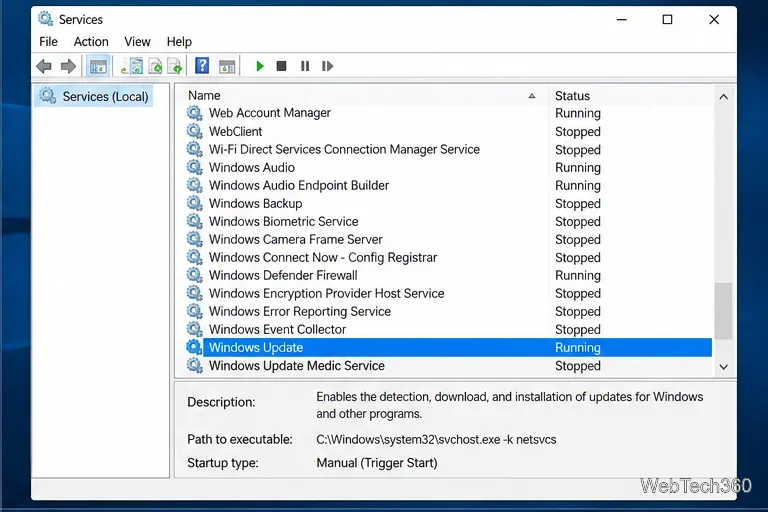
Scroll through the list or click a service and type the first letters of its display name. Check the Status and description pane before acting. The service’s display name can differ from the name an app uses, so confirm you have the right entry.
Select a service to review its status and description.
3. Choose Start or Stop
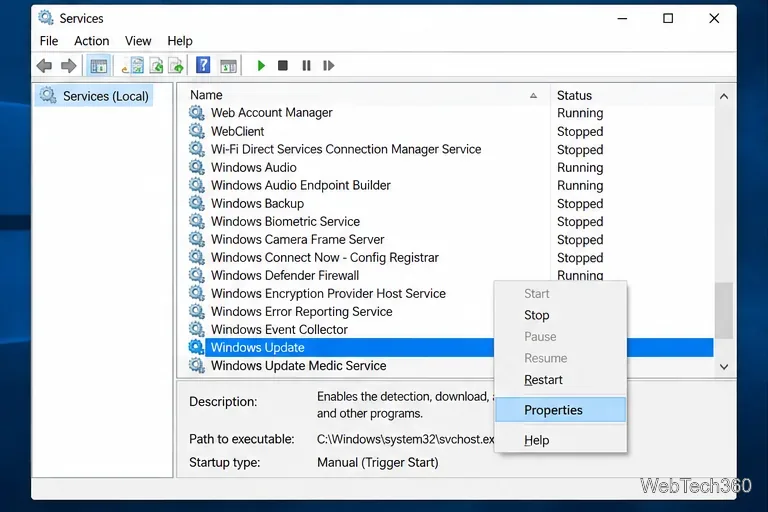
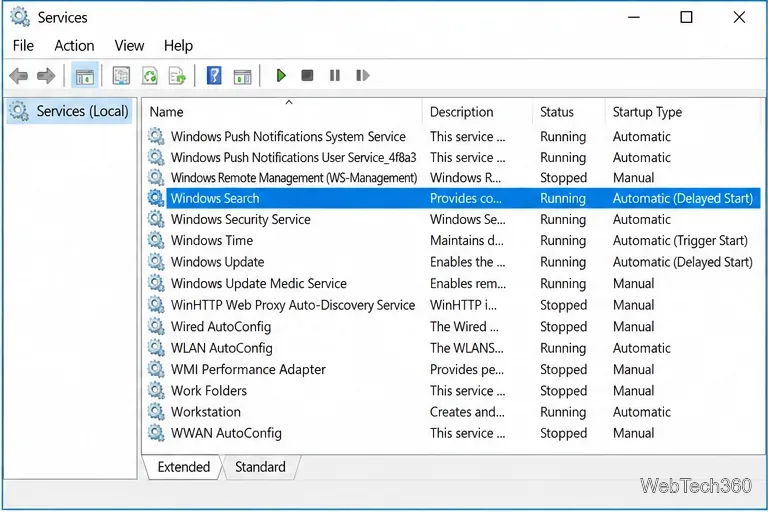
Right-click the service. Choose Start if its status is Stopped, or Stop if it is Running. You can also select it and use the matching action in the left pane. Windows may show a progress state while the service changes; give it time to finish. The command may be unavailable if the service is already in that state or does not allow that control.
The available Start or Stop action depends on the service’s current state.
4. Check the result and startup setting
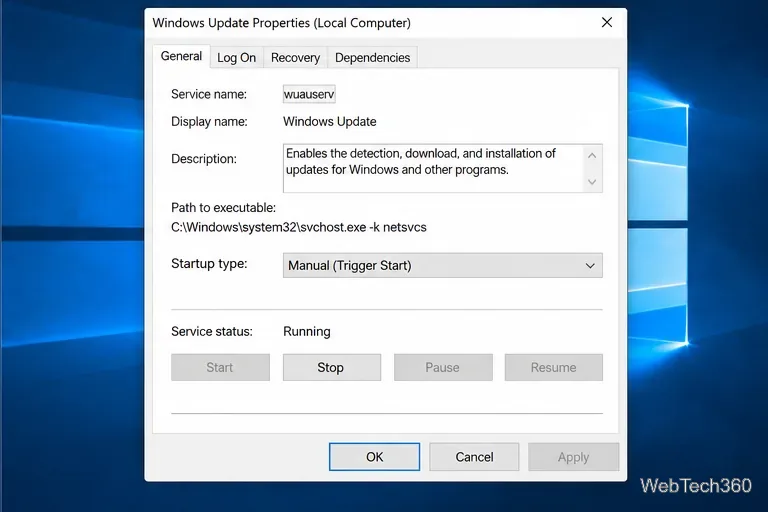
Confirm that the Status column changes to Running or clears to Stopped. If you need to change whether the service starts later, open Properties and review Startup type. Starting or stopping changes its current state; Startup type controls how Windows can start it in the future. Manual services can still start when requested by Windows or another component. Don’t set a service to Disabled just to stop it temporarily.
Service status and startup type are separate settings.
Find a service associated with an app
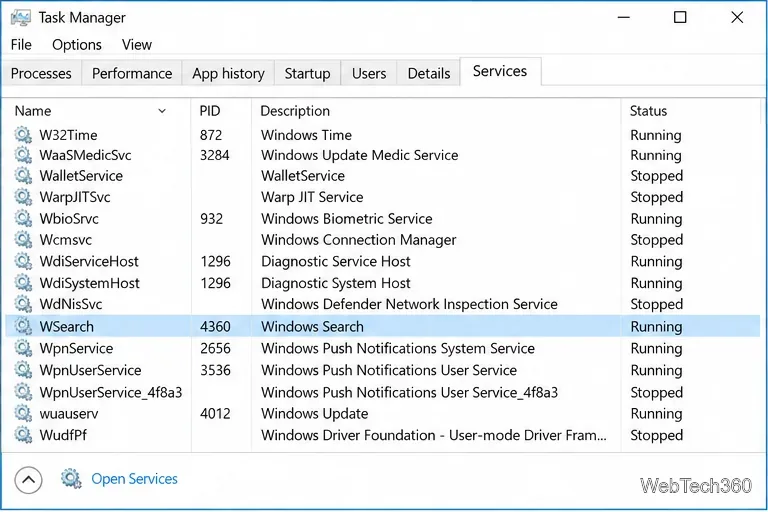
Task Manager can help you inspect services, but it does not show a one-to-one list of services under every app. Press Ctrl + Shift + Esc, select More details if needed, and open the Services tab. Review the service name, description, process ID, and status. Select Open Services at the lower left to jump to the full Services console.
Task Manager lists service names and their current status.
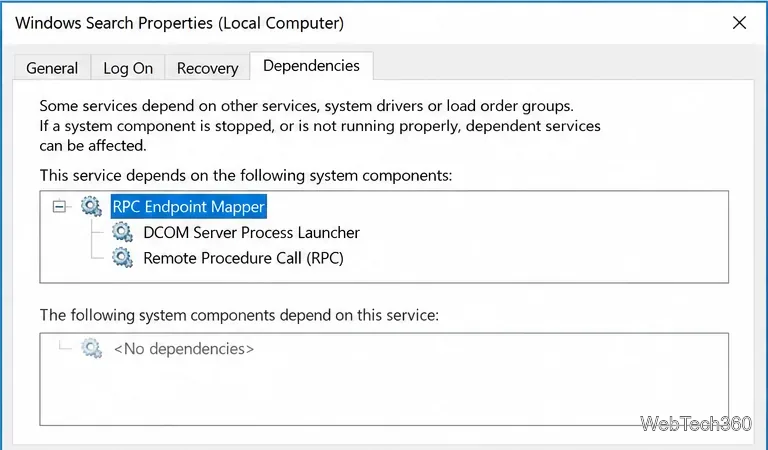
Match a service by its name or description, and confirm its purpose in the app maker’s documentation when the name is unclear. In Services, open the service’s Properties to review its description and executable path. The Dependencies tab can show components the service relies on and services that rely on it. If you cannot confidently identify the service, don’t stop it.
Use the service list to match a Task Manager entry with its full display name.Check Dependencies before stopping a service that other components may need.
Use Command Prompt to start or stop a service
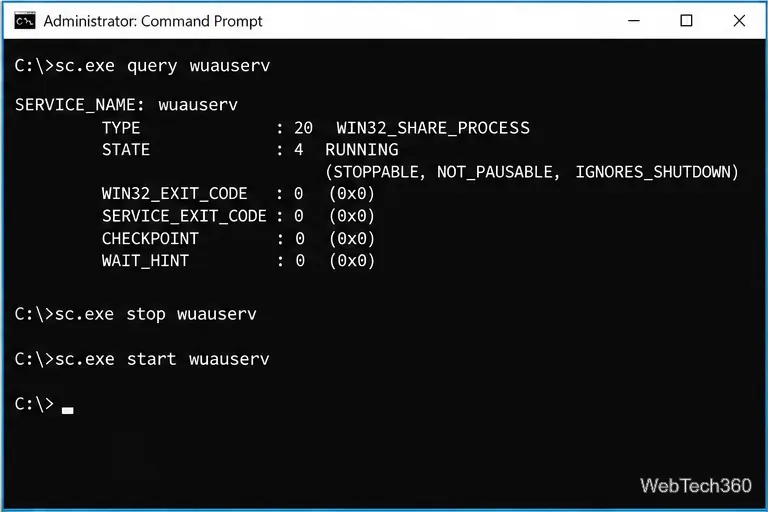
For a command-line option, open Command Prompt as an administrator. Use the service name—not necessarily the display name—in these commands:
sc.exe query wuauserv checks the Windows Update service’s state.
sc.exe start wuauserv requests that it start.
sc.exe stop wuauserv requests that it stop.
Replace wuauserv with the service name shown in its Properties. Microsoft documents the sc.exe syntax and service control commands in its service control reference.
sc.exe can query, start, and stop a service by its service name.
If a service won’t stop or starts again
An “Access is denied” message usually means the current account lacks the required rights; retry only with an authorized administrator account. A service may also refuse to stop while dependent services are running. Check its Dependencies tab and close the app that uses it before trying again. Microsoft explains that the Service Control Manager can reject a stop request when dependent services are active in its documentation on stopping a service.
If it starts again, Windows, an app, a trigger, or a recovery action may be requesting it. A manual stop is not the same as disabling a service. Don’t force-end a shared svchost.exe process; it can host multiple services. For a specific Windows feature, follow the manufacturer’s troubleshooting steps instead of changing unrelated services. These instructions still apply to Windows 10, though Microsoft ended its standard support on October 14, 2025; see Microsoft’s Windows 10 support notice.