How to Access a Network Location in Command Prompt on Windows 10

Use pushd to open a UNC network path in Windows 10 Command Prompt, run commands in the shared folder, and return with popd.
To test a microphone on Windows 10, open Start > Settings > System > Sound, select the microphone under Input, and speak at a normal volume. Watch the Test your microphone meter. If it moves, Windows is receiving audio from the mic. If the meter works but a calling, recording, or browser app does not, the problem is usually the app's selected input or microphone permission rather than the microphone itself.
Important: Microsoft ended standard support for Windows 10 on October 14, 2025. Existing Windows 10 PCs still run, but Microsoft recommends moving to a supported version of Windows or using an eligible Extended Security Updates option. This guide is for PCs that are still running Windows 10. See Microsoft's Windows 10 end-of-support guidance.
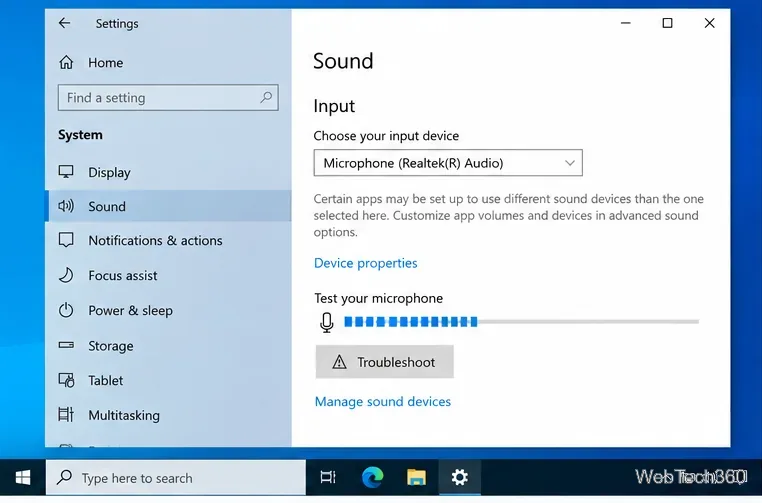
If the bar moves only a little, select Device properties and check the microphone level. On Windows 10, the classic Microphone Properties dialog can also expose Microphone and, on supported hardware, Microphone Boost controls. Raise levels gradually; excessive boost can add hiss or background noise. Microsoft's current microphone troubleshooting page documents the Windows 10 input test and level controls.
The classic Sound control panel is useful when you want to confirm that Windows sees the correct recording device independently of a specific app. Open Control Panel, choose Hardware and Sound > Sound, then open the Recording tab. You can also right-click the speaker icon on some Windows 10 builds and open Sounds.
Select your microphone and speak. The green level meter beside the device should rise and fall. If you have several microphones, identify the one whose meter reacts, then set it as the default recording device if that matches how you use the PC.
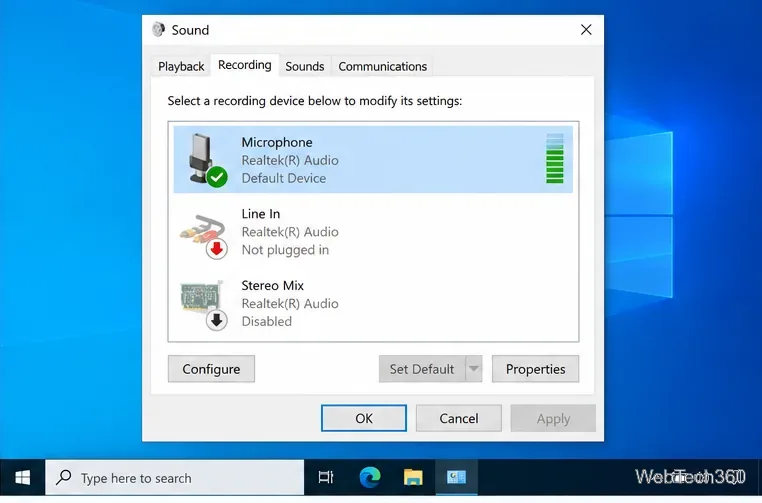
If a microphone appears here but shows no activity, check its Properties, confirm it is enabled, and inspect the Levels tab. If it does not appear at all, move to the hardware and driver checks below.
A successful Windows meter test means the microphone and basic audio path are working. The next things to check are Windows privacy permissions and the app's own input selection.
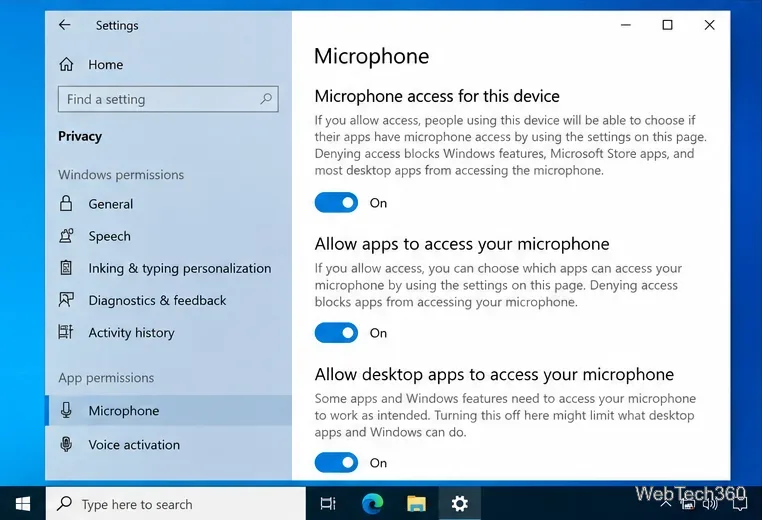
Microsoft explains the Windows 10 permission controls in its microphone app-permissions guide. Browser-based meeting sites can also have a separate site permission for the microphone, so check the browser's address-bar permission if only one website fails.
When the Windows input meter never moves, start with the simplest causes. Reseat a 3.5 mm plug, try another USB port, charge or reconnect a Bluetooth headset, and verify any inline mute button. If your PC has separate headphone and microphone jacks, make sure the plug or headset adapter matches the ports on the computer.
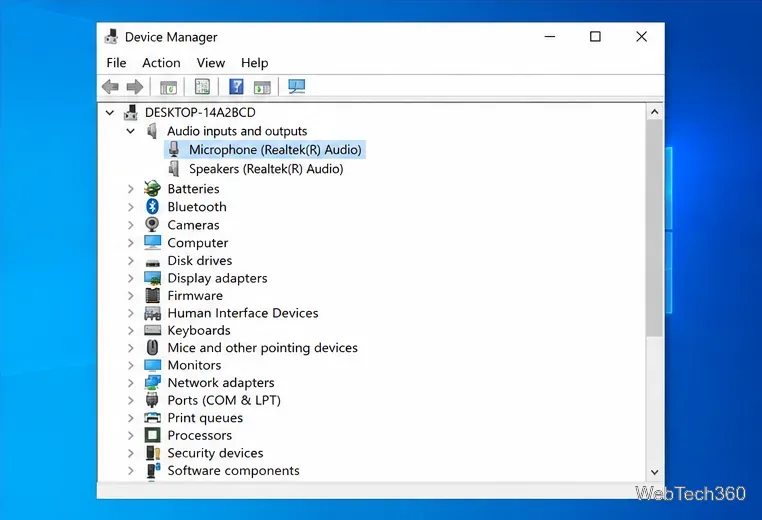
Next, open Device Manager. Check Audio inputs and outputs for the microphone, and check Sound, video and game controllers for the audio device or driver. If the hardware is missing, use Action > Scan for hardware changes. If Windows detects the device but it still does not work, update or reinstall the audio driver using Windows' device tools or the PC/audio-device manufacturer's official driver package.
You can also run the Windows 10 Recording Audio troubleshooter from Settings > Update & Security > Troubleshoot > Additional troubleshooters. It can catch common configuration problems such as an incorrect input device or disabled recording path.
Testing in this order separates a Windows-level microphone problem from an app-specific one, which makes the next troubleshooting step much clearer.
Use pushd to open a UNC network path in Windows 10 Command Prompt, run commands in the shared folder, and return with popd.
Learn how to install a Rainmeter skin from an INI file by placing it in the right Skins folder, preserving its resources, refreshing Rainmeter, and loading it in Manage.
Open one folder in its own File Explorer window with Shift or the context menu, or change Folder Options to make every folder open separately.
Pin a frequently used Control Panel applet, such as Power Options or Sound, to the Windows 10 Start menu for one-click access.
Choose a supported Windows 10 hotkey for switching input languages, assign shortcuts to individual layouts, or disable an accidental shortcut.
Move a Windows 10 app to the display you want, use its game monitor setting, and handle full-screen apps with a practical primary-monitor workaround.
Use a transparent PNG and a Rainmeter skin to keep an image watermark above windows, adjust its transparency, and make it click-through on Windows 10.
Convert stereo audio to mono on Windows 10 with Audacity. Mix both channels into one mono track, export a new file, and verify the channel count.
Use Windows 10 Clipboard history to save recent text and images, paste an earlier clip with Windows key + V, and manage sync, pinned items, and privacy.
Learn how to zoom in on a video in Windows 10 with VLC’s Interactive Zoom, or use Windows Magnifier when the clip is playing in another app.








