How to Set Different Scaling Levels for Multiple Monitors in Windows 10

Adjust each Windows 10 monitor independently with per-display scaling, keep text readable, and troubleshoot custom scaling or blurry apps.
To turn off Airplane mode in Windows 10, press Windows+A to open Action Center and select the Airplane mode quick action. You can also switch it off from the taskbar network panel or in Settings. If your PC still cannot connect afterward, check Wi-Fi separately: Airplane mode can be off while the Wi-Fi radio remains off.
Airplane mode is a fast way to disable wireless communications such as Wi-Fi and Bluetooth. Windows may remember whether those radios were on or off before you enabled Airplane mode, so turning it off does not always mean every wireless connection is ready. The Microsoft guide to network settings explains how to manage Airplane mode from the taskbar or Settings.
This is usually the quickest method on a Windows 10 laptop or tablet. Action Center opens along the right side of the screen and contains Quick actions, including an Airplane mode tile.
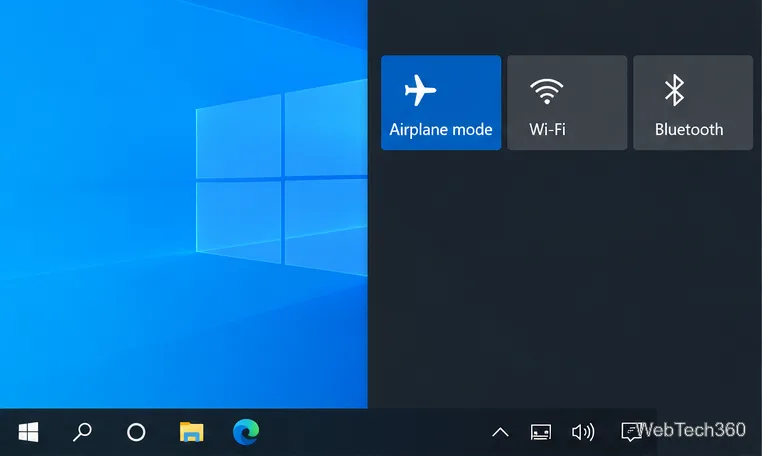
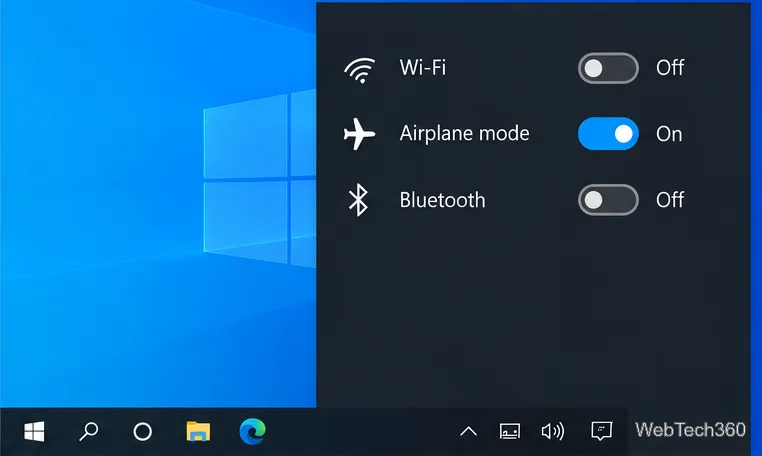
The taskbar panel gives you another direct control. The network status icon is near the clock; when Airplane mode is active, the icon may look like an airplane instead of the usual Wi-Fi or Ethernet status symbol.
The exact icon and panel layout can vary by device and Windows build. If the taskbar panel does not show the Airplane mode control, use Action Center or Settings instead.
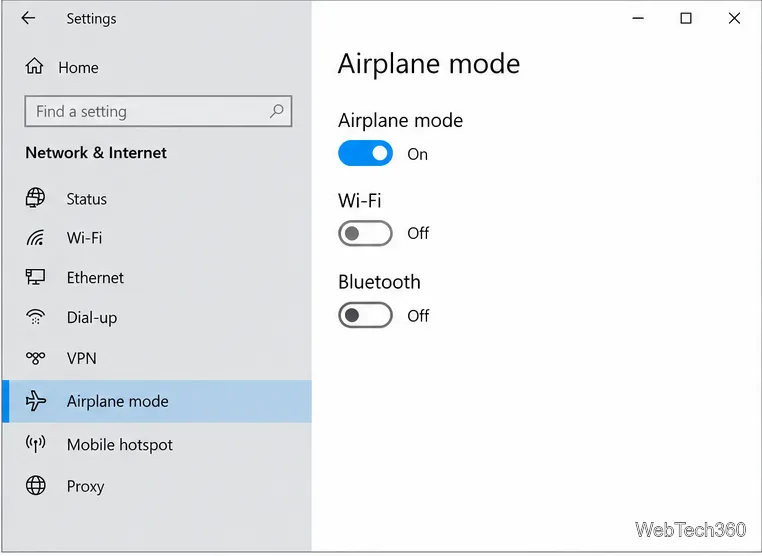
Settings is useful when you want to confirm the mode’s state or check whether Wi-Fi and Bluetooth have separate settings. This route also works when the taskbar shortcut is missing.
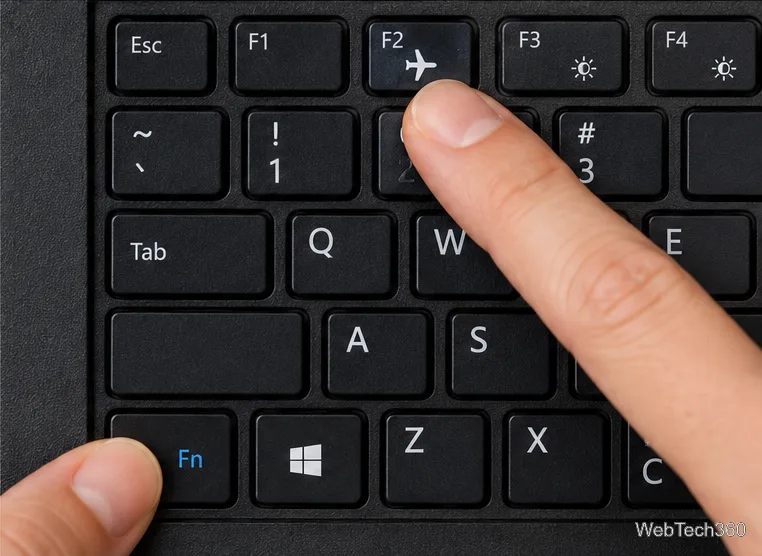
Some laptops have a physical wireless switch or a function-row key marked with an airplane, antenna, or wireless symbol. The key’s behavior depends on the manufacturer and model: it might change Airplane mode, control Wi-Fi only, or require the Fn key. There is no single keyboard shortcut that works on every Windows 10 PC.
If your laptop has a clearly labeled wireless key, use the device maker’s instructions and then verify the Airplane mode setting with one of the Windows methods above. Do not assume that a Wi-Fi key and the Airplane mode toggle are interchangeable. If the key turns Wi-Fi off by itself, Airplane mode may already be off.
Turning off Airplane mode removes that wireless restriction, but it does not connect you to a network automatically. Try these checks in order:
For more detailed diagnostics, follow Microsoft’s Wi-Fi connection troubleshooting guide. It covers checking Wi-Fi status, missing adapter controls, and other connection problems.
No. It temporarily disables wireless communications. When you turn it off, Windows may restore the Wi-Fi and Bluetooth states you used before Airplane mode was enabled. If Wi-Fi was off, switch it on separately.
Airplane mode is for wireless radios. It does not replace the Ethernet controls, so a wired connection may still work. If it does not, troubleshoot the Ethernet connection separately.
Adjust each Windows 10 monitor independently with per-display scaling, keep text readable, and troubleshoot custom scaling or blurry apps.
Use AirType’s browser pairing setup to type on an iPhone from a Windows 10 PC, with current setup steps, troubleshooting, and privacy limits.
Hide the mouse pointer in Windows 10 videos, games, and other apps with built-in typing controls or PowerToys CursorHide’s adjustable inactivity timer.
Find Control Panel Power Options on a Windows 10 desktop, open the page with a Run command, and adjust power plans, display timeouts, sleep, and button behavior.
Learn what Windows 10 deletion leaves behind, how to use SDelete on an HDD, and why SSDs and cloud backups need separate treatment.
Use FFmpeg’s DirectShow tools to open an integrated webcam’s driver properties in Windows 10, find the correct device, and troubleshoot missing controls.
Identify a keypress in Windows 10 with a browser event tester or SharpKeys, then separate layout, software, and keyboard hardware issues.
Use double quotes around each complete path with spaces in Command Prompt. Learn how to list, change to, copy, and troubleshoot Windows 10 files and folders.
Turn off the Windows 10 Start menu’s hover-to-expand behavior with a legacy Mach2 command, check build limits, and see the built-in app-list alternative.
Fix the iTunes Library.itl read error on Windows 10 by updating iTunes, restoring a compatible backup, or safely creating a new library without deleting media files.








