How to Create a List of All Items in a Folder on Windows 10

Create a searchable Windows 10 folder inventory with PowerShell. Save every file and subfolder path as plain text or export details to a sortable CSV.
To turn off Bluetooth on Windows 10, open Start > Settings > Devices > Bluetooth & other devices, then switch Bluetooth to Off. If you only need a faster toggle, open Action Center from the right side of the taskbar and click the Bluetooth tile. Turning Bluetooth off disconnects Bluetooth headphones, mice, keyboards, phones, and other paired accessories until you turn the radio back on.
Microsoft still documents both Windows 10 methods on its Bluetooth on/off support page. Keep in mind that Microsoft ended standard support for Windows 10 on October 14, 2025; the operating system still works, but most Windows 10 PCs no longer receive normal security fixes unless they are covered by an eligible Extended Security Updates option. See Microsoft's Windows 10 end-of-support guidance for current support choices.
This is the clearest method because it shows the actual Bluetooth radio state.
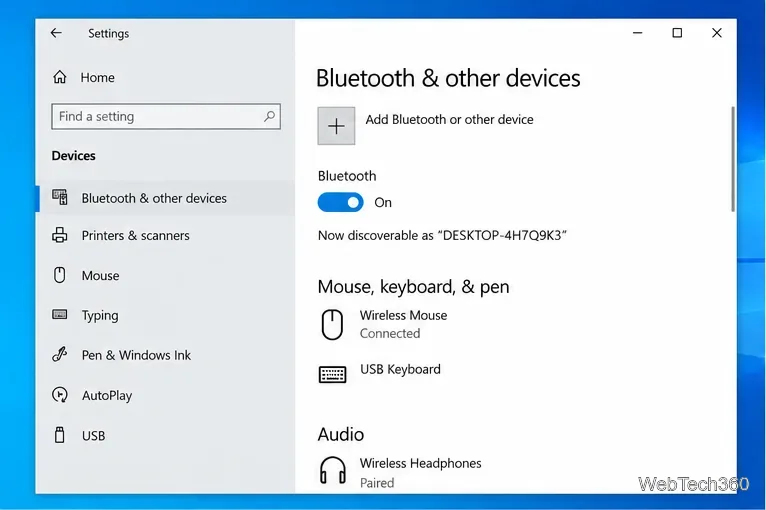
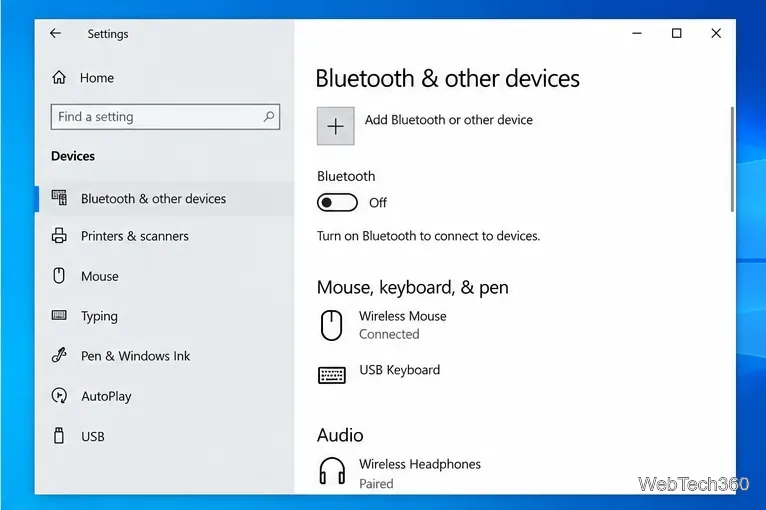
The devices listed on the page remain paired; switching the radio off does not remove them. When you switch Bluetooth back on, Windows can reconnect to paired accessories that are powered on and available.
Action Center is the quickest option when the Bluetooth tile is already visible.
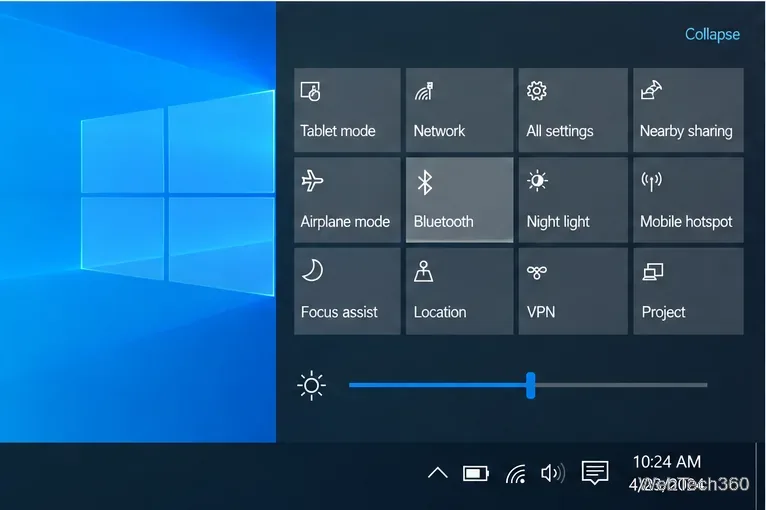
If the Bluetooth tile is missing, go to Settings > System > Notifications & actions, choose Edit your quick actions, and add Bluetooth if Windows offers it. Microsoft notes that a missing Bluetooth action can also indicate that Windows cannot detect a Bluetooth adapter or its driver.
If you want Windows to stop using the Bluetooth hardware itself rather than merely switch the radio off from Settings, you can disable the adapter in Device Manager. This is more disruptive, so use it when you specifically need the adapter disabled.
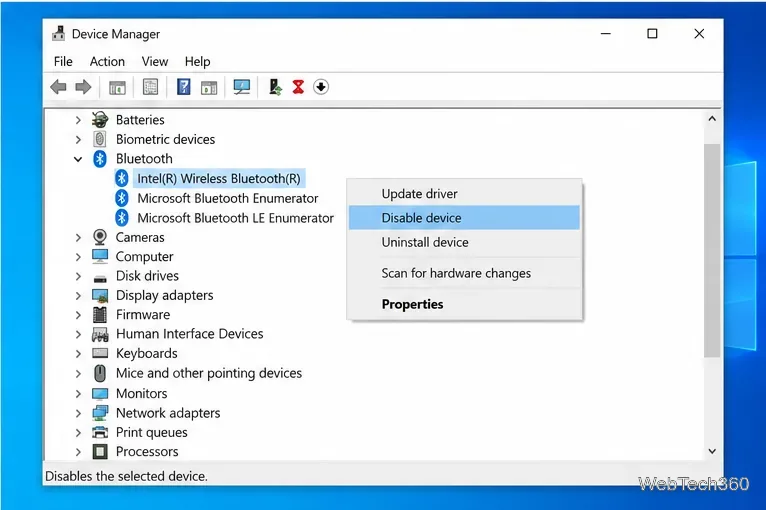
Do not disable entries such as Microsoft Bluetooth Enumerator unless you have a specific troubleshooting reason. To restore Bluetooth later, return to Device Manager, right-click the disabled adapter, and choose Enable device. Microsoft documents that a device disabled by the user appears as Device Manager error Code 22 until it is enabled again.
Some laptops include a wireless radio button or an Fn keyboard shortcut. Its behavior is manufacturer-specific: on one model it may control Bluetooth, while on another it may toggle Wi-Fi, airplane mode, or several radios together. If your laptop has such a key, check the model's manual before relying on it as a Bluetooth-only switch.
If Bluetooth & other devices has no on/off switch, Microsoft says the PC may not have a Bluetooth adapter, or Windows may not have a working driver for it. Try these checks:
Do not uninstall the adapter simply because you want Bluetooth off. Uninstalling is a driver-repair step and Windows may reinstall the device automatically after a restart.
For normal use, choose Settings when you want to verify the radio state, or Action Center when you need the fastest toggle. Use Device Manager only when you intentionally want the Bluetooth adapter disabled at the device level. All three approaches are reversible.
Create a searchable Windows 10 folder inventory with PowerShell. Save every file and subfolder path as plain text or export details to a sortable CSV.
Add a custom reminder, quote, or label to your Windows 10 desktop with a Rainmeter text skin. Create the INI file, load it, then adjust its font and position.
Use Bluetooth Swift Pair on Windows 10 to pair a compatible accessory from a notification, with setup steps and fixes when the prompt does not appear.
Learn what common laptop function key symbols mean, how Fn and Fn Lock affect them, and how to confirm the right shortcut for your Windows 10 laptop model.
Turn off your Windows 10 display instantly with ScreenSleep, set a keyboard shortcut, and see when to use the built-in screen timeout instead.
Fix the “running scripts is disabled on this system” PowerShell error on Windows 10 with a current-user policy, a temporary session option, and safe steps for downloaded scripts.
Change the Windows 10 drag-selection color with a backup-first registry walkthrough, RGB examples, troubleshooting tips, and steps to restore your original values.
Check your router’s connected-device list or scan a local network with Fing Desktop on a supported PC. Learn what each method can show and how to verify unfamiliar entries.
Messenger does not offer a documented per-friend online alert. Learn how Active Status works, where to check the green dot, and which notifications you can enable instead.
Use 7-Zip to find an exact filename or wildcard match inside a ZIP or other supported archive on Windows 10 without unpacking its files.








