Home
» WINDOWS
»
How to Turn Off Microsoft Rewards on the Windows 10 Lock Screen
How to Turn Off Microsoft Rewards on the Windows 10 Lock Screen
How to Turn Off Microsoft Rewards on the Windows 10 Lock Screen
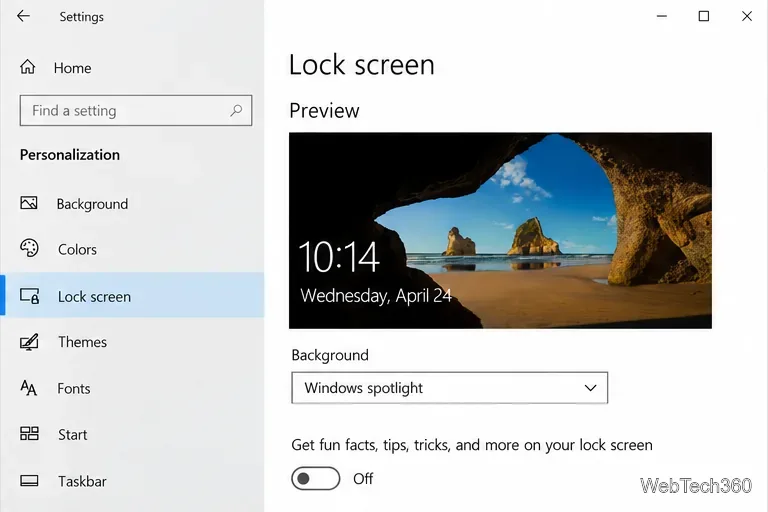
If a Microsoft Rewards offer or promotional message appears on your Windows 10 lock screen, first turn off Spotlight’s extra content. Open Settings > Personalization > Lock screen, then switch off Get fun facts, tips, tricks, and more on your lock screen. This setting controls extra lock-screen suggestions; it does not disable your Microsoft Rewards account or remove earned points.
Check whether it is a Spotlight tip or an app notification
Windows Spotlight rotates images on the lock screen and can also display tips, tricks, and other Microsoft content. Microsoft documents the content toggle under Personalization, although its support page does not identify that control as a Microsoft Rewards switch. So if the item you want to remove is a Spotlight message, disabling those extras is the relevant setting. The precise wording or content may vary across Windows 10 releases.
A mail alert, calendar reminder, or similar item is different: it comes from an app notification. Turning off Spotlight suggestions will not hide those alerts. Use the notification setting later in this guide if you want to keep the wallpaper but remove app notifications from the lock screen.
Turn off extra Spotlight content
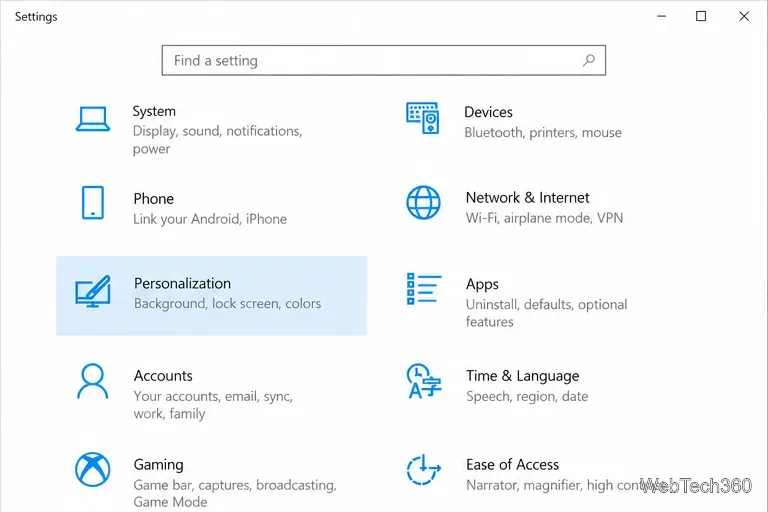
Press Windows key + I to open Settings. You can also select Start > Settings.
Choose Personalization, then select Lock screen in the left pane.
On the Lock screen page, find the option for fun facts, tips, tricks, and other content. Switch it Off. Depending on your Windows 10 release, the label may instead say “Get fun facts, tips, and more from Windows and Cortana on your lock screen.”
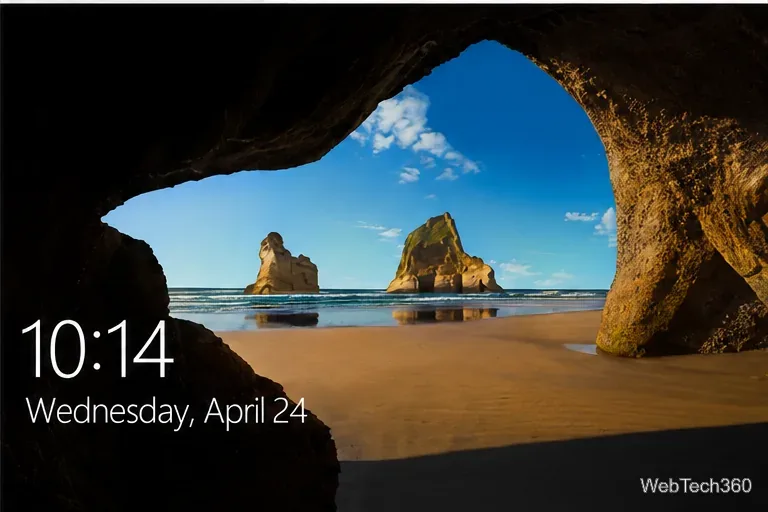
Press Windows key + L to lock the PC and check the result.
Open Personalization in Windows Settings, then choose Lock screen.Switch off Spotlight’s extra lock-screen content while leaving the background selection as you prefer.
You can leave Background set to Windows spotlight if you still want its rotating pictures. The tips and suggestions control is separate from the background selector, so the wallpaper may continue to change even when extra text is disabled. Microsoft’s Lock screen customization guide describes the background choices and the extra-content option.
Hide app notifications from the lock screen
If the unwanted item looks like an alert rather than text over the Spotlight image, change the notification setting instead:
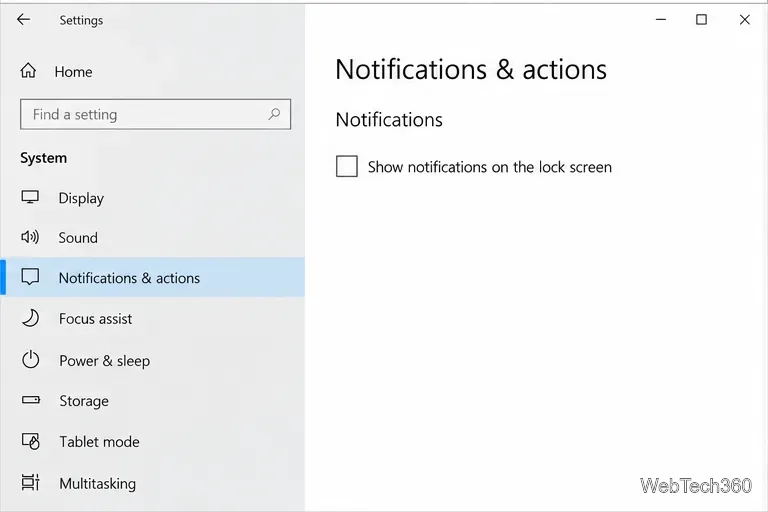
Open Settings > System > Notifications & actions.
Under Notifications, clear Show notifications on the lock screen.
If reminders or incoming VoIP calls still appear, clear the separate option for showing those on the lock screen as well.
Clearing this checkbox hides app notifications on the lock screen.
This change affects what appears before you sign in; it does not turn off notifications on the desktop. If only one app is causing the interruption, find it in the list of notification senders and adjust that app’s notification settings. Microsoft explains the Windows notification controls in its Notifications and Do Not Disturb guide.
If the message is still there
Identify where it appears. A tip displayed as part of the Spotlight background is controlled by the Personalization setting. A banner, app icon, or reminder is governed by notification settings.
Check the exact switch again. Some Windows 10 versions use the older wording that mentions Windows and Cortana. Turn off the option that refers to fun facts, tips, or suggestions on the lock screen.
Do not use the wallpaper as the test. The Spotlight image can remain after tips are disabled. Check for the message or offer itself, not whether the photo changes.
Keep the scope in mind. The Spotlight switch does not change Rewards membership, points, or other Microsoft services. The notification checkbox hides lock-screen alerts, not desktop notifications.
After changing the setting, check the lock screen for the promotional text or app alert you wanted to remove.
Windows 10 support status
These steps apply to Windows 10’s Settings interface. Microsoft ended free Windows 10 software updates, technical assistance, and security fixes on October 14, 2025. A PC can continue to run Windows 10, but Microsoft recommends moving to Windows 11 where the device is eligible. See Microsoft’s current Windows support information for details.